LanguageTool
approvedby wrenger
Forked from Clemens-E/obsidian-languagetool-plugin
Unofficial integration of the LanguageTool spell and grammar checker.
Obsidian LanguageTool Plugin
This plugin for Obsidian.md integrates LanguageTool to provide advanced grammar and spellchecking.
This is a fork of the original obsidian-languagetool-plugin, with the following changes:
- Support for synonyms and mother tongue
- Tooltip button for disabling rules
- Note-specific settings
- Clean up the codebase, and fix multiple bugs and freezes
Note: if you are worried about the privacy of your notes, you should self-host LanguageTool locally on your PC or on a server. If you decide to self-host the service, you must change the link in the configuration accordingly.
Installation
- In Obsidian, under Settings / Community plugins, turn off "Safe mode" (read the safety warning).
- Click the Browse button for Community plugins.
- In the top-left search field, search for "LanguageTool". Click the Install button.
- After the installation is successful, click Enable to enable the plugin.
Setting Up & Use Case
After installing and enabling the plugin, you can set up hotkeys (under Settings / Hotkeys), which can be found under the description "LanguageTool" through the Filter search field, to find specific hotkey functions quicker. Ensure no conflict exists with existing hotkeys and the spellcheck function within Obsidian if enabled (Settings / Editor / Spellcheck ON/OFF).
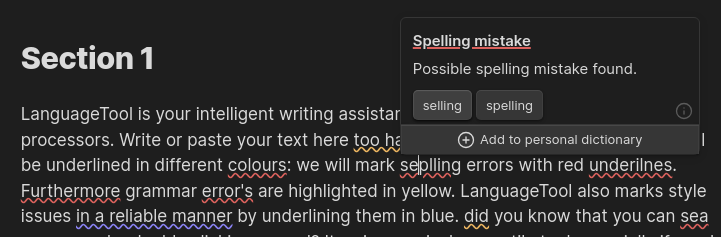
- "Check Text" checks the whole document in view if no text is selected. If you want to check only a word, sentence, or paragraph, select the text of choice and press the keyboard shortcut you have previously set. Click on the red underlined word that LanguageTool identified as a possible spelling mistake to get corrective suggestions in a popover window, with the option to add the word to a personal dictionary.
- "Clear Suggestions" clears the document or selected text of all red underlines from words or passages that were not corrected or changed.
- "Toggle Automatic Checking" toggles ON/OFF the automatic spellchecking function as you write or change the document's contents.
LanguageTool tries to auto-detect the language used. Selecting a specific language (under Settings / LanguageTool / Static language) usually is not necessary. This feature enables the user to spellcheck in different languages within the same document (e.g., a dissertation written in English with quotes in a foreign language), which is ordinarily not possible with the built-in spellcheck function of Obsidian.
Custom Spellchecker Dictionary: You can add words to this dictionary directly from the editor and remove them again in the Obsidian settings (Settings / LanguageTool / Spellcheck Dictionary).
Note-Specific Configuration
You can overwrite various configuration options in notes. This allows you to customize LanguageTool for a specific note. The following settings can be in the note's properties:
---
lt-language: en-US     // text: language code or "auto"
lt-picky: true         // boolean: Provide more style suggestions
lt-autoCheck: true     // boolean: Check as you type
lt-dictionary:         // multitext: Ingored word
  - foo
  - bar
lt-disabledRules:      // multitext: Ignored rules
  - ARROWS
lt-disabledCategories: // multitext: Ignored categories
  - STYLE
---

# Some Note...
Premium Accounts
We support LanguageTool Premium.
⚠️ Please report any bugs, issues, or suggestions related to this plugin to us (this GitHub repository) directly and not to LanguageTool, as this is an unofficial community plugin.
You (obviously) need a premium account and an API key to use the premium features. You can generate your API key at https://languagetool.org/editor/settings/access-tokens
Configure your email, API key, and the new URL (https://api.languagetoolplus.com) in the plugin settings
Manually Installing the Plugin
- Run
bun installandbun run buildin the root directory of the repository. - Copy over
main.js,styles.css,manifest.jsonfrom the latest release to your vaultVaultFolder/.obsidian/plugins/languagetool/.
For plugin developers
Search results and similarity scores are powered by semantic analysis of your plugin's README. If your plugin isn't appearing for searches you'd expect, try updating your README to clearly describe your plugin's purpose, features, and use cases.