lilbee
approvedby tobocop2
A local AI search engine and native LLM manager for your vault, with a built-in web crawler. Ask it anything and get cited answers (local RAG). Works with Ollama, LM Studio, and frontier models too. - This plugin has not been manually reviewed by Obsidian staff.
lilbee
The whole local AI stack for your vault. It downloads the models, runs them, and turns your notes into a search engine you can talk to.
Project site · Tutorial reel · Releases · lilbee engine
This plugin runs lilbee against your vault, inside Obsidian:
- Chat with click-to-source citations
- A web crawler that saves sites to your vault
- An auto-generated wiki
- A model catalog
The plugin downloads and manages the server and the models. Nothing else to install. No Ollama required, but lilbee uses your Ollama, LM Studio, or cloud models if you have them.
Everything runs on your computer. Cloud models are opt-in, per role.







Ask a question in plain English. lilbee answers from your vault, and every citation clicks straight back to the source line.
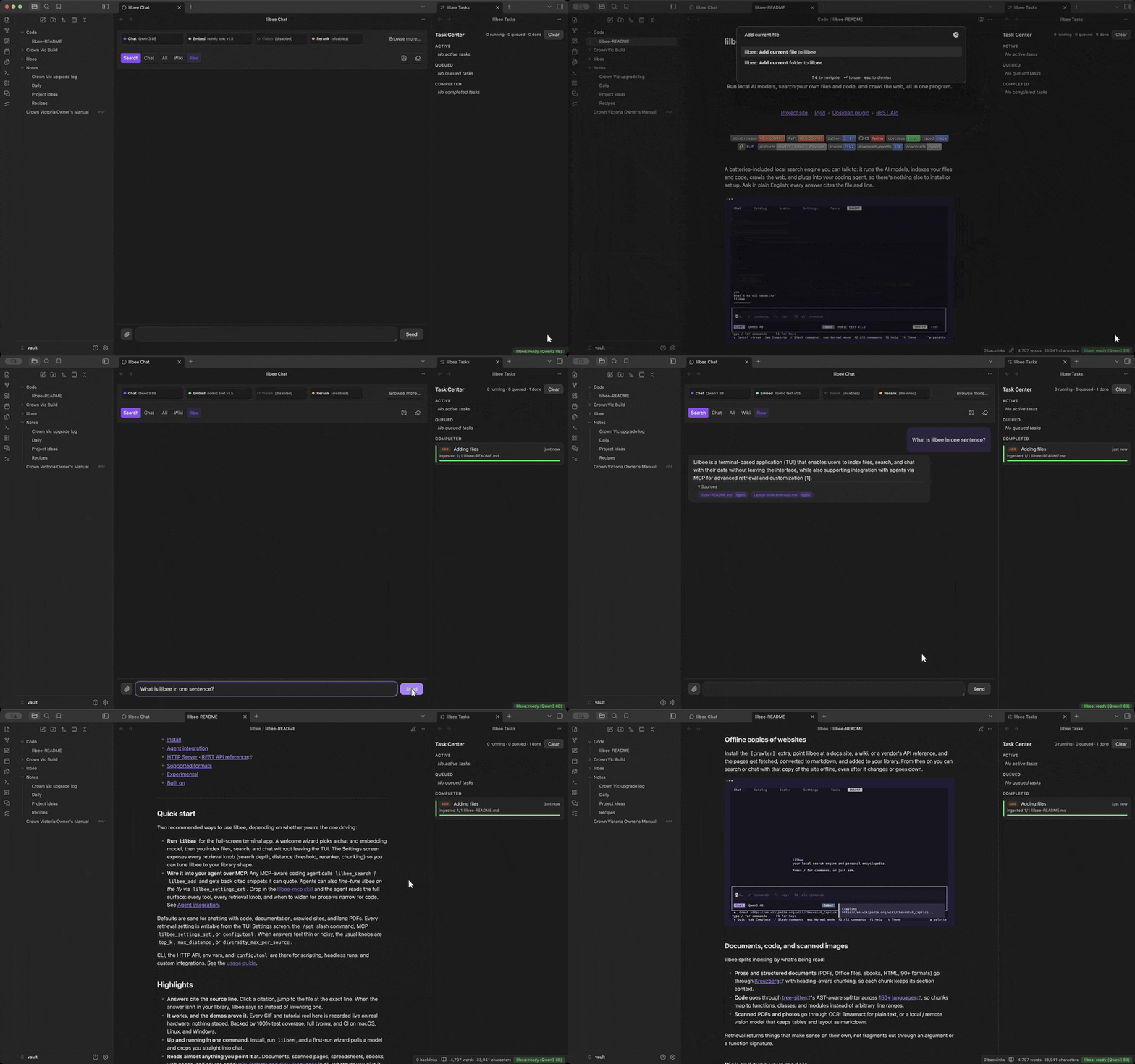
Tutorial reel: every recording on this page, and a few extras, as videos with longer notes at obsidian.lilbee.sh/tutorial.
Now in the Obsidian community plugin store
lilbee is an official community plugin. Install it from Settings → Community plugins inside Obsidian. Nothing else needed. Feedback, bug reports, and issues are very welcome.
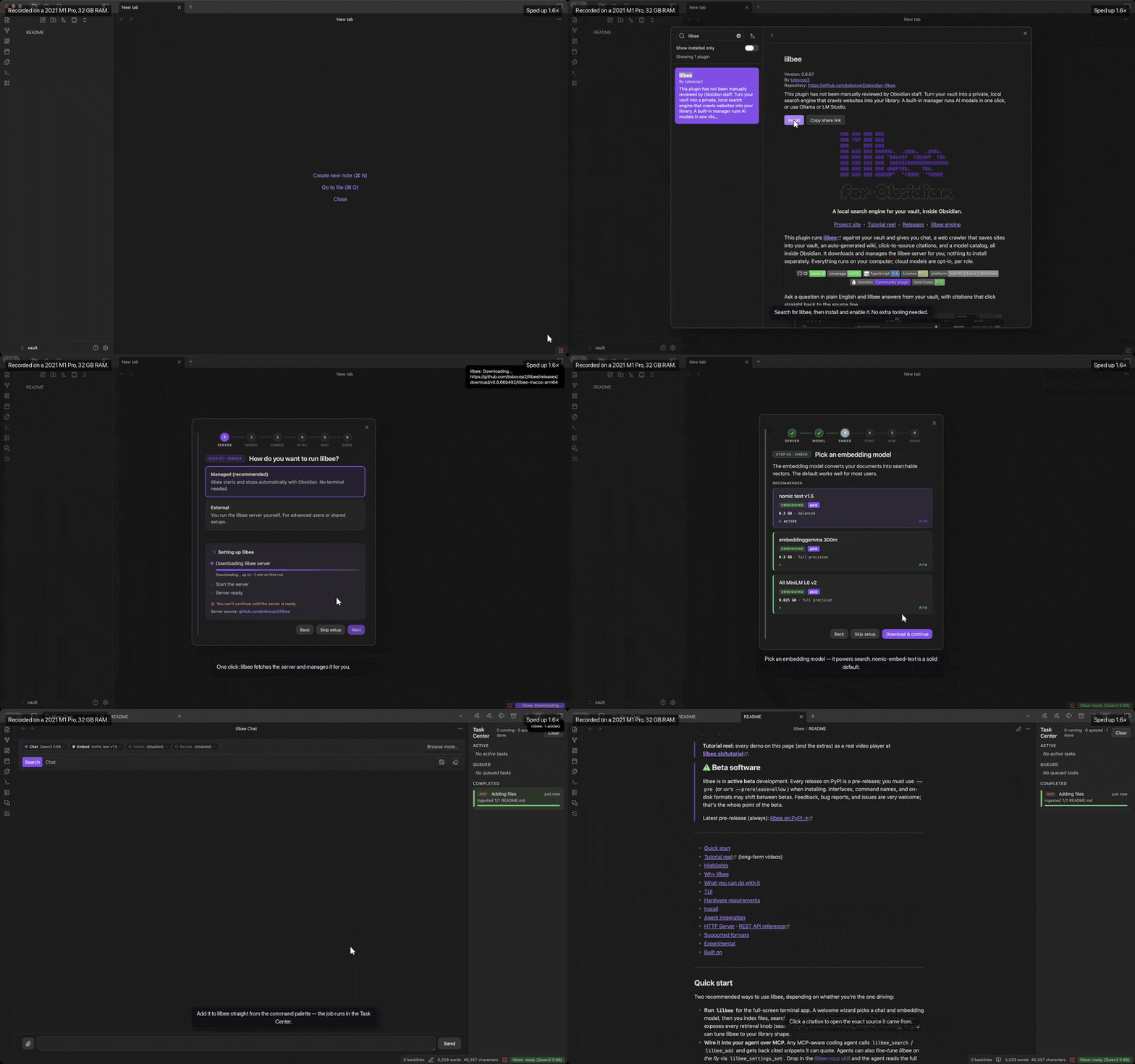
Heads up: this downloads to your computer. lilbee is a local search engine with its own models. On first launch the plugin fetches the lilbee server, a few hundred MB. It fetches each model you pick from the catalog when you pick it, a few hundred MB up to several GB each. It's all stored locally and runs on your machine.
- Highlights
- Tutorial reel (long-form videos)
- Why a local search engine for Obsidian
- How it compares
- What you can do with it
- Quick start
- Open the chat
- How it works
- Privacy & network use
- Updating the plugin
- Changing the server version
- Uninstalling
- Documentation
Highlights
- Ask your vault in plain English. Type a question and get an answer with citations that click straight back to the source line.
- Verify in one click. Every citation opens a Source Preview scrolled to the exact spot. Surrounding paragraphs stay visible, and the cited lines are highlighted.
- Save websites into your vault. Crawl a single page or a whole docs site and the pages land in your vault as markdown notes. You search, chat with, and cite them offline, even after the site changes or goes down.
- Reads more than markdown. PDFs, Office files, ebooks, CSV / TSV / JSON / YAML, 150+ programming languages, plus OCR for scans and photographed pages.
- Your models, your machine. Browse a built-in model catalog straight from Hugging Face Hub, then pull one with a click and run it locally. No account needed.
- Spreads models across your GPUs. Chat, embedding, reranking, and vision run as a fleet. lilbee places them for you, and splits a model too big for one card across several. A GPU placement view lets you assign roles to cards by hand on a multi-GPU box.
- Already on Ollama or LM Studio? Keep them. lilbee manages models for you by default, but it works with both. Their models appear in the same pickers, alongside lilbee's own, so you never have to switch model managers.
- Saved chat history. Every chat is saved to disk as you go and titled from your first question. Reopen, rename, or delete any of them from the history button. When a chat outgrows the model's context window, lilbee can replace the oldest messages with a summary rather than drop them. Off by default.
- Runs on your computer. Server, models, index, and vault all stay local. Cloud models are opt-in per role, with a persistent indicator when one is active.
- Remembers what you tell it. Turn on memory and lilbee holds onto durable facts about you and how you like your answers. It recalls the relevant ones in later chats, no matter which conversation they came from. Off by default, managed from a Memories view, and never mixed into your citations.
- An auto-generated wiki (off by default): linked markdown pages written from what you've indexed. Every page is citation-checked before publish, and lands in your vault as ordinary notes, in your graph alongside your own.
Why a local search engine for Obsidian
A vault is already a curated set of documents. Notes you've taken, PDFs you've collected, scans you've filed away. That's exactly what a local search engine wants.
This plugin points lilbee at your vault. A local model then reasons over your library with retrieval-augmented generation (RAG), and answers with citations you click straight back to the source.
An Encarta 99 you build for yourself, from your own vault, shaped to your needs.
https://github.com/user-attachments/assets/cd47e0dd-a144-4676-adbc-ce0f05235adb
How it compares
| lilbee | LM Studio | Ollama | |
|---|---|---|---|
| Primary focus | local search and chat over your vault, inside Obsidian | desktop app to run and chat with models | local model runner with a growing ecosystem |
| Runs local models | ✓ | ✓ | ✓ |
| Search your own files, with citations | ✓ full RAG pipeline, inline per-line citations | per-session doc attachment (RAG, document-level citation) | — |
| Chat, embedding, vision, rerank as one managed fleet | ✓ all four, coordinated | chat, embed, vision (no rerank), loaded individually | chat, embed, vision (no rerank), loaded individually |
| Multi-GPU model placement | ✓ with a live placement view | ✓ GPU selection + tensor parallelism (CUDA) | ✓ auto multi-GPU offload |
| Web crawler built in | ✓ built in | — | — |
| Long-term memory (opt-in) | ✓ opt-in | — | — |
| Use your existing Ollama / LM Studio / cloud as a backend | ✓ how | — | — |
The lilbee README has a full comparison table. It adds the many-user serving story against vLLM, model sizes, and the interface list.
What you can do with it
A library of your vault
Point lilbee at your vault. It builds a searchable library from every note, PDF, ebook, and code file.
The pattern works for any vault you've curated:
- a medical-textbook collection
- a field's research papers
- a company wiki
Whatever it holds becomes searchable, and you can talk to it.
Add a single file from the right-click menu or the command palette. Run Sync vault to index everything at once. Background jobs run in a Task Center: sync, crawl, wiki build, and model downloads. Chat and search keep working while they run. The Task Center runs two jobs at a time, so anything you start beyond that waits in the queue for a free slot.
https://github.com/user-attachments/assets/1b708696-9362-42f6-84d7-b7488bf51b9e
Offline copies of websites, inside your vault
Watch it: crawl the web into your vault. Fetch a Wikipedia page, then ask a cited question against the saved copy.
Crawl a docs site, a wiki, or a vendor's API reference. The pages land in your vault as ordinary markdown notes.
Grab a single page or a whole site. Whole-site crawls follow internal links, with depth and page caps when you want them.
From then on you search or chat with that copy offline. The citations click back to the saved page, even after the site changes or goes down.
https://github.com/user-attachments/assets/47e4093a-ccb3-4990-be8e-604981354d8b
Pair a coding agent with your library
Watch it: pair a coding agent with lilbee. One click connects the agent to your models and your library; it crawls a page in, answers a cited question, and writes a note back to your vault.
The rest of the plugin searches and answers with citations. This takes those same local models further: it puts them behind a coding agent that can act on your vault, not just answer questions. The agent crawls new pages into your library, searches it, and writes notes and code back — multi-step work on your knowledge base, driven by models you host.
Install a coding-agent plugin like Claudian alongside lilbee and pair them in one click from a first-use prompt. The agent thinks on the models lilbee manages and reaches your library through lilbee's tools. No API key, no account, nothing leaves your machine. lilbee writes the agent's config with the live server address and token and keeps it fresh on every start, so the pairing never goes stale. Switch which agent or model it uses any time in Settings.
https://github.com/user-attachments/assets/49587a2b-77c8-4117-922c-972e4184df4c
An encyclopedia of your documents
Watch it: an encyclopedia of your documents. Browse the pages as notes, follow a link, then ask for a subject it hasn't written and watch it write one.
lilbee reads everything you have indexed and writes a wiki about it. Pages compound across sources rather than one per document: a concept or a name that recurs gets its own page, cited from every source that mentions it.
The pages are ordinary markdown in a vault folder (default lilbee-wiki/), with [[wiki links]] between them. So they are not trapped in a plugin panel. You open them like any note, click through them like any wiki, and they show up in Obsidian's graph and backlinks beside your own writing.
It also knows what it has not written. Subjects your documents name but no page covers are listed alongside the real ones, dimmed. Ask for one and it writes that page on the spot, on your own GPU, cited like the rest.
Every section is citation-verified and scored for faithfulness before publish. Low-confidence pages land in a drafts queue you can accept, reject, or edit. A lint command surfaces stale or broken citations by page.
Off by default, because building a wiki is real GPU work. Turn it on in the setup wizard or in settings.
https://github.com/user-attachments/assets/ac87257e-4777-46ee-9970-ba849553f235
Verify every answer at the source
Every citation in a chat reply or wiki page is a live link. Click it and a Source Preview opens, scrolled to the exact spot. Surrounding paragraphs stay visible and the cited lines are highlighted. From there you open the full document or copy a deep link back.
A confident answer with a footnote is only as good as the footnote, so the check is one click instead of a separate chore. It works for crawled web pages too, where citations link back to the saved copy in your vault.
Ask for several things at once
Put more than one question in a single prompt. lilbee answers each one from wherever it lives in your library, with a separate citation per fact.
https://github.com/user-attachments/assets/b168dd6f-2a3d-4aba-bde0-ecdd4ae35776
Saved chat history
Every chat is written to disk as you go, titled from your first question. The history button in the chat toolbar lists them all. Reopen one and the full transcript comes back. Rename and delete them from the same list.
The lilbee server stores the chats on your machine, not in the cloud.
https://github.com/user-attachments/assets/af08ae94-4795-4c0f-84e6-dcaf247e0084
Replacing old messages with a summary (optional)
Every model has a fixed context window. Once a chat is longer than that window, the oldest messages drop out of what the model is sent. It no longer knows what you told it earlier.
Turn on Condense long conversations in Settings. lilbee replaces those old messages with a summary and keeps sending that summary with each question. The transcript on screen still shows every message. Only what is sent to the model changes.
It's off by default because it costs something. Writing the summary takes extra model calls before your answer arrives: a few seconds on a GPU, longer on CPU. A summary also holds less detail than the original messages. Turn it on for long chats where the earlier context matters. Leave it off for short ones.
https://github.com/user-attachments/assets/8053e701-f110-4027-a4d4-20417158a1fb
Pick and tune your models
Chat, embedding, vision, and reranking are separate roles. Each one has its own model.
Open the Model Catalog from the command palette or the chat toolbar. It browses featured picks or searches Hugging Face Hub. It shows each model's size and memory before you pull, and flags the ones that won't run on your hardware.
The defaults are sensible out of the gate. Settings exposes the retrieval and generation knobs when you want to go deeper, each with a reset.
https://github.com/user-attachments/assets/e291ac56-9dee-434e-ad89-647cb50d5aa9
Each role sits on the chat rail. You see what's active and switch it mid-conversation. Hover a pill to see what that role does.
https://github.com/user-attachments/assets/05392ae4-59f2-4997-8a87-16ecbf8eb28f
Reranking
Reranking is an optional role. It re-reads the retrieved passages against your actual question before the model answers, and promotes the ones that really answer it.
Plain vector search is fast but literal. When the note that holds your answer is worded around the cause rather than your question's keywords, it can rank just below the cut. The model then answers from the wrong note.
Turn reranking on in Settings when answers keep citing almost-right notes. It costs a moment of extra latency per question.
Run a model bigger than one card
When a chat model won't fit on one GPU, lilbee spreads it across the cards you have. It places the embedding, vision, and reranking models alongside it.
The plugin's GPU placement view shows it all live: every card's utilization and memory, and which role runs where. The same view works on a single card. The demo at the top of this page is an Apple Silicon Mac with its one GPU doing everything.
Here it is on a three-A100 box. A 235B model answers from an indexed codebase while every file embeds across all three cards. The lilbee architecture notes cover how placement decides what goes where.
https://github.com/user-attachments/assets/d98d6d34-0081-4153-b771-73d20d3b2a3c
Prefer to place things yourself? Switch to manual. Pin each role to the cards you choose, preview the fit before anything loads, then apply it live. Ask for a layout that can't fit and the view names the shortfall, instead of failing at load time.
https://github.com/user-attachments/assets/e6f1c428-b672-45a4-9edb-3817f806c8d0
Place models across your GPUs
lilbee runs its models as a fleet. Chat, embedding, reranking, and vision each run in their own process, and lilbee decides where they go.
On a single GPU or a Mac's unified memory there's nothing to decide, so it runs everything together. With two or more GPUs it packs the roles across your cards automatically, and splits a model that's too big for one card across several.
The GPU placement view (command palette: Open GPU placement) shows where every role runs and how much memory each card has free. On a single device it's a clean read-out of your hardware and what's loaded on it. Worker counts for that case live in Settings under Hardware / fleet.
On a multi-GPU box you can take over. Switch to manual, toggle which cards each role runs on, and set how many embedding or vision workers run in parallel. Preview the fit, then apply. lilbee rebuilds the fleet on the spot, and flags any role that won't fit before you commit.
Applying placement over HTTP is enabled automatically for the plugin's managed server. If you point the plugin at a server you run yourself, set LILBEE_ALLOW_HTTP_PLACEMENT=true on it to edit placement from here. Otherwise the view stays a read-only read-out.
Already running Ollama or LM Studio? Keep them.
lilbee has its own model manager and multi-GPU fleet, built on llama.cpp. Downloading, running, and updating models for you is the default, and the simplest path. There's no second app to think about.
Battle-tested managers are supported too, so you don't have to switch model managers to use lilbee. If your models already live in Ollama or LM Studio, point lilbee at the running server. They show up in the same Chat / Embed / Vision / Rerank pickers, next to lilbee's own models and any cloud models. Each one is labeled by where it runs. You keep managing them in the app you already use, and lilbee just uses them.
Pick whichever fits how you already work, and mix all three freely.
Open the catalog's Hosted tab. Pick one Ollama model for embedding and another for chat, and the whole pipeline runs on Ollama:
https://github.com/user-attachments/assets/34e954fb-7307-4dd3-8426-c8e37c503a98
The same flow works with LM Studio's local server:
https://github.com/user-attachments/assets/561e5666-1e1c-403a-9c18-9603a2bb400f
Documents, code, and scanned images
Your vault is full of more than markdown. lilbee handles the rest:
- Prose and structured files. PDFs, Word / Excel / PowerPoint, ebooks, CSV / JSON / YAML. Each chunk keeps its section context.
- Code, 150+ languages. Split along real functions and classes, not arbitrary line ranges.
- Scanned PDFs and photographed pages. Read with OCR, including a local vision model that keeps tables and layout intact. It's a per-vault toggle in Settings.
https://github.com/user-attachments/assets/310e5dda-ab2b-4e7b-8cdb-573ebd4d027d
Cloud models, when you want them
By default everything stays on your machine: server, models, index, vault.
Some roles benefit from a cloud model, such as vision OCR or long-context summarization. Settings → Advanced lets you key in an API endpoint for one role while the rest stay local. A persistent indicator shows whenever a cloud model is the active backend, so it's clear when chunks are leaving the machine.
With your own key, hosted frontier models appear under the catalog's Hosted tab too. Pick a free-tier Gemini model for chat and keep embedding local. The answer comes from Gemini and still cites your own documents:
https://github.com/user-attachments/assets/9ca80ff0-ca6a-46b1-82a6-f4184d17d5cf
Quick start
- In Obsidian, open Settings → Community plugins → Browse, search for "lilbee", then Install and Enable. (Or start from the store listing.)
- The Setup Wizard auto-launches. Pick a chat model and an embedding model from the featured grid, then run the initial sync.
The plugin downloads and manages the lilbee server for you, so there's nothing to install separately. The first launch fetches the right version for your platform and verifies it before starting.
Wait for the status bar to show lilbee: ready, then open the chat. The first-run reel near the top walks the whole flow, with a longer cut on the tutorial page.
Hardware note: the server runs on your CPU or GPU. A Mac with Apple Silicon (M1+) or a PC with an NVIDIA / AMD / Intel Arc GPU gives the best performance. 8 GB of RAM is the minimum, and 16 to 32 GB is recommended. See lilbee's hardware requirements for the full table.
Open the chat
Once the status bar shows lilbee: ready:
| Platform | How to open chat |
|---|---|
| macOS | Cmd + P → type lilbee: Open chat → Enter |
| Windows / Linux | Ctrl + P → type lilbee: Open chat → Enter |
The chat panel opens in the sidebar. From there you ask questions or attach individual files. Run Sync vault (Cmd/Ctrl + P → "lilbee: Sync vault") to index everything at once. Every lilbee surface is reachable from the command palette: the model catalog, the Task Center, and chat.
Search vs Chat
A toggle at the top of the chat panel picks how each reply is answered:
- Search (the default) answers from your vault. It retrieves the most relevant passages and replies with citations you click straight back to the source. Use it for grounded answers about your own notes, PDFs, and crawled pages.
- Chat turns retrieval off and talks to the model directly, like a plain assistant. No vault lookup and no citations, just the model's own knowledge. Use it for a quick general question, or to keep riffing without pulling your notes into the answer.
It's the same model either way. The toggle only decides whether your library is searched first.
Showing the model's thinking (optional)
Reasoning models work through a problem before they answer. Show thinking is an optional toggle in Settings, next to the chat mode setting. Turn it on to see that thinking in a collapsible block above each reply, or leave it off to just get the answer.
It's off by default, and it has no effect on models that don't produce a separate reasoning step.
How it works
The plugin runs lilbee in the background. On first launch it downloads the right version for your platform, starts it, and shuts it down when you close Obsidian.
Your vault is what it searches. lilbee handles indexing, retrieval, generation, and the wiki. The plugin is the interface on top.
Vaults on the same computer share one lilbee install and one model cache. Downloaded models are reused instead of fetched again, and each vault keeps its own isolated index.
One vault at a time. lilbee follows whichever vault you have open, and re-targets automatically when you switch. Each vault's index is saved and restored when you reopen it. (Advanced users can point the plugin at their own lilbee server from Settings → Connection.)
macOS users: the server binary is unsigned, because Apple charges $99/year for signing. The plugin clears the quarantine flag automatically. If macOS still blocks it, go to System Settings → Privacy & Security and click Allow Anyway. See the lilbee source if you want to audit the build.
Updating the plugin
Obsidian handles plugin updates: Settings → Community plugins → Check for updates, then update lilbee like any other plugin.
Changing the server version
The plugin tracks the installed lilbee server version. Settings → lilbee → Server version shows it next to a dropdown of recent releases. Pick a release and the button says what it will do:
- a newer release: Update to 0.6.76
- the one you already have: Reinstall, which also repairs a corrupted download
- an older release: Downgrade to 0.6.72, for when a new build misbehaves
Whichever you pick, one click stops the running server, downloads the build, verifies it, and starts it again.
The plugin is built and tested against the latest server release. Older releases still install and run, but they aren't supported, and features the plugin expects can be missing.
This changes only the lilbee server, never the plugin itself. Obsidian updates the plugin's own code like any other community plugin.
The download streams to disk and reports its progress as a percentage. Every server download is checked against the SHA256 digest GitHub publishes for the release. A corrupted or tampered download is discarded instead of executed, and a failed download never replaces the server you already have.
Uninstalling
In managed mode (the default) the plugin downloaded a server executable and a model cache. Both live outside your vault, and Obsidian doesn't know about either, so removing the plugin won't remove them.
Open Settings → lilbee → Uninstall server first. It deletes the executable, this vault's index and saved chats, and the models every vault on this computer shares. It tells you how much space that frees before you confirm. Your notes are never touched. Then remove the plugin the usual way, from Community plugins.
Uninstalling the server doesn't disable the plugin. Settings shows an Install server button, and lilbee stays quiet until you click it.
If you already removed the plugin, delete the data directory yourself:
macOS     ~/Library/Application Support/obsidian-lilbee
Linux     ~/.local/share/obsidian-lilbee
Windows   %LOCALAPPDATA%\obsidian-lilbee
In external mode the plugin downloads nothing, so there's nothing to clean up beyond the server you installed yourself.
Advanced
By default the plugin downloads and runs the server for you, and stores everything under your OS data directory. That's the easiest path.
The plugin is just as happy talking to a server you run yourself. That unlocks the fun setups:
- a beefier machine on your LAN
- a GPU box in the cloud
- one server shared by several tools
Run your own server (external mode). Install lilbee by following the official install instructions, run lilbee serve yourself and point the plugin at its URL in Settings → Server mode → External. How you keep it running is up to you: a systemd unit, a launchd / brew services agent, or whatever daemonization tool you prefer. See running lilbee as a service and the HTTP server docs for the per-platform recipes.
How authentication works. On first start, lilbee serve generates a random session token and writes it to server.json in its data directory, readable only by your user. Every request that can change anything must present that token as an Authorization: Bearer header. On the same machine, clients prove they're you by reading the file, which is what the plugin's managed mode does automatically.
For external mode, open server.json under the server's data directory, copy the token value, and paste it into Settings → Session token. It's the same trust model as a Jupyter notebook token or an X11 cookie: possession of the local file is the credential.
Connect to a remote server. The token is a bearer credential and the API speaks plain HTTP, so don't expose the port to a network raw. The recommended setup keeps the server bound to 127.0.0.1 on the remote box, and reaches it over an SSH tunnel:
# on the remote box
lilbee serve --port 7433

# on your machine: forward a local port through SSH
ssh -N -L 7433:127.0.0.1:7433 you@remote-box
Then set the plugin's server URL to http://127.0.0.1:7433 and paste the remote box's session token. Anything fancier works the same way: TLS via a reverse proxy, Tailscale, a VPN. Give the plugin the reachable URL and the token, and keep the transport encrypted.
Move where lilbee stores its data. Set LILBEE_DATA in your shell before launching Obsidian:
export LILBEE_DATA="/path/to/lilbee-data"      # macOS / Linux
# Windows (PowerShell):
#   $env:LILBEE_DATA = "D:\lilbee-data"
Privacy & network use
Everything runs on your machine by default, and the plugin tells you when that changes. Here is exactly what it does, and what leaves your computer:
- Managed or external server. The plugin talks to a local lilbee server over
127.0.0.1. In managed mode (the default) Obsidian runs the server for you, so you get going without installing or managing the executable yourself. It prompts before downloading the server, starts it when Obsidian launches, and stops it when you close Obsidian. In external mode you run the server yourself and point the plugin at it, keeping it alive however suits your setup (as a service or daemon). In that mode the plugin downloads no executable. - What it contacts, and why. GitHub: in managed mode, to download the lilbee server and check for updates. Hugging Face Hub: the model catalog you browse and pull models from. Nothing else, unless you opt into a cloud model below.
- Cloud models are opt-in, per role. By default chat, embedding, vision, and reranking all run locally. You can point a single role at your own API endpoint (Settings → Advanced). Only that role's requests leave your machine, and a persistent indicator shows whenever a cloud model is active.
- No account, no telemetry. lilbee needs no account to run locally, and the plugin collects no analytics or usage data of any kind. Cloud models use an API key you enter yourself.
- Vault access. The plugin reads your vault to index it. If you enable the wiki, it writes generated pages into a vault folder you choose (default
lilbee/). The server install and model cache live in Obsidian's app data folder, outside your vault.
Running a local server is unusual for an Obsidian plugin, so the automated store review flags a few capabilities. Here is exactly what each one does:
- Shell execution. In managed mode the plugin starts and stops the lilbee server executable it downloaded, and verified against GitHub's published SHA256. It runs nothing else, and external mode never spawns a process.
- Filesystem access outside the vault API. The server install, model cache, and index live in Obsidian's app data folder, so the plugin uses Node's
fsto download, verify, and clean up those files. The only other paths it touches are ones you pick yourself in a save/open dialog, when exporting or importing a dataset. - Environment variables. Read only to locate the server's data folder:
HOME/USERPROFILE,XDG_DATA_HOME,LOCALAPPDATA, and theLILBEE_DATAoverride. The plugin never reads your hostname or username, and nothing from your environment leaves your machine. - Vault file listing. The plugin lists your vault's files to know what to index, and to keep the index in sync as you edit. File contents go only to the local server.
Documentation
See the Usage Guide for the full reference: every command, every setting, the chat toolbar, supported formats, troubleshooting, and advanced configuration. For the underlying engine, see lilbee: what it indexes, how retrieval works, model formats, and hardware requirements.
FAQ
Do I need Ollama or LM Studio? No. lilbee downloads and runs the AI models for you. It's a complete model manager, so there's no separate runner to set up. If you already use Ollama or LM Studio, point lilbee at them instead.
Does my vault leave my computer? No. Indexing and search run on your own machine, and your notes stay on disk. A cloud model is used only if you pick one.
What can it search? Your notes and markdown, plus PDFs, code, ebooks, and scanned images through OCR. It also searches whole websites you crawl into the vault. Over 150 file types, with answers that cite the source.
Does it work offline? Yes, with local models in place.
How do I install it? From the Obsidian community plugin store: Settings → Community plugins, search for lilbee, install. It sets up the models for you on first run.
Support
Something broken? See TROUBLESHOOTING.md. Use Settings → lilbee → Export diagnostics to attach logs to a bug report.
lilbee is built and maintained by one person. If it's useful to you, you can chip in via PayPal. Bug reports and pull requests help just as much.
License
MIT
For plugin developers
Search results and similarity scores are powered by semantic analysis of your plugin's README. If your plugin isn't appearing for searches you'd expect, try updating your README to clearly describe your plugin's purpose, features, and use cases.