by ZhengYX
Continuously find broken internal links and isolated files across your Vault.
Link Integrity
English · 简体中文 · 繁體中文 · 日本語 · 한국어 · Deutsch · Français · Español · Português (Brasil) · Русский · Tiếng Việt · العربية
Find links that no longer work and files that aren't connected to other notes in your Obsidian vault. Link Integrity shows you what to check, without changing your notes or deleting files.
Screenshots
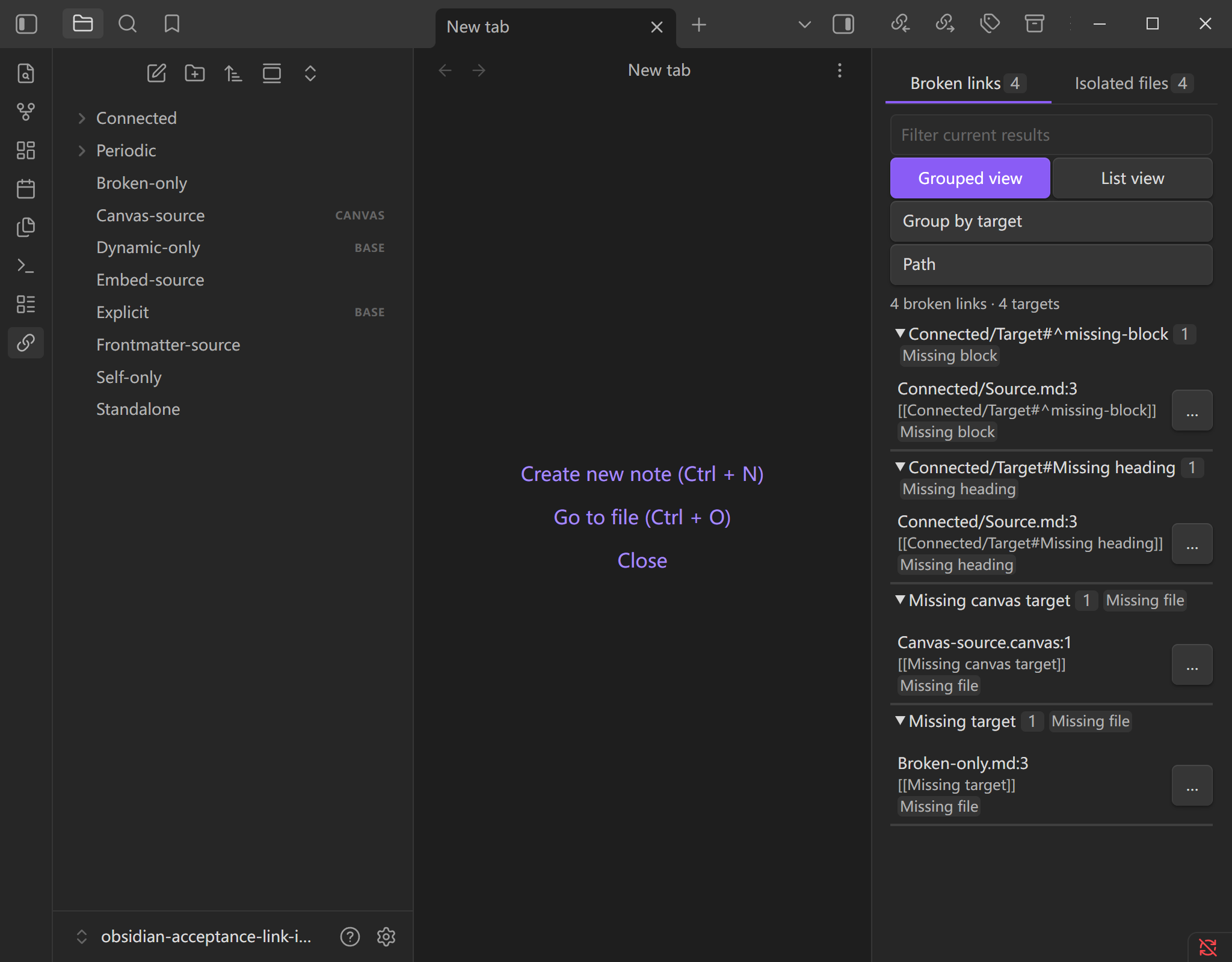
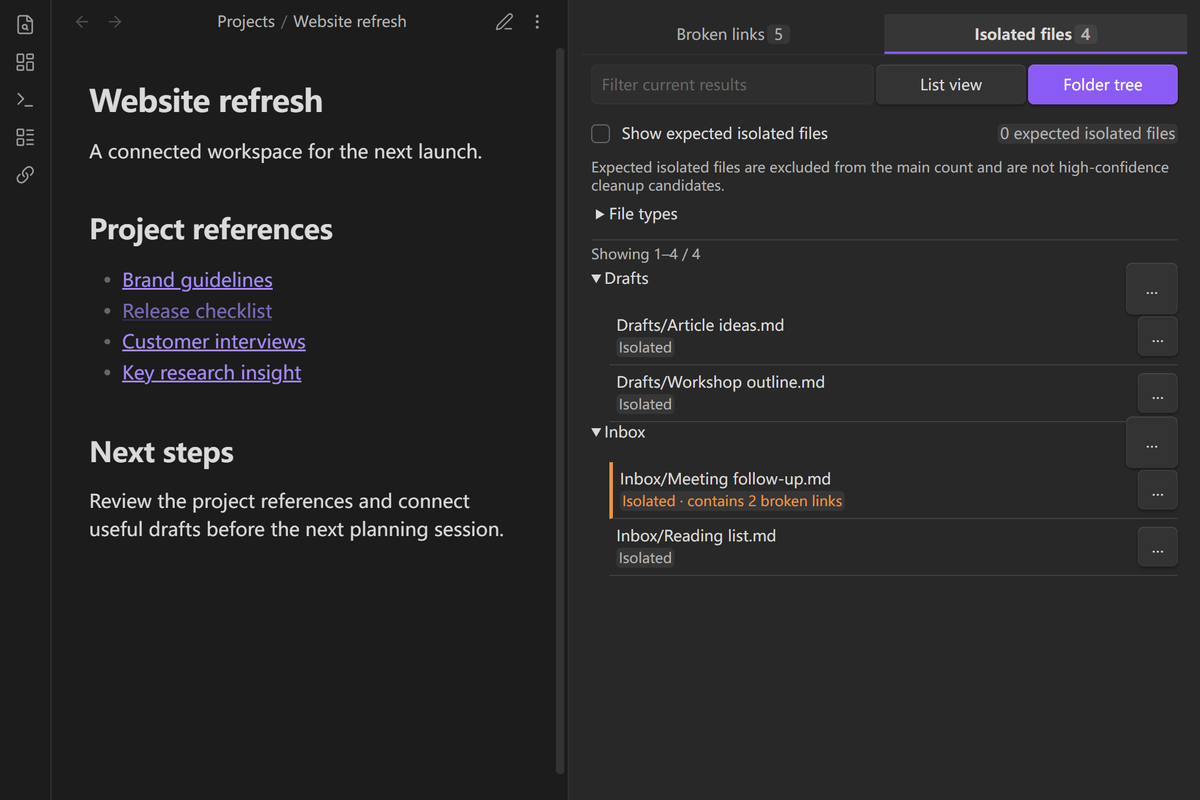
Review broken links and isolated files from one compact sidebar:
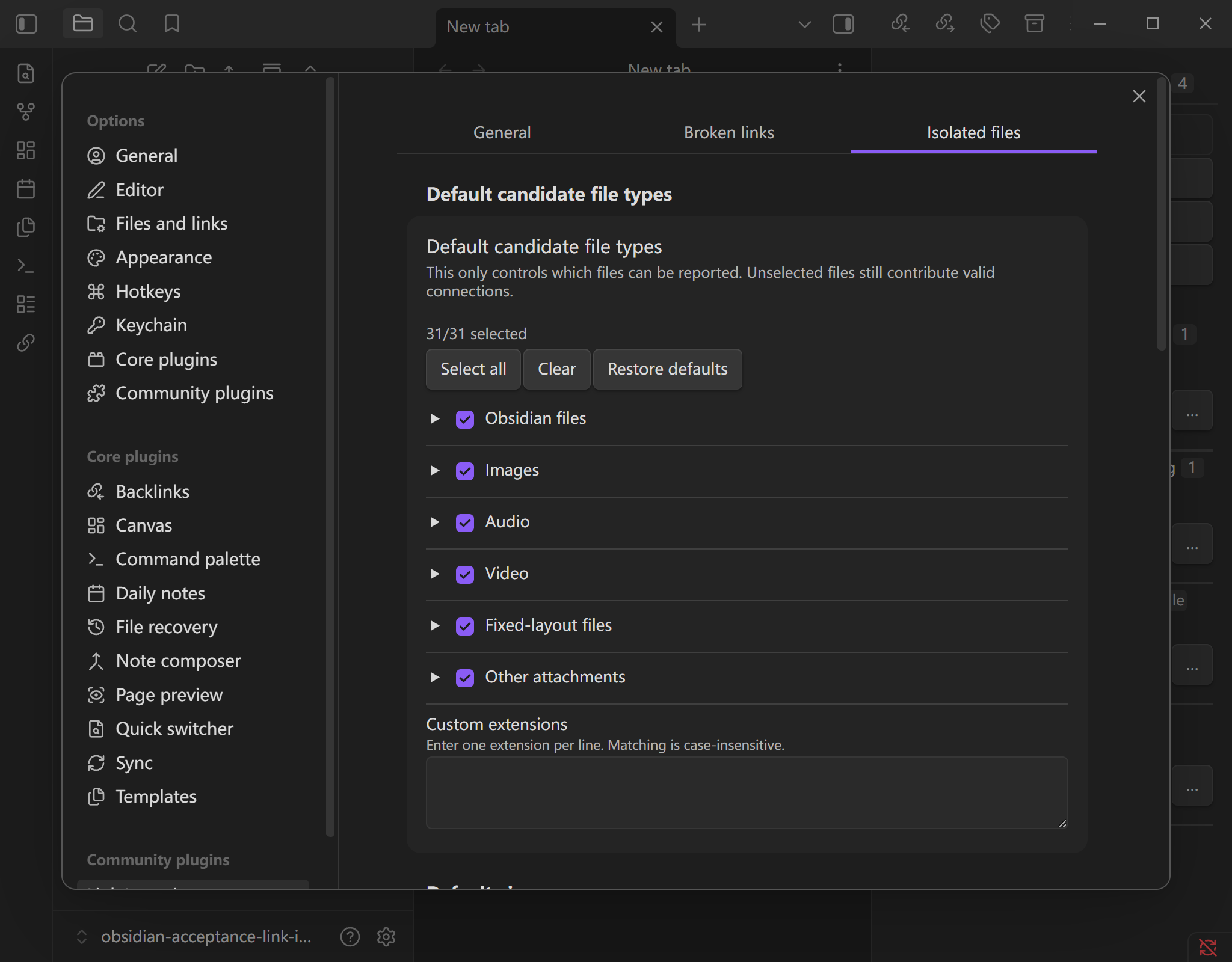
Configure indexing, ignore rules, file types, and expected-isolation rules in Obsidian settings:
Features
- If you turn on in-note hints, broken links to missing files, headings or blocks get a wavy underline. You can still click links normally.
- Finds internal links to missing files, headings, and blocks in Markdown, embeds, frontmatter, Canvas, and explicit Bases file references.
- Finds files that have no working incoming or outgoing connection to another existing file in the Vault. Self-links and external URLs do not count as Vault connections.
- Warns when an isolated file also contains broken outgoing links, so it is not mistaken for a file that is obviously safe to clean up.
- Lets you mark periodic notes, templates, archives, and similar files as Expected isolated. This changes how they are classified in the results without changing their real links.
- Filters isolated-file results by Obsidian files, image formats, audio, video, PDF, and configured attachment extensions.
- Builds a complete index when needed and keeps it up to date as the Vault changes, without requiring a routine manual refresh.
- Opens each reported problem at its source when precise navigation is available. All scanning, matching, and indexing stays local.
Dynamic Bases query results are not treated as links. If a target file exists but a heading or block is missing, Link Integrity still considers the two files connected and reports the missing heading or block separately.
Requirements and compatibility
- Obsidian 1.12.7 or later.
- Supports desktop and mobile Obsidian. The project's formal host-acceptance plan treats desktop Obsidian and Android emulators separately; Android physical devices and iOS are outside that test scope.
- Checks the current Vault only. It does not check external websites or remote resources.
Installation
Open Settings → Community plugins → Browse, search for Link Integrity, and install it. If it is not available in your catalog, download link-integrity-<version>.zip from the latest GitHub release.
For a manual installation, place main.js, manifest.json, and styles.css in Vault/.obsidian/plugins/link-integrity/, reload Obsidian, and enable Link Integrity. During upgrades, replace only those three files and preserve data.json unless you explicitly want to reset the plugin settings.
Usage
- Enable Link Integrity under Settings → Community plugins.
- Open Link Integrity from the ribbon or command palette. The sidebar contains Broken links and Isolated files.
- Select a result to open its source. Use the isolated-file filters to narrow the current view without changing your saved defaults.
- Startup scanning is off by default. Opening the sidebar builds the index when needed; you can also use Build index or Rebuild index in General settings. After the first successful build, changes in the Vault update the results automatically.
Turn on Show broken links in note text in Broken links settings to show hints while reading or editing. It is off by default and does not change how links open. Run Diagnose broken links in the current note from the command palette to see the reasons and jump to their source. Links still updating or without a precise source position stay unmarked; review them in the sidebar.
Settings
User guide and Report an issue are in General → Help and support. The guide opens in the current interface language.
Isolation uses valid connections between existing Vault files:
-
Isolated:
A.mdhas no valid link to another existing file and no other file links to it. Self-links and external URLs do not count as connections. -
No incoming links, but not isolated:
B.mdexists andA.mdlinks to it using[[B]]. Nothing links back toA.md, yet its outgoing link still connects it toB.md. The optional Files with no incoming links filter will show cases like this; the regular Isolated files view will not. -
Isolated with broken links:
A.mdonly contains[[Missing]], the target does not exist, and no other file links toA.md. It has no valid connection, so it is still isolated, but the broken-link warning is a reason to review the file instead of assuming it can be deleted. -
Expected isolated: a standalone template or archive can be marked Expected isolated; it stays a real file, moves out of the main isolated count, and is never deleted or repaired by the plugin.
-
General controls language, startup scanning, default result views, and Build/Rebuild index actions. Follow Obsidian is the default language choice.
-
Broken links controls which problems are shown and lets you create named ignore rules with a match preview.
-
Isolated files controls the default file types, the optional no-incoming-links view, Expected isolated files, ignore rules, and expected-isolation rules.
-
Expected-isolation rules can combine file type, an exact folder or a folder with subfolders, date formats, glob patterns, and advanced regular expressions. The periodic-notes preset supports daily, weekly, monthly, quarterly, and yearly naming patterns.
Advanced ignore-rule warning: Expected isolated and ordinary result-hiding rules do not alter connection counts. The separate Exclude matching links from connection analysis (advanced) scope does: matching links stop contributing to connections, so files that are actually linked can appear isolated. Preview its matches and use it only when intentionally excluding those connections.
Your settings and rules are saved in data.json. Scan results are kept only while Obsidian is running; they are rebuilt the next time they are needed.
Expand an existing ignore rule or choose Add ignore rule. Set Scope, Match by, and Match value, then choose Preview. Review the matching items, examples, and affected file and connection counts before choosing Save. Changes stay in the draft until saved; Cancel discards them. Editing a field or updating the index invalidates the preview. If no current index is available, build one in General first. A disabled rule can still be previewed; its matches show what enabling it would affect.
Limitations
- Link Integrity never deletes files or rewrites note links. Uncertain or ambiguously rendered body syntax is left unmarked; use the sidebar for broader diagnostics.
- External URLs are intentionally out of scope and are never requested over the network.
- Dynamic Bases query results do not count as direct file connections; only explicit file references do.
- Expected-isolation rules only change how already-isolated files are classified. They do not hide broken links or remove real file connections.
Privacy and security
All indexing runs locally. Link Integrity does not upload Vault content, require an account or change note text. The derived index remains in memory.
Development
Use Node.js 24.19.0 and npm 11.17.0. Run npm ci, then npm run check.
Developer documentation:
- Product requirements: English · 简体中文
- UX specification: English · 简体中文
- Architecture: English · 简体中文
- Testing: English · 简体中文
Project links: Contributing · Changelog · Security
Support
- Q&A: Usage and configuration questions.
- Ideas: Early feature and workflow ideas.
- Show and tell: Tips, workflows, and reference examples.
Use GitHub Issues for reproducible bugs and concrete feature requests. Never post private Vault paths, note content, diagnostic samples, or personal information publicly.
License
MIT © ZhengYX
For plugin developers
Search results and similarity scores are powered by semantic analysis of your plugin's README. If your plugin isn't appearing for searches you'd expect, try updating your README to clearly describe your plugin's purpose, features, and use cases.