by Frank Lechtenberg
Chat with local Ollama AI models directly in Obsidian. Includes built-in DuckDuckGo web search – no API key, no cloud, no telemetry.
Local Ollama with Web Search
Deutsche Fassung: README.de.md
An Obsidian plugin that embeds local AI models via Ollama directly into Obsidian. Chat assistant with web search, vault integration, persistent context and daily-note workflow. Fully local, no cloud, no API cost, no data sharing.
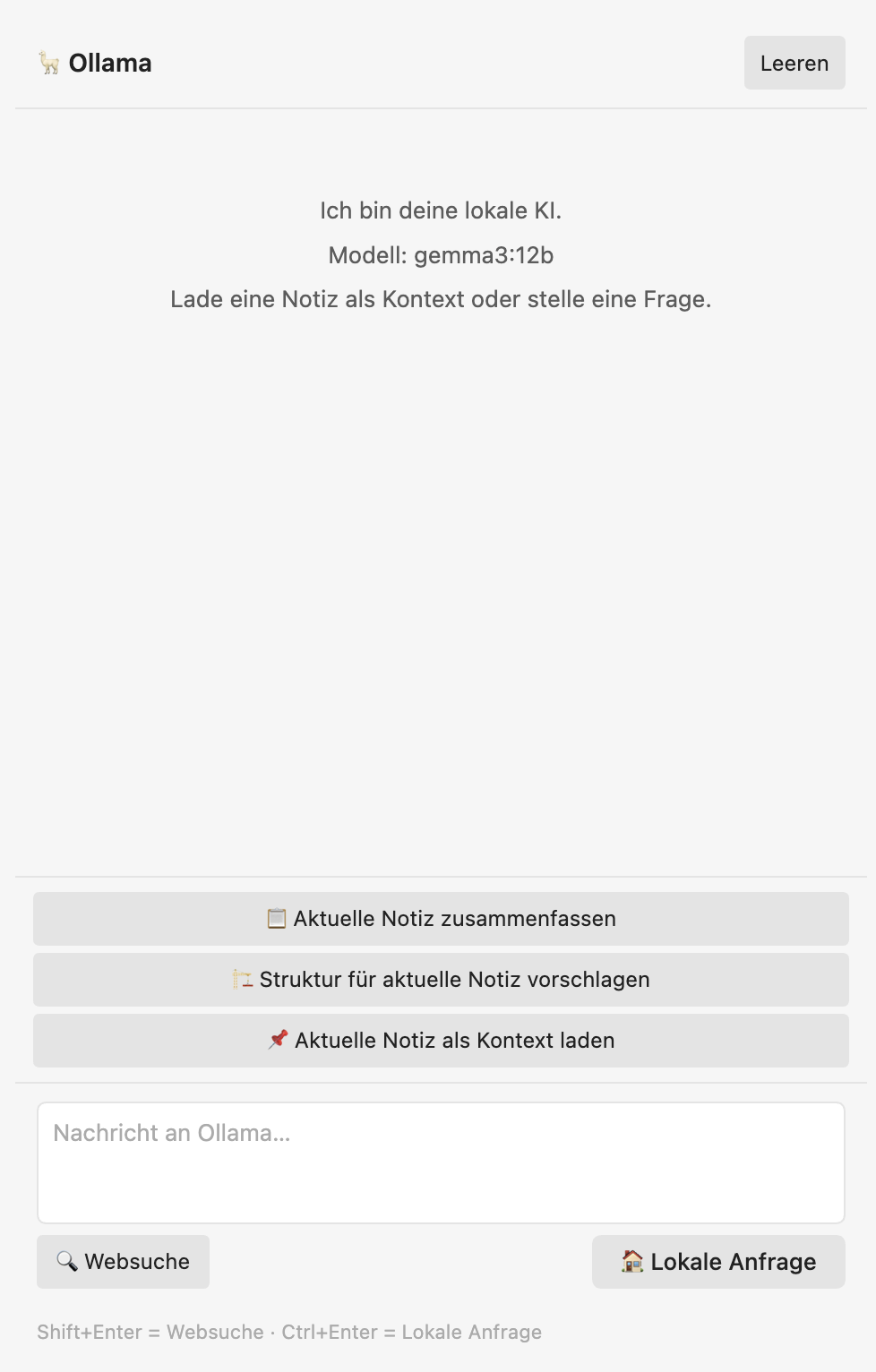
Features
Chat and web search
- Local queries – chat with your local model without any internet access (
Ctrl+Enteror the Local Query button) - Web search inside the chat – searches via DuckDuckGo, feeds the results back as context, answers with citations like
[1],[2](Shift+Enteror the Web Search button) - Summarize note – condense the current note with one click
- Suggest structure – draft an outline for the active note
- Load note as context – attach background knowledge to the chat
Vault integration
- Save chat log – stores the full chat as a Markdown file. The model proposes folder, filename and tags; you confirm in a modal. Autocomplete over all existing vault folders, live preview, YAML frontmatter, AI callout, automatic filename suffix on conflicts.
- Daily Note – the model drafts a concise entry (H2 heading, at most two paragraphs) from the current chat and appends it to today's daily note. Path pattern with
{YYYY}/{MM}/{DD}placeholders is configurable. Creates file and folder if needed. - Load chat from note – re-open a saved Ollama chat file inside the chat view and continue the dialogue.
Prompt-driven save and folder creation
As of version 2.9.0 two filesystem actions can be triggered directly from the chat view through natural-language phrases, without opening the save modal.
Create a folder
Recognises phrasings such as:
- "create folder
Archive/2026" - "create a new folder
04 Resources/Drafts" - "make a subfolder
Raw data" - "add folder
02 Projects/Book"
The path is interpreted relative to the vault root. Missing intermediate folders are created recursively. If the folder already exists the plugin reports that back as a notice and does not touch anything.
Save the chat or the last answer into a specific folder
Recognises phrasings such as:
- "save this to folder
04 Resources/Drafts" - "save the last answer as
Checklistto folder01 Inbox" - "put this in folder
02 Projects/Book" - "store the result as
Setup notesin folder04 Resources/Drafts"
The target folder is created automatically if it does not exist yet. An optional filename can be passed with as …. Without a filename the plugin derives the title from the first few words of the first user prompt.
The word folder must appear in the prompt – without it the direct-save flow does not kick in and the save modal is shown instead.
Scope: full chat or last answer only
If the prompt contains a phrasing like "last answer", "last response", "the answer" or "the result", only the most recent question-and-answer pair is saved instead of the full history. In every other case the complete conversation is written.
Path validation
Every path is validated before any write. The following are rejected:
- empty paths
- absolute paths (leading
/) - relative segments (
.or..) - segments containing
< > : " | ? *or control characters
An invalid path produces an inline notice in the chat; nothing is written.
Conflict handling
If the target file already exists, the plugin shows an inline prompt in the chat with four options:
- Overwrite – replaces the entire file content with the new chat.
- Append – appends only the conversation part (from
## Conversationonwards) to the existing file, separated by a horizontal rule. The target file's frontmatter is left untouched. - Keep both (rename) – writes a new file with suffix
2,3, … in the same folder. - Cancel – writes nothing.
The conflict prompt is not part of the saved chat and does not survive a restart.
Relation to the existing save flow
The Chat log header button and the generic phrases like "save that" still open the save modal with model suggestion, autocomplete and preview. The prompt-driven variants only kick in when a concrete folder is named in the prompt; otherwise the trigger logic falls back to the modal. All triggers share one toggle in Trigger phrases active.
German prompt phrases work equivalently. See README.de.md for the German examples.
Trigger phrases
Natural-language commands open the matching flow directly from the chat.
| Phrase | Action |
|---|---|
| "save that", "save this to vault", "save that as a note" | Save-chat modal |
| "save this to folder X", "put this in folder X" | Direct save (no modal) |
| "create folder X", "make a new folder X" | Create folder |
| "log this to my daily note", "add this to my daily note" | Daily-note flow |
| "save this as a daily note" | Daily-note flow |
| Any message containing "Daily Note" | Daily-note flow |
Toggle via the setting Trigger phrases active. German equivalents are documented in README.de.md.
Vault setup
- PARA folder structure –
00 Kontext,01 Inbox,02 Projekte,03 Bereiche,04 Ressourcen,05 Daily Notes,06 Archiv,07 Anhänge. Alternative minimal template (just Inbox and Archive). Checkboxes per folder; existing folders are detected. - Default context files – when
00 Kontextis created, the plugin writes three starter templates into it:Biographie.md,Schreibstil.md,Recherchevorgaben.md. - Sort existing folders in – after the setup the plugin offers to move remaining top-level folders into the PARA structure or rename them. Assignment modal per external folder. Moves run through
fileManager.renameFile, so wikilinks are updated automatically. Conflict dialog per case: merge, rename or skip.
Persistent context
Every .md file in 00 Kontext/ is automatically passed as background context to the model on every chat request. Filenames become subheadings, frontmatter is stripped. Hard cap at 8000 characters (configurable). This way the AI knows you, your writing style and your research preferences in every session.
Persistence
Messages and the loaded note context survive an Obsidian restart. The last chat is back as soon as you open the chat view (capped at the last 50 messages).
Requirements
1. Install Ollama
macOS / Linux:
curl -fsSL https://ollama.com/install.sh | sh
Windows: installer at ollama.com/download.
2. Pull a model
ollama pull gemma3:12b
Recommended models by hardware:
| Model | RAM | Strength |
|---|---|---|
gemma3:12b | ~8 GB | Best German output, low hallucination – recommended |
llama3.1:8b | ~5 GB | Very stable, broad use |
qwen2.5:7b | ~5 GB | Multilingual, structuring |
gemma3:4b | ~3 GB | For older or weaker hardware |
Note on model size: 7B and 8B models hallucinate more than 12B models. For reliable German output we recommend
gemma3:12bon systems with at least 16 GB RAM.
3. Run Ollama
Ollama runs in the background after installation. Check with:
ollama list
Installation
Via the Obsidian Community Plugin store (recommended)
- Obsidian → Settings → Community plugins → Browse
- Search for "Local Ollama with Web Search"
- Install → Enable
Updates will then be delivered automatically by Obsidian.
Via BRAT (for pre-store beta versions)
- Install and enable the BRAT plugin in Obsidian
- Open BRAT settings → Add Beta Plugin
- Enter the URL
https://github.com/Geolech/obsidian-local-ollama - Click Add Plugin → enable the plugin
Manual
- Download the latest version from Releases
- Copy
main.js,manifest.jsonandstyles.cssinto.obsidian/plugins/local-ollama-websearch/inside your vault - Restart Obsidian → enable the plugin in Settings
Setup
- Obsidian → Settings → Local Ollama
- Pick a model from the dropdown (populated automatically from Ollama)
- Vault setup (optional, one-off): the Create structure… button at the bottom of the settings tab creates the PARA folders and writes the starter files into
00 Kontext/ - Fill in the context files: put your content into
00 Kontext/Biographie.md,Schreibstil.md,Recherchevorgaben.md– from that point on the AI knows you in every session
The plugin connects to http://localhost:11434 automatically – no further configuration needed.
Shortcuts and buttons
| Action | Shortcut / button |
|---|---|
| Send a local query | Ctrl + Enter or Local Query |
| Start a web search | Shift + Enter or Web Search |
| Save the chat log to the vault | Chat log (header) |
| Daily-note entry | Daily Note (header) |
| Clear the chat | Clear (header) |
| Load a chat from a note | Load chat from active note (quick actions) |
All actions are also available as command palette entries.
Settings (overview)
- Language – German or English
- Model – dropdown of all locally installed Ollama models
- System prompt – behaviour instruction, with a reset to default
- Save to vault – fallback folder, trigger phrases, default tags, open file after save
- Vault setup – PARA scaffolding and sorting existing folders
- Context folder – path, "load automatically" toggle, character cap, default files at setup
- Daily Note – path pattern with
{YYYY}/{MM}/{DD}placeholders, append-by-default
Changelog
See CHANGELOG.md.
License
MIT – Frank Lechtenberg, TH OWL
For plugin developers
Search results and similarity scores are powered by semantic analysis of your plugin's README. If your plugin isn't appearing for searches you'd expect, try updating your README to clearly describe your plugin's purpose, features, and use cases.