Vault Assistant
approvedby Paul Purcel
Chat with an OpenAI-compatible model about your vault. Local RAG, plus apply-gated note create and update. - This plugin has not been manually reviewed by Obsidian staff.
Vault Assistant
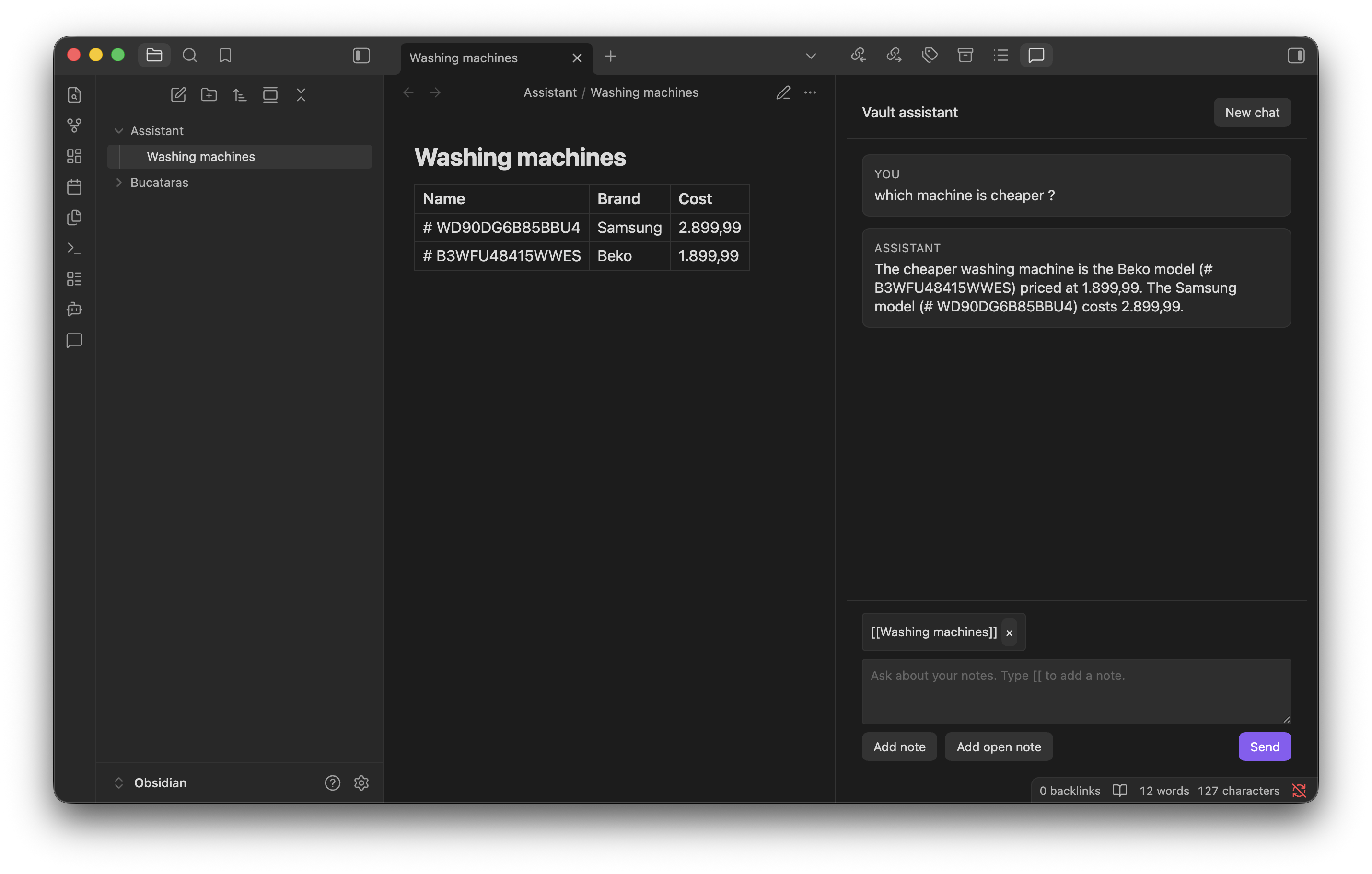
Chat with an OpenAI-compatible model about your Obsidian vault. Search stays on your device. Notes are only sent when you chat, and only the pieces needed to answer. Creating, updating, or moving a note always waits for Apply.
Requires Obsidian 1.13.0+.
Features
- Sidebar chat with markdown replies and
[[wikilinks]] - Bring your own key: OpenAI, OpenRouter, or Ollama (localhost or a custom URL)
- Local note search (no cloud indexing, no embeddings)
- Pin notes with Add note, Add open note, or
[[wikilinks]]on desktop - Propose new, updated, or moved notes in chat; nothing is written until you apply it
Getting started
- Install Vault Assistant from Settings → Community plugins, or copy a release’s
main.js,manifest.json, andstyles.cssinto.obsidian/plugins/vault-assistant/. - Enable the plugin, then open Settings → Vault Assistant.
- Read the privacy notice and turn on I understand what is sent to the provider.
- Choose a provider and model:
| Provider | Default endpoint | API key |
|---|---|---|
| OpenAI | https://api.openai.com/v1 | Required |
| OpenRouter | https://openrouter.ai/api/v1 | Required |
| Ollama | http://localhost:11434/v1 | Not required locally |
- For Ollama, keep
http://localhost:11434or enter a customhttp(s)host. Do not put credentials in the URL. - Optionally Detect models and Test connection.
- Open chat from the ribbon or the command Open chat.
Ollama must expose /v1/chat/completions. OpenAI gpt-5.4+ models (including gpt-5.6-sol) use /v1/responses for tools; OpenRouter and Ollama stay on Chat Completions. Tools are defined once and converted per API. When search is enabled, the model calls search_notes on demand instead of receiving automatic context in every prompt.
Using chat
- Ask a question. When search is enabled, the model can call
search_notesto find relevant notes locally. - Add note picks any markdown note. Add open note uses notes already open in tabs. On desktop, type
[[to insert a wikilink. Open notes are never attached unless you add them. - Referenced notes take priority over search results (up to 10).
- When the assistant wants to create, update, or move a note, review the card and select Apply or Dismiss. Open note is available after you apply.
Commands
- Open chat — open the sidebar chat
- Add open note — pin an open markdown tab as context
- Rebuild search index — rebuild the local search index
Mobile
- Enter inserts a newline. Use Send in the composer field to submit.
- The composer stays above the keyboard. Tap the transcript to hide it.
- Use Add note and Add open note. The
[[picker does not open on a phone, so the keyboard stays focused. localhostOllama is usually unreachable from a phone. Set a reachable URL, or use OpenAI / OpenRouter.
Privacy
- On this device: API keys in the plugin
data.json, and the search index insearch-index.json. Optional Save chat history (Settings → Vault Assistant → Chat, off by default) stores conversation transcripts inchat-history.jsonin the plugin folder so you can resume them from chat. Keys are never logged. Optional Debug mode (Settings → Vault Assistant → Advanced) shows a Debug card in chat after each reply (endpoint, timing, tools). It can also write the same metadata to the developer console; set the log level to Verbose. It does not log API keys or note contents. - Indexing lists markdown note paths in the vault (
getMarkdownFiles) so search can run locally. It does not send notes anywhere. Use Exclude folders in settings to skip folders and everything inside them. - Chat sends your prompt, conversation history, notes you explicitly reference, and any notes the assistant reads or searches. The whole vault is not uploaded.
- There is no telemetry. Network calls happen only when you chat, detect models, or test the connection, and only to the provider you chose (OpenAI, OpenRouter, or your Ollama URL).
- Use Ollama on localhost if you do not want notes to leave the machine.
See CHANGELOG.md for release history.
Developers: see DEVELOPMENT.md.
For plugin developers
Search results and similarity scores are powered by semantic analysis of your plugin's README. If your plugin isn't appearing for searches you'd expect, try updating your README to clearly describe your plugin's purpose, features, and use cases.