by ianjin
Edit any Markdown note as a mind map, with the text and the map kept in sync.
Mapdown
One Markdown note, two views. Write in text, think in a mind map, and keep the two in sync.
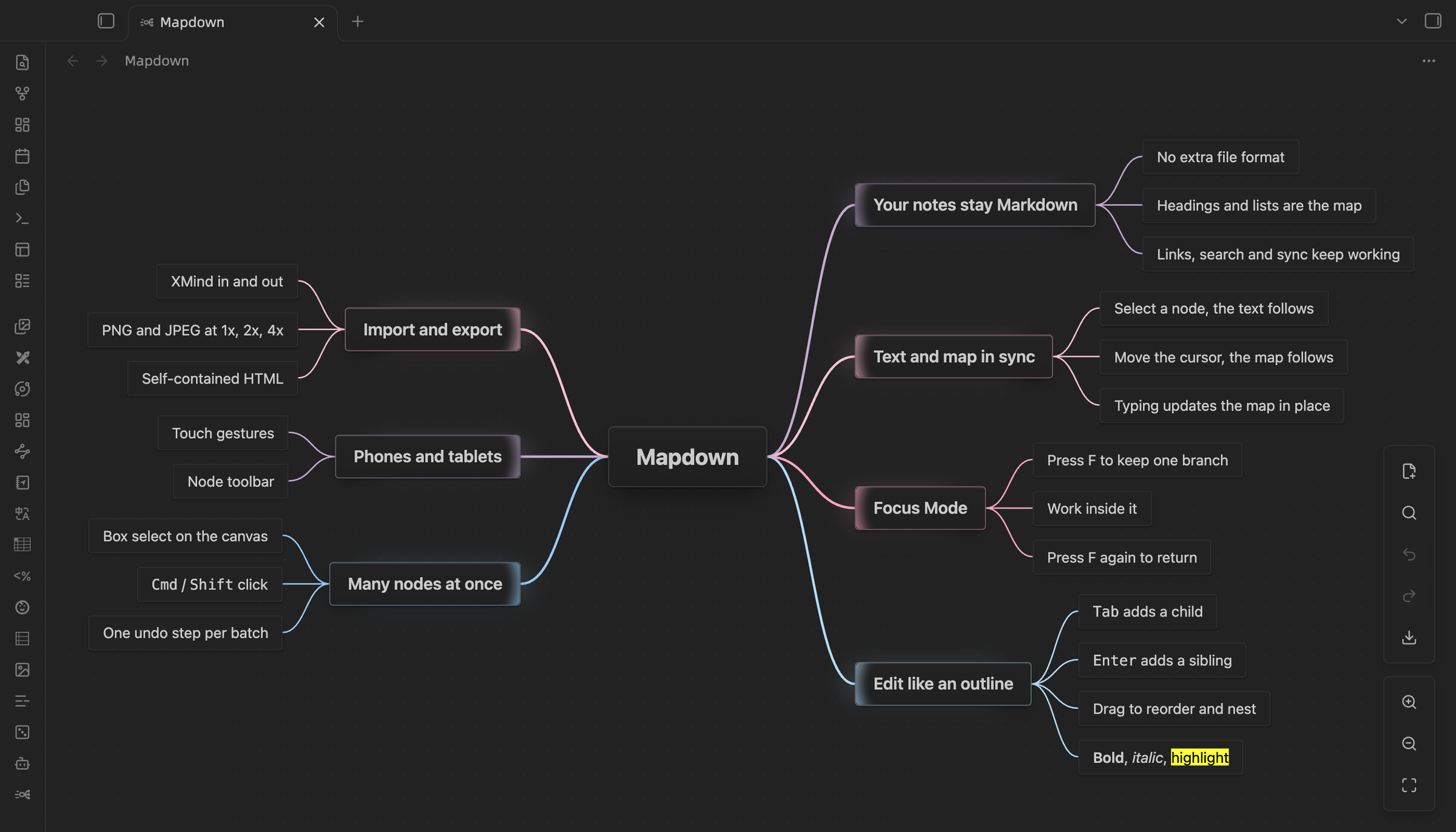
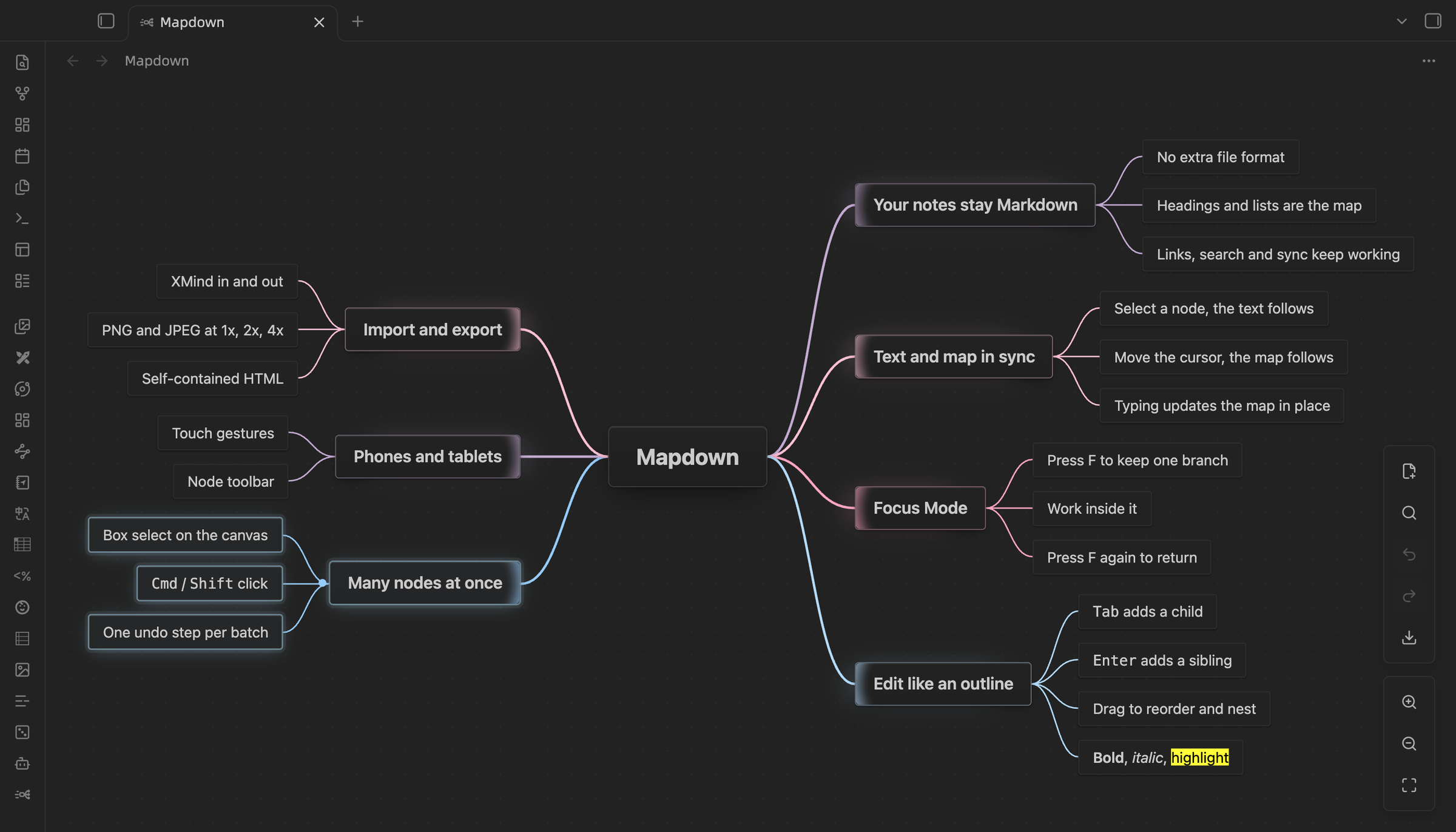
Mapdown is an Obsidian plugin that opens your Markdown notes as editable mind maps. There is no separate file format: headings and lists are the map, and every edit in the map is saved back to the same .md file. It works on desktop, phones and tablets.
Why Mapdown
- Your notes stay Markdown. The map is just another view of the note. Links, search, sync and version history keep working.
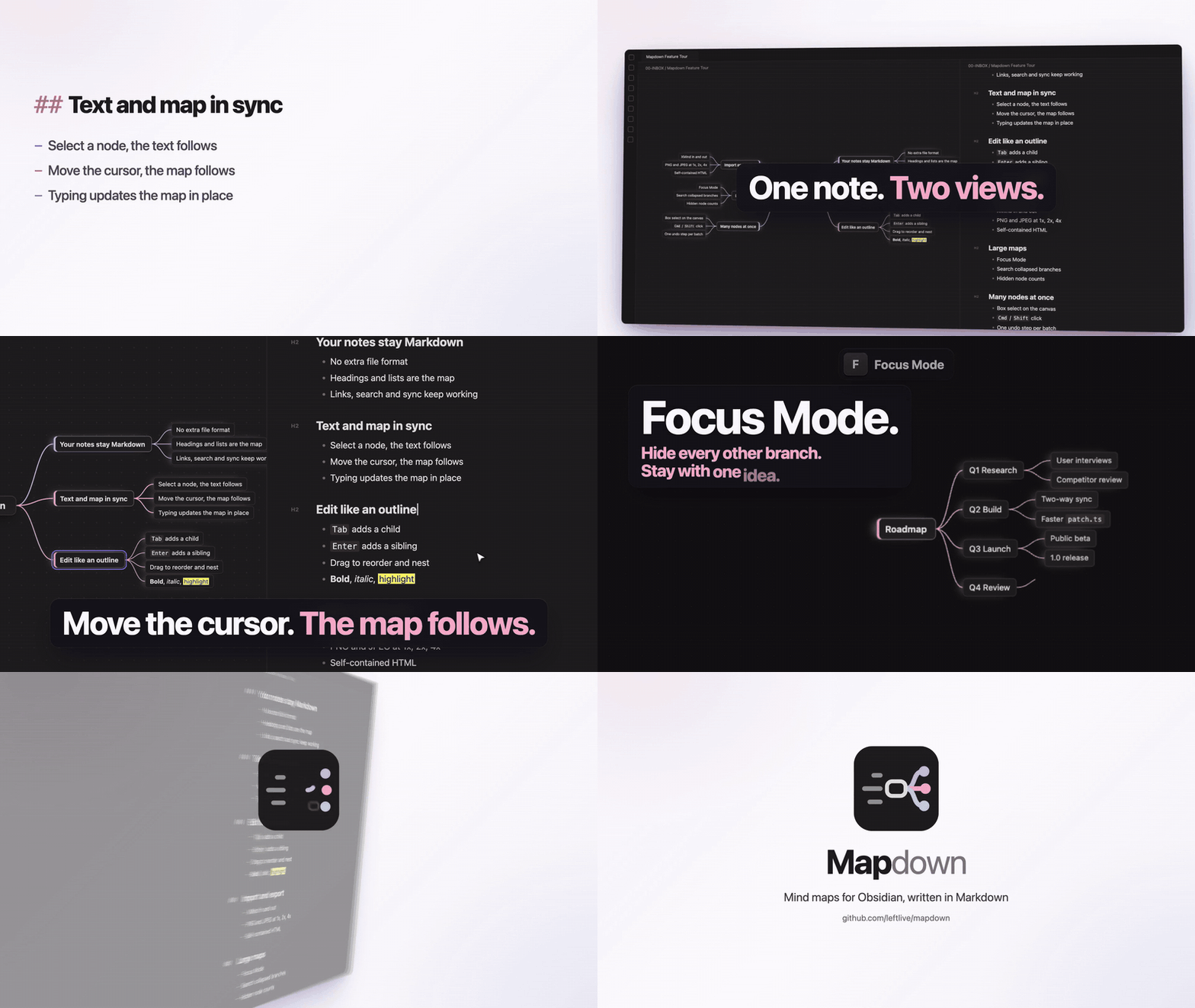
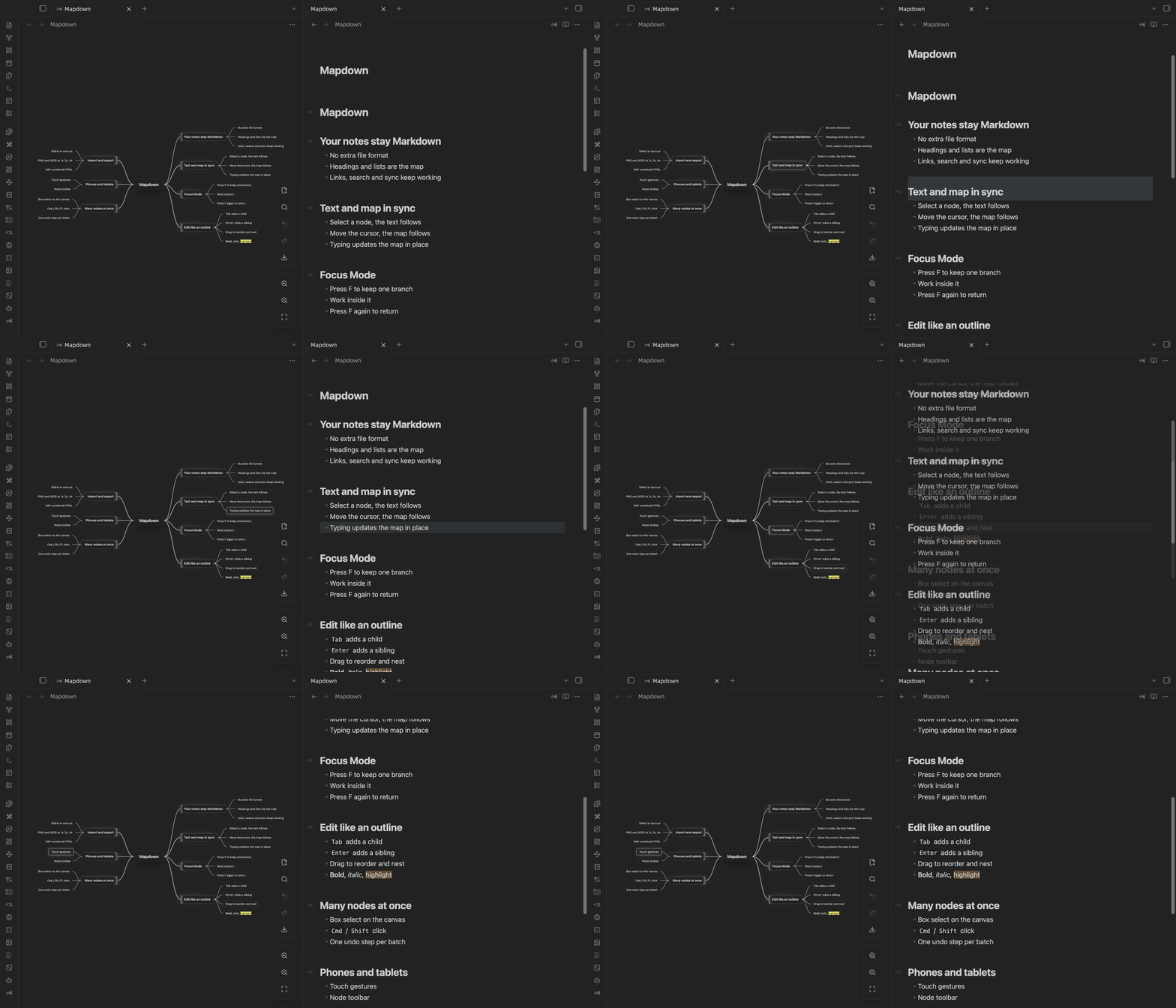
- Text and map stay in sync. One click on the split button opens the note side by side: select a node and the Markdown jumps to its line; move the cursor in the text and the map follows.
- Maps inside your notes. Write
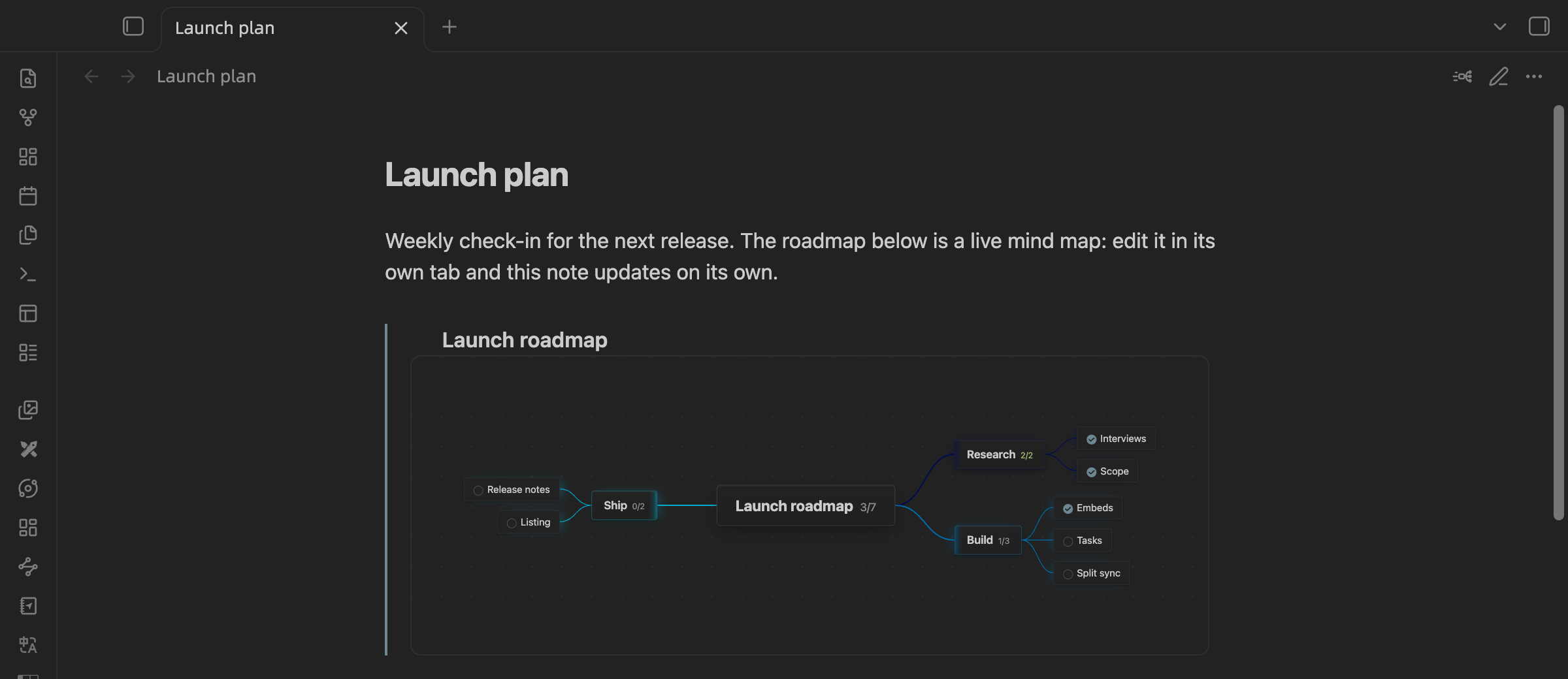
![[My map]], or right-click and choose Insert mind map…, and the map shows up in the note as a live, zoomable map. Embed a whole map or just one branch. - Tasks in the map.
- [ ]nodes get a checkbox, and parent nodes show progress like2/5. - Present your map. Walk the map branch by branch in fullscreen, jump to any node when someone asks, and show the whole map at the end.
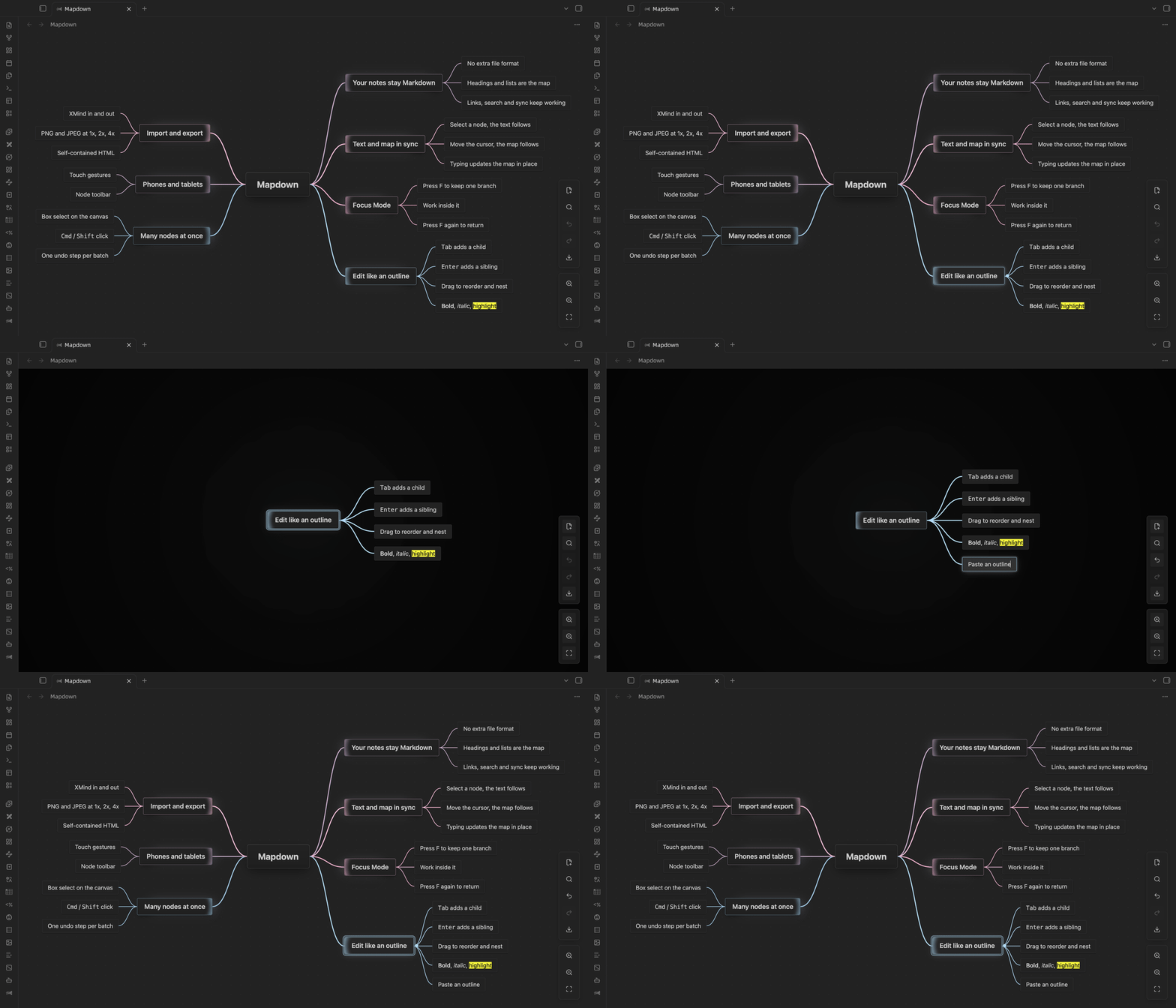
- Focus Mode. Press
Fand the map shows only the selected branch, with the rest faded away. Work through one idea at a time, then pressFagain to get the whole map back, right where you left it. - Phones and tablets too. Touch gestures and a node toolbar let you build and edit maps without a keyboard.
- Built for Obsidian. Nodes render Markdown, images and
[[wikilinks]], with hover previews. - Fast with big maps. 1,000 nodes open in under 0.2 s; 5,000 stay smooth to pan and zoom.
Quick start
- Install and enable Mapdown.
- Click the Mapdown icon in the ribbon or run Create new mindmap. To use a note you already have, click the Mapdown button next to the reading/editing toggle in its header.
- To see text and map together, click the split button in the map's header. The Markdown opens on the right with selection sync on; click again to close it.
- To show a map inside another note, right-click in that note's editor and choose Insert mind map….
A minimal mind map note:
---
mindmap-plugin: basic
---

# Project plan

## Research
- Collect references
- Summarize findings

## Execution
- Draft outline
- Review milestones
When you open an ordinary note as a mind map, Mapdown asks first. You can convert the note, or save the map as a new note and leave the original untouched. Converting backs up the original text before the first save.
Features
- Keyboard-first editing:
Tab,Enter, arrow keys andSpacebuild and edit the tree (see Keys in the map). - Drag and drop: the map shows where a node will land before you let go. Hold
Ctrlto copy. - Multiple selection:
Cmd/Ctrl-click,Shift-click or drag a box. A bar above the selection makes tasks, bolds, highlights, folds, copies, cuts or deletes them in one undo step. - Embedded maps: in reading view and Live Preview,
![[map]]shows a map;![[map#Heading]]shows one branch and![[map|300]]sets the height. Click it to pan and zoom, double-click a node to open the map there. Inside a node, an embedded map shows as a card that opens it. - Tasks: click a checkbox, or press
Mod + Enter, to tick a task. Parents count the tasks below them. - Quotes and callouts in nodes look as they do in reading view.
- Math: inline
$…$and block$$…$$formulas render in nodes, including blocks over several lines. - Branch color styles: besides the edges, branch colors can also go on node borders, or tint the nodes with a light fill that fades toward the outer levels.
- Layout directions: both sides, right, left, clockwise, or downward like an org chart. Each map keeps its own direction, set from the toolbar.
- Paste an outline: a multi-line list pasted into the map becomes a subtree.
- Images: paste, drag in, or run Insert image….
- Large maps: collapse to any level with
Alt + 1…6, search inside collapsed branches, and jump around with the overview on maps over 300 nodes. - XMind: import
.xmindfiles (XMind 2020+, Zen and XMind 8) as new notes, and export maps back to.xmind. - Export: PNG and JPEG at 1x, 2x or 4x, SVG, PDF, or a self-contained HTML page. On desktop, Mapdown asks where to save by default, and tells you when the export is done.
- Canvas: export a map to an Obsidian Canvas, one card per node, and keep arranging it there.
Keys in the map
These keys work only while the map has focus, so they never clash with your other hotkeys. Mod is Cmd on macOS and Ctrl elsewhere.
| Key | Action |
|---|---|
Tab | Add a child node |
Enter | Add a sibling node, or finish editing |
Shift + Enter / Mod + Enter | New line inside the node while editing |
Shift + Tab | Move the node up one level |
Space / double-click | Edit the selected node |
Delete / Backspace | Delete the selected nodes |
Mod + Enter | Make the selected node a task, or tick / untick it |
| Arrow keys | Move between nodes |
Alt + Shift + arrow keys | Move the node up, down, left or right |
Home | Select and center the root node |
F | Toggle Focus Mode |
Esc | Exit Focus Mode, cancel editing, or clear the selection |
Alt + 1…6 | Collapse the map to that level |
Mod + A | Select all visible nodes |
Mod + C / X / V | Copy, cut, paste nodes |
Mod + Z / Mod + Y or Mod + Shift + Z | Undo / redo |
Alt + Shift + B / I / H | Bold / italic / highlight |
Mod + mouse wheel | Zoom |
Every action is also a command, so you can find it in the command palette and assign your own hotkey. Mapdown sets no global hotkeys.
Settings
| Setting | What it does |
|---|---|
| Canvas size and background | Size and color of the map canvas |
| Heading levels | How many top levels are saved as Markdown headings; deeper nodes become list items |
| Font size | Base text size; each level scales from it |
| Node glow and maximum width | How selected nodes glow and where long text wraps |
| Default layout direction | Both sides, right, left, clockwise or downward, for maps that have not set their own |
| Branch colors | Color preset for branches |
| Branch color style | Edges only, borders, or tinted nodes |
| Center after moving | Recenter on a node after it moves |
| Focus overlay and glow | How strongly Focus Mode dims the rest of the map |
| Link preview and open mode | Hover previews, and where clicked links open |
| Sync selection with Markdown | Turn the text–map selection sync on or off |
| Show task progress | Show done/total on nodes with tasks below them |
| Embedded maps and height | Show ![[map]] as a map, and how tall it is |
| Export location | Ask where to save each time, or save next to the note |
Changes apply to open maps right away, and every setting can be found with Obsidian's settings search.
Limitations
- Mapdown structures notes; it is not a diagram tool. There are no themes, frames or free-form drawing.
- XMind import and export are one-off conversions. Images, styles, summaries and relationships are not carried over.
- In exported PNG, JPEG, SVG and PDF files, formulas show as their source text. A PDF is one page holding a high-resolution image, so its text cannot be selected.
- On phones and tablets, exports are always saved next to the note.
- The interface is in English and Simplified Chinese.
Privacy
Mapdown has no accounts, ads or telemetry, and never reads files outside your vault. It goes online only when you export a map that shows images from the web: those images are downloaded so they can be embedded in the exported file.
Installation
Community plugins
Once Mapdown is listed in the Obsidian community plugin directory:
- Open Settings → Community plugins.
- Search for
Mapdown. - Install and enable it.
BRAT
Add leftlive/mapdown in the BRAT plugin.
Manual
- Download
manifest.json,main.jsandstyles.cssfrom the latest GitHub release. - Put them in
.obsidian/plugins/mapdowninside your vault. - Reload Obsidian and enable Mapdown under Community plugins.
Requires Obsidian 1.5.7 or later.
Compatibility
- Mind maps saved by Enhancing Mindmap open in Mapdown unchanged: both use the
mindmap-plugin: basicfrontmatter. - Mapdown was previously called MindMark. Maps made with MindMark open unchanged.
- Upgrading from Mapdown 0.3: your settings carry over. Save every open map before you upgrade, because unsaved recovery drafts from 0.3 are not read.
Development
npm ci
npm run build
The build produces main.js; release files are manifest.json, main.js and styles.css.
Acknowledgements
The idea of editing Markdown notes as mind maps in Obsidian was inspired by Enhancing Mindmap. Thanks to its author, Mark, for showing how well the two fit together.
License
MIT. See LICENSE.md.
For plugin developers
Search results and similarity scores are powered by semantic analysis of your plugin's README. If your plugin isn't appearing for searches you'd expect, try updating your README to clearly describe your plugin's purpose, features, and use cases.