by CH
Minimalist & Intuitive Outline Mind Map: Pure Markdown syntax with zero code pollution in your note files; click-to-navigate with real-time bi-directional sync between mind map and notes.
Outline Mindmap
Your Markdown notes, effortlessly alive as a mind map.
中文说明 · Download · Overview · Changelog · Obsidian 1.7.2+
No proprietary syntax. No hidden markers cluttering your files.
Edit the map, edit the note—rearrange a branch and its paragraphs travel with it. Open a body card right beside any heading to write in flow without ever losing sight of the whole. Clean, understated, and instant—your notes stay pure Markdown from start to finish.
Highlights
-
Pure Markdown, zero pollution
No YAML injection, no custom properties, no hidden comments. Every style, viewport, and view preference lives cleanly inside the plugin’s own data folder—your.mdfiles remain untouched and portable anywhere. -
Real-time two-way sync with surgical writes
Your note and mind map share a single source of truth. Rename a heading and the node updates; drag a branch and every subheading and paragraph moves with it. Each edit patches only the affected lines, leaving the rest byte-for-byte intact with single-step undo. -
Body cards—write deeply without leaving the big picture
Open any section’s Markdown body right beside its node, with live preview toggle, auto-save on pause, and conflict-safe local draft recovery. Keep multiple cards open to compare passages side by side, or dock a panel that follows whichever node you select. -
Click to locate, swap views in place
Click any node in the sidebar to scroll and highlight its heading in the visible note. Switch a tab directly between Open as mindmap and Open as note without spawning extra tabs, with optional per-note memory. -
Fluid keyboard control & graceful motion
Add siblings withEnter, children withTab, navigate naturally with direction-aware arrow keys, move branches with assignable hotkeys, and copy full branches across notes with automatic internal-link rebasing—all accompanied by restrained, synchronized layout motion. -
Tailored appearance, live preview & crisp export
3 layout directions, 4 node shapes (including frameless Text only), 3 connector styles, level-based and custom palettes, plus per-level H1–H6 heading sizes. Apply per note or globally with live preview, and export to PNG, SVG, or PDF. -
Deep lists & rich inline Markdown
Build maps from#–######headings and optionally enable bulleted or numbered list nodes independently. Node labels natively render bold, italic, strikethrough, inline code, default and six-color highlights, readable link labels, and$...$inline math. -
Built for 1,000-node outlines, desktop & mobile
Engineered with offscreen text measurement, recycled node DOM, and a single merged SVG connector path. Full touch support with two-finger pan and pinch-to-zoom, plus automatic read-only locking when a note is in Reading view.
View interface & feature overview screenshot
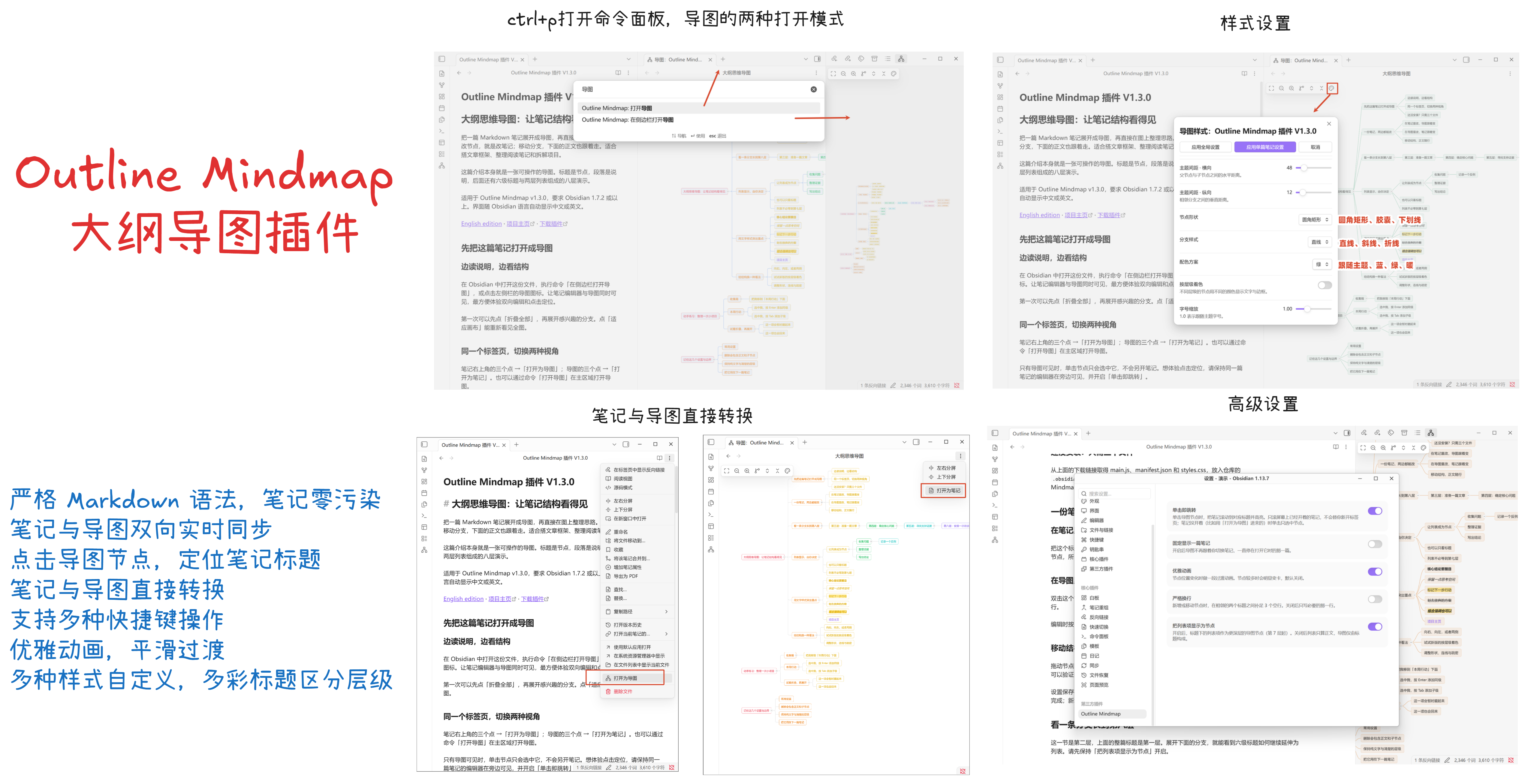
Note: The overview image and demo above were captured on an earlier release; newer additions such as Body cards, Text-only nodes, per-level H1–H6 sizing, export, and branch movement commands are documented below.
Quick Start
Once the plugin is enabled, get into flow in under a minute:
-
Open a map
With any note containing headings open, click the mind map icon in the left ribbon—or pressCtrl/⌘ + Pand run Open mindmap in sidebar—to view note and map side by side. Run Open mindmap to open a full canvas tab in the main workspace. -
Locate and rearrange
Click any sidebar node to scroll and highlight its heading in the note. Drag a node onto another’s top or bottom edge to place it before or after, onto the center to make it a child, or onto empty space to create a new root—its body paragraphs follow automatically. -
Outline without touching the mouse
Select a node and pressEnterfor a sibling,Tabfor a child,F2(or double-click) to rename,Shift + Enterto finish editing, orEscto cancel cleanly. PressCtrl/⌘ + Zanytime for single-step undo. -
Write right inside Body cards
Enable Body cards → Node body in plugin settings. Click the document icon beside any node to read or write that section in Markdown. Use the card’s ⋯ menu to Keep card open for side-by-side comparison, or Dock panel for a fixed writing surface. -
Swap views & customize
Choose Open as mindmap from a note’s ⋯ menu to turn the current tab into a map, and Open as note to switch back. Use the top-left toolbar to fit, zoom, filter byH1–H6, toggle read-only lock, or open the palette modal to style and export.
When It Shines
-
Long-form writing & research drafts
Keep your note beside the map—or work in a map tab with a docked body panel. Sketch the argument visually, drag sections until the narrative flows, and let every paragraph follow cleanly without manual cut-and-paste. -
Comparing passages while revising
Open two or three body cards on the canvas and mark them Keep card open. Cross-check claims, transitions, and phrasing right next to your outline instead of scrolling back and forth through thousands of words. -
Book notes & structured study
Enable list nodes and Color by level to see an entire book or course at a glance—complete with highlights and$...$formulas. Click any concept to jump straight to the exact excerpt in your note. -
Reviews, walkthroughs & sharing
Emphasize hierarchy with per-level H1–H6 heading sizes and clean Text only or Elbow layouts. Collapse down to H2 during a walkthrough, then export a high-resolution transparent PNG, scalable SVG, or fitted PDF in one click. -
Frictionless brainstorming & cross-note reuse
Double-click empty canvas space on a blank note and branch rapidly withEnterandTab. Copy or cut whole branches (Ctrl/⌘ + C/V) into another note—internal Obsidian links rebase automatically, and the result is already standard Markdown.
Feature Guide
Below,
ModmeansCtrlon Windows/Linux and⌘on macOS.
Views, Following & Search
| Goal | How |
|---|---|
| Read & edit side by side | Click the left ribbon icon or run Open mindmap in sidebar. Clicking a node scrolls and highlights the matching heading in any visible note without stealing keyboard focus. |
| Main-workspace canvas | Run Open mindmap from the command palette. Configure main-area behavior (Follow current note, Keep current note, or One map per note) independently from the sidebar under Opening and following. |
| Swap note ⇄ map in place | Choose Open as mindmap from the note’s ⋯ menu, file explorer context menu, or tab menu; choose Open as note in the map’s ⋯ menu to return (restoring Reading/Editing view). Per-note memory is enabled by default. |
| Heading range & toolbar | Use the toolbar to fit, zoom, and expand/collapse. The dropdown beside expand/collapse (or command palette) filters the map to H1–H6 and remembers your range per note. |
| Read-only lock | Click the toolbar lock to prevent accidental edits (remembered per note). A note in Reading view automatically locks map edits while preserving pan, zoom, folding, and click-to-jump. |
| Obsidian search integration | Opening a remembered mindmap note from Obsidian search expands and highlights matching branches. Body-text matches show an excerpt bar with a temporary View in note shortcut. |
Canvas, Keyboard & Mouse Editing
| Action | How |
|---|---|
| Pan & zoom | Drag empty canvas or scroll to pan; Mod + Wheel zooms at the cursor. On touch screens, use two fingers to pan and pinch-zoom. Zoom and viewport position are remembered per note. |
| Arrow navigation | ↑ / ↓ move between siblings; ← / → adapt to each branch’s growth direction to step into children or collapse/return to the parent. |
| Create nodes | Enter adds a sibling; Tab adds a child; double-click empty canvas space to start a new root. While typing a title, Enter / Tab commits and immediately starts the next sibling/child; Shift + Enter commits and stops. |
| Rename & cancel | Double-click a node or press F2 to edit its raw Markdown title. Press Esc during renaming or dragging to cancel without writing a single byte. |
| Drag to reorganize | Drop on a node’s top/bottom edge to insert before/after, center to nest as a child, or empty space to make a root. Crossing level 6 converts seamlessly between headings and lists while moving body text along. |
| Keyboard branch movement | Open Settings → Interaction → Branch movement hotkeys → Configure to bind Move branch · Up / Down / Promote / Demote to your preferred keys. |
| Multi-select, clipboard & menu | Mod + Click selects multiple nodes. Mod + C / Mod + X copies or cuts complete Markdown branches (including body and folded descendants); Mod + V pastes as child, Mod + Shift + V as sibling (internal links rebase automatically across notes). Right-click a node for Body, Copy/Cut/Paste, Edit title, Copy title, Add ordered/unordered list child, and Delete. |
| Delete & atomic undo | Delete / Backspace removes selected branch(es) and body text. Mod + Z undoes and Mod + Shift + Z (or Mod + Y) redoes—even inside standalone map-only tabs. |
Body Cards
- Enable & open: Turn on Body cards → Node body in settings. Nodes with existing body text show a document icon (others reveal it on hover or selection); click it, right-click → Body, or run Show or edit body.
- Safe, effortless editing: Switch between Markdown editing and rendered reading preview from the card header. Changes auto-save after pausing or on blur, or save immediately with
Mod + S(Escflushes and closes). If the source file changes externally and conflicts, the card alerts you and preserves your draft locally. - Floating & docked layouts: Drag a floating card by its header and resize from any edge or corner. From the card’s ⋯ menu, choose Keep card open to compare multiple sections at once, or Dock panel for a fixed writing area that follows your selected node (automatically docking to the bottom in narrow panes).
Markdown Parsing & Inline Rendering
- Structure: Parses
#through######headings by default (ignoring YAML frontmatter and#inside fenced code blocks). Enable Show list items as nodes (-,*,+) and Show ordered lists as nodes (1.,1)) independently under Nodes and editing, and choose your Deep node format for level 7 and deeper. - Inline syntax: Renders bold, italic, bold italic,
strikethrough,`inline code`,<sup>/<sub>, readable labels for[[wiki|alias]]and[text](url)links, and$...$MathJax inline formulas. - Default & six-color highlights: Supports standard
==highlight==plus six theme-matched color highlights:==🔴Red==·==🟠Orange==·==🟡Yellow==·==🟢Green==·==🔵Blue==·==🟣Purple==
Appearance & Export
- Appearance (Toolbar palette → Appearance)
Every control updates the canvas live without saving until you click Apply:- Structure: Layout direction (Branches right, Branches left, Both sides), node shape (Rounded rectangle, Pill, Underline, Text only), and connector style (Straight, Curve, Elbow).
- Color: Schemes (Follow theme, Blue, Green, Warm), Color by level, and Custom colors (canvas background, connectors, and Levels 1–6).
- Typography & spacing: Toggle Size headings by level and expand Customize heading sizes to fine-tune
H1–H6(75%–200% with live pixel readout); adjust base font size and horizontal/vertical spacing under Details. - Scope: Apply to This note, Global, or revert with Use global appearance. Per-note styles migrate automatically on rename and clean up on delete.
- Export (Toolbar palette → Export)
Choose Current branches or Expand all, pick Map background, White, or Transparent background, fine-tune quality (Standard / High), padding (Compact / Standard / Spacious), and PDF page (Fit map / A4 landscape / A4 portrait) under More options, and export to PNG, SVG, or PDF.
All settings & diagnostic commands
| Section | Setting | Description & default |
|---|---|---|
| Body cards | Node body | Off by default. Enables body icons and inline body cards on nodes. |
| Opening and following | Main-area map | Defaults to Keep current note; also supports Follow current note and One map per note. |
| Opening and following | Keep the sidebar map on one note | Defaults to Follow current note; switch to Keep current note to pin the sidebar map. |
| Opening and following | Remember how each note opens | On by default. Remembers notes switched via Open as mindmap in data.json only. |
| Nodes and editing | Strict line breaks | Off by default. Pads to 3 blank lines between adjacent headings when adding or moving nodes. |
| Nodes and editing | Show list items as nodes | Off by default. Includes -, *, and + bulleted list items in the map. |
| Nodes and editing | Show ordered lists as nodes | Off by default. Includes 1., 1) numbered list items in the map. |
| Nodes and editing | Deep node format | Defaults to Bulleted list (or Numbered list) for level 7 and deeper. |
| Interaction | Branch movement hotkeys | Opens Obsidian’s Hotkeys filtered to the four branch movement commands. |
| Interaction | Click to jump | On by default. Clicking a node scrolls and highlights its heading in any visible note. |
| Interaction | Graceful animation | On by default. Animates nodes and connectors together; auto-disabled above 250 visible nodes or when system reduced motion is enabled. |
Diagnostic commands (via command palette): Performance report (measures layout, first render, and repaint timings) · Follow report (shows and copies the recent note-following trail for troubleshooting).
Recent Updates
- 1.3.11 — Fixed default highlights so both default and all six named colors match the native theme; added per-level H1–H6 heading sizes with live preview.
- 1.3.10 — Added four assignable branch movement commands, Text only nodes, and six-color highlights; improved title wrapping while renaming.
For plugin developers
Search results and similarity scores are powered by semantic analysis of your plugin's README. If your plugin isn't appearing for searches you'd expect, try updating your README to clearly describe your plugin's purpose, features, and use cases.