MarkPress
approvedby kong
Format Markdown notes for WeChat public accounts and X Articles with live preview, themes, and one-click copy. - This plugin has not been manually reviewed by Obsidian staff.
MarkPress
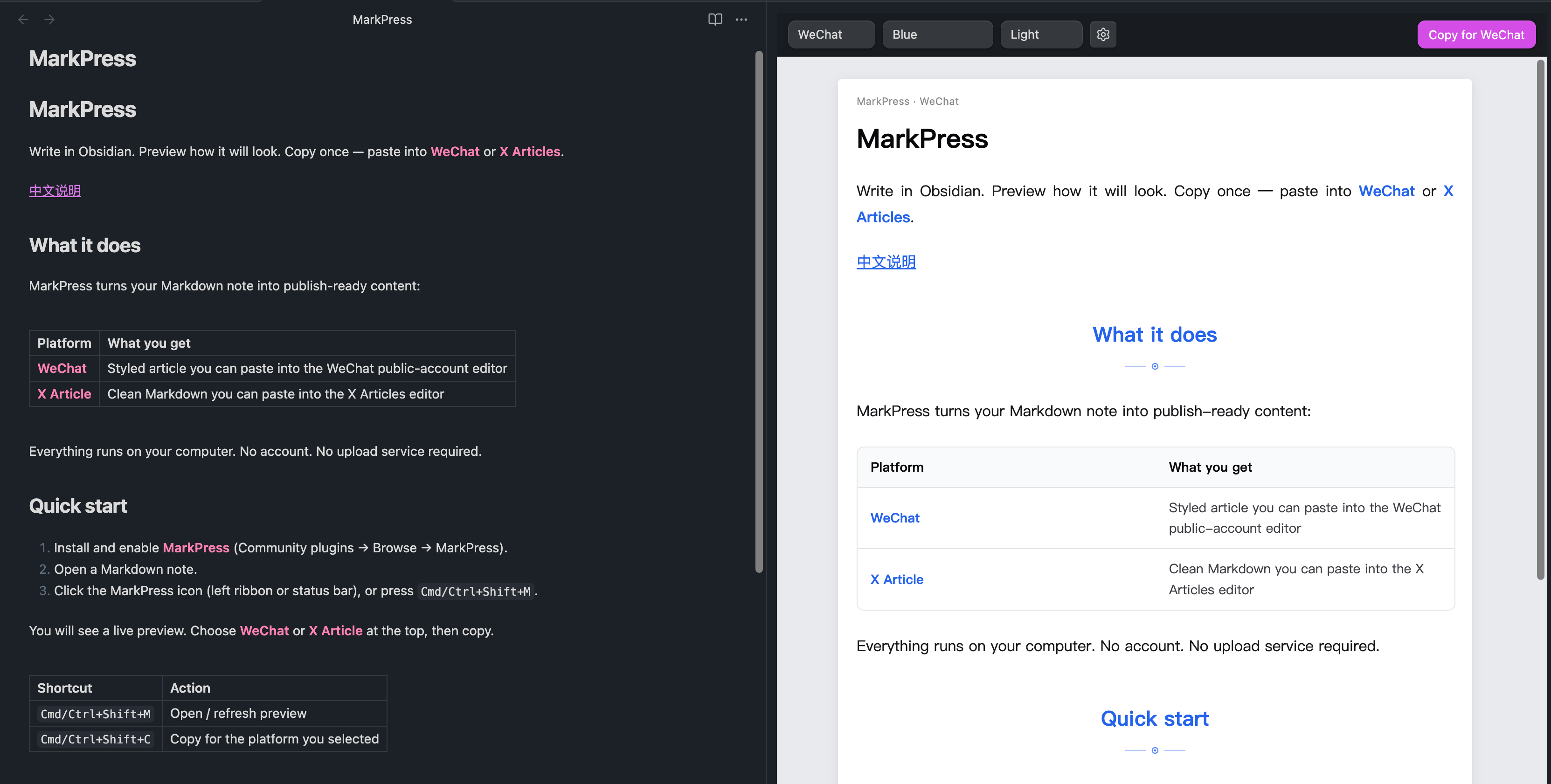
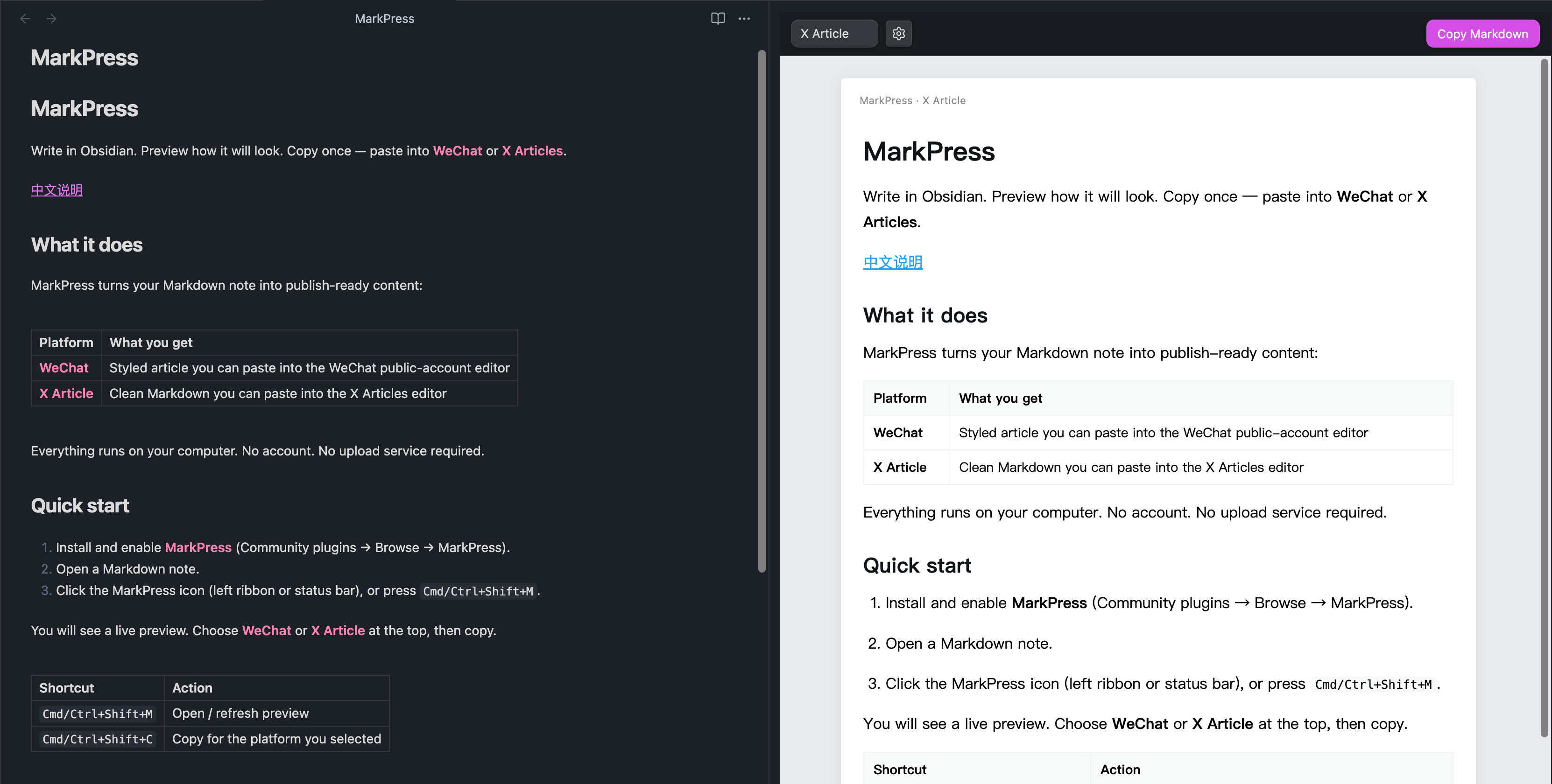
Write in Obsidian. Preview how it will look. Copy once — paste into WeChat or X Articles.
What it does
MarkPress turns your Markdown note into publish-ready content:
| Platform | What you get |
|---|---|
| Styled article you can paste into the WeChat public-account editor | |
| X Article | Clean Markdown you can paste into the X Articles editor |
Everything runs on your computer. No account. No upload service required.
Quick start
- Install and enable MarkPress (Community plugins → Browse → MarkPress).
- Open a Markdown note.
- Click the MarkPress icon (left ribbon or status bar), or run MarkPress: Preview Current Note from the command palette.
You will see a live preview. Choose WeChat or X Article at the top, then copy.
Optional: bind your own shortcuts under Settings → Hotkeys (search “MarkPress”). No defaults are set, so nothing conflicts with other plugins.
Publish to WeChat
- Select WeChat in the preview toolbar.
- Pick a theme and Light / Dark if you like.
- Click Copy for WeChat.
- Open the WeChat public-account editor and paste (
Cmd/Ctrl+V).
Images in your note are included automatically when you copy.
Tip: Light mode usually looks closer to what readers see on WeChat.
Publish to X Articles
- Select X Article in the preview toolbar.
- Click Copy Markdown.
- Paste into the X Articles editor.
About images on X: X does not accept embedded image files from Obsidian the same way WeChat does. Online image links (https://...) work as-is. For pictures stored only in your vault, upload them inside X after pasting, or set an image host URL in MarkPress settings if you already publish images to the web.
Good to know
- Works with headings, bold, lists, quotes, tables, code blocks, and Obsidian callouts.
- Wiki images like
![[photo.png]]are supported. - You can change the default platform and themes under Settings → MarkPress.
Privacy
MarkPress works offline. It does not send your notes to any server. Copy only uses your clipboard when you click Copy.
Contribute
Want to report a bug, improve the plugin, or help with releases? See CONTRIBUTING.md.
License
For plugin developers
Search results and similarity scores are powered by semantic analysis of your plugin's README. If your plugin isn't appearing for searches you'd expect, try updating your README to clearly describe your plugin's purpose, features, and use cases.