by Manuel Delgado Tenorio
Plan your work on a kanban board with swimlanes, a list, a calendar and a timeline, where every card and every lane is a note.
Matters that Matter
Plan your work in Obsidian on a kanban board with swimlanes, a list, a calendar and a timeline, where every card and every lane is a note.
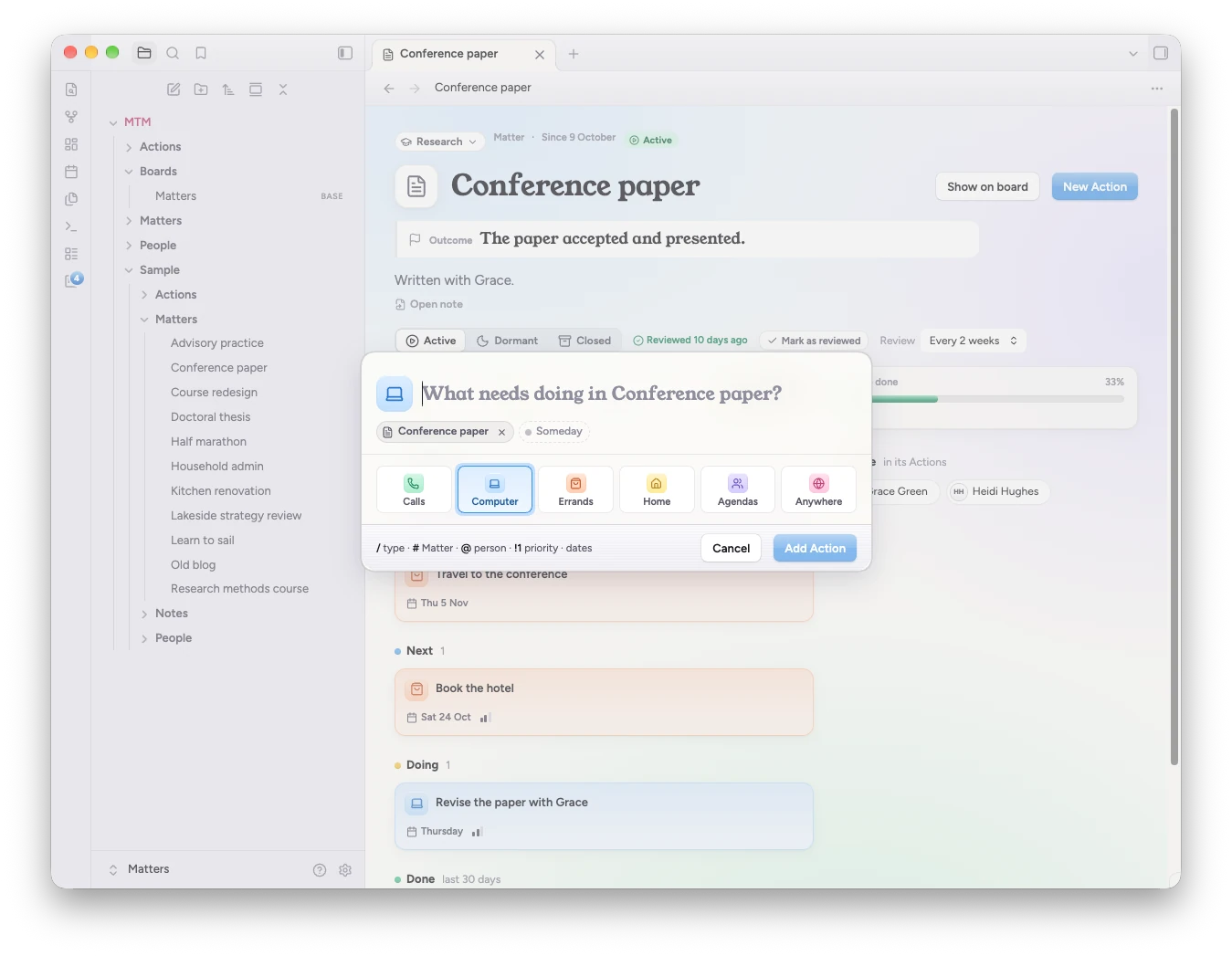
A Matter is anything worth keeping an eye on: a kitchen renovation, the household bills, a thesis. An Action is one step that moves a Matter forward. Each Matter is a lane on the board and each Action a card in it. Both are ordinary notes in your vault, so they take part in links, backlinks, search and Bases like anything else.
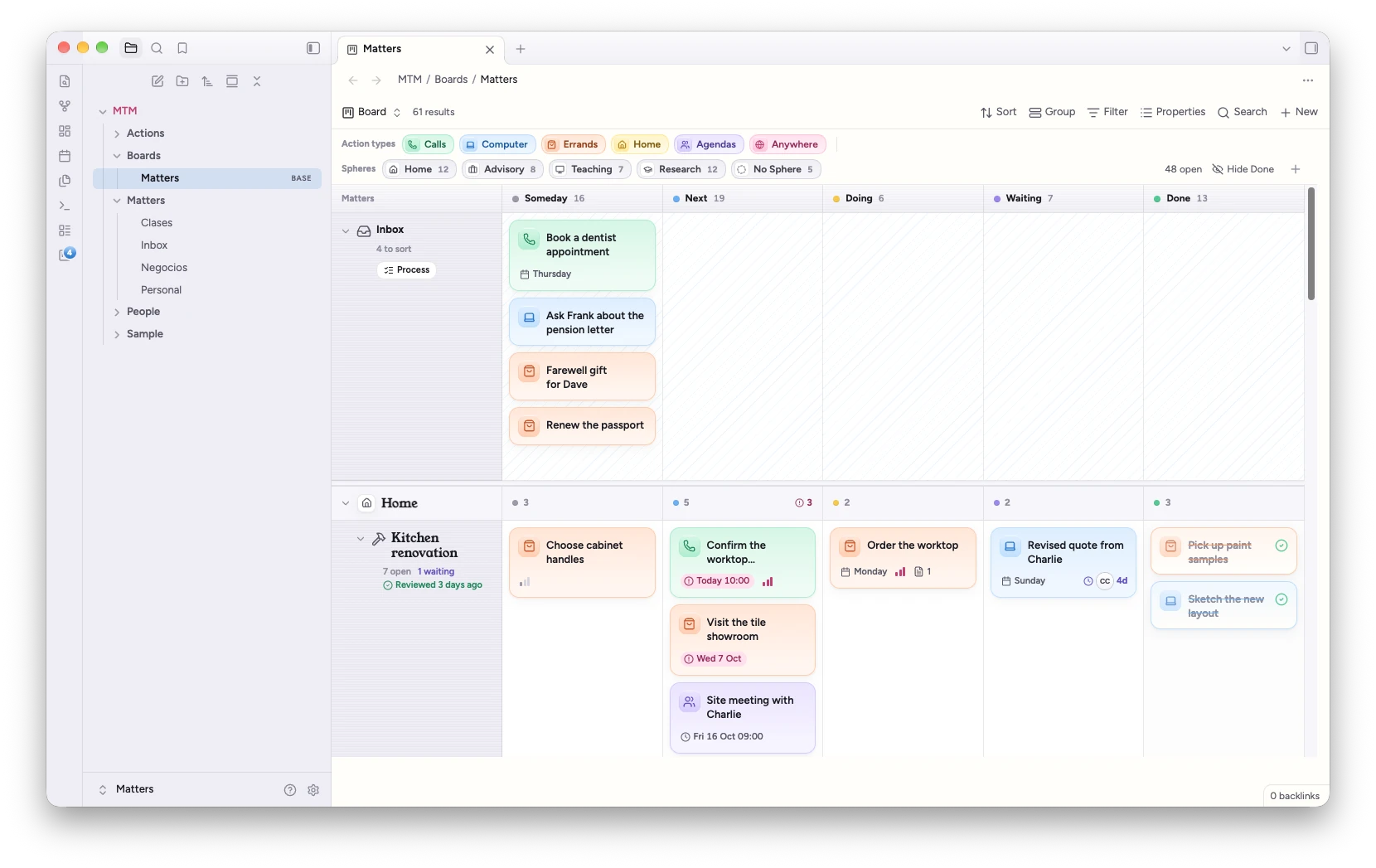
Looks best with the Calm Matters theme
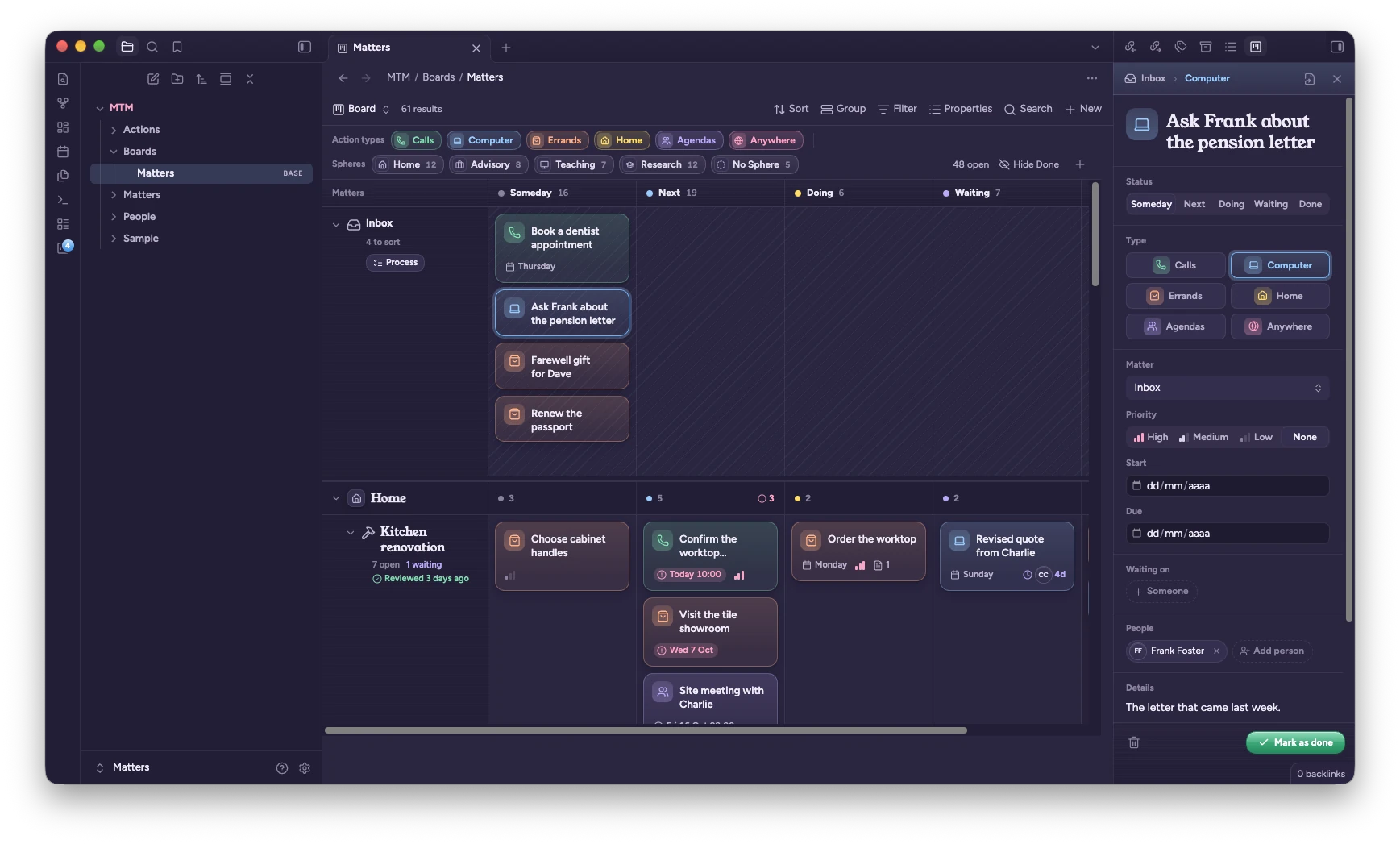
Matters that Matter works with any theme. Its companion theme, Calm Matters, gives it the look in these pictures: a warm paper page, Dusk for the evening, a friendly serif for titles and calm, frosted panels, across your whole vault. It changes how things look, not what they do.
To add it: Settings → Appearance → Themes → Manage, search for Calm Matters, then Install and use. Setup offers the same in one click, and so does the top of the plugin's settings.
Features
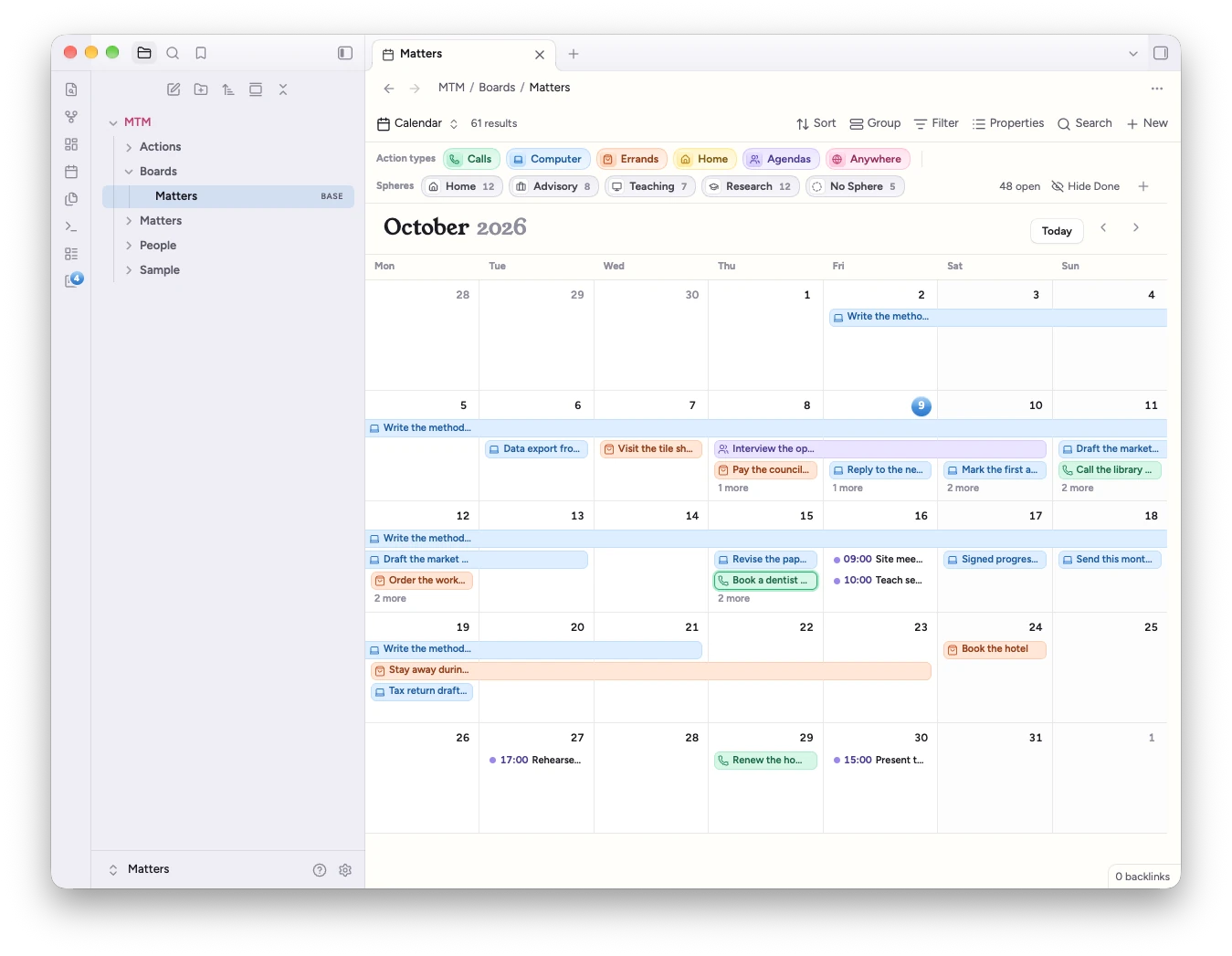
- Four views of the same notes. Board, list, calendar and timeline are Bases views, so they live in a
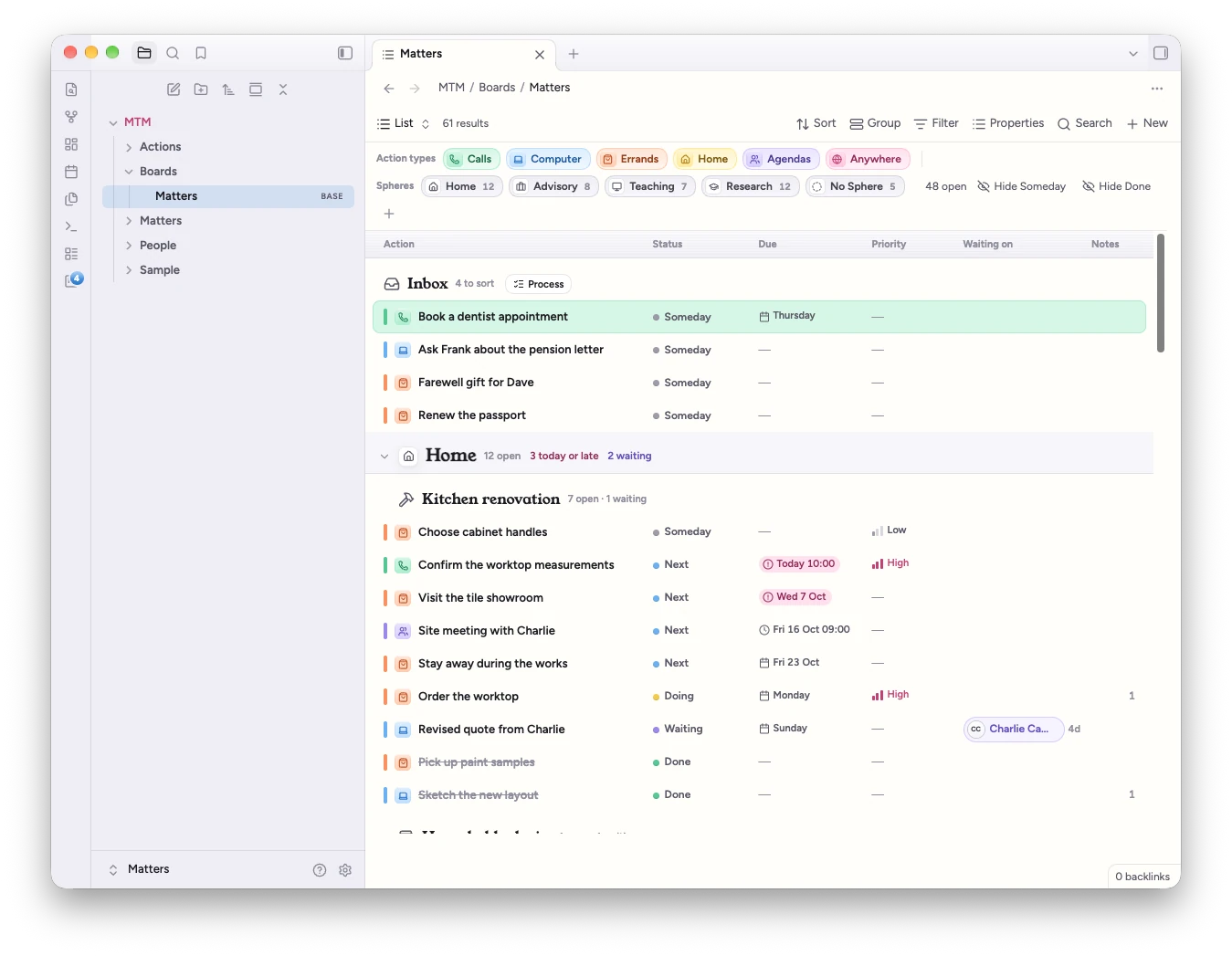
.basefile next to your other bases and respect its filters. - Swimlanes per Matter, grouped by Sphere (Home, Work, Family…), with columns for your own statuses. Drag cards between cells, change them from the inspector, or right-click a card for every status, Mark as done or Reopen, and Move to Matter…. On a phone, the board shows one Matter at a time.
- Cards in your own order. Cells sort themselves by priority, due date and title, or select Order by hand and every card stays where you drop it. Right-click a card (touch and hold on a phone) for Move to top, Move up and Move down. Lists can follow the same order too, with Order by hand in their toolbar.
- Colour means type. Action types (call, message, write, meet, buy, visit, or your own) give every card its colour and icon. You choose labels, icons and colours in settings.
- Quick add with tokens:
Call Charlie about the worktop /call #Kitchen @Charlie !1 tomorrow 10am. Dates are read in English and Spanish; turn off the one you don't write in. - The inspector, in the right sidebar, edits the selected Action: status, type, Matter, priority, dates, who you're waiting on, people, details and a checklist.
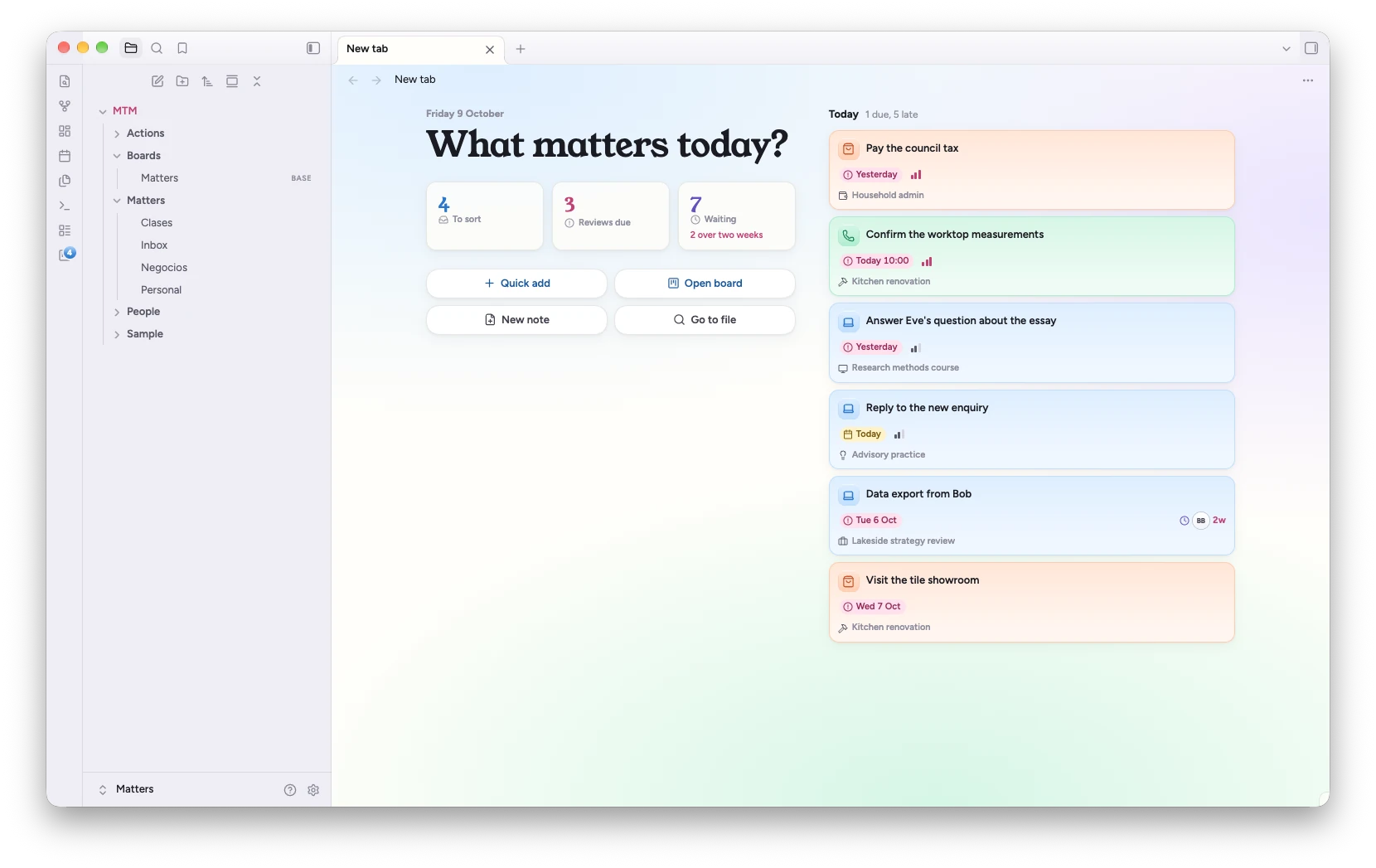
- What matters today? in every new tab: what's due or late, what's waiting in the Inbox, which Matters are due a review, and long waits.
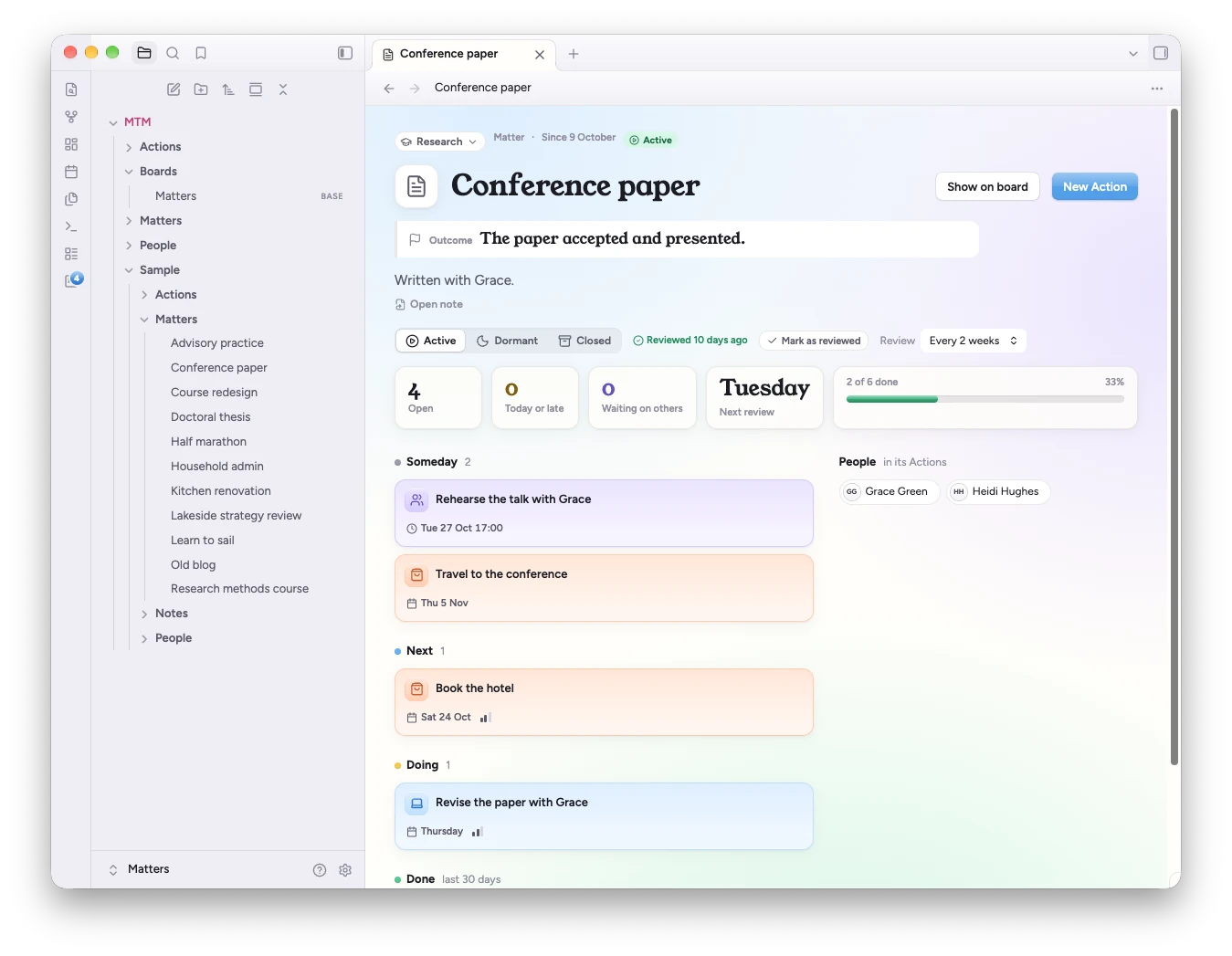
- Matter overviews: the outcome you're aiming for, a review rhythm, progress, and the Matter's Actions by status. Show on board opens the board at the Matter's lane.
- Process Inbox steps through captured Actions one at a time and asks what each one needs.
- Review Matters takes you through the Matters due a review, one at a time: what was done since, what needs a look, and five questions (the outcome, the next step, whether it's still on your mind, when to look again, and anything to remember). A note to remember is kept as a dated line at the end of the Matter's note, and comes back at the next review.
- Notes stay notes. Action notes, Matter notes and the people your Actions name get a small banner that mirrors the card. Everything else in the note is yours.
- Links to Actions show as chips in any note, in reading view and Live Preview: the Action's type, its due date, and whether it's done. They're still links, and they update as the Action changes. A setting turns them off.
- Actions in a note. A
matterscode block lists Actions as cards inside any note, from one line in quick add's tokens (#Kitchen renovation,@Charlie waiting,/call today). Empty, it shows a Matter's or a person's open Actions on their own note, or what's due today elsewhere.
 |  |
 |  |
 |  |
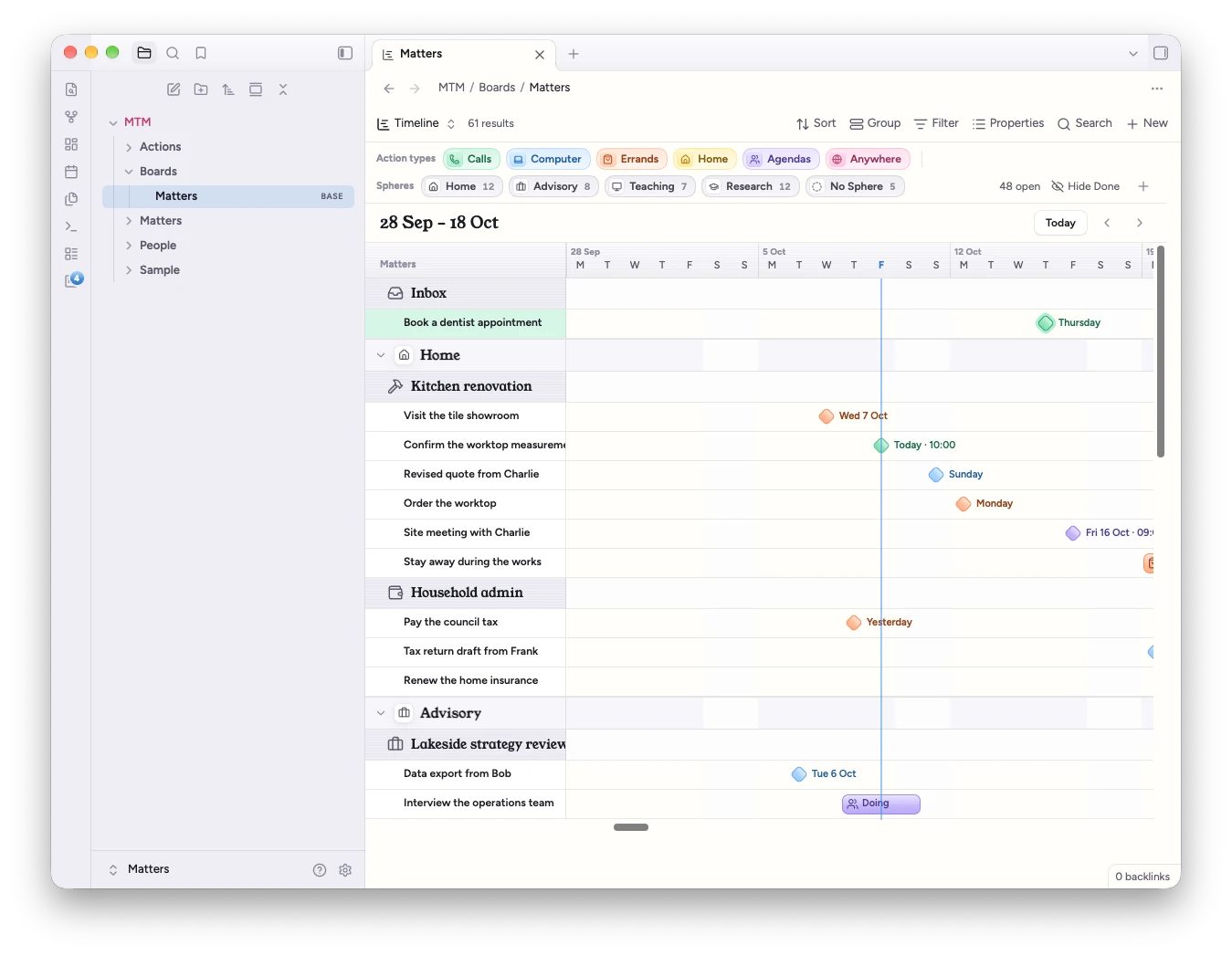 | 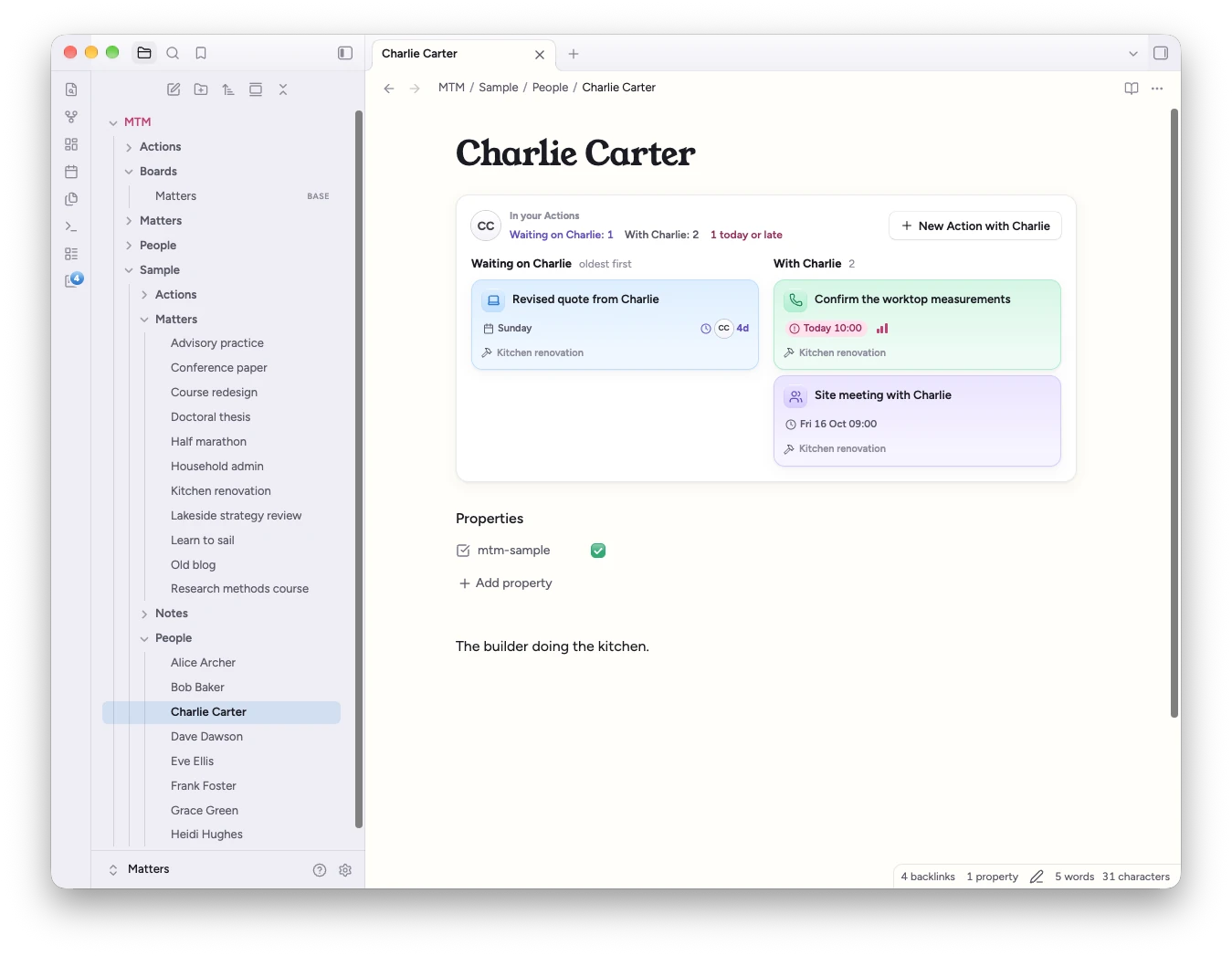 |
All pictures show the Calm Matters theme, with the sample content setup offers.
Requirements
- Obsidian 1.13 or later, on desktop or mobile.
- The Bases core plugin turned on (Settings → Core plugins → Bases). Without it, quick add, the inspector and the commands still work, but the board, list, calendar and timeline don't.
- Recommended: the Calm Matters theme (see above).
Installation
- Open Settings → Community plugins and turn off Restricted mode if it's on.
- Select Browse, search for Matters that Matter, then select Install and Enable.
Getting started
Setup opens in a tab the first time the plugin loads. It creates nothing until the last step, and it never overwrites a file.
- Location: the folders for Matters, Actions, boards and people (
MTM/…by default). Existing folders are reused. - Workflow: your statuses, which are the board's columns, and your Action types. Pick a preset (Default, Simple, Get stuff done) or make your own. You can change both later in settings.
- Matters: type a few names, one per line, or adopt notes you already have, by picking them or by folder or tag.
- Summary: every file setup will create or change. Select Create to write them and open the board.
Tick Add sample content to get a small, made-up life to try every view with: Matters across four Spheres, Actions in every type and status, and the people they involve, with dates relative to today. The command Remove sample content moves those notes to the trash.
Then run Quick add from the command palette (or give it a hotkey in Settings → Hotkeys) and start capturing.
How your notes look
Every property the plugin reads or writes starts with mtm-, so it never touches a status or type of your own. Notes are recognised by mtm-kind, not by folder, so Matters and Actions can live anywhere in your vault.
---
mtm-kind: action
mtm-type: call
mtm-matter: "[[Kitchen renovation]]"
mtm-status: next
mtm-due: 2026-10-15T10:00
mtm-priority: 1
mtm-waiting-on: "[[Charlie Carter]]"
mtm-people:
  - "[[Charlie Carter]]"
---
Confirm the worktop measurements before ordering.

- [ ] Ask for the revised quote
The Action's title is its file name. The body is plain Markdown: the inspector shows the text at the top as Details and the task items as a Checklist, and it never restructures the note.
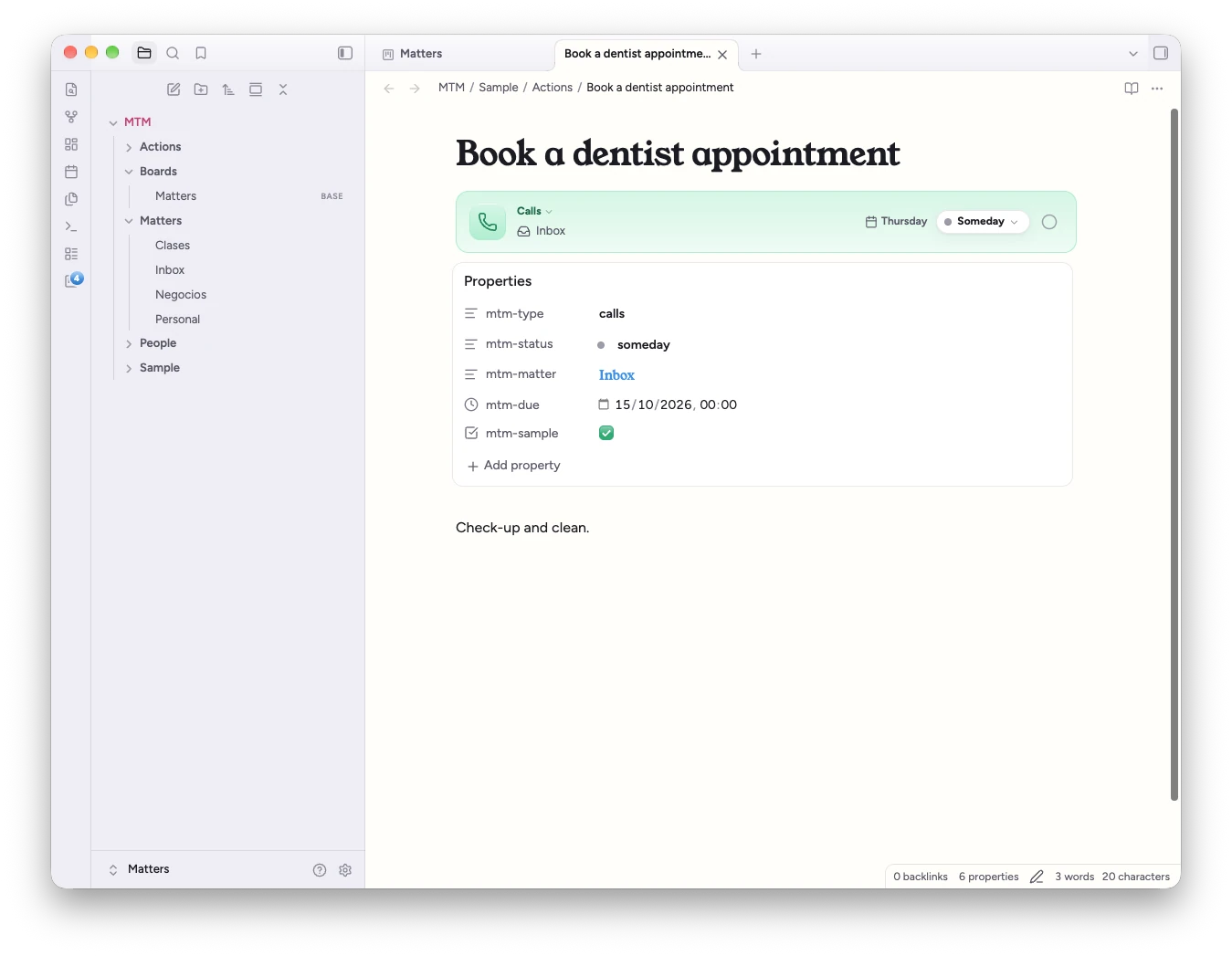
The plugin never rewrites a value on its own. If an Action names a status, type or Matter that doesn't exist (say, after you delete a status, or before settings have synced), the card shows a badge with the value and the views use a fallback. Nothing is written until you move the Action, dismiss the badge, or run Fix orphaned Actions.
Commands
| Command | What it does |
|---|---|
| Quick add | Captures an Action |
| New Matter | Creates a Matter: name, outcome, review rhythm and Sphere |
| Open board | Opens the board, or lets you choose one if you have several |
| Mark as done | Marks the current Action as done |
| Open Matter overview | Opens the overview of the current Matter note |
| Mark as reviewed | Records today as the current Matter's last review |
| Process Inbox | Steps through the Inbox one Action at a time |
| Review Matters | Steps through the Matters whose review is due, one at a time |
| Run setup | Opens setup again |
| Fix orphaned Actions | Gives every Action with an unknown status, type or Matter the fallback value, after asking |
| Remove sample content | Moves the sample notes to the trash |
No command has a default hotkey.
Connect other tools
Actions and Matters are notes, so other tools can work with them too. Three ways in apply the plugin's rules for you; the docs cover each one, and the note format for tools that write notes directly (with JSON Schemas in schema/).
- Obsidian links.
obsidian://mtm-addadds an Action, from Shortcuts, Raycast, Alfred, another app or a link in a note:obsidian://mtm-add?vault=Notes&text=Call%20Charlie%20%2Fcall%20%23Kitchen%20fri.obsidian://mtm-quick-addopens quick add with text in it, andobsidian://mtm-openopens an Action (file=), a Matter's overview (matter=) or a board (board=). Links can only add and open; whatever they bring is written as plain text, every add shows a notice, and more than ten a minute are stopped. Turn adding off with Let links add Actions, under Other tools in settings. Links - The command line.
npx -y matters-that-matter today --vault ~/Notesshows what matters today;add,update,done,reopen,show,list,add-matter,matters,workflowandparsedo the rest, with--jsonfor scripts and--dry-runto see a change first. It works on the notes themselves, so Obsidian doesn't need to be running (onlyopen, which opens an Action or Matter in Obsidian, needs it). It never deletes anything or changes settings, and every write says what it changed. See cli/README.md and Command line. - AI assistants.
mtm mcpruns the same commands as an MCP server for Claude, Codex and other assistants, on your computer only (standard input and output, no network port):claude mcp add matters -- npx -y matters-that-matter mcp --vault ~/Notes.--read-onlyand--toolsoffer less. The skill inskills/matters-that-matterteaches an assistant the plugin's words and when to add or change an Action; copy the folder into~/.claude/skills/for Claude Code, or wherever your assistant reads skills. AI assistants
Anything that can write your vault can change your Actions. None of these lets anyone reach your notes who couldn't before, and nothing is reachable from another machine.
Good to know
- All-day dates in Obsidian's own panels.
mtm-startandmtm-duehold either a date (2026-10-15, all day) or a date and time (2026-10-15T10:00). Obsidian's Properties panel and Bases tables show an all-day date as "00:00", and editing it with Obsidian's date picker adds a time, which makes the Action timed. Edit dates in the inspector to keep them all day. - Sync your plugin settings. Statuses, types and Spheres live in the plugin's settings, and notes store their IDs. If your sync doesn't include plugin settings, another device shows badges on those Actions until the settings arrive. Nothing is rewritten in the meantime. On a vault that has notes but no settings at all (after reinstalling, or a copy without its
.obsidianfolder), setup reads the statuses, types, Spheres and folders back from the notes, changing none of them. - Keep links up to date. Leave Settings → Files and links → Automatically update internal links on. Actions point to their Matter with a link, so renaming a Matter should update every Action that names it.
- Phones. The board shows one Matter at a time: choose it from the pills under the toolbar, swipe sideways between its statuses, and touch and hold a card to move it to another status or Matter. The round + adds an Action where you are. Tablets get the full board.
Obsidian internals
A few features reach into parts of Obsidian that have no public API. Each one is isolated, checks that what it needs is there, and falls back quietly if it isn't:
| Feature | What it touches | Without it |
|---|---|---|
| Date properties | Sets mtm-start and mtm-due to the Date & time property type (in .obsidian/types.json), so Obsidian doesn't treat them as dates only | Dates still work; only Obsidian's own date widgets differ |
| Matters open as their overview | Rewrites what a tab is asked to show before it renders, so Back and Forward work with no flash. Can be turned off in settings | Matter notes open as notes |
| What matters today? | Adds a panel to Obsidian's empty new tab. Can be turned off in settings | New tabs look as usual |
| File explorer | Adds classes to Action entries (a dot in the type's colour) | Entries look as usual |
| Show on board | Reads which view a board tab shows, and switches it to the board view, as the view selector does | A notice asks you to switch the file to its board view |
| The Calm Matters card | Reads the name of the active theme, so setup and settings can say when Calm Matters is in use; its button opens Obsidian's theme browser at the theme through Obsidian's own link handler. It never installs or switches a theme | The card always offers the theme; the button opens the obsidian:// link instead |
Because Matters and Actions are recognised by mtm-kind rather than by folder, the plugin goes through the vault's list of Markdown notes and reads each note's cached properties to find them. It makes no network requests, collects nothing, and reads and writes only inside your vault.
Development
npm install
npm run dev    # watch build
npm test
npm run lint
styles.css is generated from the design sources and committed as a build output; don't edit it by hand.
Licence
For plugin developers
Search results and similarity scores are powered by semantic analysis of your plugin's README. If your plugin isn't appearing for searches you'd expect, try updating your README to clearly describe your plugin's purpose, features, and use cases.