by emirhanoguz0
Show how fresh your memory and handoff files are, with open item counts and a daily log check, in the right sidebar.
Memory Status
An Obsidian plugin that shows, in the right sidebar, how fresh your memory and handoff files are. It is built for vaults where notes such as a session summary, an open items list or a daily log are kept up to date by you or by an AI assistant, and you want to see at a glance when one of them has fallen behind.
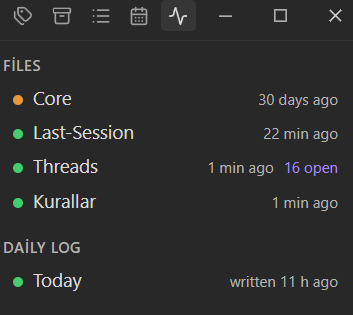
- File freshness. For every file you watch, the panel shows when it last changed and a status dot: green for fresh, orange for stale, red for missing.
- Open item counts. Optionally count the unchecked task items (
- [ ]) in a file, for example in an open threads list. - Daily log check. Shows whether today's daily log exists and when it was last written. A configurable day start hour keeps late night work in the previous day's log.
- Handoff warning. Warns when the daily log changed well after your handoff file, which suggests the handoff notes were not updated after the latest work.
- Click to open. Clicking a row opens the file.
- Reads real file times. Freshness comes from the file's modified time, so changes made outside Obsidian, by scripts or AI tools, are picked up too. Your notes need no special frontmatter or tags.
- Read-only, no network, no telemetry. The plugin never writes to your notes and makes no network requests. It only reads the files you list.
- Nothing is watched by default. After installing, the panel is empty until you add files in the settings. The plugin looks at the files you list, the daily log folder and the handoff file, and nothing else in your vault.
Usage
- Open Settings → Memory Status and add the files you want to watch under Watched files.
- For each file set the number of days after which it counts as stale, and whether to count its open task items.
- Optionally set the Daily log folder, the Date separator and Date order of the daily log file names and the Handoff file.
- Open the panel from the activity icon in the ribbon, or run the command Open in sidebar.
The panel refreshes when a watched file changes and once a minute, so the relative times stay current.
Settings
| Setting | Description |
|---|---|
| Watched files | Files to show. Each has a path, a stale threshold in days and a switch to count open task items. |
| Daily log folder | Folder that holds one log file per day. Leave empty to turn the daily log check off. |
| Date separator | The character between year, month and day in daily log file names: -, . or /. Pick this first. |
| Date order | The order of YYYY, MM and DD in daily log file names, for example YYYY-MM-DD or DD.MM.YYYY. |
| Day starts at | Hour (0 to 23) at which a new day begins. Earlier hours still count as the previous day. |
| Handoff file | The file compared with the daily log. Leave empty to turn the warning off. |
| Handoff grace period | Hours the daily log may be newer than the handoff file before the warning shows. Default: 6. |
A file counts as stale when it has not changed for more than its threshold. Set the threshold to 0 to mark a file stale as soon as any time has passed since its last change.
Installation
From a release (manual)
- Download
main.js,manifest.jsonandstyles.cssfrom the latest release. - Put them in
<your vault>/.obsidian/plugins/memory-status/. - In Obsidian, open Settings → Community plugins, turn off Restricted mode, reload the plugin list and enable Memory Status.
From source
Requires a current Node.js LTS release.
git clone https://github.com/emirhanoguz0/obsidian-memory-status.git
cd obsidian-memory-status
npm install
npm run build
npm run deploy -- "<path to your vault>"
Then enable the plugin as described above.
Development
npm test          # unit and view rendering tests
npm run build     # type check and production bundle
npm run dev       # rebuild on change
The status logic is kept free of Obsidian imports so it can be tested on its own. The view is tested against a small stand-in for the Obsidian module.
License
For plugin developers
Search results and similarity scores are powered by semantic analysis of your plugin's README. If your plugin isn't appearing for searches you'd expect, try updating your README to clearly describe your plugin's purpose, features, and use cases.