Better Mind Map
approvedby linem-davton
Visualize notes as interactive mind maps
Better Mindmap for Obsidian
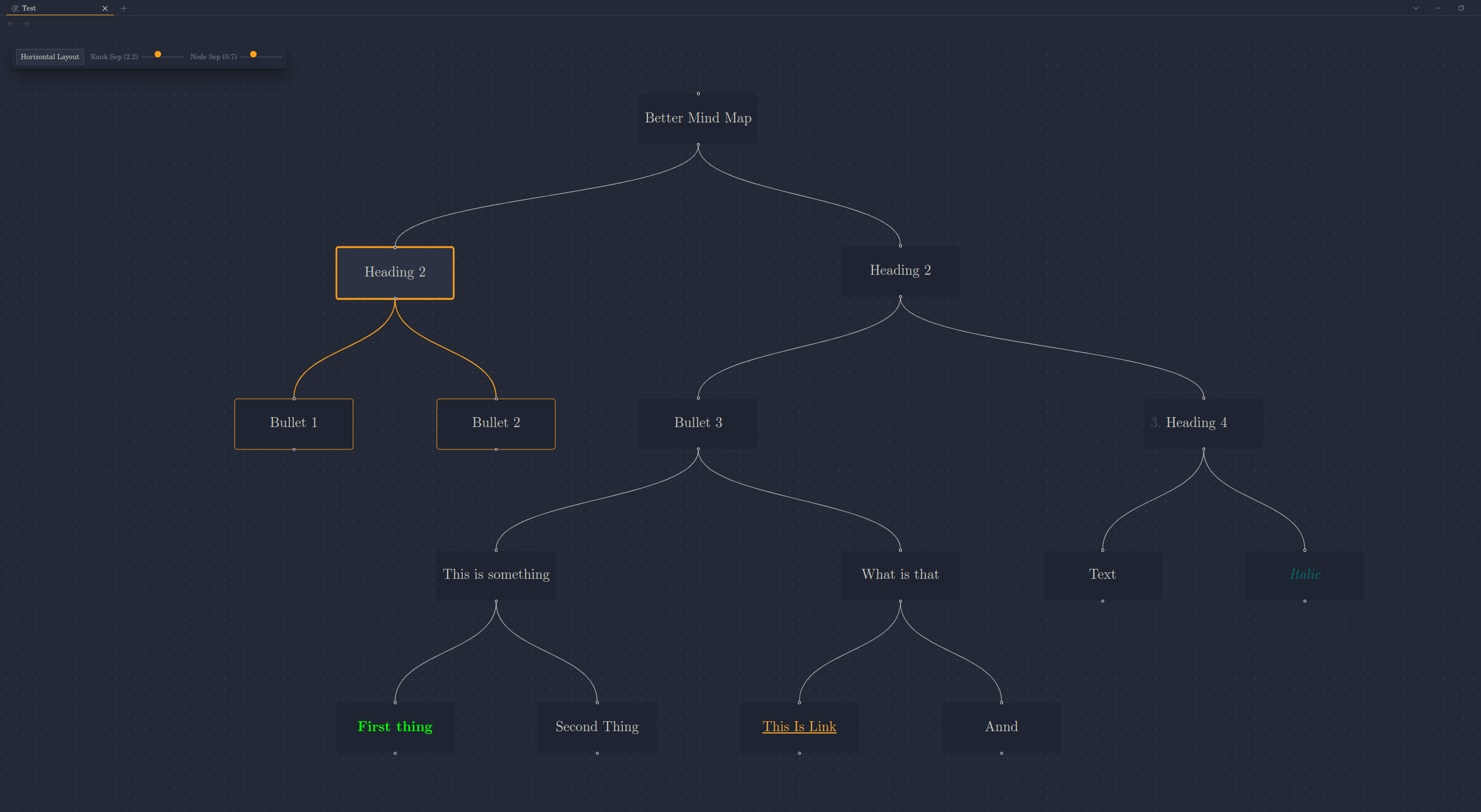
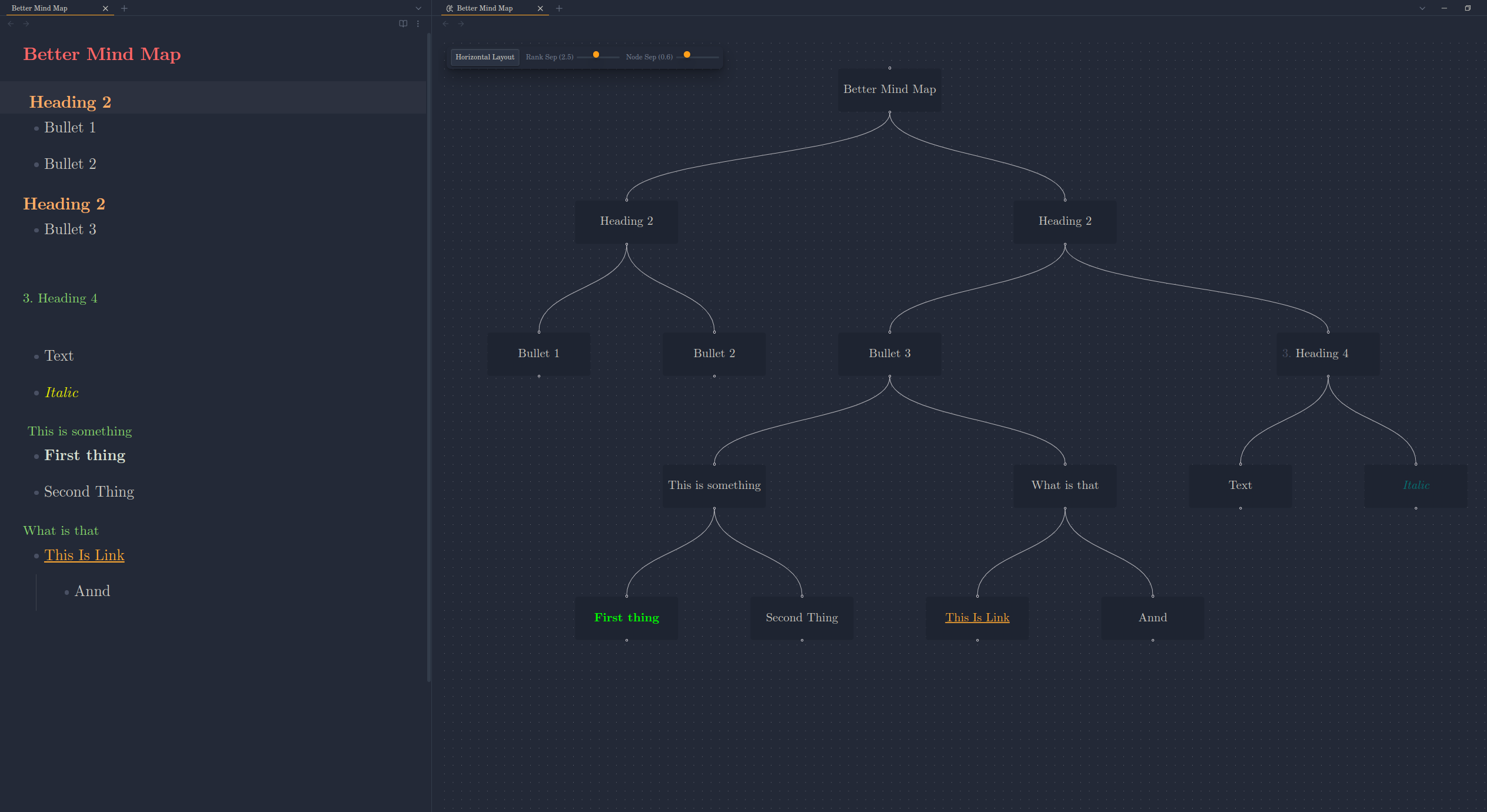
Visualize your Markdown outlines as interactive, dynamic mind maps within Obsidian. This plugin provides enhanced navigation, layout customization, and spacing controls directly within the mind map view.
Features
- Visualize Markdown Outlines: Automatically generates a mind map from the heading structure / bullet points of your active Markdown file.
- Live Updates: The mind map automatically updates to reflect the content of the currently active Markdown note as you edit / navigate within Obsidian.
- Interactive Layouts:
- Toggle between Vertical (Top-to-Bottom) and Horizontal (Left-to-Right) layouts using the in-view control panel.
- View automatically fits to content after layout changes.
- Dynamic Spacing Controls:
- Adjust Rank Separation (space between levels) using an interactive slider.
- Adjust Node Separation (space between nodes on the same level) using an interactive slider.
- See layout changes applied instantly.
- In-View Control Panel: Access layout and spacing adjustments directly within the mind map view without navigating away.
- Node Interaction:
- Collapse/Expand: Double-click nodes to collapse or expand their children.
- Selection Highlight: Click a node to highlight it and its descendants.
- Note Navigation: Click links within node text (if they are standard Markdown links) to navigate to other notes.
- Themed Interface: Controls utilize Obsidian theme variables for seamless visual integration.
How to Use
- Open the Mind Map:
- Ensure a Markdown file is open and active.
- Run the command
Better Mindmap: Open Mind Map Viewfrom the command palette (Ctrl/Cmd+P). This will typically open the mind map in a new pane.
- Interact with the Map:
- Pan & Zoom: Use standard mouse/trackpad gestures to navigate the canvas.
- Collapse/Expand: Double-click a node.
- Select: Single-click a node.
- Follow Links: Click on standard Markdown links within node text.
- Use the Control Panel (Top-Left):
- Layout: Click the
Switch to Horizontal/Vertical Layoutbutton to toggle the orientation. - Spacing: Use the
Rank SepandNode Sepsliders to dynamically adjust the spacing between nodes.
- Layout: Click the
- Reset View State:
- Run the command
Better Mindmap: Reset Mind Map Viewto clear selection highlights and uncollapse all nodes.
- Run the command
- Center View:
- Run the command
Better Mindmap: Center Mind Map Viewto fit the entire mind map within the current viewport.
- Run the command
Installation
From Community Plugins (Recommended)
- Ensure Obsidian's Community Plugins are enabled (
Settings->Community Plugins->Turn on community plugins). - Click
Browsecommunity plugins. - Search for "Better mind map".
- Click
Install. - Once installed, click
Enable.
Manual Installation
- Download the latest
main.js,manifest.json, andstyles.cssfiles from the Releases page of this repository. - Navigate to your Obsidian vault's plugins folder:
VaultFolder/.obsidian/plugins/. - Create a new folder named
better-mindmap. - Copy the downloaded
main.js,manifest.json, andstyles.cssinto thebetter-mindmapfolder. - Reload Obsidian (Ctrl/Cmd+R).
- Enable the "Better Mindmap" plugin under
Settings->Community Plugins.
Configuration
Most configuration is handled directly via the In-View Control Panel (layout direction, spacing).
For advanced users, the spacing sliders control the following CSS variables on the root element (:root or html). You can set base values for these in your own Obsidian CSS snippets if desired, although the panel sliders will override them during interaction:
--mindmap-ranksep-multiplier: Multiplies the node height to determine rank separation.--mindmap-nodesep-multiplier: Multiplies the node width to determine node separation.
Commands
The following commands are available via the Obsidian Command Palette (Ctrl/Cmd+P):
Better Mindmap: Open Mind Map View: Opens the mind map for the currently active Markdown file.Better Mindmap: Reset Mind Map View: Clears selection and uncollapses all nodes in the active mind map view.
Contributing
Contributions, issues, and feature requests are welcome. Please check the Issues page before submitting a new one.
License
This plugin is released under the MIT License.
For plugin developers
Search results and similarity scores are powered by semantic analysis of your plugin's README. If your plugin isn't appearing for searches you'd expect, try updating your README to clearly describe your plugin's purpose, features, and use cases.