by Marc Panu
Replace the file explorer with an Apple Notes-style drill-down navigator.
Mobile Explorer
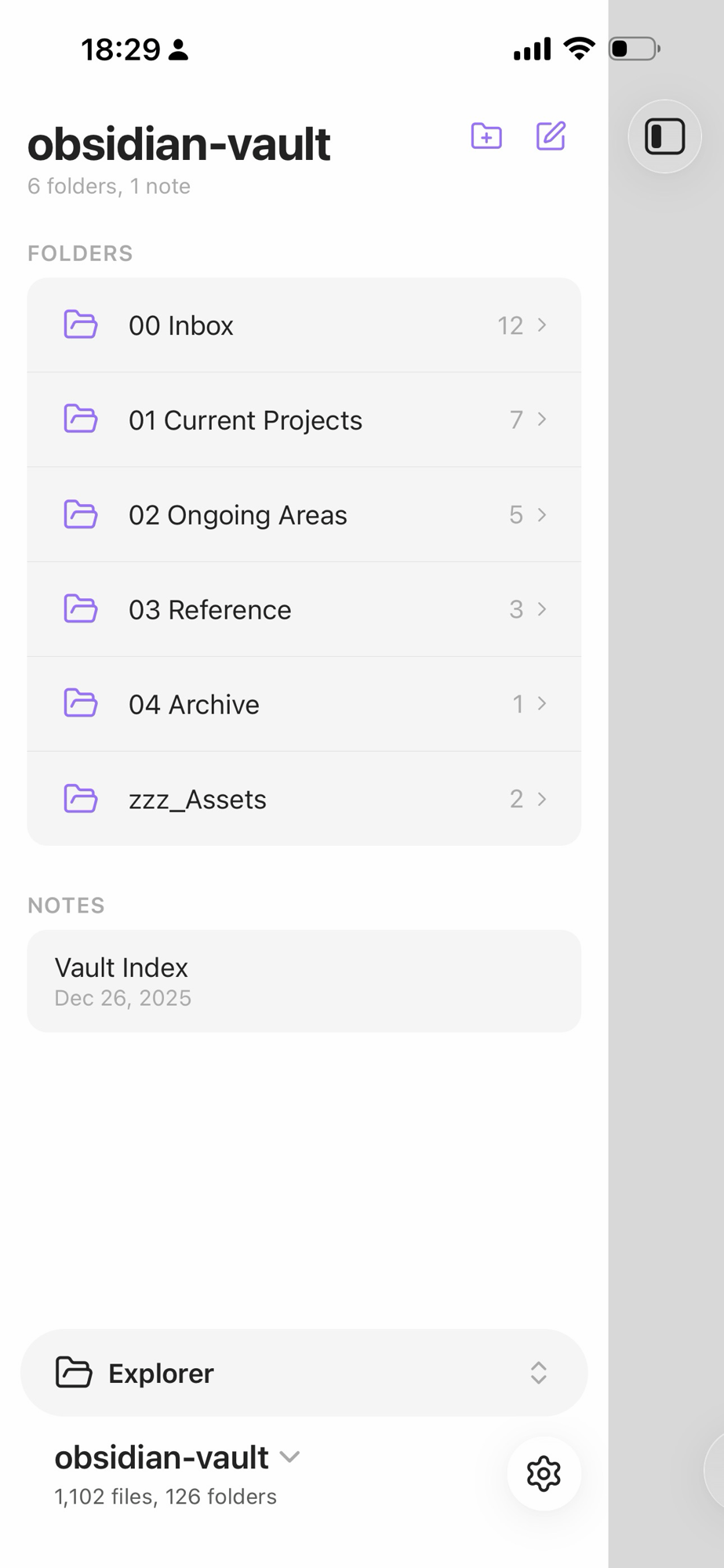
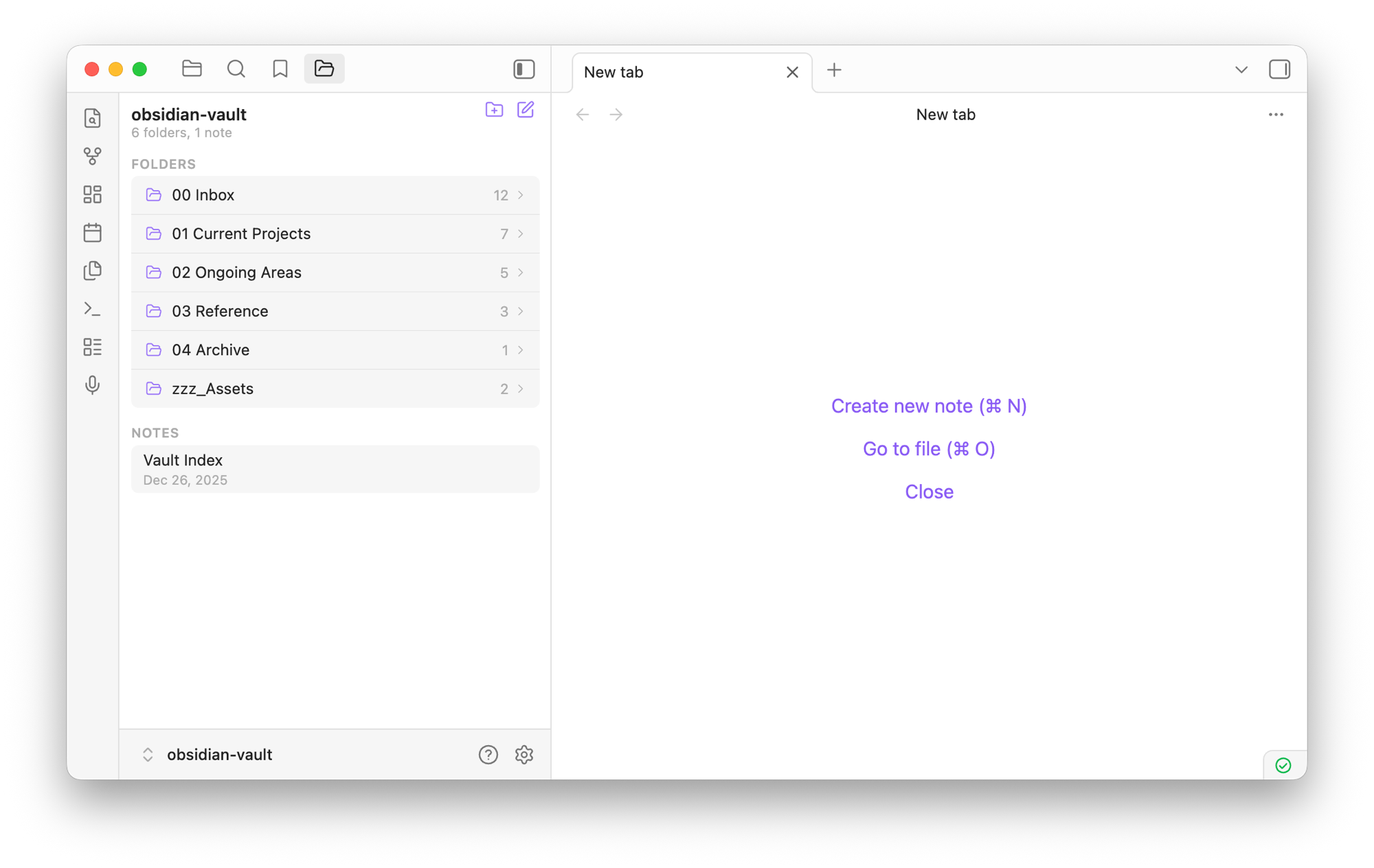
Replace the default Obsidian file explorer with an Apple Notes-style drill-down navigator. Tap a folder to push into it, swipe or tap back to return. Works on both mobile and desktop.
Screenshots
Mobile
Desktop
Features
- Drill-down navigation — tap a folder to push into it, back button or swipe to return
- Grouped sections — folders and notes displayed in separate card groups
- File metadata — notes show relative modification dates (Today, Yesterday, Jan 4, etc.)
- Item counts — folder and note counts in the header, child counts on each folder
- Native context menu — right-click (desktop) or long press (mobile) for the full Obsidian file menu
- Print notes — "Print note" in the context menu (and command palette). On desktop it opens the system print dialog; on mobile it renders the note to a formatted PDF and opens the native share sheet, where you can print (AirPrint or a printer app), save to Files, or share it
- Swipe-back gesture — swipe right to navigate to the parent folder on mobile
- Slide animations — iOS-style push/pop transitions between folders
- Responsive sizing — compact layout on desktop, touch-optimized on mobile
Installation
From Obsidian community plugins
Search for "Mobile Explorer" in Settings > Community plugins > Browse.
With BRAT (beta testing)
- Install BRAT from community plugins
- In BRAT settings, add beta plugin:
marcpanu/obsidian-mobile-explorer
Manual
Copy main.js, manifest.json, and styles.css into your vault at .obsidian/plugins/mobile-explorer/.
Printing
Obsidian mobile has no built-in print or PDF export, and the system share sheet only receives the raw markdown file (no print option). This plugin adds one:
- Mobile — long-press a note > Print note. The note is rendered and converted to a paginated PDF (headings, lists, checkboxes, code blocks, quotes, callouts, tables, links, and vault images), then handed to the native share sheet. From there use Print, AirPrint, a printer app, or Save to Files. If the webview can't share files, the PDF is saved next to the note instead.
- Desktop — right-click a note > Print note opens the system print dialog with the rendered note.
- Also available as the Print current note command, and in Obsidian's own file menus.
The mobile PDF uses the standard PDF fonts, which cover Latin scripts plus common typographic symbols; emoji and CJK characters are omitted. Diagrams (Mermaid) and math blocks are not included.
License
For plugin developers
Search results and similarity scores are powered by semantic analysis of your plugin's README. If your plugin isn't appearing for searches you'd expect, try updating your README to clearly describe your plugin's purpose, features, and use cases.