Move Completed Tasks
approvedby Aaron Penne
Automatically move completed tasks to the bottom of their checkbox group - This plugin has not been manually reviewed by Obsidian staff.
Move Completed Tasks



Yet another Obsidian plugin that moves completed tasks to the bottom of the list when you check them off. This one behaves like Apple Notes, Todoist, and Noteplan.
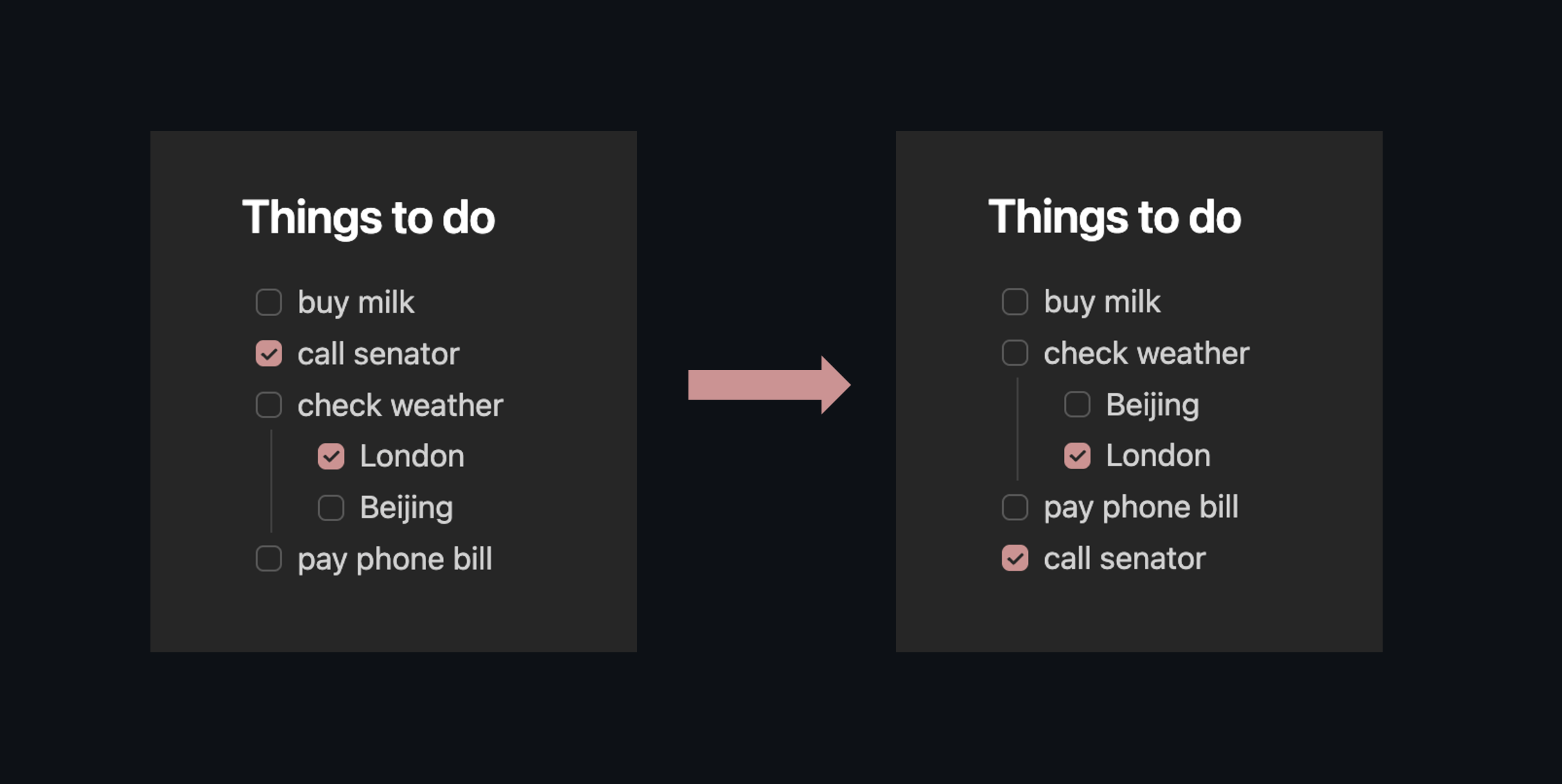
It does two things:
- When you check a task, it drops to the bottom of its list automatically. A highlight flashes so you can see where it went. Ctrl+Z to undo.
- Two commands let you sort or collect completed tasks across the whole document, if you have a page that's already messy. Both are bindable to hotkeys.
Install
Community plugins: Settings > Community plugins > Browse, search "Move Completed Tasks", Install, Enable. Or install directly.
Manual: Grab move-completed-tasks.zip from the latest release, unzip into <vault>/.obsidian/plugins/, enable in Settings > Community plugins.
BRAT: Add aaronpenne/move-completed-tasks.
How it works
Check a task and it moves to the bottom of its group, subtasks and all. Subtasks stay with their parent; a nested checkbox never jumps out of its parent list.
A "group" here means any unbroken run of checkboxes at the same indent level. Blank lines, headings, code fences, or non-checkbox content end a group. This matches what the plugin's settings UI calls a group.
Per-note opt-out
Add move-completed: false to a note's frontmatter to disable all auto-move and bulk commands for that note:
---
move-completed: false
---
Theme compatibility
Works with any theme that uses standard markdown checkboxes. Themes like Minimal, AnuPpuccin, and ITS Theme add alternative checkbox states ([?] for question, [!] for important, etc.), and the excluded characters setting keeps those from being treated as completed. The default exclusion list covers all Minimal theme decorators:
[?] question    [!] important
[*] star        ["] quote
[l] location    [b] bookmark
[i] info        [S] savings
[I] idea        [p] pros
[c] cons        [f] fire
[k] key         [w] win
[u] up          [d] down
Related plugins
There are a lot of great task plugins for Obsidian. Here's what else is out there:
- Tasks: full task management with dates, recurrence, and queries
- Completed Task Display: hides completed tasks with CSS rather than moving them
- Todo Sort: sorts tasks when you open the file
- Task Mover: moves completed tasks to a separate file or heading
- Archiver: archives completed tasks to a designated section or separate file
- To-Do to Done Mover: moves done tasks between specific headings
- DoneDrop: drops completed tasks to the bottom of the note
- Move Completed Tasks Down: similar idea with a fixed 5-second delay
Plugin compatibility
- Tasks: moves happen after Tasks appends completion dates, so timestamps are preserved
- Dataview: no conflicts (Dataview reads, this plugin writes)
License
For plugin developers
Search results and similarity scores are powered by semantic analysis of your plugin's README. If your plugin isn't appearing for searches you'd expect, try updating your README to clearly describe your plugin's purpose, features, and use cases.