My Typewriter Line
approvedby dmo-code
Keep the active line in focus with customizable top and bottom scroll padding for typewriter-like editing.
★ 1 stars↓ 881 downloadsUpdated 10mo agoMIT
My Typewriter Line



My Typewriter Line is an Obsidian plugin that lets you set custom top and bottom scroll padding in the editor, so your active line always stays in focus—just like a typewriter. Perfect for distraction-free, focused writing.
Note: This plugin exclusively provides this single function (dynamic scroll padding adjustment via slider).
Features
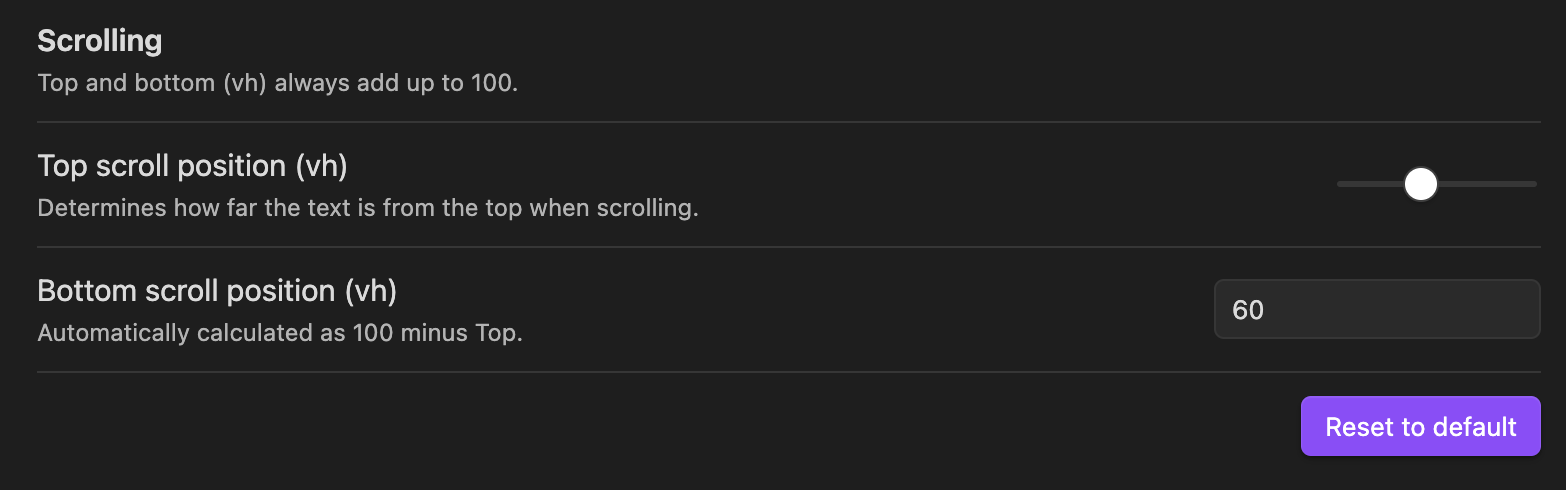
- Set custom top and bottom scroll padding (in vh) via a single horizontal slider
- Bottom value is automatically calculated (always 100 minus top)
- Keeps your cursor/active line centered or at your preferred position while typing
- Simple, distraction-free writing experience
Installation
From Obsidian Community Plugins
- Open Obsidian and go to Settings → Community plugins.
- Click on Browse and search for
My Typewriter Line. - Click Install and then Enable.
Manual Installation
- Download the latest
main.js,manifest.json, andstyles.cssfrom the Releases page. - Place these files in a new folder named
my-typewriter-lineinside your vault's.obsidian/plugins/directory. - Restart Obsidian and enable the plugin in Settings → Community plugins.
Usage
- Go to Settings → My Typewriter Line.
- Adjust the Top scroll position (vh) using the horizontal slider. The Bottom scroll position is automatically set so that both always add up to 100.
- Your active line will now stay at your preferred vertical position while you type.
Setup
Support & Feedback
- For issues or feature requests, open an issue on GitHub.
Developer Build Instructions
If you want to build the plugin yourself:
- Make sure you have Node.js installed.
- Run
npm install. - Run
npm run buildto produce the build in thedistfolder.
Themanifest.jsonandstyles.cssare copied todist/automatically. - Copy
main.js,manifest.json, andstyles.cssfromdist/to your Obsidian plugins folder:.obsidian/plugins/my-typewriter-line.
License
MIT
For plugin developers
Search results and similarity scores are powered by semantic analysis of your plugin's README. If your plugin isn't appearing for searches you'd expect, try updating your README to clearly describe your plugin's purpose, features, and use cases.