Mylonite





Mylonite is a self-hosted sync server for Obsidian. Use it with the Mylonite plugin to pair devices and sync end-to-end encrypted vault data through your own storage.
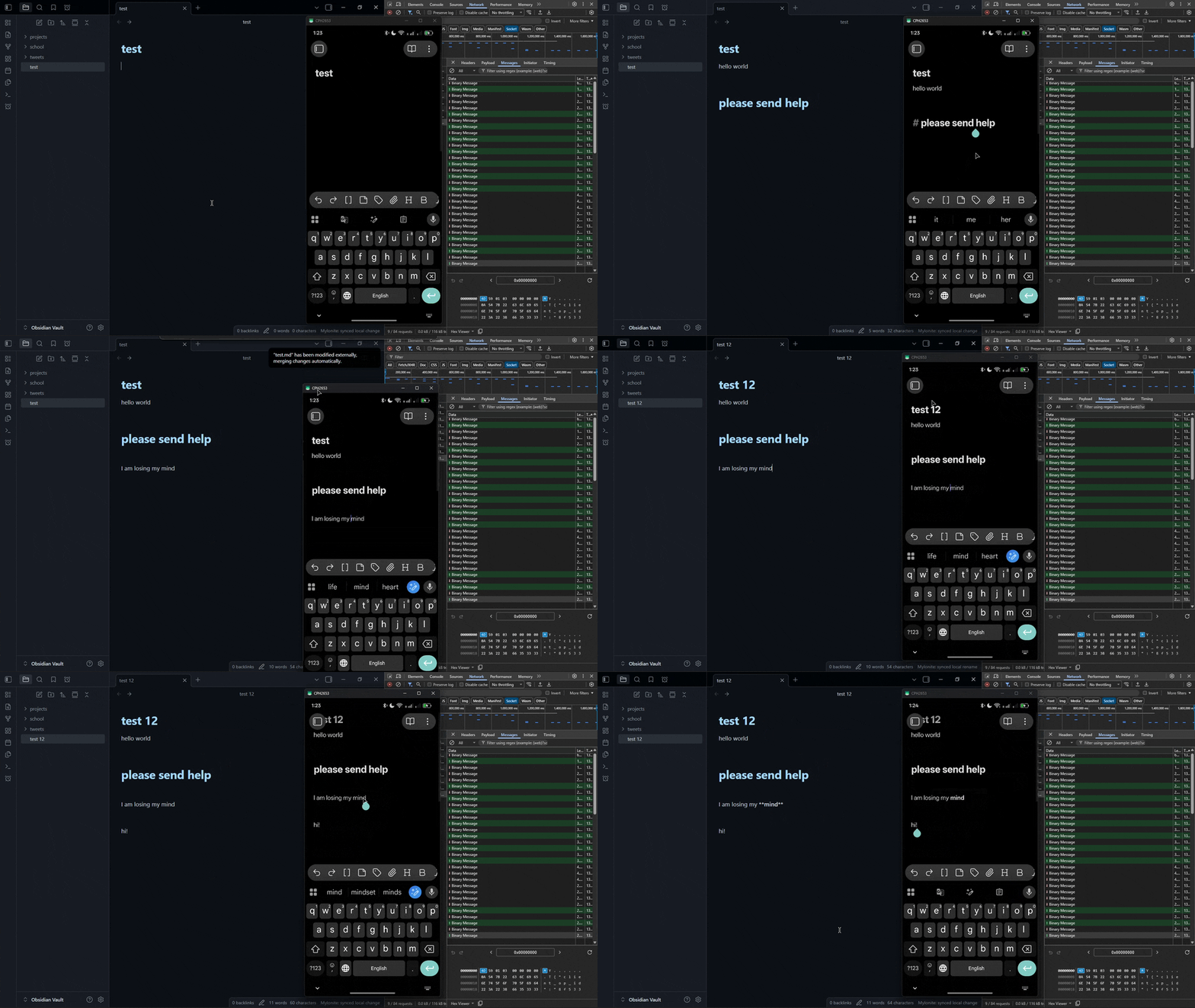 Synchronization showcase using a remote server hundreds of kilometers away. Vault data remains end-to-end encrypted throughout the sync process.
[!NOTE]
Mylonite is still in early development, expect bugs and breaking changes.
Server
Install the latest binary.
Debian/Ubuntu x86_64:
curl -fL -o /tmp/mylonite \
  https://github.com/z1xus/mylonite/releases/latest/download/mylonite-x86_64-unknown-linux-gnu
sudo install -m 0755 /tmp/mylonite /usr/local/bin/mylonite
mylonite --version
For ARM64 Linux, such as a Raspberry Pi, use mylonite-aarch64-unknown-linux-gnu. Other platforms: grab the matching binary from Releases and place it on your PATH.
Release assets are signed with GitHub artifact attestations. After downloading a binary or plugin zip, verify its provenance with the GitHub CLI:
gh attestation verify ./mylonite-x86_64-unknown-linux-gnu -R z1xus/mylonite
gh attestation verify ./mylonite-obsidian-plugin.zip -R z1xus/mylonite
The container image is attested too:
docker login ghcr.io
gh attestation verify oci://ghcr.io/z1xus/mylonite:latest -R z1xus/mylonite
Create the config and the first vault's pairing token:
mylonite init
Run the server:
mylonite serve
The default config lives at:
- Linux:
~/.config/mylonite/config.toml - macOS:
~/Library/Application Support/mylonite/config.toml - Windows:
%APPDATA%\mylonite\config.toml
Keep listen = "127.0.0.1:9821" when a reverse proxy terminates TLS on the same host.
Use listen = "0.0.0.0:9821" and set public_url to the reachable URL if the server should accept direct connections.
Systemd
Drop this unit at /etc/systemd/system/mylonite.service, replacing YOUR_USER with the account that ran mylonite init:
[Unit]
Description=Mylonite sync server
After=network-online.target
Wants=network-online.target

[Service]
ExecStart=/usr/local/bin/mylonite serve
Restart=on-failure
User=YOUR_USER

[Install]
WantedBy=multi-user.target
sudo systemctl daemon-reload
sudo systemctl enable --now mylonite
sudo systemctl status mylonite
Windows: run mylonite serve with NSSM, WinSW, or your preferred service wrapper.
Docker
docker run -p 9821:9821 \
  -v ./config.toml:/etc/mylonite/config.toml:ro \
  -v ./data:/var/lib/mylonite \
  ghcr.io/z1xus/mylonite:latest
Plugin
Install Mylonite from the Obsidian community plugin directory.
Beta install: install BRAT, then add https://github.com/Z1xus/mylonite as a beta plugin.
Manual install: download mylonite-obsidian-plugin.zip from Releases and extract it into:
<vault>/.obsidian/plugins/mylonite/
Enable Mylonite in Obsidian's community plugins list, then open its settings.
Disclosures
- The plugin needs a Mylonite server that you host. There is no account and no paid service.
- It connects only to the server URL you enter. It sends vault data encrypted on your device.
- It has no telemetry and no ads.
- It reads and writes files only in your vault and in its own plugin folder.
- The bundle includes Loro (MIT) compiled to WebAssembly.
Pairing
The first device must be paired with the pairing token. Every other device joins through a short-lived invite approved by an already-paired device.
First device
- Enter your server URL (and optionally your device label).
- Paste the pairing token printed by
mylonite init. - Click Pair.
Additional devices
- On an already-paired device, open Mylonite settings -> Add another device -> Create. Mylonite shows a QR code, an invite code, and the server URL.
- On the new device:
- If the camera is available, scan the QR code. It will open an invite page on your Mylonite server.
- Otherwise, type the server URL and invite code manually or paste the invite code.
- Compare the six-digit safety code on both devices, then click Approve on the already-paired device.
If you ever lose access to every paired device, the vault data is unrecoverable — the encryption key was generated on the first device and the server only holds ciphertext. Wipe the dead vault and start fresh:
mylonite vault delete <vault_id>
mylonite vault create "My Vault"
# pair the new device with the freshly printed token
Upgrading from 0.1.x
The sync format changed. Update in this order:
- Update the server and restart it. Existing data stays as it is.
- Update the plugin on each device. The first updated device upgrades the vault. The other devices join it when you update them.
Devices with the old plugin stop syncing when the vault is upgraded. Edits made on them are not lost. They sync when you update the plugin on that device.
If the same file changed on two devices and Mylonite can't merge the changes, it keeps both versions. The extra copy has conflict in its name. The old sync state is saved in .obsidian/plugins/mylonite/sync-v2-backup.json.
Develop
Requirements:
- Rust 1.90+
- Bun 1.2+
Run locally:
cargo run -p mylonite -- serve --config dev/config.toml
cargo run -p mylonite -- vault create "My Vault" --config dev/config.toml
Build the plugin:
cd plugin
bun install
bun run build
Run checks:
cargo fmt --all --check
cargo clippy --workspace --all-targets -- -D warnings
cargo test --workspace
cd plugin
bun run test
bun run build
For plugin developers
Search results and similarity scores are powered by semantic analysis of your plugin's README. If your plugin isn't appearing for searches you'd expect, try updating your README to clearly describe your plugin's purpose, features, and use cases.