by natlee
Edit Markdown notes like a Word document, with a ribbon toolbar, tables, and images. Notes are still saved as clean Markdown.
Word Mode
English | 繁體中文 | 台文 | 粵語 | 简体中文 | 日本語 | 한국어 | Tiếng Việt | Français | Deutsch | Español | العربية | עברית
Edit your Obsidian notes the way you would in Word: a ribbon toolbar, tables, equations, and diagrams, with no Markdown syntax to remember. Every note is still saved as a plain Markdown file.
Why Word Mode
- Nothing to memorize. Format with toolbar buttons and the shortcuts you know from a word processor, such as
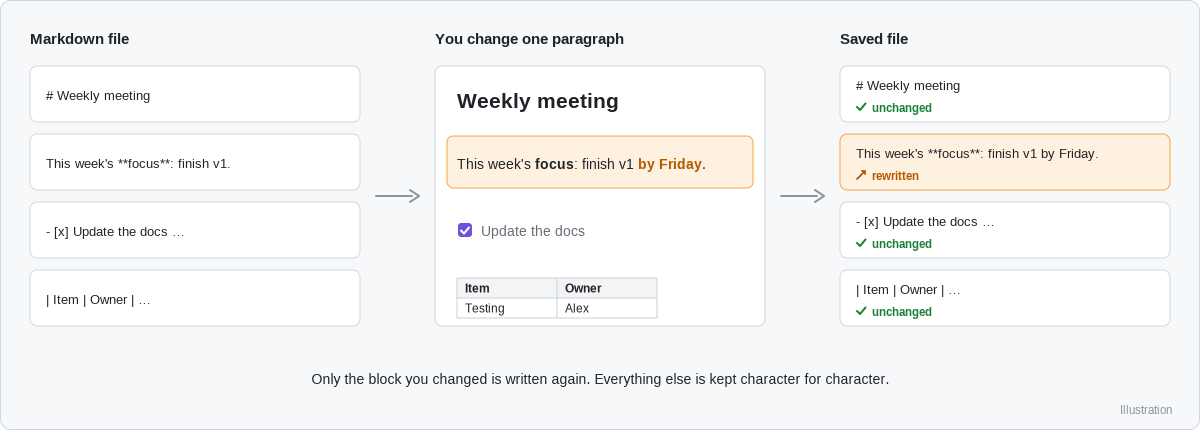
Ctrl+Bfor bold andCtrl+Kfor a link. - Your files stay Markdown. When you edit a note, only the blocks you changed are written again. Everything else is kept exactly as it was, character for character, so sync and version history see only what you edited.
- Switch any time. Press
Ctrl+E(Cmd+Eon macOS), or select the button in the note's header, to go between Word mode and Obsidian's own editor. - Made for Obsidian. Links, tags, properties, callouts, embeds, footnotes, math, Mermaid diagrams, and Dataview queries all work in Word mode.
Features
Formatting as you type
Shown in the animation at the top. Start a paragraph with # , - , 1. , > , or [ ] , or finish **bold**, *italic*, or [[note]], and it turns into formatting. One undo removes the formatting and keeps what you typed. Type [[ to pick a note or heading, or # to pick a tag.
Ribbon toolbar
- Home, Insert, Review, and View tabs, arranged like a word processor.
- Font color and highlight: standard colors with tints and shades, your recent colors, or any color you pick or type as a hex code. Highlights can use any color and opacity.
- Make it yours: show the tabs as text, icons, or both, collapse them into one menu button, and rename them. Rename, reorder, hide, or move button groups to another tab.
- More room while typing on a phone: when the on-screen keyboard is open, the toolbar shrinks to one row above it. The tabs fold into a menu button and the buttons show icons only; everything comes back when the keyboard closes. You can turn this off in settings.
- Bottom drawers on phones: the toolbar's drop-down panels (tabs, styles, outline, colors, symbols, insert table) slide up from the bottom of the screen, like Obsidian's own phone menus, and sit above the keyboard when it is open.
- Move the cursor by dragging: while the keyboard is open on a phone, press the tab menu button at the start of the toolbar and drag left or right to move the cursor one position at a time, or up and down to change lines. A plain tap still opens the tab menu. While you drag, a magnified preview above the cursor shows exactly where it is.
- Touch gestures on a phone: swipe up on Undo to redo and on Redo to undo (the two indent buttons work the same way; a small dot marks these buttons). Tap with two fingers to select the whole paragraph. Tapping table cells places the cursor right away, without the system Cut / Copy / Paste menu getting in the way. The symbol picker also has paired brackets and quotes that wrap the selected text.
- Hide the keyboard: while the on-screen keyboard is open, a button at the end of the toolbar (and next to Cancel in the equation and diagram editors) puts it away.
- Smoother on a phone: the toolbar slides with the keyboard instead of jumping; swipe down on the toolbar to put the keyboard away; drawers have a title, mark the current choice and can be dragged down to close; the find bar keeps Close at the right end; buttons on tables, diagrams and code blocks no longer cover the content; the toolbar stays at the bottom in Markdown and reading view too; and swiping along the toolbar no longer pulls out the Obsidian sidebars.
- Insert with a slash (off by default; turn it on in settings): type
/at the start of an empty paragraph to pick a heading, list, table, code block, callout, equation, diagram, image or link, and keep typing to filter. On a phone this is faster than scrolling the toolbar. Switching between Word mode, Markdown and reading view keeps your place in the note; in reading view on a phone the toolbar shrinks to one row of the buttons that still work; and tables get Previous cell and Next cell buttons, since the on-screen keyboard has no Tab. On a phone, the buttons on tables, equations, diagrams and code blocks are larger and spaced apart, with delete set off in red. - The right keyboard for each field: formulas, code and search boxes are typed as-is (no auto-capitalisation or autocorrect, also while the cursor is inside a code block or inline code); number fields open the number pad and link fields the URL keyboard; the return key reads Search or Done where that is what it does.
- Equation and diagram editors on a phone: with the keyboard open they stay above it and show only what you need: the formula being edited, one swipeable row of symbols and the preview; the title and mode switches come back when the keyboard closes.
- The same toolbar in Markdown and reading mode, with the same layout, so nothing jumps when you switch. You can show it in both, in one of them, or in neither.
- Detailed tooltips: hovering a button explains it with a short animation, including the view mode buttons and the status bar buttons. They are on by default; turn them off in settings or in the shortcut list.
- Status bar with the word count, save status, buttons to switch between Word mode, Markdown and reading view, view properties, and zoom. Markdown and reading view keep the same buttons and count words the same way. You can turn this off in settings. The status bar shows only the word count; Markdown symbols and link addresses are not counted, and the character count and reading time are in its tooltip. To get the same numbers as Obsidian's built-in word count, change "Word count method" in settings.
- Note path and copy path: on desktop the status bar shows the folder and file name of the note. Click or right-click it to copy the path in the vault, the full path on your computer, the Obsidian URL, the file name or the folder. Right-clicking a link, embed or image in the document shows the file it points to and copies its path the same way.
- Blank lines stay visible: several blank lines in a row in the Markdown show up as empty paragraphs, like pressing Enter several times in Word. Delete one and one blank line goes away; untouched ones are saved exactly as they were.
- A nicer cursor you can change: on desktop the cursor is a rounded line in the accent color that glides as you type and fades in and out when idle. In settings you can pick the shape (thin line, thick line, block, underline or the system cursor), the color, how it blinks and whether it moves smoothly.
Tables
- Pick a size from the grid, then type and press Tab to move to the next cell. Tab in the last cell adds a row.
- Right-click a cell to add, remove, or move rows and columns, sort by a column, or set a column's alignment.
- Paste cells from a spreadsheet, and they become a table.
- When the cursor is in a table, a Table tab appears on the ribbon. Handles on the edges of the table select a whole row or column and open its menu, which also works on phones.
- Select whole rows, columns, or the whole table and press Backspace to delete them; Delete only clears the contents. The buttons beside the table copy it as Markdown or delete it in one click.
- Turn selected lines into a table (split by tabs,
|, or commas), or turn a table back into text. Ctrl+Enter leaves the table and starts a paragraph below it. A copied table pastes into a spreadsheet in columns.
Equations
- Fractions, roots, superscripts, brackets, and matrices are boxes you type in. Pick a structure from the palette, or type
\frac,\sqrt, or\alphafollowed by a space. - Tab, Enter, and the arrow keys move between boxes. Backspace in an empty box removes the structure around it.
- Switch to plain LaTeX at any time. Equations are saved as ordinary
$…$or$$…$$, so they render wherever Obsidian renders math.
More about the equation editor
- Open it with Insert → Equation, by double-clicking an equation, or by pressing Enter on a selected one.
- An equation on its own line shows small buttons in its top-right corner when you point at it (on a phone, tap it): edit, more options (make it inline, copy the LaTeX or the Markdown), and delete.
^and_open a superscript or subscript. The up and down arrows move between a numerator and a denominator.- Undo and redo with the buttons, or with
Ctrl+ZandCtrl+Y. - Common formulas and recent equations: insert a whole formula, such as the quadratic formula or a standard deviation, and then change the parts you need.
- Your own formulas: select the bookmark button next to the preview to save the current equation under a name. Saved formulas appear under My formulas in the palette, and one click inserts them.
- An equation you don't change is written back exactly as it was.
- On phones and tablets: buttons above the editing area move to the previous or next box and remove the structure at the cursor, because on-screen keyboards have no arrow keys. On a phone, the editing area stays at the top while you scroll the palette.
- Nothing lost by accident: with changes you have not applied, Escape, a click outside or the × asks first whether to discard them. The diagram editor does the same.
Diagrams
- Eleven kinds of Mermaid diagram have a form: flowchart, sequence diagram, Gantt chart, pie chart, state diagram, class diagram, mind map, timeline, ER diagram, user journey, and quadrant chart.
- Edit on the diagram: select a label on the preview to change it in place, add the next step, or pick a fill color.
- Freeform: write any Mermaid code with a live preview, including kinds without a form, such as Git graphs and XY charts.
- Diagrams are saved as ordinary Mermaid code blocks. A diagram that uses syntax the form doesn't cover opens as code, with the reason shown, so nothing is lost.
More about the diagram editor
- Open it with Insert → Diagram, or with the edit button on a Mermaid block.
- Point at a diagram in a note to show the buttons in its top-right corner: edit, show the code, copy, and delete. Deleting removes the whole diagram, and undo brings it back.
- On the diagram, press Enter to apply a change, or Tab to apply it and move to the next label. Renaming a participant, state, class, or entity renames every reference to it.
- Appearance: choose a Mermaid theme for a single diagram, and a fill color for each flowchart step.
- Preview: zoom with the buttons, or with
Ctrland the mouse wheel. A diagram is shown at its real size instead of being shrunk until the text is unreadable, and one button fits the whole diagram to the width of the preview. - Finding your place: put the cursor in a row of the form and the preview outlines that item. Select an item on the preview and the form jumps to its row.
- Your own templates: save the current diagram under a name from My templates, and start from it next time. In the settings you choose which diagram a new one starts with and which built-in kinds are listed.
- Long diagrams: lists in the form show forty rows at a time and can be filtered by typing, so a flowchart with hundreds of steps stays fast to edit. In a note, a very tall diagram is collapsed to a fixed height with a button to show all of it, and diagrams are drawn as you scroll to them.
- Newer diagram kinds are drawn only if the Mermaid version built into Obsidian supports them.
- On phones: the preview stays at the top with the form below it, and the fields and buttons are sized for touch.
And more
- Properties as a form: tags and links appear as chips that you can select to open, nested values appear as a tree, and you can change a property's type or rename it from its icon. View properties, in the View tab and the status bar, shows them without scrolling to the top and lets you filter a long list. The pin button in the properties header (or a setting) keeps a slim properties bar at the top while you scroll; click the bar to see the full list. You can show properties as a box with a border and background, with a border only, or in a minimal style without a border.
- Images: paste or pick an image, then drag to resize it.
- Links to notes, headings, and web pages, with a small toolbar that appears when the cursor is on a link.
- Find and replace, with whole-word and regular-expression options.
- Outline sidebar and heading folding.
- Embeds: embedded notes, headings, audio, video, PDFs, and YouTube links are shown in place. Dataview queries and code blocks from other plugins are shown as their results.
- Footnotes: insert a footnote, hover over its number to read it, and edit its text without touching the syntax.
- Callouts (including foldable ones), task lists with custom statuses such as
[/]and[-], tags, and code blocks with syntax highlighting and optional line numbers. - Formatting marks such as
¶, and a cleanup tool for invisible or stray characters. - Paste Markdown text and convert it to formatted text in one step.
- Sync conflict handling: if a note changes on disk while you have unsaved edits, you choose which version to keep.
- Shortcut list: search it or pick a category, and select a shortcut to watch a short animation of what it does. A checkbox at the bottom turns detailed tooltips on or off.
- Interface in Traditional Chinese, Taiwanese (Han characters), Cantonese, Simplified Chinese, English, Japanese, Korean, Vietnamese, French, German, Spanish, Arabic, and Hebrew.
Anything Word Mode can't edit visually, such as an HTML block, is shown as a raw block and saved unchanged. Point at one, or at a footnote or comment block, to show buttons in its top-right corner to edit, copy, or delete it. Deleting a footnote also removes its numbers in the text.
Getting started
Install
Requires Obsidian 1.5.7 or later.
- Download
main.js,manifest.json, andstyles.cssfrom the latest release. - Copy the three files to
<your vault>/.obsidian/plugins/natlee-word-mode/. - In Obsidian, open Settings → Community plugins and enable Word Mode.
Use it
After you enable the plugin, Markdown notes open in Word mode.
- To switch between Word mode and Markdown, select the button in the upper-right corner of the note, or press
Ctrl+E(Cmd+Eon macOS). - To open a note in a specific mode, right-click the note and select Open in Word mode or Open as Markdown.
- To keep a single note out of Word mode, add
word-mode: falseto its properties. - To keep whole folders out of Word mode, list them under Settings → Word Mode → Folders excluded from Word mode.
The settings are grouped into categories, with a row of tabs at the top that shows one category at a time. To find a setting without knowing its category, type in the search box above the tabs. It suggests matching settings as you type, also matches dropdown options and the setting names in other languages (you can type English while the interface is in Chinese), and takes you to the one you pick.
Commands
| Command | Description |
|---|---|
| Edit current note in Word mode | Switch the current note to Word mode. |
| Edit current note as Markdown | Switch the current note back to the Markdown editor. |
| Toggle Word mode / Markdown | Switch between the two. |
| Toggle outline sidebar | Show or hide the outline. |
| Find | Search in the current note. |
| Find and replace | Search and replace in the current note. |
| Outline: jump to heading | Jump to a heading in the current note. |
| Show keyboard shortcuts | List all Word mode shortcuts. |
No command has a default hotkey. You can assign your own under Settings → Hotkeys.
Privacy and disclosures
- Network use: only to display web content that your notes already point to. If a note contains an image, audio, or video from a web address, Word mode loads it from that address. If a note embeds a YouTube link, Word mode shows the YouTube player, which connects to
youtube.com. This is the same content Obsidian's own editor loads for that note. The plugin sends none of your notes or data anywhere. - Telemetry: none.
- Accounts and payment: not required.
- Files outside your vault: never read or written.
- File names in your vault: the plugin lists the files in your vault to offer them in the link, image, and template pickers and in the suggestions after
[[. The list stays on your device. - Clipboard: read only when you select Paste on the toolbar or in the right-click menu, and written only when you select Cut, Copy, or a copy button.
- Files the plugin creates: images you paste are saved to your attachment folder. If you choose to keep both versions in a sync conflict, your version is saved as a copy next to the note.
Known limitations
- Mobile use hasn't been tested on real devices.
- Some buttons on the toolbar shown in Markdown and reading mode call built-in Obsidian commands and haven't all been tested individually.
- The translations other than Traditional Chinese and English haven't been reviewed by native speakers.
- In Arabic and Hebrew, the text is translated but the toolbar and dialogs keep their left-to-right layout.
- Diagram and query results, embeds, and page previews are drawn by Obsidian. They are covered by automated tests that simulate Obsidian, and haven't been checked with every plugin and theme.
- A diagram's appearance (Mermaid theme) and flowchart fill colors are drawn by Mermaid inside Obsidian. They were checked against Mermaid itself, not against every Obsidian theme.
Contributing
Bug reports and ideas are welcome in Issues. To build the plugin, run the tests, see how it works inside, or publish a release, read the developer guide.
Credits
Word Mode bundles these open source libraries:
- ProseMirror by Marijn Haverbeke and contributors, MIT License.
- markdown-it and markdown-it-mark, MIT License.
- entities, BSD 2-Clause License.
License
For plugin developers
Search results and similarity scores are powered by semantic analysis of your plugin's README. If your plugin isn't appearing for searches you'd expect, try updating your README to clearly describe your plugin's purpose, features, and use cases.