by Carlos
Explore your vault as a 3D neural network: layered or core views, an expandable 3D explorer, a file-tree mode, and terminal-style color themes.
Neural Graph 3D
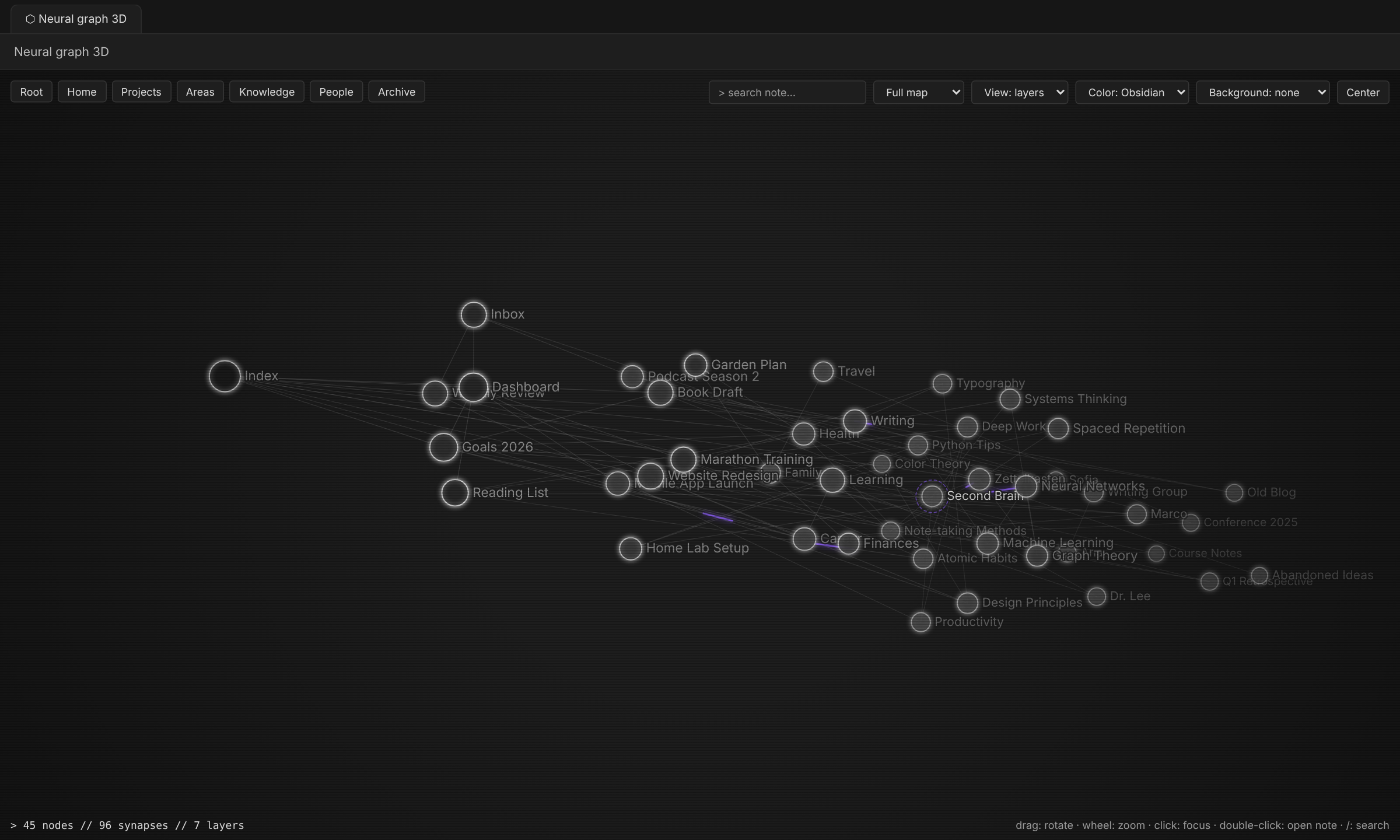
Explore your vault as a 3D neural network. Every note is a neuron, every [[link]] is a synapse, and every top-level folder becomes a layer.
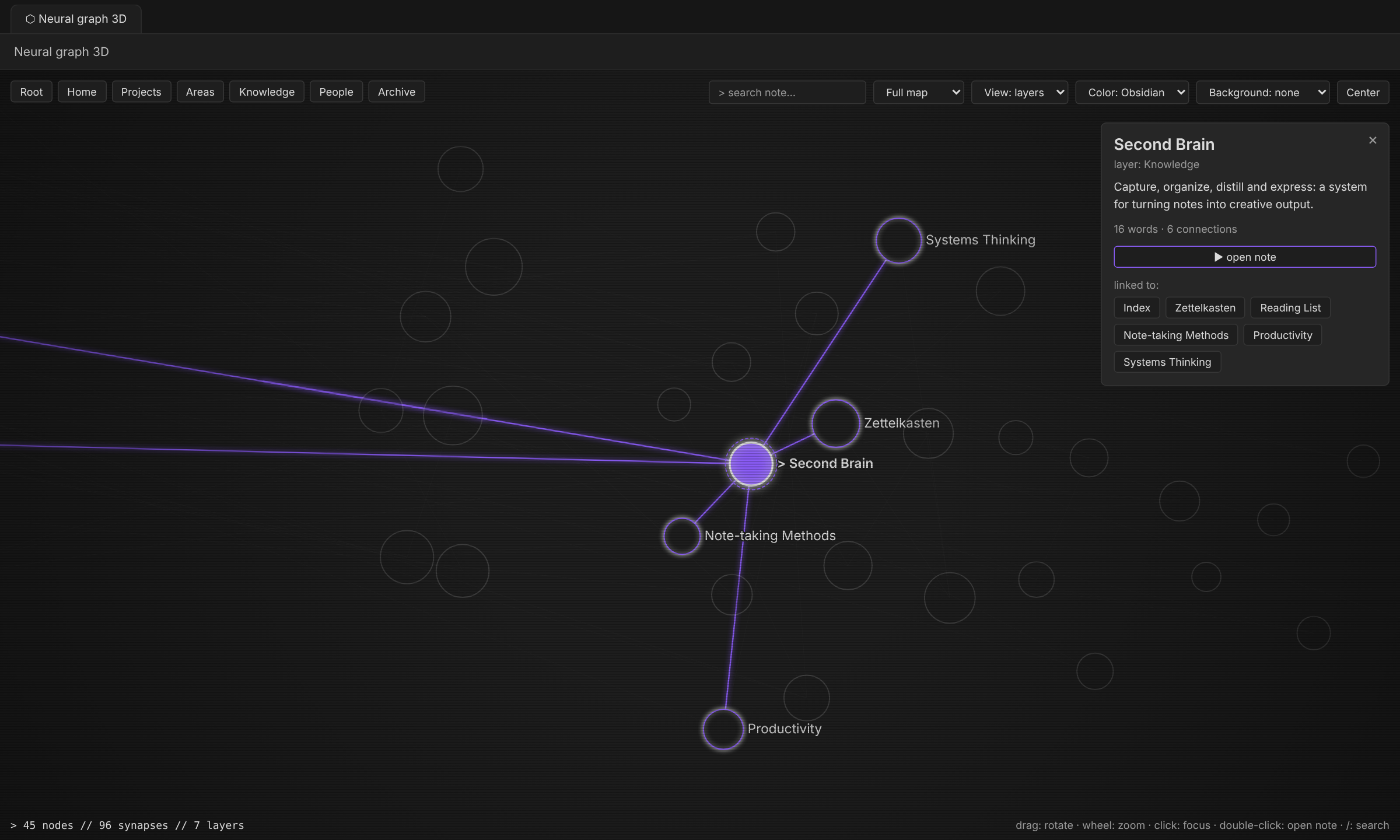 | 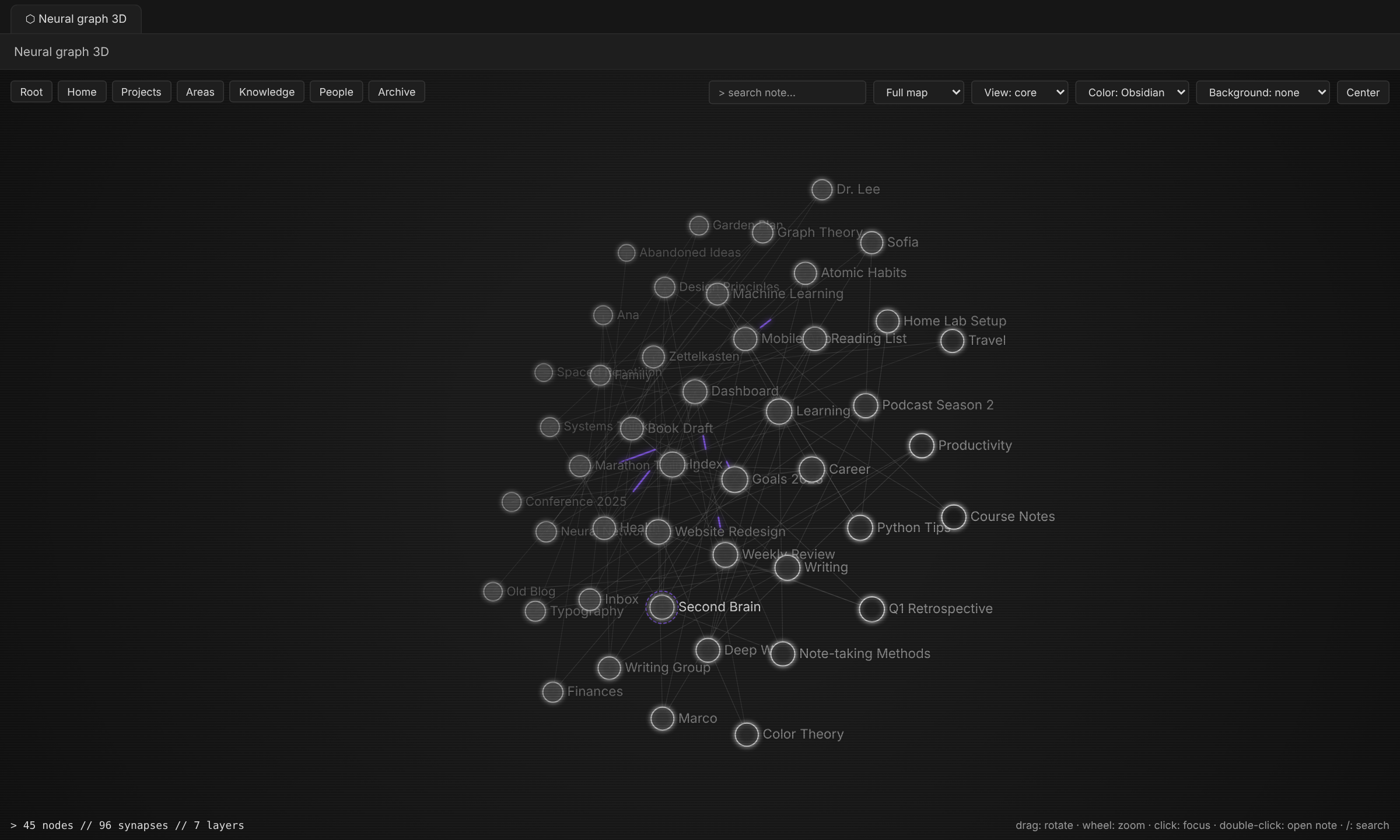 |
| Focus: click a note to see its links and summary | Core view: all notes in one cluster |
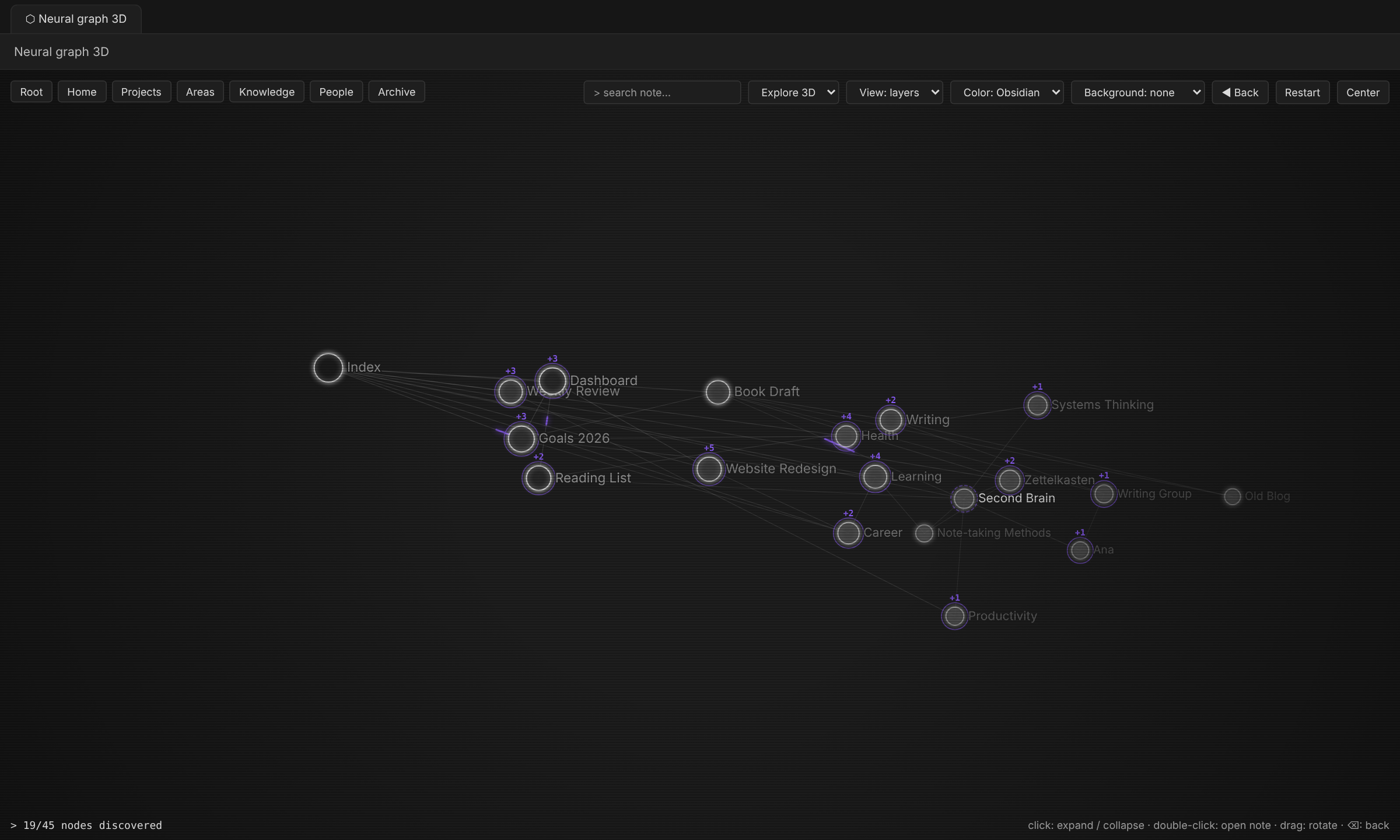 | 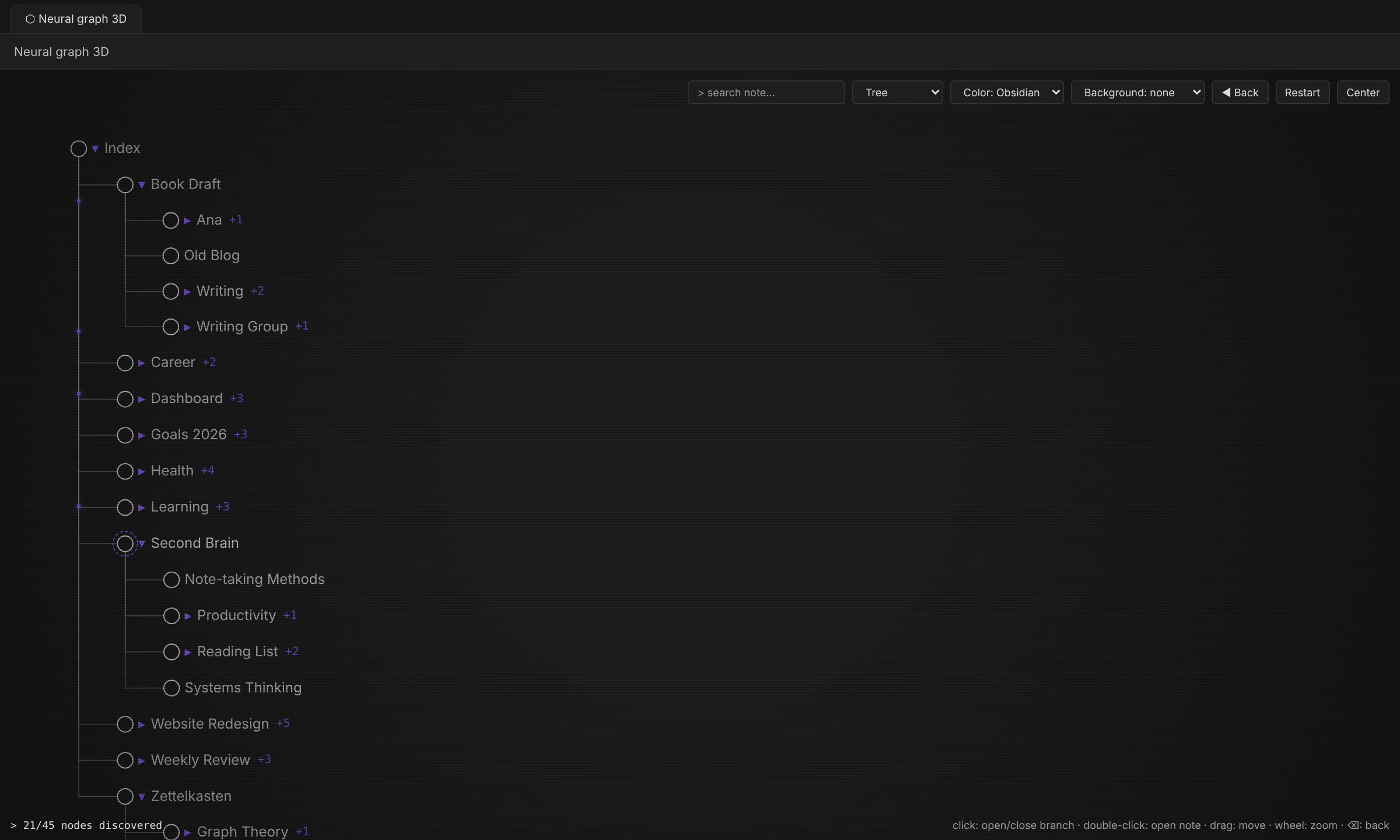 |
| Explore 3D: expand the map from your index note | Tree: file-explorer style, branch by branch |
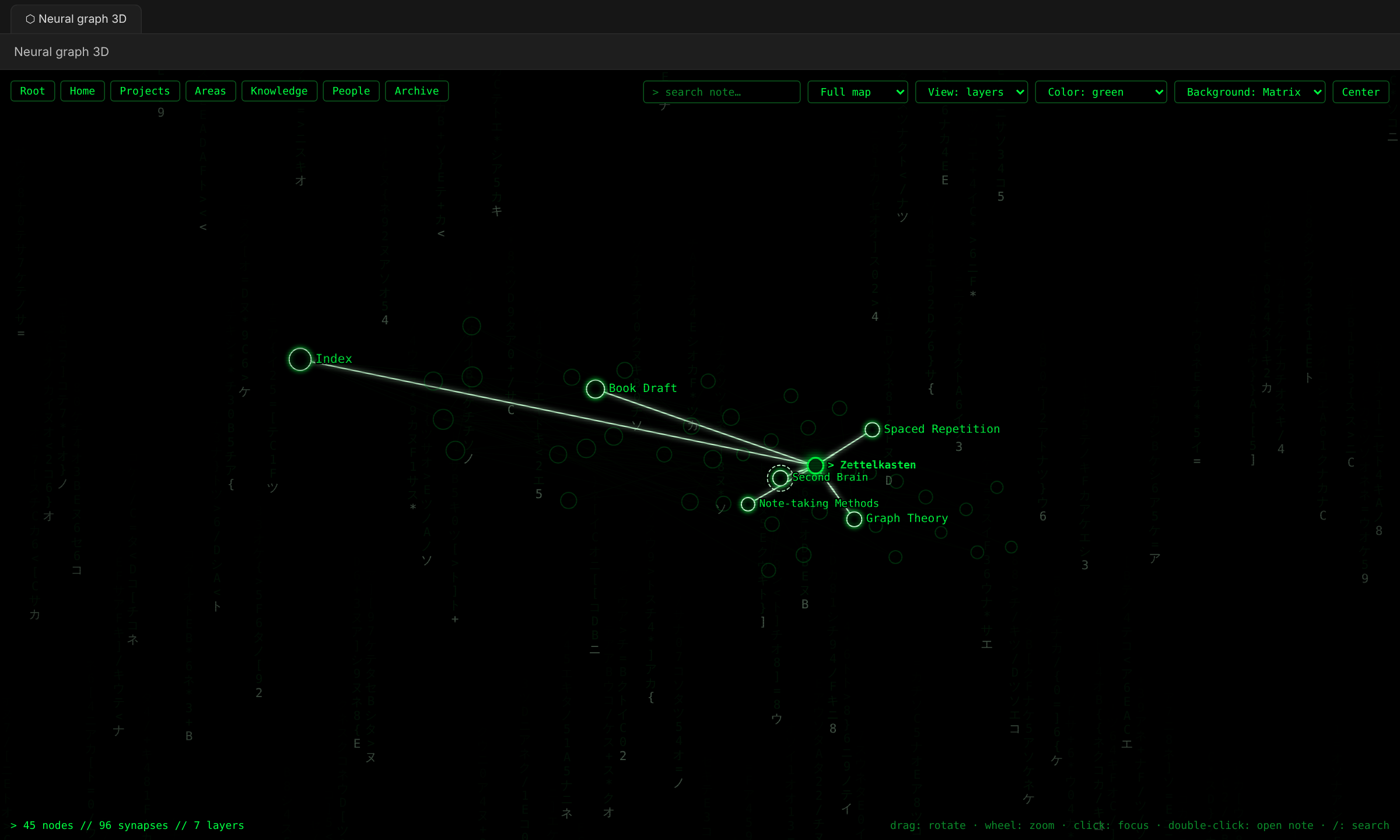 | |
| Green terminal style with the optional Matrix background |
Features
| Mode | What it does |
|---|---|
| Full map | The whole vault in 3D. Choose Layers (one disc per top-level folder, left to right) or Core (all notes in one disc). |
| Explore 3D | Starts with your index note only. Click a node to expand its connections, click again to collapse them. Back undoes the last step. |
| Tree | A flat, file-explorer style tree that grows from your index note. Click a row to open or close a branch. |
- Click a node to focus it and see its summary, word count and connections.
- Double-click (or the panel button) opens the note in a new tab.
- Labels fade in as you zoom in, so the map stays readable.
- Highlights the note you are editing and follows it with the camera (optional).
- Synaptic pulses travel along the links (optional, speed adjustable).
- Colors: your Obsidian theme, or green and orange terminal styles.
- Optional Matrix rain background and CRT scanlines (off by default).
- English and Spanish interface, picked from your Obsidian language.
The index note is the note named Index, Indice or Índice. If there is none, the most connected note is used.
Usage
Open it from the ribbon (network icon) or the command palette: Open neural graph 3D.
| Action | Result |
|---|---|
| Drag | Rotate (3D) or move (tree) |
| Wheel | Zoom |
| Click | Focus / expand / collapse |
| Double-click | Open note in a new tab |
/ | Search |
Backspace | Back (Explore and Tree modes) |
Esc | Clear selection |
All options live in Settings → Neural Graph 3D.
Installation
From Obsidian: Settings → Community plugins → Browse → search for "Neural Graph 3D" → Install → Enable.
Manually: download main.js, manifest.json and styles.css from the latest release and put them in <your vault>/.obsidian/plugins/neural-graph/. Then enable the plugin in Settings → Community plugins.
Privacy
The plugin works fully offline. It only reads your notes' names, links and first paragraph to draw the map. It sends nothing over the network.
Releasing
Push an annotated tag that matches the version in manifest.json (for example git tag -a 1.0.2 -m "Release notes" and git push --follow-tags). The GitHub Actions workflow lints, builds, attests and publishes the release with main.js, manifest.json and styles.css.
Development
npm install
npm run build   # builds main.js from src/main.ts
npm run lint
Español
Explora tu vault como una red neuronal en 3D. Cada nota es una neurona, cada [[enlace]] es una sinapsis y cada carpeta principal es una capa.
| Modo | Qué hace |
|---|---|
| Mapa completo | Todo el vault en 3D, en vista Capas (un disco por carpeta) o Núcleo (todas las notas juntas). |
| Explorar 3D | Empieza solo con tu nota índice. Un clic despliega sus conexiones, otro clic las repliega. Atrás deshace el último paso. |
| Árbol | Un árbol plano, tipo explorador de archivos, que crece desde tu nota índice. Clic en una fila para abrir o cerrar la rama. |
- Doble clic abre la nota en una pestaña nueva.
- Los nombres aparecen al acercarte.
- Colores del tema de Obsidian, o verde y naranja estilo terminal.
- Fondo Matrix y scanlines opcionales (apagados por defecto).
- Interfaz en español o inglés según el idioma de Obsidian.
Instalación: Ajustes → Plugins de la comunidad → Explorar → busca "Neural Graph 3D" → Instalar → Activar.
License
For plugin developers
Search results and similarity scores are powered by semantic analysis of your plugin's README. If your plugin isn't appearing for searches you'd expect, try updating your README to clearly describe your plugin's purpose, features, and use cases.