Note Definitions
approvedby dominiclet
Personal dictionary for your notes
Obsidian Note Definitions
A personal dictionary that can be easily looked-up from within your notes.
Basic usage
- Create a folder, right-click on the folder in your file explorer, and select
Set definition folder. This registers the folder as your definition folder. - Within the folder, create definition files (with any name of your choice).
- Add a definition using the
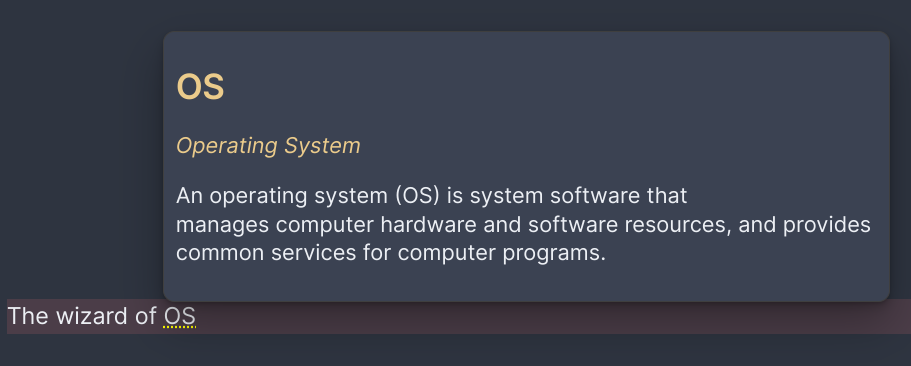
Add definitioncommand. This will display a pop-up modal, where you can input your definition. - Once a definition is added, the word/phrase should be underlined in your notes. You may preview the definition of the word by hovering over the underlined word/phrase with the mouse, or triggering the
Preview definitioncommand when your cursor is on the word/phrase.
Editor menu
Options available:
- Go to definition (jump to definition of word/phrase)
- Add definition (the text that you want to define must be highlighted for this to be available)
- Edit definition (right-click on an underlined definition)
Commands
You may want to assign hotkeys to the commands available for easy access:
- Preview definition (show definition popover)
- Go to definition (jump to definition of word/phrase)
- Add definition
- Add definition context (see Definition context)
- Register consolidated definition file
- Register atomic definition file
- Refresh definitions
- List duplicate definitions (see Duplicate definitions)
How it works
Note Definitions does not maintain any hidden metadata files for your definitions. All definitions are placed in your vault and form part of your notes. You will notice that added definitions will create entries within your selected definition file. You may edit these entries freely to add/edit your definitions, but if you do so, make sure to adhere strictly to the definition rules below. It is recommended that you read through the definition rules first before manually editing the definition files.
Definition rules
Currently, there are two types of definition files: consolidated and atomic.
The type of definition file is specified in the def-type frontmatter (or property) of a file.
For all definition files you create, the def-type frontmatter should be set to either 'consolidated' or 'atomic'.
For compatibility reasons, a file is treated to be consolidated if the def-type frontmatter is not specified (but this is not guaranteed to remain the same in subsequent releases, so always specify the frontmatter when creating a new definition file).
For convenience, use the commands provided to add the def-type frontmatter.
Consolidated definition file
A consolidated file type refers to a file that can contain many definitions.
Register a definition file by specifying the def-type: consolidated frontmatter, or using the Register consolidated definition file command when the file is active.
A consolidated definition file is parsed according to the following rules:
- A definition block consists of a phrase (1 or more words), an alias (optional) and a definition. They must be provided strictly in that order.
- A phrase is denoted with a line in the following format
# <PHRASE>. This is rendered as a markdown header in Obsidian. - An optional comma-separated line of alias(es) is expected after a phrase. This must be a line surrounded by asterisks, eg.
*alias*. This is rendered as italics in Obsidian. - A line that occurs after a registered phrase and is not an alias is deemed to be a definition. Definitions can be multi-line. All subsequent lines are definitions until the definition block divider is encountered. You may write markdown here, which will be formatted similar to Obsidian's markdown formatting.
- A line with nothing but three hyphens
---is used as a divider to separate definition blocks. This is rendered as a delimiting line in Obsidian. (This divider can be configured in the settings to recognise three underscores___as well) - A line with nothing but
%%END%%marks the end of the definition. Any lines after it (up to the divider) are treated as your own personal notes and are not shown as part of the definition. These notes are left untouched when the plugin edits the definition.
Example definition file:
Word1
alias of word1
Definition of word1. This definition can span several lines. It will end when the divider is reached.
Word2
Notice that there is no alias here as it is optional. The last word in the file does not need to have a divider, although it is still valid to have one.
Phrase with multiple words
You can also define a phrase containing multiple words.
Markdown support
Markdown is supported so you can do things like including italics or bold words.
Word with personal notes
This is the definition that gets shown in the popover.
%%END%%
These are my private notes about this entry. They stay in the file but are never shown as part of the definition.
For a more formal definition of the grammar of the consolidated definition file, you may refer to this document.
Atomic definition file
An atomic definition file refers to a file that contains only one definition.
Register an atomic definition file by specifying the def-type: atomic frontmatter, or using the Register atomic definition file command when the file is active.
An atomic definition file is parsed according to the following rules:
- The name of the file is the word/phrase defined
- Aliases are specified in the
aliasesfrontmatter as a list. In source, it should look something like this:
---
aliases:
  - alias1
  - alias2
---
- The contents of the file (excluding the frontmatter) form the definition
Definition context
TLDR: "Context" is synonymous with a definition file. By specifying a context, you specify that you want to use specific definition file(s) to source your definitions for the current note.
Definition context refers to the repository of definitions that are available for the currently active note. By default, all notes have no context (you can think of this as being globally-scoped). This means that your newly-created notes will always have access to the combination of all definitions defined in your definition files.
This behaviour can be overridden by specifying the "context" of your note. Each definition file that you have is taken to be a separate context (hence your definitions should be structured accordingly). Once context(s) are declared for a note, it will only retrieve definitions from the specified contexts. You can think of this as having a local scope for the note. The note now sees only a limited subset of all your definitions.
Usage
To easily add context to your note:
- Use the
Add definition contextcommand - Search and select your desired context
You can do this multiple times to add multiple contexts.
How it works
Add definition context adds to the properties of your note.
Specifically, it adds to the def-context property, which is a List type containing a list of file paths corresponding to the selected definition files.
In source, it will look something like this:
---
def-context:
	- definitions/def1.md
	- definitions/def2.md
---
You can edit your properties directly, although for convenience, it is recommended to use the Add definition context command to add contexts as it is easy to get file paths wrong.
Removing contexts
To remove contexts, simply remove the file path from the def-context property.
Or if you want to remove all contexts, you can delete the def-context property altogether.
Global definition file discovery
By default, only files within your definition folder are treated as definition files. If you'd rather keep definitions alongside your regular notes instead of confining them to one folder, you can opt into discovering definition files by tag instead.
Usage
- In the plugin settings, enable
Enable tag-based definition file discovery. - Set the
Definition file tagto the tag you want to use. This defaults todef. - Add that tag to the
tagsfrontmatter (property) of any note you want to be treated as a definition file, eg.
---
tags:
  - definition
---
Obsidian provides a nice UI to manage the tags frontmatter.
4. The note is now parsed for definitions like any other definition file (following the same definition rules above), regardless of which folder it lives in.
Note that only the tags frontmatter property is checked — inline #tags written in the body of a note are not considered.
Tag-based discovery works alongside folder-based discovery rather than replacing it: a file is treated as a definition file if it's in your definition folder or carries the configured tag.
Note: You may suffer from performance issues if your vault is large, as this feature requires the plugin to examine all files in your vault. If you suffer from performance degradation, turn this feature off.
Refreshing definitions
Whenever you find that the plugin is not detecting certain definitions or definition files, run the Refresh definitions command to manually get the plugin to read your definition files.
Duplicate definitions
When more than one definition resolves to the same lookup key, only one of them will win when a phrase is matched in your notes, and the others are silently shadowed. This can happen in a few ways:
- The same phrase (or alias) is defined in two different files or def-blocks.
- A term is used as the main phrase of one definition and as an alias of another.
- Two terms differ only in case (e.g.
APIandapi) while case-sensitivity is disabled.
After definitions are loaded or refreshed, a notice is shown if any conflicts are detected. Run the List duplicate definitions command to see each conflicting term along with clickable links to every location it is defined. Whether case-variant terms count as a conflict follows the Enable Case Sensitivity setting.
Feedback
I welcome any feedback on how to improve this tool. Do let me know by opening a Github issue if you find any bugs, or have any ideas for features or improvements.
Contributing
If you're a programmer and would like to see certain features implemented, I welcome and would be grateful for contributions. If you are interested, please do let me know in the issue thread.
For plugin developers
Search results and similarity scores are powered by semantic analysis of your plugin's README. If your plugin isn't appearing for searches you'd expect, try updating your README to clearly describe your plugin's purpose, features, and use cases.