by theluckystrike
Map reference note properties to fields in a local RIS file.
Note RIS Export
Note RIS Export reads the properties of the reference notes in one folder and writes them to a new local RIS file. You choose which property key holds the type, title, authors, year, journal, DOI, URL and abstract. The output has one record for each valid reference note.
The folder export, the field map, the preview of errors and the new RIS file are free. Pro adds named field maps for several collections, the export of a filtered group of references, and a repeated local export when mapped fields change.
Features
Preview the reference notes of a folder
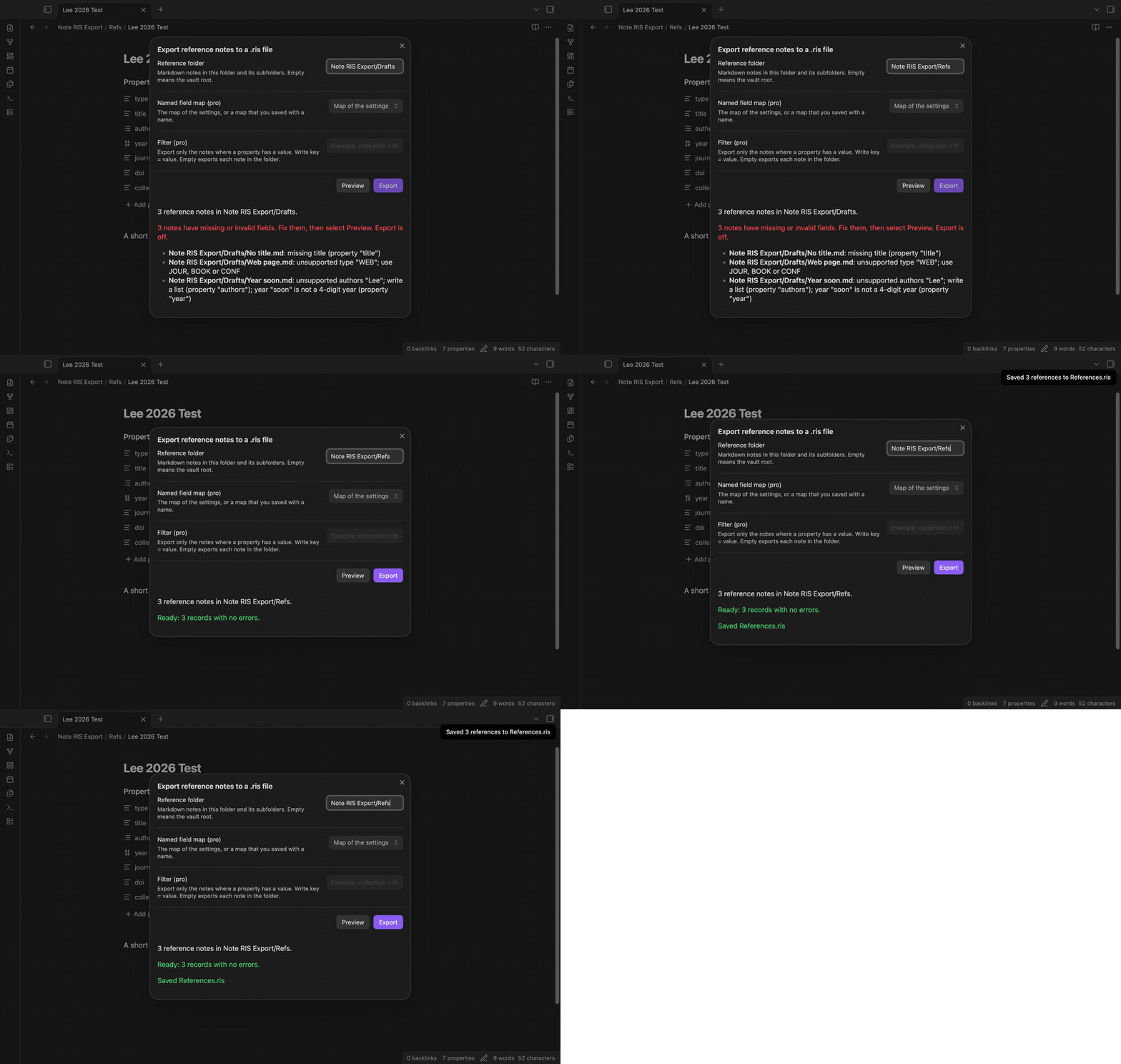
Run "Export reference notes to a .ris file" from the command palette. The export window shows the reference folder from the settings. Enter a folder path and select Preview to see the number of Markdown notes in that folder and its subfolders. An empty path selects the vault root.
If the folder is empty or does not exist, the window says so and the Export button stays off. If the metadata cache of Obsidian has no entry for a note yet, the window shows how many notes are not ready. It runs the preview again when Obsidian reports that the cache is resolved.
Missing and invalid fields before export
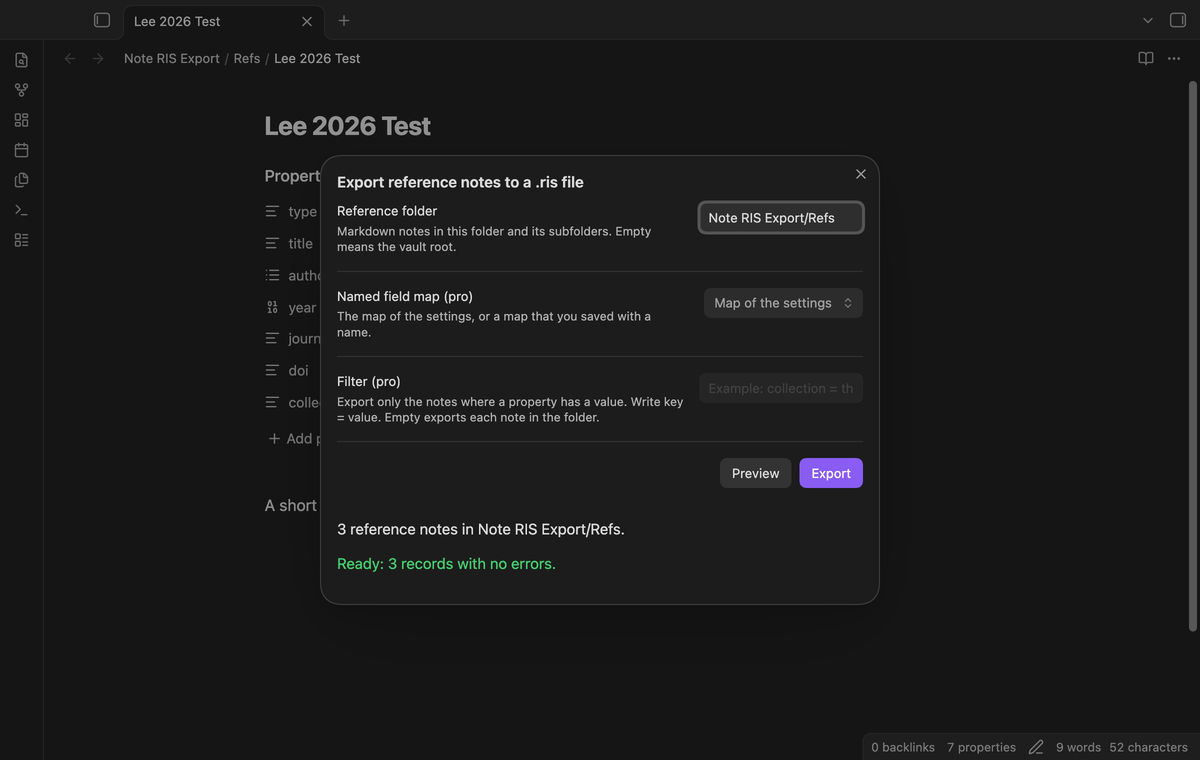
The preview checks each note before the plugin writes a file. It lists the path of each note with a problem and the reason. The Export button stays off until you fix the notes and select Preview again. One bad note stops the full export, so the plugin does not write a partial file.
The type must be exactly JOUR, BOOK or CONF. A note needs a title. Authors must be a list, so authors: Lee is an error and not one author. The year must have 4 digits. A DOI must start with 10. and contain a slash. A URL must start with http:// or https://.
A new UTF-8 RIS file
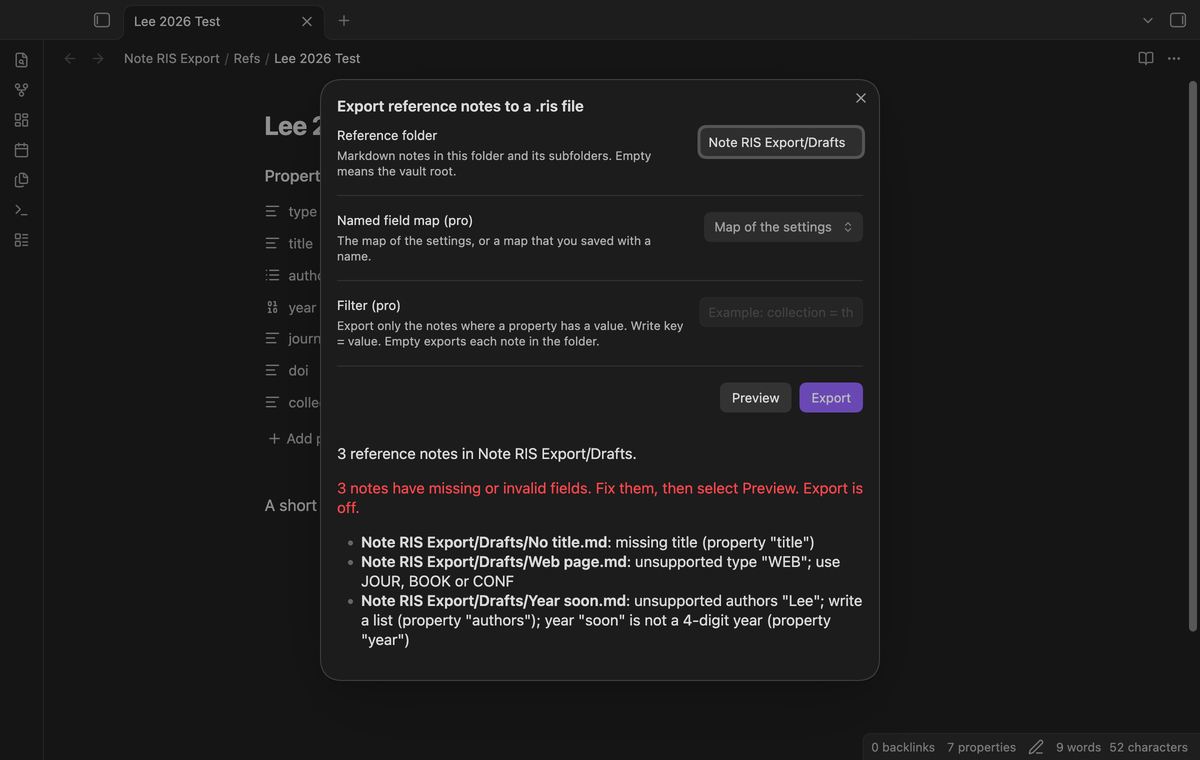
Select Export to write the file. The default path is References.ris at the vault root. If it exists, the plugin creates References (2).ris, then References (3).ris. The free export does not change an existing file or a source note. Records follow the code-unit order of the note paths.
Each line has the tag, two spaces, a hyphen, a space and the value, for example TY - JOUR. Each record ends with ER - . Lines end with CRLF. Line breaks inside a value become spaces, so the text ER - in an abstract cannot start a new record. Names and titles keep their characters, for example Étude α and 李. The order of the authors in the list does not change. An author written as a link, such as [[Lee]], is written as Lee.
Field map
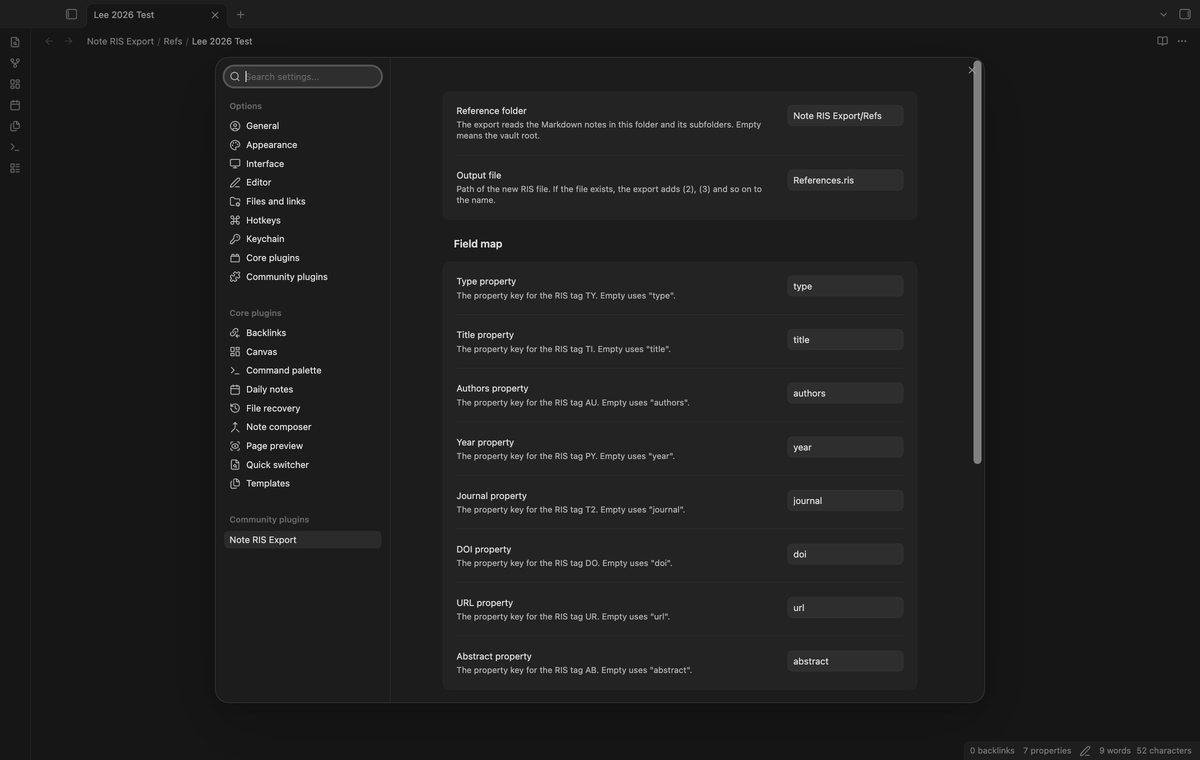
The settings have one property key for each RIS field. The defaults are the field names in lowercase.
| Field | Default key | RIS tag |
|---|---|---|
| Type | type | TY |
| Title | title | TI |
| Authors | authors | AU, one line for each author |
| Year | year | PY |
| Journal | journal | T2 |
| DOI | doi | DO |
| URL | url | UR |
| Abstract | abstract | AB |
For a title in paper_title, set the title key to paper_title. Type and title are required. The plugin writes an optional tag only when the note has a value for it.
Filtered groups (Pro)
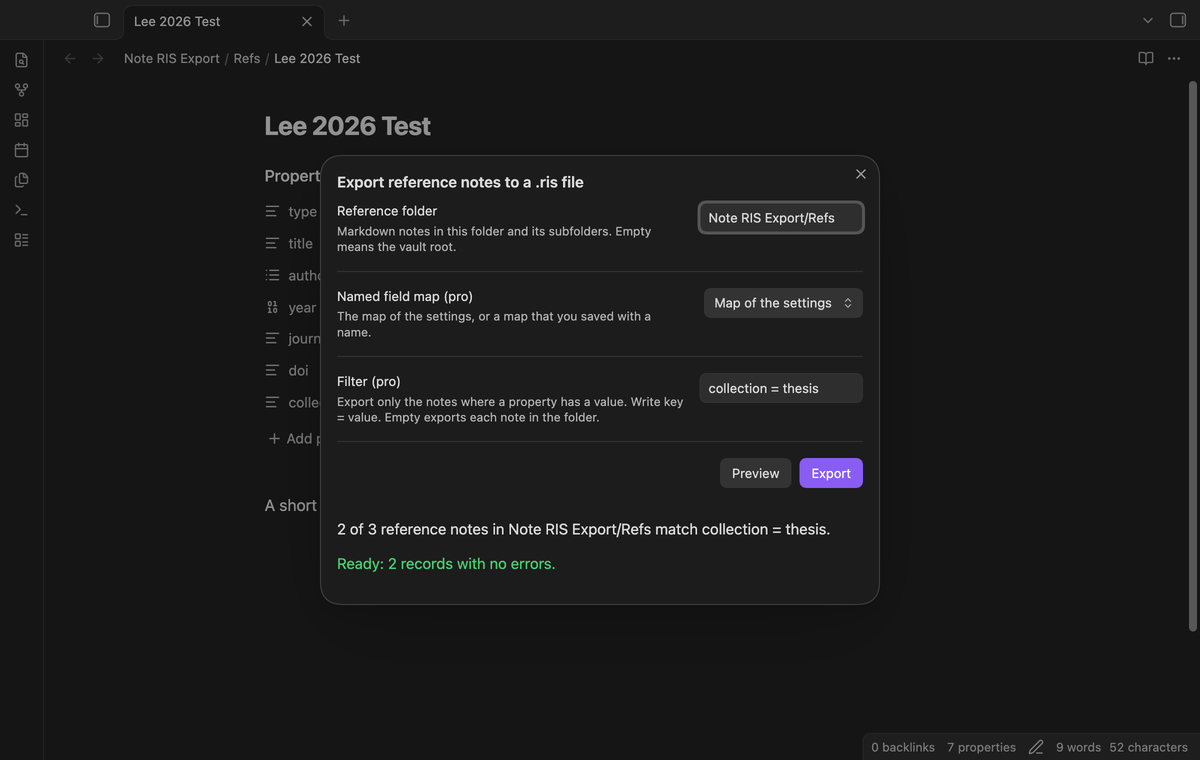
Enter a filter as key = value in the export window, for example collection = thesis. The export then uses only the notes where that property equals the value, or where a list property contains the value. Case matters. The preview shows how many notes of the folder match.
Named field maps (Pro)
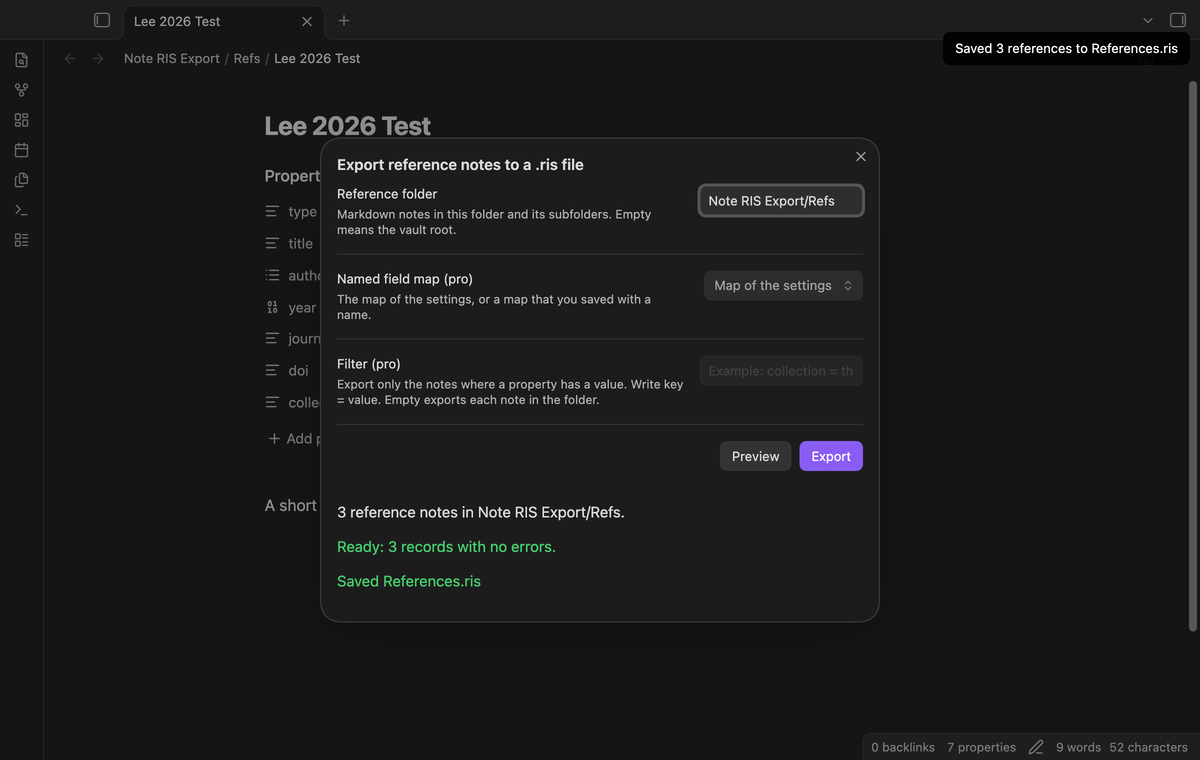
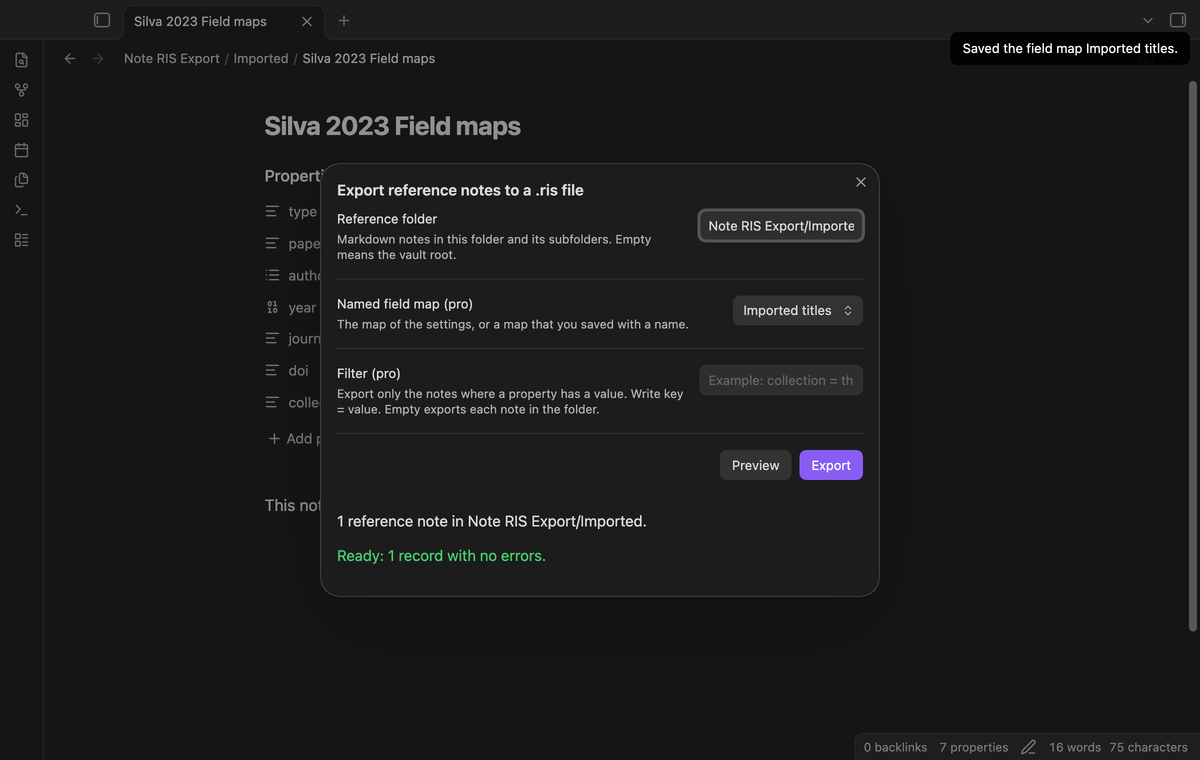
In the settings, set the field map for one collection, enter a name and select "Save map". In the export window, select that name in "Named field map (pro)". Select "Map of the settings" to go back to the map in the settings. Delete buttons in the settings remove saved maps.
Repeated export (Pro)
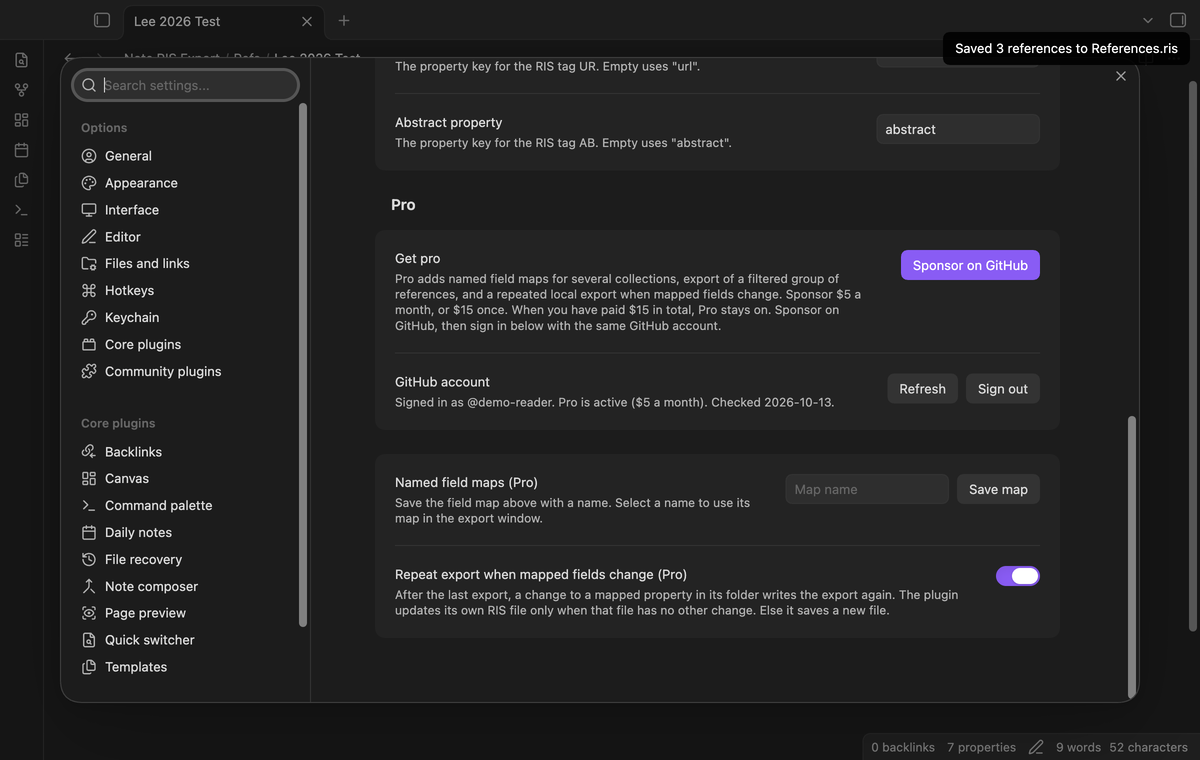
The command "Repeat the last .ris export (pro)" runs the last export again with the same folder and filter. With the setting "Repeat export when mapped fields change (Pro)" on, a property change in a note of that folder runs the repeat 2 seconds after the last change. If the RIS text did not change, nothing is written. The plugin writes the new text into its last file only if that file still holds the text that the plugin wrote. If the reference text changes and you edited that file, the plugin creates a new numbered file. If you deleted the file, the plugin creates a new file. If a note has an error, the repeat stops and shows a notice.
Install
When Note RIS Export is listed in the community directory, open Settings, then Community plugins, then Browse, and search for "Note RIS Export". Select Install, then Enable.
To install by hand, download main.js, manifest.json and styles.css from the latest release. Put the three files in <vault>/.obsidian/plugins/note-ris-export/. Restart Obsidian or reload the list of community plugins, then turn on Note RIS Export. This build needs Obsidian 1.13.4 or later.
Usage
- Put your reference notes in one folder. Add properties such as
type: JOUR,title: Test, a list ofauthorsandyear: 2026. - Run "Export reference notes to a .ris file".
- Enter the folder and select Preview.
- Fix each note that the preview lists, then select Preview again.
- Select Export. The notice and the window show the path of the new file.
- Open the file in a reference manager that supports RIS. Check the imported fields before you use them.
Settings
- Reference folder: the folder that the export window shows first.
- Output file: the path of the new RIS file. The folder of this path must exist.
- Field map: the eight property keys. An empty key goes back to its default.
- Pro: sponsor, sign in, refresh and sign out, then the two Pro settings above.
FAQ
What was not tested?
The unit tests pass with an in-memory vault. The end-to-end tests pass in Obsidian 1.13.4 and 1.14.4. Import into a reference manager was not tested. Physical phones and tablets, third-party themes, screen readers, large vaults, sync between devices and the live GitHub payment and sign in were not tested. The manifest permits mobile because the source uses no Node or Electron API.
Where does the file go?
The default output is References.ris at the vault root. Set Output file to a path in an existing folder. A free export adds a number if the selected path exists.
Does my reference data leave my device?
No. The export writes a local file in your vault. No note name, path, property or RIS text goes to a network host.
Why is my edit not in the file?
The plugin reads the metadata cache, which Obsidian updates after it saves the note. Select Preview again after a short wait.
Payment, account and network
The core features are free. Pro features need a GitHub Sponsors sponsorship of theluckystrike: $5 a month or more, or $15 once. A total payment of $15 meets the payment requirement for Pro without further payment. Sign-in and the checks below still apply. Your notes stay readable and editable with or without Pro.
GitHub handles the payment. Sponsor at https://github.com/sponsors/theluckystrike. You need no account for the free features. Pro needs the GitHub account that sponsors.
Until you select "Sign in with GitHub" in the settings, Note RIS Export makes no network requests. Sign in uses the GitHub device flow. Note RIS Export sends its public client ID and the scope read:user to https://github.com/login/device/code and shows you a code. While you enter the code at https://github.com/login/device, it asks https://github.com/login/oauth/access_token every few seconds to check the sign-in status. The scope permits profile reads only. GitHub needs this access to show the sponsorship tier. It grants no repository scope and no write access.
After sign in, Note RIS Export sends one query to https://api.github.com/graphql. It checks if the signed-in account sponsors theluckystrike. It asks for the tier and the total payment to theluckystrike. The plugin reuses a successful check for 7 days. Failed checks can retry after 6 hours. Select Refresh to request an earlier check. It sends no note content, file names or other vault data, and it has no telemetry.
After a successful check, Pro can work offline for up to 14 days. Sign out or a negative sponsorship answer turns Pro off. The plugin stores the GitHub token through the secret storage API of Obsidian. It does not put the token in its saved settings or its local sponsorship data. The local storage of this device keeps your GitHub login, the tier and the time of the last check. Sign out clears the token. You can also revoke the access in your GitHub settings, under Applications.
Support
Report a bug or ask for a feature in the issue tracker of this repository. Include the Obsidian version and a small sample note. To support the work, use GitHub Sponsors.
License
MIT
For plugin developers
Search results and similarity scores are powered by semantic analysis of your plugin's README. If your plugin isn't appearing for searches you'd expect, try updating your README to clearly describe your plugin's purpose, features, and use cases.