NotePix
approvedby ayushparkara
Automatically uploads images to your public or private GitHub repository, replacing local links with the corresponding remote URLs
NotePix
Keep your Obsidian vault lightweight.
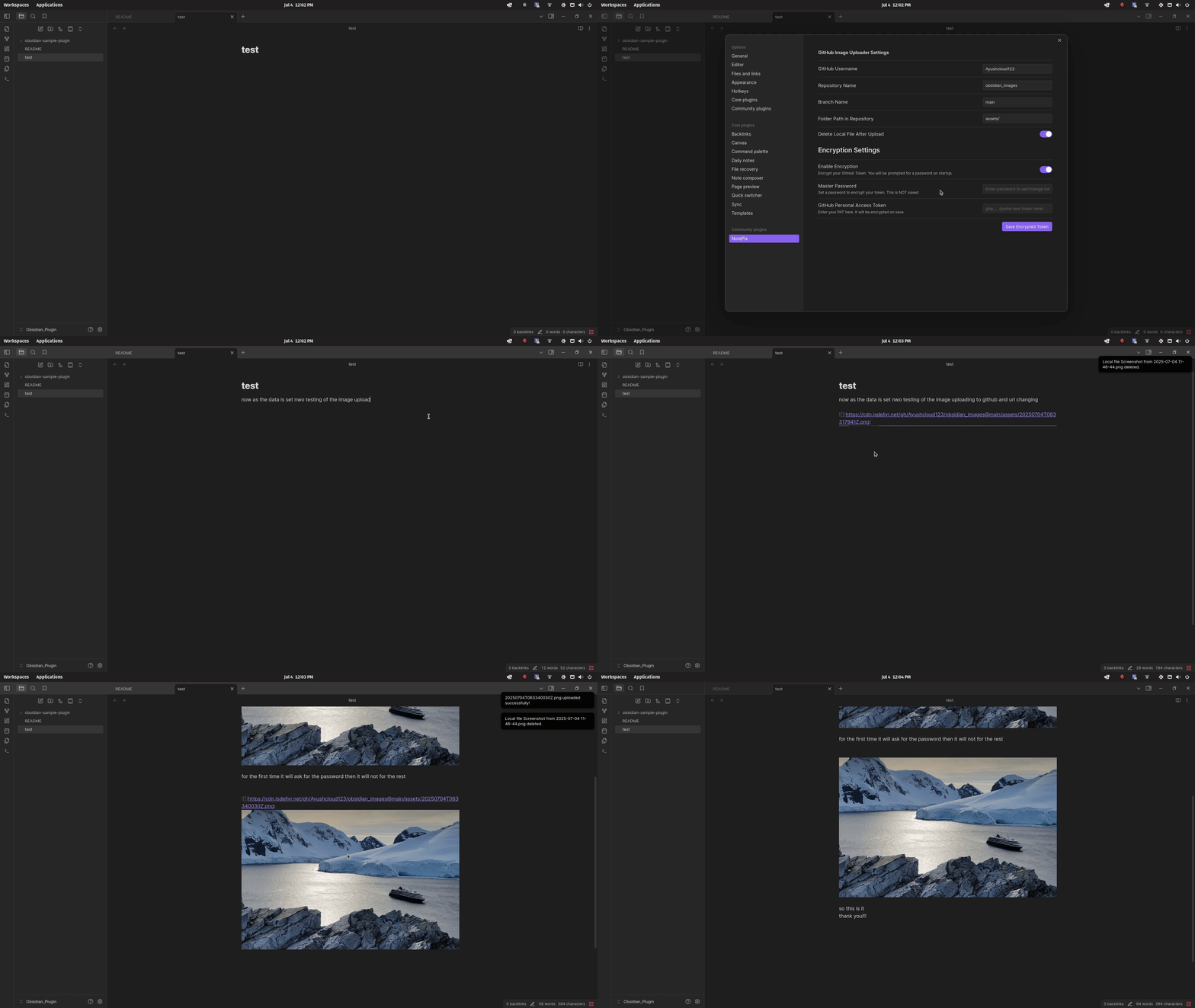
Paste an image, and NotePix automatically uploads it to GitHub and replaces the local file with a fast hosted link — so your notes stay small, fast, and portable. Public or private repos, encrypted token storage, desktop & mobile.




📦 Install
From Obsidian (recommended):
- Open Settings → Community plugins → Browse.
- Search for “NotePix”.
- Click Install, then Enable.
Or install manually: download main.js and manifest.json from the latest release into <vault>/.obsidian/plugins/notepix/.
New here? Jump to the Setup Guide — it takes about 3 minutes.
📑 Table of Contents
💡 Why NotePix
I built NotePix after getting burned by third-party image hosts. I was using a public uploader (Imgur-style), and two things bothered me: my uploaded images were public — anyone who found my account could see all of them — and I had no guarantee the service would even stick around (plenty have shut down). I didn't want my notes' images living somewhere I didn't control.
NotePix fixes that. It uploads your pasted images to your own GitHub repository — which can be private — and replaces the local file with a hosted link. Your images live in storage you own and control, public only if you choose, and your vault stays lightweight, fast to sync, and portable.
✨ Features
The essentials:
- 📋 Paste-and-go — paste or drag an image into a note; NotePix uploads it and swaps in the hosted link automatically.
- 🔒 Public or private repos — private images render on the fly (Reading View and Live Preview) via authenticated fetch. Auto mode detects your repo's privacy and picks the right link format.
- 🔑 Encrypted token storage — your GitHub token is encrypted with AES-GCM (never stored in plain text unless you explicitly choose to); unlocked once per session with a master password.
- 📱 Desktop & mobile — works on Obsidian Desktop and Mobile (Android/iOS), including the mobile attachment button.
- 🗑️ Delete safely — right-click any NotePix image to delete it from GitHub and the note, with a guard that warns if it's used in other notes.
More features (click to expand)
- Upload existing images — run "Upload all local images in current note" to upload every already-embedded local image in one pass (uploads first, then rewrites the note once — no clobbered links).
- Multi-select delete — tick several images from a checklist and delete them together.
- Find orphaned images — review repo images no note or canvas references anymore, and delete only the ones you pick (report-only; never auto-deletes).
- Right-click Copy — copy the actual image (private or public), or copy the URL (public/CDN only).
- jsDelivr CDN (optional) — for public repos, serve images via the fast jsDelivr CDN; commands convert a note's links between raw and CDN. Auto-disabled for private repos.
- Note-path storage (optional) — mirror each note's vault path in the repo instead of one global folder.
- Heading-based filenames (optional) — name uploads after the note/heading (e.g.
MyNote-Setup-1.png) instead of a timestamp. - Repo Mode Intelligence — mismatch prompt (Use Auto / Switch to Private / Keep Public) when a private repo has public raw links; self-describing private links that survive repo-setting changes; fallback rendering for old raw links from your other repos.
- Clean up — optionally delete the local file after a successful upload (only after the link is safely replaced).
- Smart hover detection — password prompts appear only in main document views, not during hover/page previews.
🚀 Setup Guide
Step 1 — Create a GitHub repository
Create a new GitHub repository to store your images. Name it
anything (e.g. obsidian-assets). It can be public or private — NotePix
supports both.
Step 2 — Generate a Personal Access Token (PAT)
NotePix needs a token to upload files.
Recommended (fine-grained, safest):
- GitHub → Settings → Developer settings → Personal access tokens → Fine-grained tokens.
- Generate new token. Set an expiration.
- Repository access → Only select repositories → choose your image repo.
- Permissions → Repository permissions → Contents → Read and write. (Metadata: Read is added automatically — that's all NotePix needs.)
- Generate and copy the token immediately (you won't see it again).
This covers everything: uploading, rendering (public & private), deleting, and finding orphaned images.
Note: one advanced feature — automatically resolving old, pre-v2 image links (from very early NotePix versions, e.g. after you renamed or switched image repos) — needs to look across your repositories, which a single-repo token can't do. If you have such legacy links, use a classic token (below). New setups never need it.
Or use a classic token
Developer settings → Tokens (classic) → Generate new token (classic) → check the
repo scope → Generate. Note: a classic repo token grants access to all your
repos, so the fine-grained option above is safer for most people.
Step 3 — Configure NotePix
Open Settings → NotePix and fill in:
| Setting | Description | Example |
|---|---|---|
| GitHub Username | Your GitHub username (case-sensitive). | AyushParkara |
| Repository Name | The repo you created in Step 1. | obsidian-assets |
| Repository Visibility | Auto detects privacy and picks the right link format. Public/Private force behavior. | Auto |
| Branch Name | The branch to upload to. | main |
| Folder Path in Repository | Directory inside the repo for images (a / is added automatically). | assets/ |
| Delete Local File | Delete the vault copy after a successful upload. | false |
| Use jsDelivr CDN | (Optional) Serve public-repo images via the CDN. | false |
| Image storage layout | Global folder or Mirror note path. | Global |
| Name images after note/heading | (Optional) MyNote-1.png instead of a timestamp. | false |
Encryption (recommended):
- Toggle Enable Encryption on.
- Enter a strong Master Password (never saved anywhere).
- Paste your PAT, then click Save Encrypted Token.
You're set — the next image you paste will upload automatically. ✅
🧰 Commands
Open the Command Palette (Ctrl/Cmd + P) and search “NotePix”:
| Command | What it does |
|---|---|
| Upload all local images in current note | Uploads every local image embedded in the active note and replaces the links. |
| Delete images in current note (multi-select) | Checklist of the note's images; delete selected ones from GitHub + note. |
| Find orphaned images on GitHub | Lists repo images no note/canvas references; pick which to delete. |
| Convert image links in note to jsDelivr CDN | Rewrites the note's public image links to CDN format. |
| Convert image links in note to GitHub raw | Rewrites the note's public image links back to raw GitHub format. |
You can also right-click an image (editor or rendered) for Copy image, Copy URL (public only), and Delete image (GitHub + note).
⚙️ How it Works
Repository visibility modes
Auto (Recommended) — on upload, NotePix checks repo privacy (cached 10 min). Public
→ inserts https://raw.githubusercontent.com/.... Private → inserts a self-describing
internal link obsidian://notepix/v2/<owner>/<repo>/<branch>/<path>.
Public — always inserts raw GitHub URLs. Can still render matching existing raw links from your configured GitHub user via authenticated fetch.
Private — always inserts private internal links, fetched and rendered in Reading/Live Preview using your token.
Existing links & mismatch handling
If the repo appears private while notes contain matching raw links, NotePix shows a 3-button modal: Use Auto Mode, Switch to Private, or Keep Public. Prompts are suppressed per repo with a cooldown to avoid repeated interruptions.
Editor vs Reading View
Private images render in both Reading View and Live Preview through authenticated fetch (in-memory; no temp files). If encryption is enabled, you're prompted for the master password once per session when a token unlock is first needed.
🔐 Security
Your GitHub token is protected:
- AES-GCM (256-bit) encryption, key derived with PBKDF2 (100,000 iterations).
- Master password is never stored — it only exists in memory while you type it.
- The decrypted token lives in memory for the session and is cleared on unload.
See SECURITY.md for the full model and how to report a vulnerability. For the smallest risk, prefer a fine-grained token scoped to just your image repo.
🙏 Support
Created by Ayush Parkara. If NotePix saves you time, consider supporting development:

You can also help by ⭐ starring the repo, reporting bugs, or sharing NotePix with other Obsidian users.
📄 License
Released under the MIT License.
For plugin developers
Search results and similarity scores are powered by semantic analysis of your plugin's README. If your plugin isn't appearing for searches you'd expect, try updating your README to clearly describe your plugin's purpose, features, and use cases.