Nous
approvedby Andy Ho
Turns meetings, voice notes, photos, and PDFs into a tagged, linked knowledge base - built as context your AI assistant can use. - This plugin has not been manually reviewed by Obsidian staff.

Nous
Nous — Greek νοῦς, "mind." Capture anything. Get tagged, linked notes back. You run no command.
Install · Tutorial · Docs · Issues · Changelog · Contributing



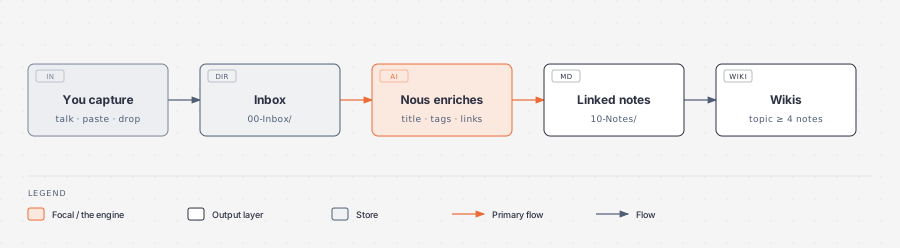
Nous turns anything you capture into a tagged note. A capture can be a thought, a voice memo, a call, a photo, or a PDF.
Nous can write your notes through the Claude Code app, a direct API key, or a free local model in Ollama. Only local speech-to-text and Ollama keep your notes on your machine. The Claude Code app and a direct API key both send your notes to that provider.
Tags and links turn scattered captures into one connected picture, with no manual sorting. A tag groups every note on the same topic. A link connects a note to the notes near it, so you can trace an idea across time. Once a topic has enough notes, Nous writes one wiki page that pulls them together, and keeps it current as you capture more.
Notes get a clean, editorial look by default - see the Nous look. You can also point Claude Code at your vault, so every coding project gets your tagged notes as background context, for free - why this works.
Works on: Mac, Windows, and Linux computers. Meeting capture needs a Mac.
Get started
Just go through the wizard. It walks you through every step below.
1. Install Nous.
- Open Obsidian.
- Go to Settings, then Community plugins.
- Turn on community plugins.
- Click Browse.
- Search for "Nous."
- Click Install, then click Enable.
2. Go through the wizard.
A wizard opens on its own. Follow it, screen by screen.
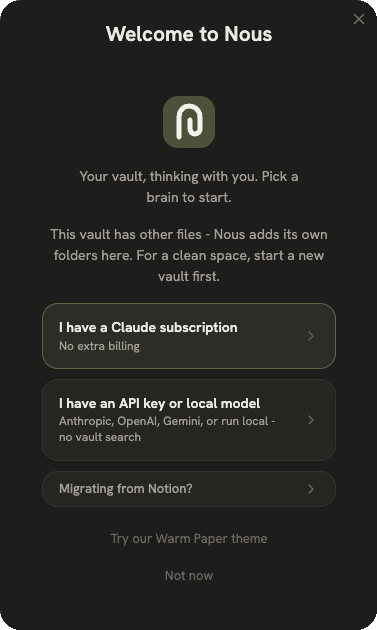
- Pick how Nous writes your notes. Choose a Claude subscription, an API key, or a free local model.
- The wizard offers two more setups: voice notes and meeting capture. Each needs one click to install. You can skip both for now and finish them later, in Settings → Nous.
3. Capture something.
- Click the microphone icon for a voice note.
- Click the phone icon for a meeting. Mac only.
- Drop any other file into the
00-Inboxfolder.
4. Check your note.
Wait a few seconds. Open the 10-Notes folder. Your new note is there,
tagged and linked to related notes.
Note: Obsidian must stay open for Nous to work. If Obsidian is closed, a
new capture waits in 00-Inbox until you open it again.
How it works
- Voice notes turn to text in one of two ways. With a Gemini or OpenAI key, Nous needs no extra install. Without a key, whisper.cpp does the work on your Mac instead, and your voice never leaves your computer. This way needs a two-click install.
- Meeting capture uses a small helper program,
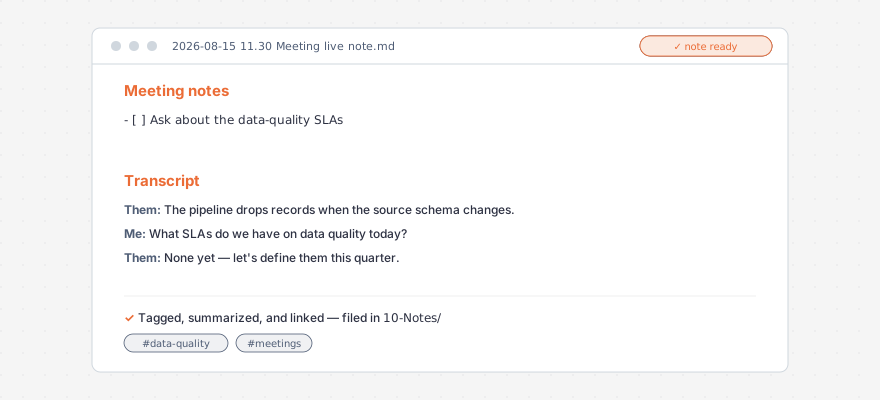
nous-recorder. It needs one click to install. A live note opens while Nous records. When you stop, an online call becomes aMe:/Them:dialogue. An in-person meeting becomes one plain transcript. - Privacy. Nous sends only your captured notes and tag names to the provider you picked. Local mode sends nothing anywhere. Nous collects no usage data.
- Limits. In a group call, Nous shows every other speaker as one
Them:voice. Meeting capture needs macOS 15 or later. Live voice transcription is a beta feature and needs an OpenAI key.
License
MIT — see LICENSE.
For plugin developers
Search results and similarity scores are powered by semantic analysis of your plugin's README. If your plugin isn't appearing for searches you'd expect, try updating your README to clearly describe your plugin's purpose, features, and use cases.