Quick Voice Note
approvedby Spencer Clark
Press a button, talk as long as you like, read it in tonight's note. Long voice memos saved to your vault and transcribed to text. - This plugin has not been manually reviewed by Obsidian staff.
Quick Voice Note
Press a button. Talk as long as you like. Read it in today's note.
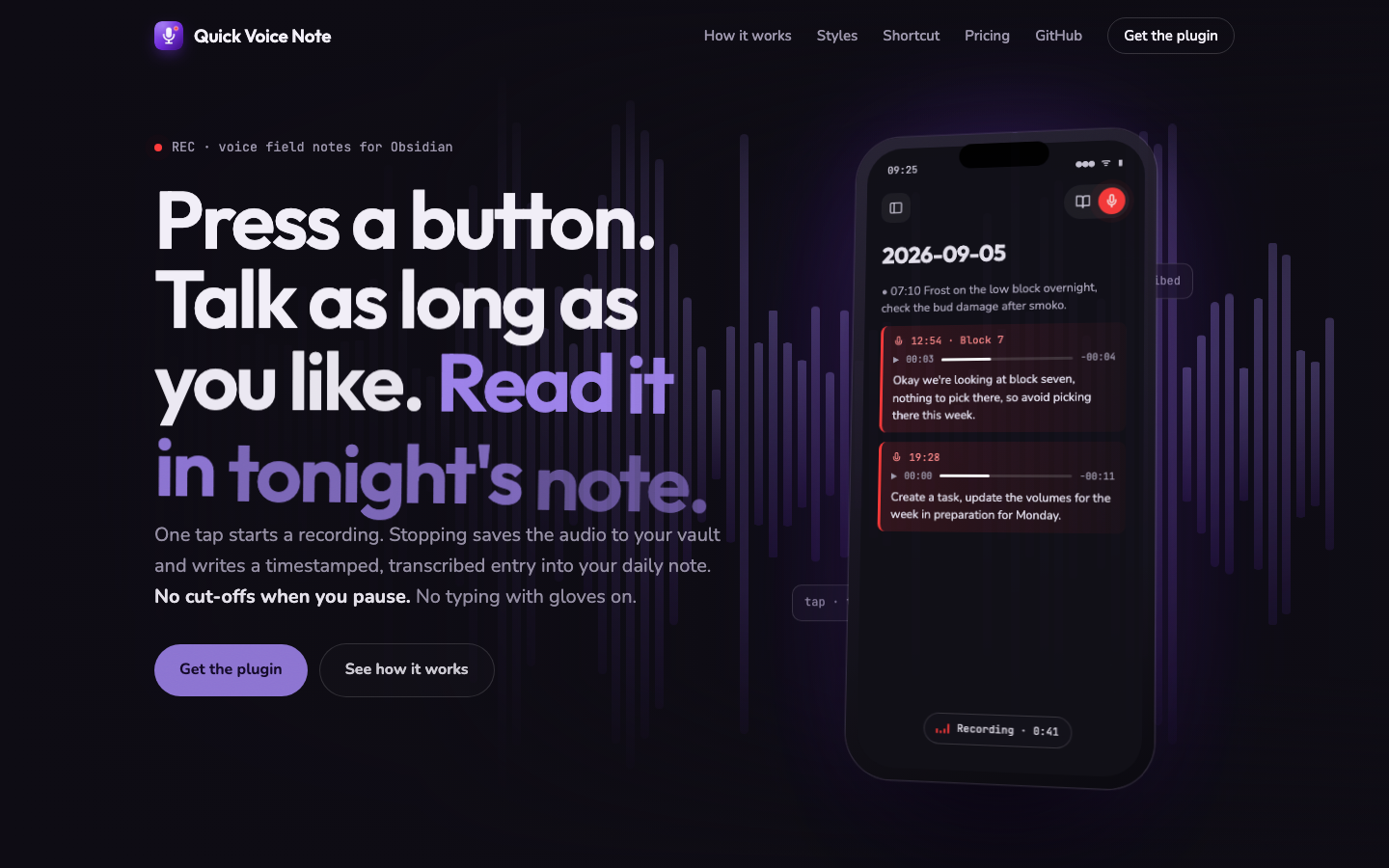
Long voice memos for Obsidian. One tap starts a recording. Stopping saves the audio to your vault and appends a timestamped, transcribed entry to today's daily note:
- 14:32 ![[Recordings/Voice 2026-09-05 14-32-10.m4a]]
    - lecture recap: three causes of the crisis, the second one is the essay question
Built for people who think out loud: students recapping a lecture on the walk home, founders with a business idea in the car, anyone whose best thoughts arrive away from a desk. Unlike system dictation, it doesn't cut off when you pause, keeps the original audio as backup, and files everything exactly where you'll look for it tonight.
How it works
- Mobile: a red mic sits in the note header next to the reading mode toggle. Tap it and you're already recording.
- Desktop: mic button in the ribbon, or the "Record voice note" command.
- One tap from your pocket: point an iOS Shortcut, Android shortcut, or an
NFC tag at
obsidian://voice-noteand Obsidian opens with recording already running. One tap stops and saves. - Pause: a pause button sits beside stop. Paused time doesn't count towards the clock or the safety limit; tap again to pick up where you were.
- Stopping saves the audio into your vault (
Recordings/by default), transcribes it, and adds the entry to today's daily note (respecting your Daily Notes folder, format, and template) or to the note you're in.
Where it lands, and how it looks
Under Settings → In the note:
- Save to: today's daily note, the note you're in (at the cursor or at the end), or ask after each recording.
- Audio in the note: embedded player, a link to the file, or transcript only. The recording is always kept in the recordings folder.
- Memo style: list item, voice callout (a tinted card with a mic icon, in the colour and wash strength you pick), quote block, heading per memo, plain paragraph, or a single line. A live preview shows each one, and the template under Advanced is yours to edit for anything else.
Transcription
Recordings become readable text via any transcription API that speaks the OpenAI format. Bring your own key (OpenAI, Groq, or a local Whisper server) under Settings → Advanced → Transcription service.
Prefer zero setup? A Cloud key (A$9 a month, 3 days free) gives you managed transcription with no accounts, no API keys and no configuration: start a trial, then paste the license key into Settings → License key.
Transcription is optional: without it you still get one tap audio capture filed into your daily notes.
Install
Settings → Community plugins → Browse → search Quick Voice Note, or
install directly from Obsidian. Manual install: copy main.js, manifest.json,
and styles.css from the latest release
into <your vault>/.obsidian/plugins/quick-voice-note/, then enable the plugin.
Privacy
- Audio stays in your vault. It leaves your device only if transcription is enabled, and then only to the endpoint you configure.
- Your API key is stored in the plugin's local data file inside your vault and is never transmitted anywhere except the transcription endpoint you chose.
Settings
The defaults are deliberately boring. Most people only ever touch the transcription key. Everything else (templates, folders, headings, file naming, daily note fallbacks) lives under Advanced.
For plugin developers
Search results and similarity scores are powered by semantic analysis of your plugin's README. If your plugin isn't appearing for searches you'd expect, try updating your README to clearly describe your plugin's purpose, features, and use cases.