Annotator
approvedby elias-sundqvist
Read and annotate PDFs and EPUB files.


Annotator
Read and annotate PDFs, books (EPUB, FB2, FB3 and Kindle), web pages and videos inside Obsidian, and keep what you mark as Markdown in your vault. Every annotation is a block in an ordinary note, so it links, embeds, searches and syncs like the rest of your notes.
Website: annotator.esh.sh.
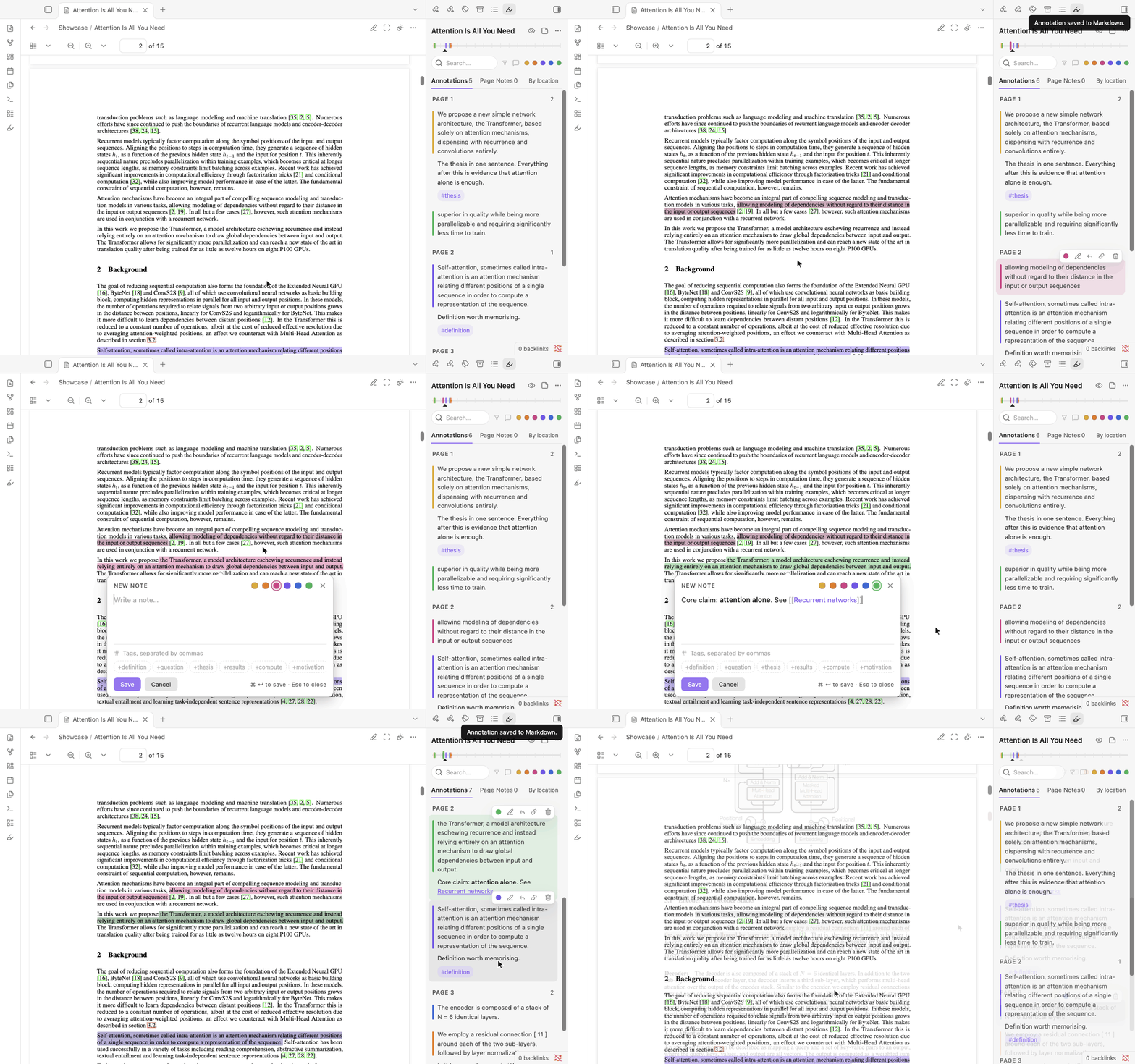
Version 0.3 is a new reader. Earlier versions showed the Hypothesis web client in a frame; this one is built on Obsidian's own PDF view and editor. Your annotation notes are read and written in the same format as before: Coming from Annotator 0.2 says what changes.
Install
In Obsidian: Settings → Community plugins → Browse, search for "Annotator", install and enable it. It needs Obsidian 1.11.4 or later and works on desktop (macOS, Windows, Linux) and Android. On iOS and iPadOS the reader has been tested in the iOS Simulator; a check inside Obsidian on an iPhone or iPad is still to come.
Start
- Open a PDF or a book from your vault and run Open annotations sidebar from the command palette. Select text to highlight it or write a note.
- Or make a note with an
annotation-targetproperty that names a file or a web address, and open it. - Open annotated source… lists everything you have annotated.
The rest of this page says what you can do and how.
Where annotations live
Each source has one annotation note: a Markdown note with an
annotation-target property that names the source (a PDF can have one
for each chapter). Open the note, or
the source, and the reader shows both. The note is yours to move, rename and edit;
the sidebar's menu has Open annotation note.
In Live Preview an annotation reads as its passage, its link, your note and its tags: the data stored with it is folded to a small mark (⋯). Put the cursor in an annotation, or click the mark, to see it exactly as it is written; Source mode always shows everything, and the setting Fold annotation data in Live Preview turns the folding off. Nothing in the file is changed by it.
A new annotation note starts with the heading "Annotations". In the settings
you can choose another heading, or name a template note: its properties and
text are kept ({{title}}, {{date}} and {{target}} are filled in) and
annotations are added after it.
New annotations are added at the end of the note. To keep them in one place
with your own writing after it, name a heading in Write new annotations
under this heading: ## Highlights (that level only) or Highlights (any
level). Each new annotation then goes at the end of that heading's section,
before the next heading of the same or a higher level, in the order they
were made. A note that has no such heading gets it at its end. Annotations
already in a note stay where they are.
To bring them there too, open the note (or its source in the reader) and run Move this note's annotations under the heading. Every annotation that is not in the heading's section goes to its end, after the ones there already, in the order they had in the note; with Give each annotation a heading on, an annotation's own heading goes with it. A note without the heading gets it at its end first. Only the annotations and the blank lines around them move: each is moved exactly as it is written, and your own text stays as it was, in its order. The note is read back before it is written, and if anything would read differently nothing is written and the notice says why. The notice has Undo, which puts the note back exactly as it was while you have not changed it since. Of a PDF whose notes hold page ranges, the command works on the note of the page being read, and an annotation never moves from one note to another.
A heading for each annotation
Turn on Give each annotation a heading and each new annotation gets a heading of its own, the first words of its passage (or of its note, for a page note), on the line above it:
### Attention is all you need

>%%
>```annotation-json
…
^d0c2a8e1
It is an ordinary heading: the Outline lists it, it folds, and
[[Paper notes#Attention is all you need]] links to it, for a map of
content or another plugin that reads headings. Two annotations with the same
first words get (2), (3). Rename a heading with Rename heading… in
the menu of the annotation's card or highlight, or edit it in the note.
Deleting an annotation deletes its heading, and Undo brings both back.
Annotator's own links to an annotation (#^d0c2a8e1) are as before. For a
note written before, the command Add headings to this note's
annotations gives a heading to each annotation that has none, and changes
nothing else.
A heading of the chosen level (Level of annotation headings, ### by
default) directly above an annotation, with only blank lines between, is
taken to be that annotation's; the headings named in Write new
annotations under this heading and New annotation notes start with
never are. So choose a level that your own headings just above annotations
do not use. With the setting off, headings are left alone: an annotation is
deleted without the heading above it. The headings are plain text between
the annotations, so Annotator 0.2 and every version since read, edit and
delete the annotations as before (they leave a deleted annotation's heading
in place).
The annotation-target may be written in any of the usual ways:
| Written as | Example |
|---|---|
| A path in the vault | annotation-target: Papers/Attention.pdf |
| A wikilink | annotation-target: "[[Attention.pdf]]" |
| An embed | annotation-target: "![[Attention.pdf]]" |
| A Markdown link | annotation-target: "[Attention](Papers/Attention.pdf)" |
| A web address | annotation-target: https://arxiv.org/pdf/1706.03762 |
| A Zotero, Calibre or DEVONthink link | annotation-target: zotero://open-pdf/library/items/N7SMB24A (Zotero, Calibre, DEVONthink) |
| An HTML file in the vault | annotation-target: "[[Saved page.html]]" |
| A Dataview inline field | annotation-target:: [[Attention.pdf]] in the note's text |
A name that differs from a file's only by the kind of space in it (a no-break space pasted from a web page) still finds that file.
If your notes already name their source in another property (source, pdf,
file), name that property in the setting Also read the source from this
property: a note without annotation-target is then read by it, and
annotation-target wins where a note has both. New annotation notes are
written with annotation-target, which Annotator 0.2, other devices and other
tools read. To have them written with your property instead, turn on Write
new notes with this property instead below it: new notes, notes for some
pages of a PDF, and a property renamed from the notice about a near miss then
use your property, and Make a Base of everything annotated lists notes by
either. A note written this way is read only by Annotator 0.3.2 and later with
the same property set, not by Annotator 0.2, so leave it off if you use those.
The notes written by Export each annotation as its own note name their
annotation's source in source and are never read as a source's note.
A note for each chapter of a PDF
A textbook can have a note for each chapter instead of one for the whole book, without cutting the PDF into files. Each note names the PDF as usual and says which pages it holds in a second property:
annotation-target: "[[Physics.pdf]]"
annotation-pages: 10-100
annotation-pages is a page (7), two pages joined by a hyphen
(10-100, both included), or a first page and a hyphen for the pages to
the end (200-). Pages are counted from 1, as the PDF view numbers them,
whatever the book prints on them. The target is left as it is, so older
versions of Annotator, Bases and other tools still read each note as a note
about that PDF.
- The pages show the highlights, areas and drawings of every note. The sidebar shows the note of the page being read, with its pages under its name, and moves to the next note as you read into its pages; while you write or edit an annotation it stays with that annotation's note.
- What you make on a page (a highlight, a note about the page, an area, a drawing) goes into the note that holds that page; a reply goes where what it answers is; an edit, a recolouring or a deletion is made in the note that holds the annotation, whichever page you are on.
- A page that no note holds can be read but not annotated: the sidebar says so and offers New note for pages…. Several things made at once (Highlight every match…, taking in a PDF's own annotations or links to its passages) leave out those on such pages and say how many.
- New annotation note for pages… (command palette, or the sidebar's menu) asks for the pages, offering the free pages around the one you are reading, or the chapter there where the PDF has an outline, and a name: the outline's title for those pages ("Physics – Chapter 3 Heat") or the pages ("Physics (pages 10-100)"). The note is made beside the PDF, from your template if you have one.
- Notes that cannot share the PDF are named in the sidebar, as several
notes without pages are, and nothing is written to any of them until
they are put right: two notes that hold the same page, a note without
annotation-pagesbeside notes that have it, pages that cannot be read (ten-twenty), or one annotation in two notes. To split a PDF that already has a note, give that note the pages it holds first. - Opening a chapter note (or the library, or search) opens the PDF at the
note's first page; a link to an annotation (
[[Chapter 3#^id]]) opens that annotation, as always. Links copied from a card name the note that holds it. - Copy all as Markdown, Export to a summary note, Export as individual notes + Base and Hypothesis JSON are of the note shown: the chapter you are in. Export PDF with annotations writes every note's annotations into the one copy of the PDF. Renaming a tag renames it in every note of the PDF. With Keep reading progress in the note on, where you left is written to the note that holds that page.
The note is the source's property sheet
A PDF or a book cannot carry properties of its own, so the annotation note is
where they go: tags, a status, an author, whatever you list your reading by.
The note opens its source, and Add the PDF's details to the note makes
the note (with the PDF's title, authors and year) even before the first
highlight. Make a Base of everything annotated writes
Annotated sources.base at the top of your vault and opens it: a table of
every annotation note with its source, progress, author, year and tags, and a
second view of what you are in the middle of. It is yours to change; running
the command again opens it and writes nothing. Made by hand, such a Base
needs one filter:
filters:
  and:
    - '!note["annotation-target"].isEmpty()'
views:
  - type: table
    name: Sources
    order:
      - file.name
      - note.annotation-target
      - note.annotation-progress
      - note.author
      - note.year
annotation-progress is there when
reading progress is kept in the note. With a second
property for the source (here source), the filter asks for either, and
leaves out the notes written for single annotations:
filters:
  and:
    - or:
        - '!note["annotation-target"].isEmpty()'
        - '!note["source"].isEmpty()'
    - 'note["annotation-id"].isEmpty()'
An Annotated sources.base made before is not changed when the setting is.
Show titles from this property (settings, under Annotation notes;
empty by default) names sources by a property of their notes instead of by
file names. Put title there, the property Add the PDF's details to the
note fills in, and a source whose note has a title is called by it: in its
tab and the window's title, the sidebar, Open annotated source…,
Search all annotations…, Citations, and the header of a book or a video.
That helps most with a PDF read from the download cache, whose file is named
by the cache. A list gives its first entry and a link the words it shows; a
note without the property keeps its name, and the title follows the note as
you edit it. Only what is shown changes: no file is renamed and no note is
written. Obsidian's own PDF view keeps the file's name in its header, where
typing renames the file. A Base made by Make a Base of everything
annotated while a property is named has it as a Title column.
Nothing is stored anywhere else. If a block in the note is damaged (a sync conflict, a slip of the hand), the readable annotations are still shown, the sidebar names the damaged part with a button to its line, and nothing is written until you have repaired it.
Highlighting and notes
Select text. A small bar appears with the mark style, six inks and Note.
- A colour marks the passage.
Hmarks it in the last colour used,1–6pick a colour,Aopens a note on the passage. - The letter keys can be changed: Settings → Annotator → Keys on a
selection gives marking, the note and the next mark style a key each (one
character that is not a number; no two the same; Reset brings back
H,AandS). The bar's labels name the keys chosen, and so does the bar of a video's transcript.Shiftwith the mark key copies the link as before when that key is a letter;Shiftturns most other keys into another character. Every action of the bar is also a command (Highlight selection, Highlight selection: Yellow and the other colours, Highlight selection and copy its link, Add note to selection, Next mark style), so Obsidian's own Hotkeys settings can give any of them a key of their own, withCtrl/Cmdtoo. - To quote a passage in a note you are writing, hold
Shift:Shift+H,Shift+1–6or a Shift-click on a colour highlights it and copies the highlight's link, ready to paste. The command Highlight selection and copy its link does the same and can be given a hotkey. - Mark style. The button at the start of the bar goes round Highlight,
Underline, Strike-out and Squiggly (
Sdoes the same); the inks then show the line they will draw. The style is remembered, like the last colour. It is kept as the annotation's tag (underline,strike-outorsquiggly), so it can be searched astag:underline, and a device still on an older version shows a highlight with that tag. - A note is written in Obsidian's own editor: links, tags, lists and
formatting work as in any note.
Ctrl/Cmd+Entersaves,Escapecancels. - A selection may run over a page break in a PDF; it is one highlight.
- In the sidebar, a card's quote takes you to the passage, drawn with its line if it has one; its actions change the colour or the style, edit, reply, copy a link to the annotation, or delete. Deleting can be undone. A highlight's menu on the page has the colours and the styles too.
- A quote can be put right. Edit quote…, in the menu of a card or of a
highlight, lets you correct what a scan misread, write a formula as
$…$, or keep only the words that matter. Cards, copies, summaries and exported notes then show your words (as Markdown, so a formula reads as one), search finds the passage by them too, and the card says "Quote edited". The passage itself stays stored as the source has it: that is what finds it again, and it is one press away. Changing the highlighted words in the annotation note by hand does the same. - Page notes (the second tab) are notes about the whole source. One written while a PDF page or a book chapter is in view remembers it: its card says "Page 12" (or the chapter) and goes there, and in an exported PDF it sits on that page. On the PDF it is a small note marker at the foot of its page; see a note page between pages.
The sidebar can sort by place or by date, filter by colour or to what has a
note, and search
(tag:idea, text:…, quote:…, since:7day narrow it). The strip at its top
shows where the annotations fall in the source and where you are.
To search every annotation in the vault at once, run Search all
annotations…: type a few letters of a quote, a note, a #tag or a source's
title, and choosing a result opens its source at the passage.
Highlight every match
To mark every place a word or phrase occurs (to collect the passages on a topic, or to code a text for qualitative research), run Highlight every match… from the command palette or the sidebar's More actions menu, in a PDF or a book. Type the words, or select them first. The dialog counts the matches as you type; choose Whole words or Match case to narrow them, an ink, and if you like a tag and a note for every highlight. The button says what it will do ("Highlight 37 matches"), and every match becomes an ordinary highlight, in one change to the note. Undo in the notice afterwards takes back exactly those highlights, except any you have worked on since.
- A phrase is found across a line end in a PDF ("machine" at the end of one line, "translation" at the start of the next), and a word the page hyphenated at a line end is found as the word.
- A place already highlighted is not highlighted again.
- More than 500 matches are not highlighted: the dialog says so, and a longer phrase or whole words will narrow them.
- A book is looked through exactly as its Find looks, so the two agree.
- It needs text: a scanned PDF, a web page or a video is not looked through.
PDFs
The reader works on Obsidian's built-in PDF view. Three buttons are added to the view's header, and a fourth while it has something to do: after you follow a link inside the PDF (a citation, a contents entry), Back to page N returns you to where you were. The command PDF: go back to where a link was followed does the same and can be given a hotkey.
Where a PDF is embedded in a note (![[paper.pdf#page=3]]) or placed on a
Canvas, its highlights, areas and drawings are shown there too, and you can
annotate it there: see embedded PDFs and Canvas.
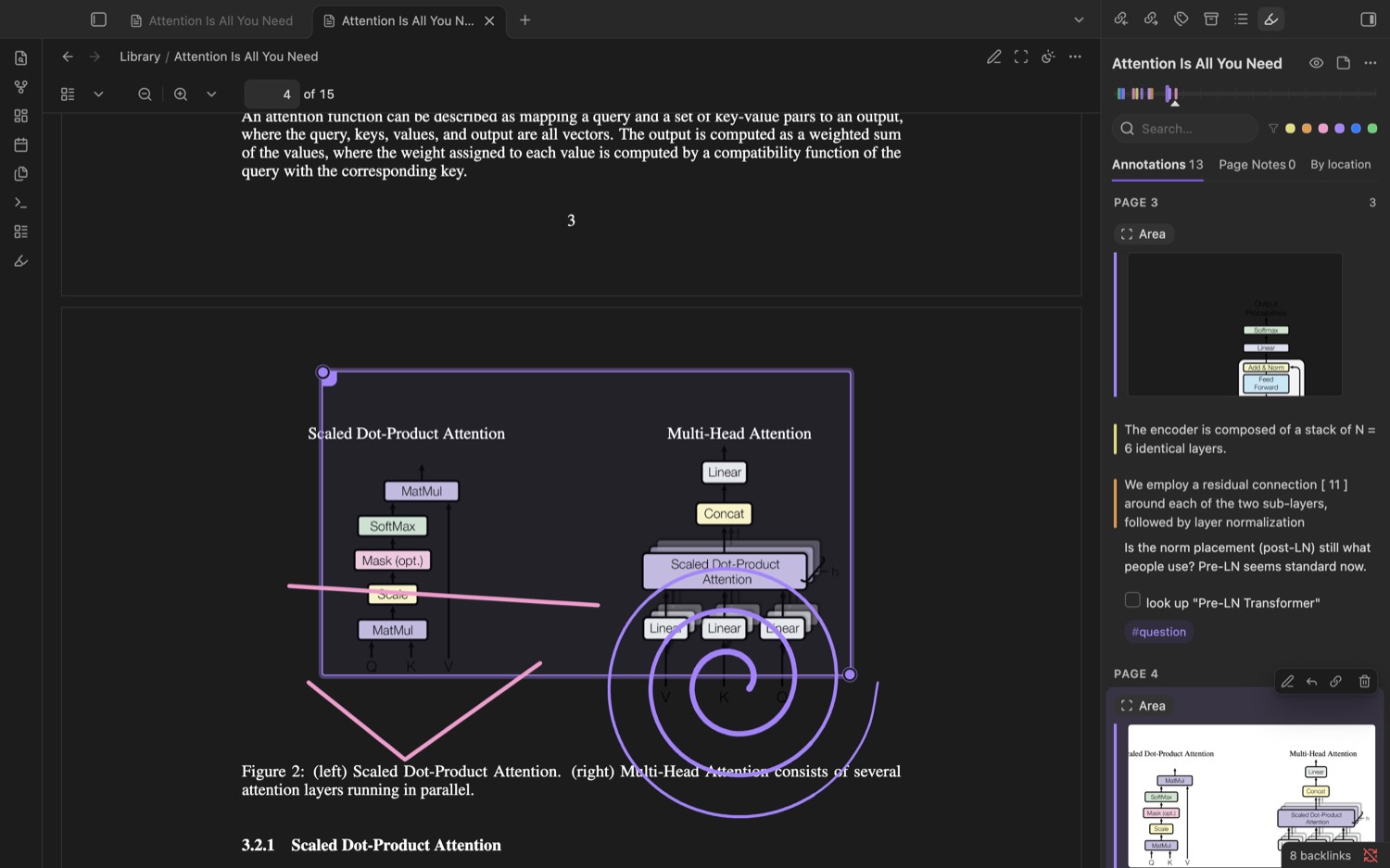
Page appearance chooses the paper: Auto (follows your theme), Light, Sepia, or Dark. The Sepia paper is a styling variable (see STYLING.md), so it can be parchment or anything else.
On a dark page the text is light and pictures are left as they are, so a line drawing in black on a clear ground can vanish. Darken pictures too (in the same card) turns the whole page instead: drawings and diagrams show, and photographs look like negatives. Pictures you keep of areas are taken from the page as printed either way.
Mark an area keeps a picture of part of a page with a note: a figure, a
table, an equation. Drag over the part to keep, or press Enter to place a
frame and move it with the arrow keys. The picture is saved as an attachment
and leads the note. The words that lie inside the area are kept with it, so a
picture of a table is found by what it says.
- Select a saved area to move it (arrow keys, or the grip at its top-left
corner) or resize it (
Shift+arrow keys, or the grip at its bottom-right). Its picture is taken again. - A PDF that is pictures of pages (a scan) has no text to select. The sidebar says so and offers areas, drawing and text boxes, which work on any page, and recognising the text.
Draw on the page is freehand: underline, circle, point, write in the margin. The toolbar has the six inks, three pens, an eraser, Undo, Done and Cancel.
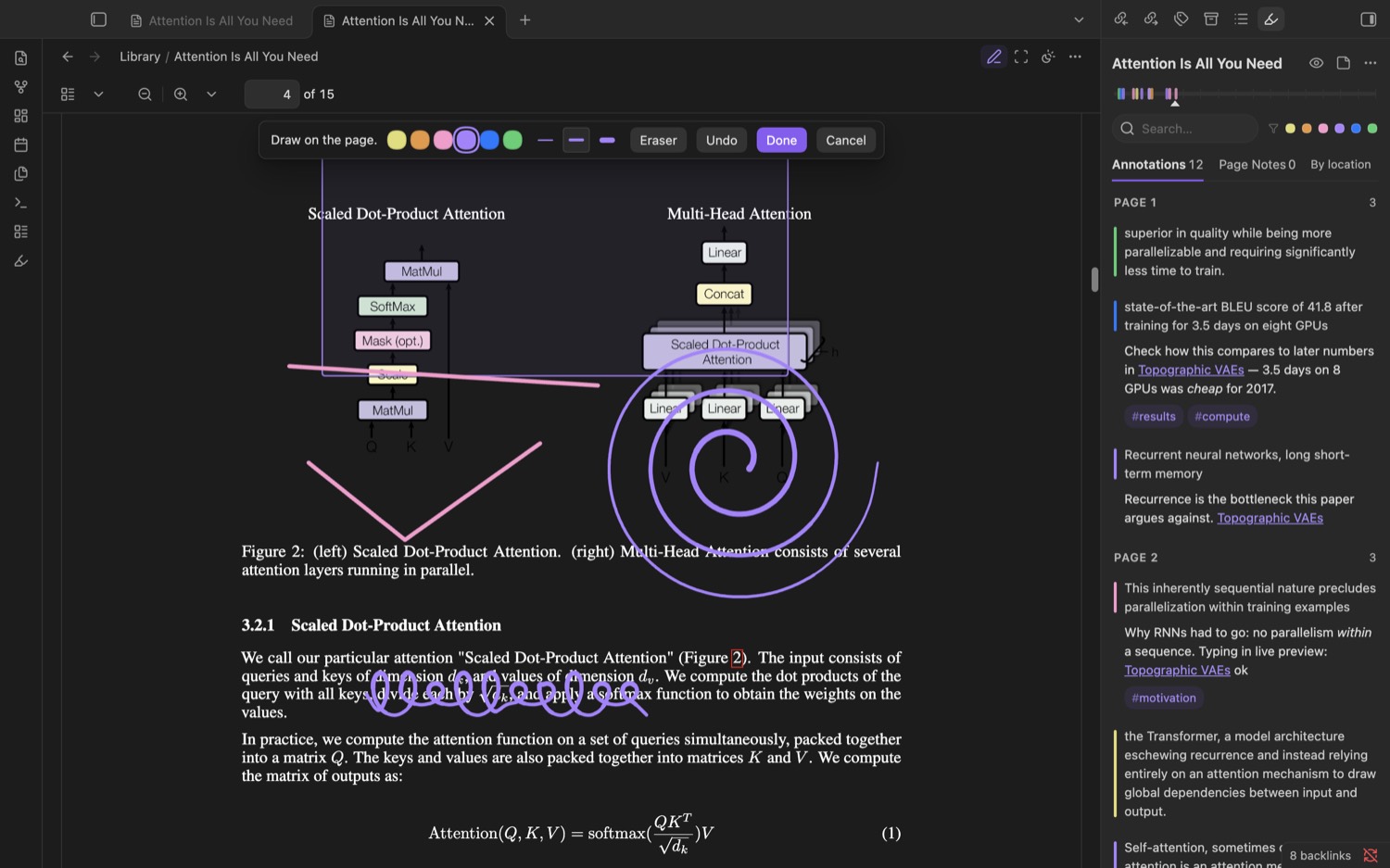
- A pen that reports pressure draws thinner and thicker; fast strokes are smoothed. Once a pen has drawn, a finger moves the page instead of drawing.
- The eraser (the button, or the other end of the pen) removes whole strokes.
Ctrl/Cmd+Ztakes back the last change, an erasure too.Enteror Done keeps the drawing. - A saved drawing can be put right. Select it: the grip at its corner drags
it, the arrow keys move it, and the pencil (or
Enter, or a double-click) opens it again to erase strokes, add to it, or give it another ink. Its note and tags are untouched.
Add text box puts words on the page that stay there: a label on a
figure, a correction in the margin, a form filled in. Click where the words
go (or drag to set the width of the box), or press Enter to place one and
move it with the arrow keys; then type. The words are written beside the box,
where notes are written, and the box shows them as you type. Three sizes sit
in the strip at the top; the last one used is remembered.
- The words are the box's note: search finds them, tags and replies go with them, and the card says Text box. Links and emphasis show as plain words on the page; the card shows the note as written.
- The words are in the page's own ink on the page's paper (light, sepia or dark), whichever ink the box has: the ink is the rule along its edge. A box is as tall as you made it, grows to fit its words, and stops at the foot of the page; what does not fit there is cut off, and an ellipsis in the ink says so.
- Select a saved box to move it (arrow keys, or its grip) or resize it
(
Shift+arrow keys, or its other grip);Escapeputs back a move not yet saved.Enter, a double-click, or pressing a selected box again opens its words to change them. - Any area can show its note on the page: Show note on the page in its menu (on the page or on its card), and the box's sizes are there too.
- A box given up before it has words leaves nothing behind.
- On a phone the command Add text box (PDF) starts it, a tap places it, and the words are typed in the sheet above the keyboard.
Embedded PDFs and Canvas
A PDF embedded in a note or placed on a Canvas shows its highlights, and a click on one opens it in the sidebar. You can annotate it there as in its tab:
- Select text: the same bar appears, with the mark style, the inks, Note and the same keys. A note is written beside the passage, in the embed.
- Right-click a highlight (or press the menu key on it) for its menu: change the colour or the style, add or edit its note, copy it, delete it.
- The commands Mark an area of the page (PDF)…, Draw on the page and Add text box (PDF) act on the PDF you last pressed on, embed or tab. An embed has no header of its own, so their buttons are not there.
- What you make goes into the PDF's annotation note, never into the note the PDF is embedded in, and shows at once in the embed, in any tab of the PDF and in the sidebar. A PDF that has no annotation note yet gets one with its first highlight, as in a tab.
- On a Canvas, select the card first. A first click selects it, and dragging moves it, as Obsidian does.
Annotate in embedded PDFs turns annotating there off, so embeds only show their highlights. Show highlights in embedded PDFs turns off both.
A note page between pages
To add a page of your own between two pages of a PDF, as a tablet note app does, run Add a note page after this page (PDF): it starts a note about the page you are reading, written in Obsidian's editor like any note, so headings, lists, links and images all work. It is kept in the annotation note as a page note of that page. A marker at the foot of the page, in its corner, stands for it: the note's words show when you point at it, and a click opens it in the sidebar, where it is shown as Markdown and can be edited. A page with several has a marker for each.
The note is not drawn as a page in among the PDF's pages: Obsidian's PDF view lays out its own pages and takes away anything put between them whenever it changes the layout (two pages side by side, scrolling by page), so a page inserted there would come and go. The marker is part of the page and goes wherever the page goes, at any zoom. An older version of Annotator, on another device, lists the note among the page notes.
Scanned PDFs: recognising the text
Recognise text… (in the sidebar of a PDF with scanned pages, its menu, or
the command Recognise text in this scanned PDF…) reads the words on scanned
pages and saves them in a copy, <name> (searchable).pdf, beside the PDF. The
copy is a PDF with text: select, highlight, quote, find and export in it as in
any other, here and in any PDF program.
- It asks first. A dialog asks the language (English, French, German, Spanish or Swedish) and the pages (this page, a range, or every page that has no text) and says what it needs. Nothing is read or fetched before its button is pressed.
- It runs on your device. No page, picture or word is sent anywhere. A strip at the foot of the page says how far it is; Stop keeps the pages done. Running it again on the copy reads the pages still without text.
- The PDF is not changed. The copy is the PDF's own bytes with the words added after them, invisibly, each at its place on the page. It is the same document to the reader, so areas, drawings and page notes made before belong to it too; the closing message offers to point the PDF's annotation note at the copy.
- Pages with a stamp or a header. A scan on which a library has set a line of real text is still a scan. The dialog offers such pages (those with only a little text of their own over a picture of the page); what they have as text is left as it is and the words around it are read, so nothing is in the copy twice.
- If the app is closed in the middle, the pages read so far are kept on the device. The next time you recognise that PDF in that language they are not read again; the dialog says how many there are.
- Another language. Recognise text again in another language… (the sidebar's menu on a copy, or the command) takes the words read before out of the copy and puts the new ones in. A highlight keeps its place where its words still read the same; one whose words now read differently stays in its note, without a place on the page. Stopping leaves the copy as it was.
- What to expect. It reads print, not handwriting, on upright pages, in one language at a time. A full page takes some seconds (about six on a recent laptop), so a long scan takes a while; a phone is slower, and a copy made on a computer reads the same on a phone. A tilted or faint scan is read worse, and the closing message says how many pages were hard to read. A speck on the scan may come out as a stray full stop.
The words in a marked area. An area's card has Recognise its words… in its menu. It reads the words in that area and keeps them with it: the card shows them, search finds the area by them, and they can be copied. This is for a figure, a table or a passage on a scan, and for a PDF whose own text comes out wrong (symbols and formulas whose font has no proper text behind it): mark the passage as an area and have its words read off the picture.
Network use. The recogniser is not part of the plugin, which would
otherwise be several megabytes larger for everyone. The first time, and only
when you press Download and recognise, files are fetched from this
project's releases on GitHub (github.com, which hands the download to its
file host githubusercontent.com): the recogniser (Tesseract, 1.8 MB) and
the data of the language you chose (0.7 to 3.0 MB). They are kept in the
plugin's folder under recognition and checked against checksums written in
the plugin's code before every use; a file that differs is deleted and
refused. GitHub learns that a download happened, and nothing else. No script
is ever fetched. The settings list the files that are on the device, with
Remove. Where GitHub cannot be reached, the same files put into that
folder by hand (under the names SECURITY.md gives) are
accepted if their checksums match.
Export a PDF with its annotations
Export PDF with annotations (command palette, or the sidebar's menu) saves
<name> (annotated).pdf beside the PDF. Any PDF reader shows it with the
highlights in their colours and their notes as comments, areas as boxes,
drawings as ink, text boxes as text boxes (their words on the page, in
Helvetica) and page notes as sticky notes. A text box whose words the
standard PDF fonts cannot write (Chinese, Arabic, Cyrillic, emoji) goes out as
a box with its words as the comment, and the export says so.
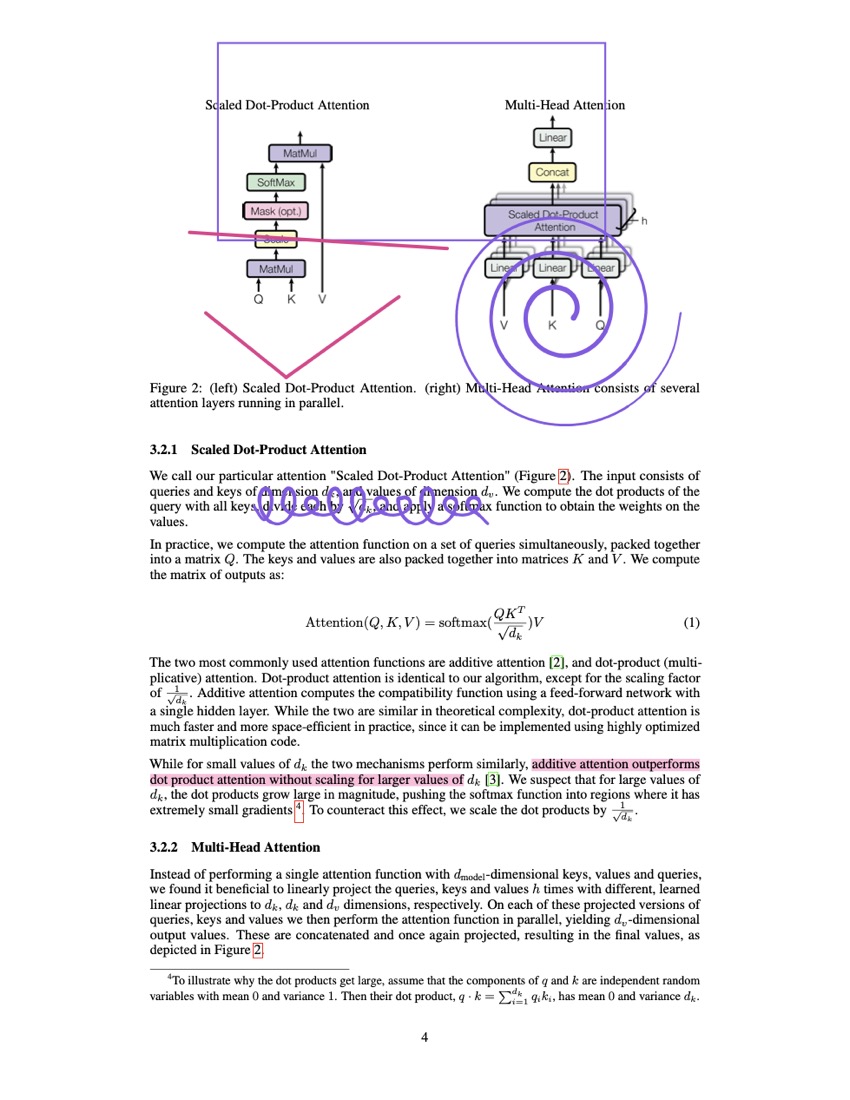
The original file is never changed: the copy is the original with the annotations added after it. Exporting again replaces the earlier copy. Encrypted PDFs cannot be exported this way; the reader says so.
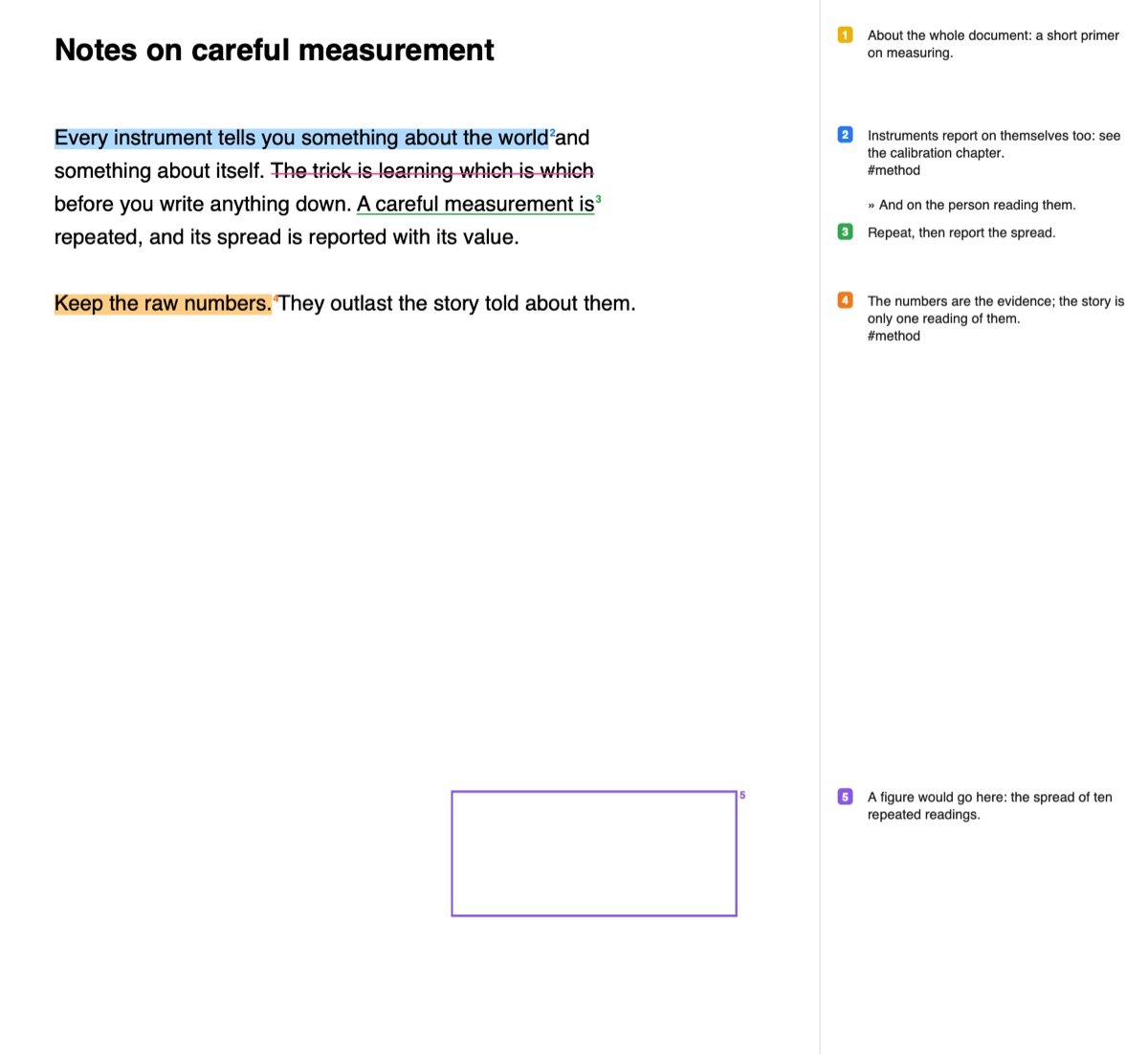
With the annotations drawn in. Some places that show a PDF do not show
its annotations, or hide their notes in pop-ups nobody opens: a website's
PDF viewer, a picture of a page, a print. Export PDF with annotations drawn
in (for websites and printing) (command palette, or the sidebar's menu)
saves <name> (annotations drawn in).pdf, in which they are part of the
pages:
- Highlights, underlines, strike-outs, squiggly lines, areas, drawings and text boxes are drawn into the page, looking as they do in the export above. The page's own text stays text: it can still be selected, found and copied.
- Each note is written beside its passage, in a column added at the right
edge of the page (the page is made wider; nothing on it moves). A small
number after the passage, or at the corner of an area, is the number of its
note in the column. Replies follow their note, marked
»; notes about the whole document go at the top of the column of the page they were written on. A page whose notes do not all fit beside it is followed by a page of notes, named "Notes to" that page, and every other page keeps its number. - Pages turned or cropped in the PDF are handled as they are shown.
- Notes are written in Helvetica, which every PDF reader has. A line with letters Helvetica lacks (Chinese, Arabic, Cyrillic, emoji, …) is drawn as a picture in your system's font, with its words as invisible text over it, so they are still found and copied.
- The copy has none of the annotations this export draws, so nothing is shown twice. Links, form fields and annotations another program wrote that were not taken into your notes are kept.
The copy was read back with pdf.js (what Firefox and Obsidian show PDFs with) and Apple's PDFKit (Preview's): the marks and notes are on the pages, no annotation is left, and the text is still read.
The works a page cites
While you read a paper, the Citations view lists the works cited on the
page in view, in the order they appear, each with its reference as the PDF
has it. So [12] or (Vaswani et al., 2017) can be looked up without
leaving the page (part of what was asked for as Sioyek-style reading in
issue 282).
Open it with Citations on this page in the sidebar's menu or the command
Citations: show the works cited on this page. It opens in a part of the
right sidebar of its own, under the annotations, and can be moved like any
Obsidian view.
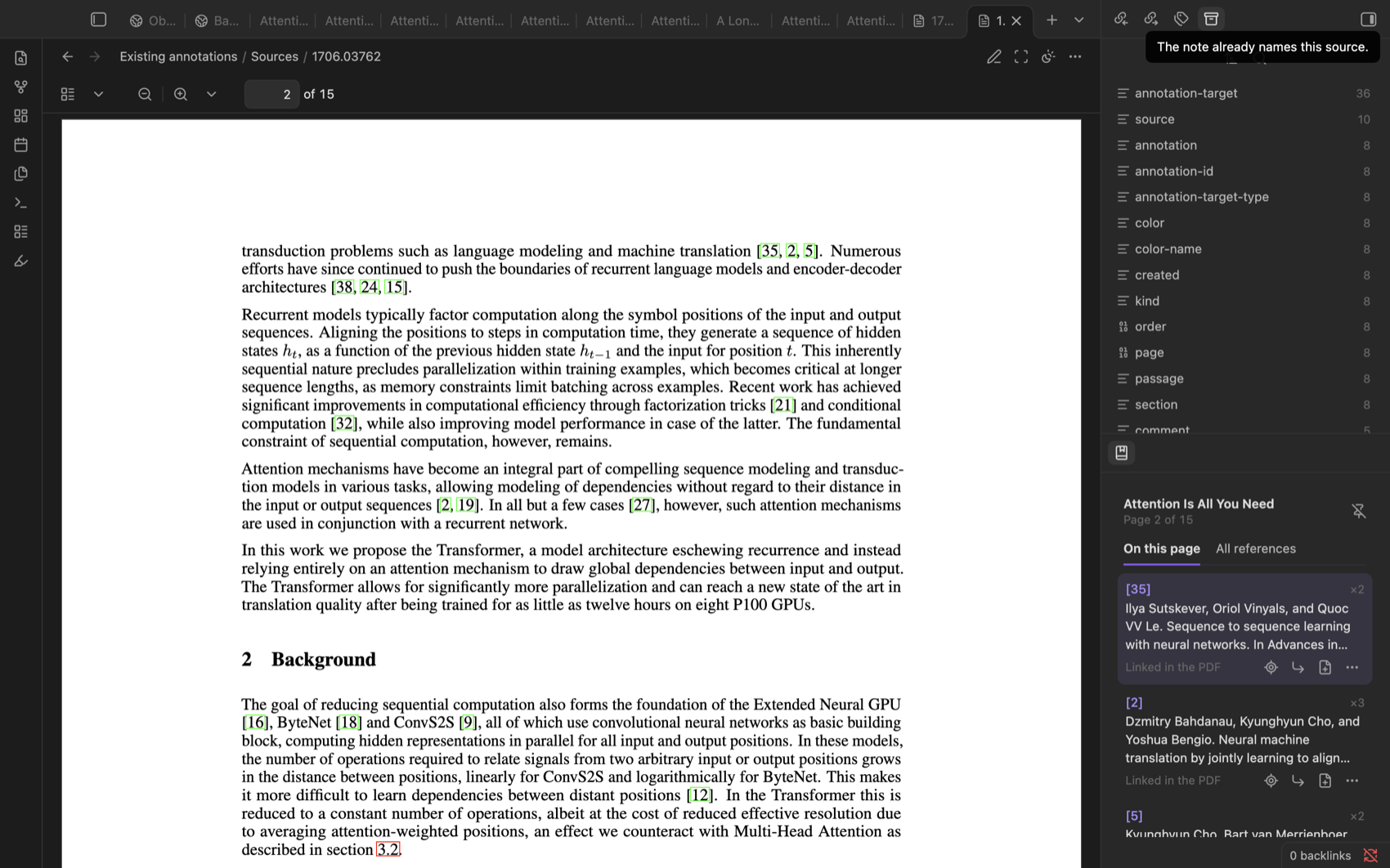
- A row has the citation's label or wording, the reference, how often the page cites it, and in small print how it was matched: Linked in the PDF (the PDF's own link leads to that reference, and the words agree), Matched by its number, or Matched by author and year.
- Show on the page flashes the citation where it stands; again for the next place. Go to the entry goes to the reference in the list; the reader's Back to page N returns.
- Make a note opens a small form with the title, authors, year and DOI
as read from the reference, and a name for the note
(
Vaswani et al. 2017 - Attention is all you need). Reading those out of a reference is the least certain thing here, so correct what is wrong;Ctrl/Cmd+Entercreates the note and you stay on the paper. - All references lists the whole reference list, with a field to narrow it. Hold keeps the list on its page while you scroll.
A reference note holds properties only: title, author, year, doi
where the reference prints one, reference (the reference exactly as the
PDF has it) and cited-by, a link back to the source's annotation note. No
word from the PDF is written as Markdown, the note's text is yours, and a
note is never overwritten. The note goes where Obsidian puts new notes, or
into the folder named in the settings. If the source has no annotation note
yet, the form has a ticked box that makes it; unticked, the link goes to the
PDF file itself.
If a note for the work is already in your vault, the row links to it
instead: a note with the same DOI, or with the same title, year and first
author (so a paper you have annotated and given its details is found). A
note that only shares the title is shown as "Possibly: …" and does not stand
in the way. Link this note to the source (the row's menu) adds this
source to that note's cited-by.
Everything is read from the PDF. Nothing is looked up online, and nothing is read at all until the view is first shown for a PDF. What it reads:
| In the paper | Listed |
|---|---|
[12], [2, 35], [3–5], letter labels like [Vas17] | yes |
(Vaswani et al., 2017), Vaswani et al. (2017), several in one bracket | yes, when exactly one reference has that first author and year |
| Raised numbers, and numbers in round brackets | only where the PDF links them to the reference list |
When it cannot tell, it says so and names no work: "Two entries fit" (the same author and year twice, and no link to decide), "Not found in the reference list", "No reference list was found in this PDF" (footnote-style citations, a scan), "The reference list could not be divided into entries". For those cases, select a reference in the PDF and run Citations: make a reference note from the selection: the same form, by hand. What it was tried on, and what it gets wrong, is in CITATIONS_RESULTS.md.
The PDF's own details
Add the PDF's details to the note (sidebar menu or command palette) reads
what the file records about itself (title, authors, year, DOI, subject,
keywords) and adds them as properties of the annotation note. Properties the
note already has are left alone, and nothing is looked up online. Export
templates can then use {{title}}, {{author}} and {{year}}.
A PDF that was annotated in another program
PDF annotations are part of the PDF standard, so what Preview, Acrobat, a tablet's note app or a reference manager put into a file can be read. When a PDF holds such annotations the sidebar says so and offers to take them in (also in the sidebar's menu and the command palette):
| In the PDF | Becomes |
|---|---|
| Highlight | A highlight of the words under it, in the nearest ink, with its comment as the note |
| Underline, strike-out, squiggly | The same kind of mark: a passage tagged underline, strike-out or squiggly |
| Text box | A text box: its words on the page at the size nearest theirs, as its note |
| Rectangle, oval, an empty text box | An area, with its text as the note |
| Sticky note | A small area at its spot, with its text as the note |
| Ink | A drawing |
| An answer to any of these | A reply |
From then on they are annotations like any other: edit, recolour, move, tag, link and export them. They keep the date they were made.
- The PDF file is not changed, so its own copies stay visible on the page under yours. Export PDF with annotations writes a copy in which each is there once, as it is in your notes now; an underline, a strike-out or a squiggly line is written as that kind of mark.
- Taking in again adds only what is new in the file.
- Not taken: stamps, attached files, form fields, review states, and anything in an encrypted PDF. A mark over a scanned page (no text under it) comes in as an area.
Links to passages, from Obsidian or PDF++
Obsidian's own Copy link to selection, and the PDF++ plugin, keep a
highlight as a link in a note: [[paper.pdf#page=3&selection=4,0,6,12]],
with PDF++ adding a colour. Take in links to this PDF's passages
(sidebar menu or command palette) reads every such link in your vault that
points at the open PDF and makes each an ordinary highlight: the passage the
link marks, in the link's colour, with a note saying which of your notes link
to it. Your notes and their links are left exactly as they are, so PDF++
keeps working beside it.
- Taking in again adds only what is new; the same passage linked from several notes comes in once and names them all.
- A link that marks nothing on its page as the page is read now is counted and left out.
- A PDF++ link to a rectangle of a page (
[[paper.pdf#page=3&rect=72,400,300,600]], for a figure or a table) becomes a marked area there, with its picture and the same note. One that lies off its page is left out.
Books (EPUB, FB2, FB3 and Kindle)
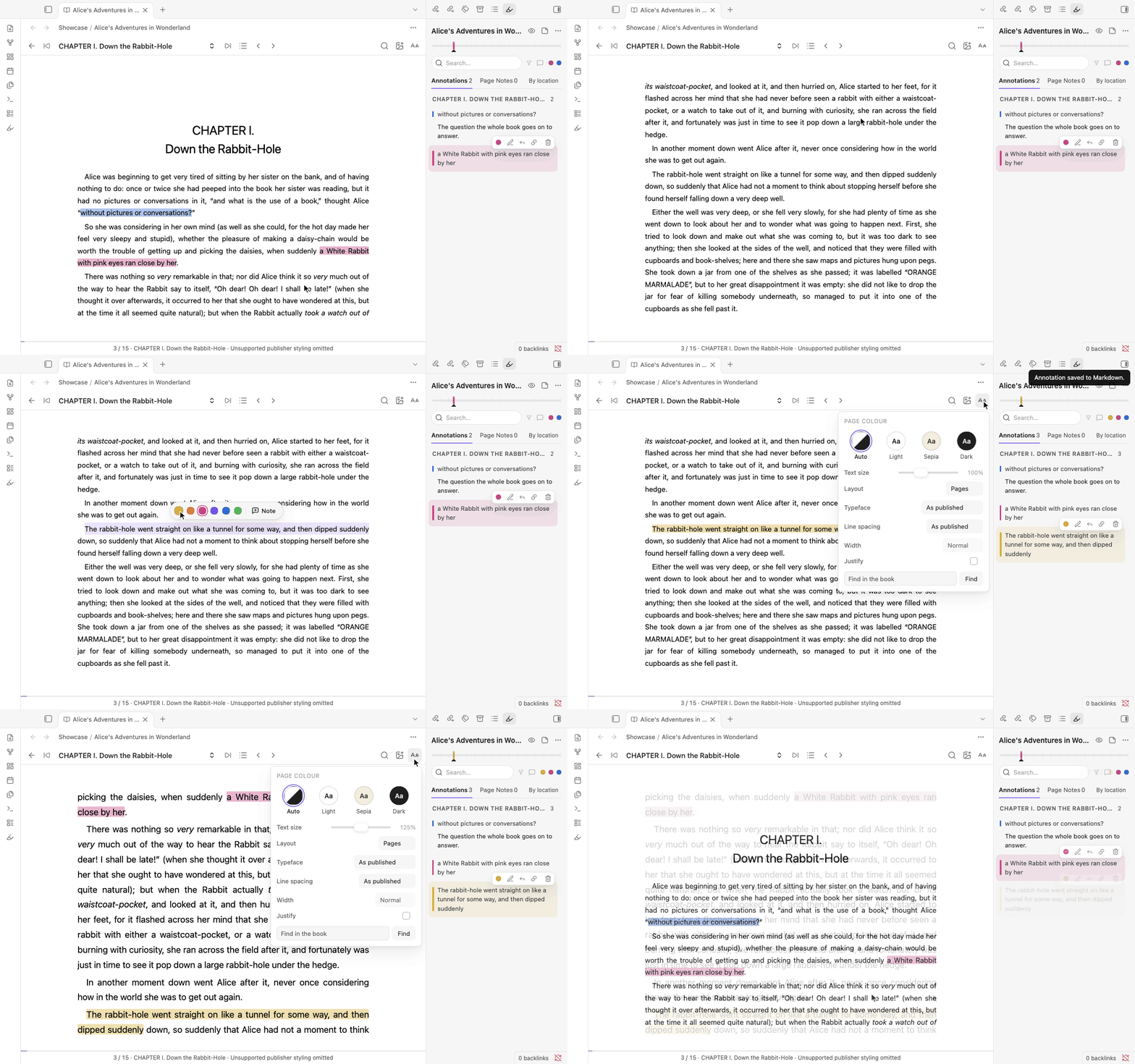
The bar has Back, the chapter with turns either side, Contents, page turns, Find, Keep a picture and Reading controls.
-
Contents lists the book's own table of contents, nested, with where you are and how many annotations each chapter holds.
-
Find (
Ctrl/Cmd+F) looks through the whole book and lists every match under its chapter; a result takes you there and selects the words. -
In the Pages layout a swipe turns one page, as does a tap at either side of the page; the arrows in the bar and the arrow keys do the same.
-
Reading controls: page colour, text size, layout (Scroll or Pages), typeface, line spacing, column width and justification. Fixed-layout books keep the publisher's pages as they are.
-
Keep a picture with a note (the picture button, or the Mark an area command): every picture on screen offers itself; click one, or Tab to it and press
Enter. The picture's own file, as the book holds it, is saved as an attachment and leads the note; the kept picture is framed in its ink. What the book says about the picture (its description and caption) is kept with it, so it is found by search. A book's text has no fixed page, so it is the whole picture that is kept, not a rectangle; text in tables and captions is highlighted like any other text. -
Passages of a book can be underlined, struck out or marked with a squiggly line, as in a PDF; the line follows the text when it is made larger or laid out again.
The thin line at the bottom is how far you are through the book.
FictionBook (FB2)
FictionBook files (.fb2, and zipped as .fb2.zip or .fbz) open in the
same reader, with everything above. A FictionBook is one file of nested
sections, so the reader makes the chapters: each section that has text of its
own is a chapter, under the headings it stands in (a part, an act), and the
book's own contents list is built from its titles. Its cover is the first
page; footnotes are links to the notes at the end, and Back returns.
Poems, epigraphs, citations and tables are set as the book marks them, in your
theme's colours and the typeface you chose.
- Obsidian does not show a
.fb2.zipin its file list unless Detect all file extensions is on. Open a FictionBook (FB2 or FB3) from this vault… lists every FictionBook in the vault, zipped or not. - If another plugin already opens
.fb2(or.fb3) files, Annotator leaves them to it; Annotate in the file's menu, the command above and the book's annotation note still open it here. - A book is known by the identifier its maker gave it, so a copy of the same file downloaded again, or a newer version of it, finds its annotations. A different library's file of the same work is a different book: its annotations are kept but not shown on it.
- Older Russian files written in windows-1251, KOI8-R and the like are read as they declare. A file that is not well-formed XML is refused with the reason; Calibre can repair it.
FictionBook 3 books (.fb3) open the same way. An FB3 is a package of the
book's description, its text and its pictures; its text is set as an FB2's
is, and lists, boxed passages, preformatted text, underlining, letter spacing
and small capitals are shown too. A note reference with no number of its own
is numbered. Each chapter is known by the identifier the book gives its
section, so a new edition that adds a chapter, or corrects a title, still
finds every note. How the book asks to float a box or size a picture is left
to the reader's layout, and a section the book marks as part of a sample or
not is shown either way.
Kindle books (MOBI and AZW3)
Kindle books without DRM (.mobi, .prc and .azw3) open in the same
reader, with everything above. A newer Kindle book (KF8, which is what an
.azw3 is, and the second half of many .mobi files) is read as the EPUB it
was made from: its own chapters, stylesheets, pictures, links and table of
contents. An older one (MOBI 6) is one stream of text cut into pages, and
each page is a chapter; its contents come from the book's table of contents,
or else from its contents page. A book's own cover page (Calibre and Kindle
tools write one) is named Cover; a book without one gets its cover as a first
page.
- A book bought from Amazon is protected by DRM and is refused with that reason. Annotator does not remove DRM.
- Books compressed either way Kindle tools compress them (PalmDOC or HUFF/CDIC) are read. A large book is opened a slice at a time, so Obsidian stays responsive while it opens.
- A book is known by its ASIN, ISBN or source as its metadata gives them, so the same book opened again, or a newer copy of it, finds its annotations. A book given another of these is a different book: its annotations are kept but not shown on it.
- If another plugin already opens
.mobi(or.prc,.azw3) files, Annotator leaves them to it; Annotate in the file's menu and the book's annotation note still open it here. - A font the book embeds is used as an EPUB's is; on iOS before 16.4, which cannot unpack it, your typeface is used instead.
- Not read: sound and video, a dictionary's look-up index (its text is read
as a book), and the panel view of comics. Fixed-layout Kindle books keep their pages' size; they have been
tried only with books made for the tests.
.azwand older PalmDOC.pdbor.prctexts are not read; Calibre converts them to EPUB.
Videos and recordings
A note whose annotation-target is a YouTube link, or a video or audio file
in your vault, with annotation-target-type: video, opens as a player with
timed notes.
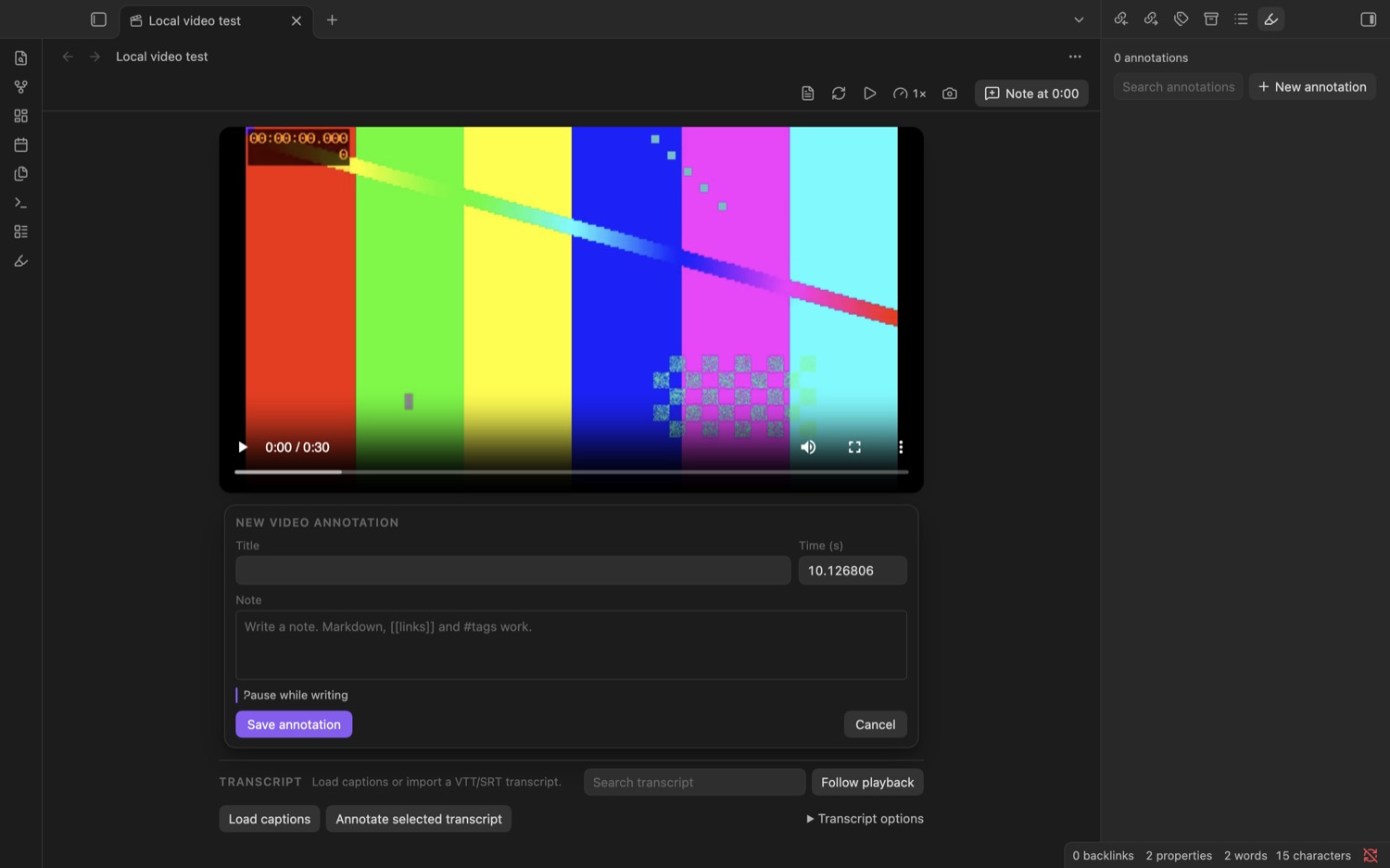
- Note at 0:12 (or
N) writes a note at the current moment, in a card under the picture. The video waits while you write; untick Pause while writing to keep it running. - The camera button (or
S) makes a frame note: the frame is frozen, you keep all of it or drag over a part, and the note opens with the picture. This reads the frame of a video file directly. For YouTube it pictures the player in the app's window, which only works on desktop; elsewhere you get a plain note at that moment. - The timeline under the player has a marker for every note.
KorSpaceplays and pauses,JandLskip ten seconds, the arrow keys five. - Captions can be loaded or imported (VTT or SRT). Select words in the
transcript and a bar offers Highlight (
H: kept at once, at the time they are said) and Note (A: a note that quotes them). What your notes quote is marked in the transcript; a mark leads to its note. - An audio file gets a slim player and everything else the same.
Web pages
A web page is annotated where it lives: the real page, in Obsidian's own Web
viewer (a core plugin; desktop). Open a note whose annotation-target is a
web address, or run Open website in core Web viewer, and the page opens
with its annotations on it.
- Highlights and notes. Select text on the page; the bar offers the inks and Note. A highlight is painted in the page's own text and found again by its words when the page has changed around it. Click one to open its note. A live page has highlights only: an underline made elsewhere is shown there as a highlight.
- Keep a picture with a note (the picture button beside the address bar,
or the Mark an area command): every picture on the page offers itself;
click one, or Tab to it and press
Enter;Escapeleaves. What the Web viewer showed of the picture is saved as an attachment and leads the note, and the picture is framed in its ink on the page. It is found again by its place and by its address, and by its address alone if the page has moved it. Nothing is downloaded for this: the picture kept is what was on screen. - Nothing a page says is treated as an instruction. The page can only offer a selection or a picture; what is saved is shown in Obsidian's own window first, and saving takes your click there. Your notes are never sent to the page.
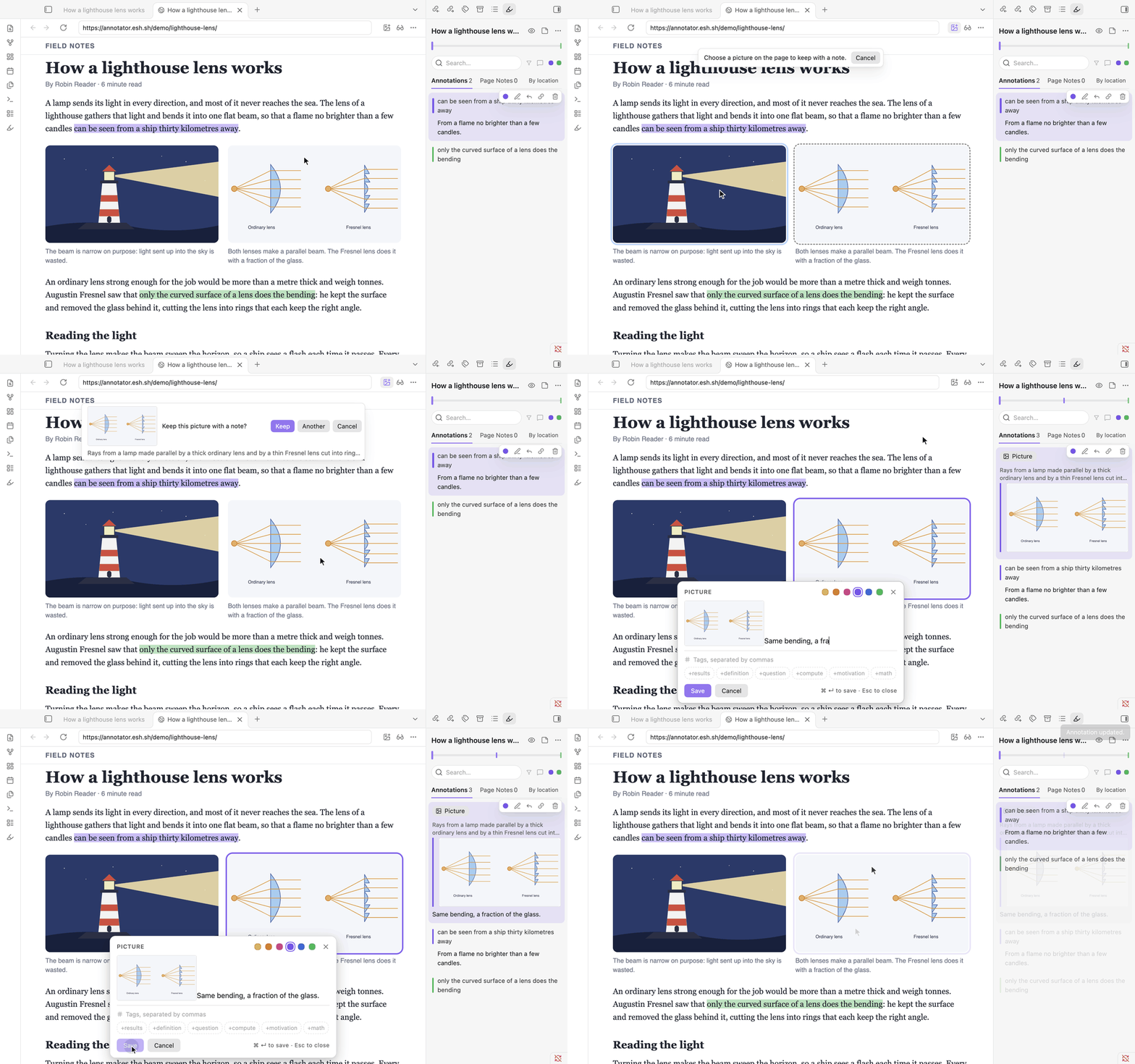
To try it, open the sample article at
https://annotator.esh.sh/demo/lighthouse-lens/ in the Web viewer: it is the
page in the recording, and its text and pictures are free to reuse.
Where there is no Web viewer (phones and tablets) or no network, a reading copy stands in: Save website as an offline Markdown reading copy keeps the page's text as a note you can read and annotate anywhere, and the annotations made on the live page show on it. A reading copy is text only: a picture note is listed with its picture, but has no place on the copy.
An HTML file in the vault can be a source too: point a note's
annotation-target at it. The first time, a reading copy is made from the
file and kept beside it ("… (reading copy).md"); that copy is what you read
and annotate, offline, and it syncs with the vault. The HTML file is not
changed. A page saved from a browser keeps the address it came from.
Sources outside the vault
A note may point at a file on the internet or elsewhere on your computer: a path, a web address, or a Zotero, Calibre, DEVONthink or archive.org link. Such a file is read where it is, and nothing is put into the vault: your annotations go into the note, and the file is only read, never changed.
- The first time, the reader asks: Read where it is, Annotate a copy in the vault, or Not now. For a file in a Zotero or Calibre library there is also Always from this library, and for a web address Always from its site. The answer for a file is kept on this computer only (not in the settings that sync), so another computer asks for itself, and a note that points somewhere else is asked about again. The answer for a web address is kept in the settings, since the address means the same file everywhere; a phone still asks before it puts a copy into the vault.
- A web address is downloaded to this computer's cache (on a Mac
~/Library/Caches/Annotator for Obsidian; on Windows%LOCALAPPDATA%; on Linux~/.cache), not into the vault, under its own name, and read from there; opened again, it is not downloaded again. Refresh cached PDF or EPUB downloads it again and, if it changed, shows which annotations are still found before you take the new one; the earlier download stays. Clear the download cache removes the downloads no tab shows. - Annotate a copy in the vault (in the first question, as the button in the view's header, or as a command) copies the file into the folder for copies, where it is read from then on, on every device. The note keeps its link, and its annotations stay as they are: they belong to the same file. A copy is what a phone reads (below), and what is needed to export the PDF with its annotations or to make a searchable copy of a scan, since those write a file beside the PDF; asked for one of those on a file read where it is, the reader says so and offers the copy.
- If the file changes (Zotero or Calibre replaced it, a new version of a paper), each annotation still knows the version it was made on. When some were made on another version, the reader says so once on opening: their passages are found by their words and marked in the list; areas and drawings from the other version are not placed. A copy in the vault keeps one version fixed.
- The folder for copies is
Annotator sourcesunless you choose another under Settings → Sources outside the vault → Folder for copies, which suggests your vault's folders (Obsidian's attachment folder first, where it is one folder). Copies already made stay where they are and are still read: nothing is moved. Each copy is named by a digest of the note's link, so the same source is one file, whichever note asked for it. Obsidian's attachment setting is not followed by itself: its "same folder as the note" choices would put one copy, shared by every note that names the source, beside whichever note opened it first. - On a phone or tablet a file is read from the vault. A copy made on a computer syncs and is read; it is found by its name, which follows from the note's link, wherever it is in the vault, so this works even when the plugin's settings do not sync. A web address without a copy is offered as one (Download a copy). A file that is only on a computer cannot be read on the phone, and the reader says what to do: on that computer, open the note and choose Annotate a copy in the vault.
- Copies made by Annotator 0.3 are still read, as before. With the setting Copy outside sources into the vault, every new outside source is copied in the first time, as 0.3 did. Reading where it is needs Obsidian 1.14.4 or later on a computer; with an older Obsidian the reader offers the copy.
If something fails it says why, and nothing is left behind.
A server that keeps the file behind a user name and password (HTTP Basic, as
nginx or Apache put in front of a Calibre-Web library) is signed in to when
it asks: write the address without them, and the reader asks for the user
name and password in a dialog of its own. They are sent to that server only
and kept until Obsidian is closed, never in your notes, the settings or sync.
An address with them written in it (https://user:password@…) is refused.
A file on your computer is written as its full path, the way your system
writes it, or as a file: address:
| Written as | Example |
|---|---|
| A path on macOS or Linux | annotation-target: /home/me/Papers/Attention.pdf |
| A path on Windows | annotation-target: C:\Users\me\Papers\Attention.pdf |
| A file address | annotation-target: file:///C:/Users/me/Papers/Attention.pdf |
A path may also be written from the vault's own folder: ../papers/a.pdf is
the folder papers beside the vault. As a default folder in the settings
(../papers/) that names the same place on every computer the vault syncs
to, whatever the folders above it are called.
The key is annotation-target, spelled exactly so and without a colon of its
own: in Obsidian's Properties editor, type the name alone and the path as its
value. A note whose property is a near miss (annotation-target:,
annotator-target) is told so when it opens, with a button that renames the
property.
Books from archive.org
A book on the Internet Archive can be a note's source by its page's address,
as your browser shows it:
annotation-target: https://archive.org/details/AlicesAdventuresInWonderland.
A link to a page of the book (…/page/n5/mode/2up, with a search or
without) is the same book. An item holds several files, so the reader
chooses one:
- A file the link names (
https://archive.org/details/ID/FILE.epub, or the item's own download linkhttps://archive.org/download/ID/FILE.epub) is the one read. - Otherwise the uploader's own file comes first, an EPUB before a PDF.
- Otherwise the PDF archive.org made, before the EPUB it made. For a scanned book archive.org's EPUB is its text recogniser's reading of the pages, with its mistakes and without the pages' layout; its PDF is the pages themselves, with the same text over them to select and search.
A file larger than the reader takes (PDFs up to 128 MB, EPUBs up to 64 MB) is passed over. The file chosen is read like any web address (downloaded to this computer's cache, or copied into the vault if you choose), and remembered for the item; the note keeps the link you wrote.
Only books that archive.org lets anyone download can be read this way. A book it lends (Borrow on its page) is refused with that reason: its files are locked for archive.org's own reader, and its downloads are refused.
Network use. The first time such a note is opened, the reader asks, in
the same dialog a download has, naming archive.org (Always from
archive.org answers it for every item). It then asks archive.org's public
metadata service once which files the item has
(https://archive.org/metadata/ID), and downloads the one chosen from
https://archive.org/download/…, which archive.org hands to one of its file
servers. Nothing else is sent: no account, no sign-in. From then on the
download (or the copy in the vault) is read, offline.
Open a file from outside Obsidian
A PDF or a book (EPUB, FB2, FB3, MOBI or AZW3) in your Downloads, on the desktop or in a mail can be opened in Annotator from the file manager on a computer. A note named after it is made where your new notes go, and it opens in the reader, read where it is: nothing is copied into the vault unless you choose Annotate a copy in the vault in its tab. The file itself is not changed. Opened again, the same file shows its note in the tab it is already open in.
- With a double-click. In Annotator's settings, under Open from outside Obsidian, press Install. It adds "Open with Annotator" to Finder's, Explorer's or your file manager's Open with, for PDFs and books, for this vault; nothing is downloaded. The settings then say how to make it the program a double-click starts (on a Mac: Get Info, Open with, Change All; on Windows: Open with, Choose another app, Always). A file opened with it goes straight to the reader, with no question. Uninstall takes it away. Where the button cannot work, Do it yourself has the same steps to paste into Terminal (macOS), a terminal (Linux) or PowerShell (Windows). OPEN_WITH.md says what each does, line by line.
- With Obsidian's own "Open with" (Obsidian 1.14.4 or later, installed from a current installer). Right-click the file, Open with, Obsidian. Obsidian shows it as it is, without annotations, with two buttons: Annotate where it is, or Annotate a copy in the vault. Obsidian opens such a file in the vault you used last.
- On an older Obsidian (before 1.14.4), which cannot read a file outside the vault, a file opened with "Open with Annotator" is copied into the folder for copies after a question; Always from this folder stops the question for that folder. So it is with Copy outside sources into the vault on.
- On a phone or tablet a file is read from the vault only, so it is copied in first. On Android, share a PDF to Obsidian, choose Import into vault, then Open in Annotator. Obsidian does not take books from the share sheet: copy the book into the vault's folder with your file manager (a vault kept in the phone's storage, not in Obsidian's own) and open it from the file list. On an iPhone or iPad, save the file into the vault from the share sheet (Save to Files, then On My iPhone or iCloud Drive, Obsidian, your vault) and open it in Obsidian. A Shortcut can do both in one step: OPEN_WITH.md has the steps.
Behind "Open with Annotator" is an address that any script or Shortcut can open:
| Address | Opens |
|---|---|
obsidian://annotator-open?vault=…&file=Papers%2FPaper.pdf | A PDF or book already in the vault, by its path there |
obsidian://annotator-open?vault=…&key=…&source=%2FUsers%2Fme%2FPaper.pdf | One outside the vault, by its full path (a computer only) |
obsidian://annotator-open?vault=…&url=https%3A%2F%2F…&title=… | A web page, PDF, book or video, by its address (below) |
An address can be opened by any web page, so a file outside the vault is read only when the address carries this computer's key, which Install writes into "Open with Annotator" (and makes, if there is none). Without it nothing is looked at and nothing is asked. The key is kept on this computer, not in the settings that sync, and New key in the settings ends the old one (press Install again afterwards).
Open a page from your browser
A page you are reading in your browser can be handed to Annotator with one click on a bookmark: a PDF, a book, a YouTube video, or any other web page.
-
The bookmarklet. In Annotator's settings, under Open from outside Obsidian, drag Annotate in Annotator to your browser's bookmarks bar. If your browser does not take it from there, make a bookmark of any page and give it the text shown below the link as its address (Copy copies it). The whole code is shown, so you can read what it does. It sends the page's address and title, URL-encoded, and your vault's name, to
obsidian://annotator-open; your browser asks once whether it may open Obsidian. -
In Obsidian, one press. A tab opens that says what was asked for and from where, and that nothing has been fetched. The bookmarklet carries no key (docs/SECURITY.md says why), so nothing is fetched, and no note is made, until you press the button there. The tab waits, also through a restart of Obsidian. The same address twice opens one tab, and at most three wait at once.
-
Where it goes, told from the address where it can be, else by asking the page's server what it is (without downloading it):
The address is It opens a PDF ( ….pdf, or a server that saysapplication/pdf, as arXiv's)In the PDF view, read where it is, through its note an EPUB In the book reader, the same way a YouTube video In the video reader, through its note any other page In Obsidian's Web viewer, where you annotate the live page (Web pages); on a phone, as an offline reading copy saved in the vault A PDF, a book or a video opens through the note that already names it; where there is none, a note is made where your new notes go, named after the file (or, shared from a phone, the page's title). The PDF or book is then read as any source outside the vault is: downloaded to this computer's cache, or on a phone into the folder for copies. An address that carries a key of its own (
?token=…) is not written into a note, and the reader says so. Where an address sends Annotator on to another, each step is checked on a computer, and one that leads tohttpis refused (docs/SECURITY.md). -
Your own server works too: an address on this computer or your own network, on any port (
https://nas.home.arpa:8443/report.pdf), waits for your press like any other. -
What is refused: anything but
https, an address with a user name or password in it, and one longer than 4,000 characters. -
Some pages ignore a bookmarklet: a browser's own PDF viewer may not run it (Firefox's does not), and a few sites block bookmarklets. Copy the address instead and make it a note's
annotation-target. -
On a phone. Phone browsers make bookmarklets awkward: there is no bar to drag to. On Android, use Share in the browser, choose Obsidian, then Annotate in Annotator in the menu Obsidian shows; that is the easy way, and needs no press afterwards (the share was yours). In Chrome on Android a bookmarklet runs only when you type its name in the address bar and pick it. On an iPhone or iPad, Safari runs a bookmarklet from the bookmarks list: bookmark any page, edit the bookmark, and paste the text from the settings as its address. Annotator then waits for the same press.
With Zotero
Zotero can stay your library while you annotate in Obsidian.
- The PDF. Give the note's
annotation-targetZotero's own link to the PDF, for examplezotero://open-pdf/library/items/N7SMB24A, where the last part is the PDF's key. On a computer the reader finds the file in Zotero's data folder (the folderZoteroin your home folder, or the one named in the setting Zotero data folder), asks once (Always from this library answers it for every file in Zotero'sstorage) and reads the file where Zotero keeps it: Zotero stays the library, and nothing is copied into the vault unless you choose Annotate a copy in the vault. Zotero need not be running, and its file is never changed. Another computer with the same Zotero library finds the same file through the same link. The link must be to the PDF itself: a link to the item it belongs to names no file. The file's path works too (/Users/me/Zotero/storage/N7SMB24A/Attention.pdf; in Zotero, right-click the PDF and choose Show File). - Highlights made in Zotero's own reader are kept in Zotero's database,
not in the PDF, so the file in
storagedoes not carry them. Zotero can export a copy that does (File → Export PDF…). Put that copy in your vault and run Take in the annotations this PDF already holds. - The other way, Export PDF with annotations writes a copy with your highlights as standard PDF annotations, which is the kind Zotero's reader shows for a PDF that has them.
- Details. Add the PDF's details to the note reads what the PDF records about itself. Nothing is read from Zotero's database.
Following a link and reading the file where it is were tried on macOS against a Zotero 10 library, in Obsidian 1.15.1. The exchange of highlights rests on both programs following the PDF standard and has not been tried with Zotero itself.
With Calibre
A book in a Calibre library can be a note's source by its Calibre link, for
example annotation-target: calibre://show-book/Calibre_Library/42 (in
Calibre, right-click the book's details and choose Copy link to book).
Name the library's folder in the setting Calibre library folders. On a
computer the reader finds the book there, takes its EPUB (or its PDF when
there is no EPUB, or the one a view-book link names; a book with neither,
its AZW3 or MOBI), asks once (Always from this library answers it for
the whole library) and reads the book where Calibre keeps it; nothing is
copied into the vault unless you choose Annotate a copy in the vault.
Calibre need not be running and its files are never changed. A book that has
none of these formats has to be converted in Calibre first. This was tried
on macOS against a Calibre 9 library, reading in place in Obsidian 1.15.1.
With DEVONthink
A PDF or EPUB in a DEVONthink database can be a note's source by its item
link, for example
annotation-target: x-devonthink-item://22427A1B-F90C-482B-A7B1-6368992BCF35
(in DEVONthink, select the item and choose Copy Item Link; a link with
?page=… works too). DEVONthink keeps its files inside the database in a
layout of its own, so the reader asks DEVONthink where the file is. The first
time in a session it asks you before it does, and says if DEVONthink is not
running and will be opened. macOS then asks whether Obsidian may control
DEVONthink: allow it (if you said no, turn it on in System Settings →
Privacy & Security → Automation, under Obsidian). The file found, inside
the database or, for an indexed item, where it is, is then asked about once
and read where it is, like any file outside the vault (or copied in, if you
choose). Nothing in DEVONthink is changed. The database must be open in
DEVONthink, and the item must be a PDF or EPUB. If DEVONthink later moves
the file, the link is followed again.
This works on a Mac only: DEVONthink is asked through macOS. On a phone or a
tablet, open the note on the Mac and choose Annotate a copy in the
vault; the copy is then read there. On Windows or Linux, point annotation-target at the
file's path (in DEVONthink, Show in Finder) or at a copy in the vault.
Following a link was tried on macOS against DEVONthink 4.4.2, with
DEVONthink running and not running. DEVONthink 3 is asked the same way but
has not been tried.
Reading progress
With Keep reading progress in the note on (settings; off by default),
leaving a PDF, book or video writes where you were to its annotation note as
the property annotation-progress ("12/340", "37%", "12:34"), so a list or a
Base can show what you are in the middle of. It is written once, on leaving.
The note travels with your vault, so the place does too: when a note says something this device did not write, the source opens there (the page of a PDF, the part of a book, the time in a recording). After that the device's own place is the newer one again.
Exporting notes
From the sidebar's menu:
- Copy all as Markdown and Export to a summary note: callouts, plain
quotes, or your own template (
{{quoted}},{{quote}},{{note}},{{image}},{{kind}},{{location}},{{link}},{{colour}},{{tags}},{{date}},{{title}},{{author}},{{year}}). - Export as individual notes + Base: one note per annotation with properties, and a Base that lists them.
- Export PDF with annotations and Export PDF with annotations drawn in (PDFs).
- Hypothesis JSON, from the command palette, for other annotation tools.
Publishing your annotations
A site generator (Zola, Quartz, Hugo and the like) does not run Obsidian's plugins, so it shows an annotation note as it is stored: the data as a block of code, and a warning about an unknown language. Leave the annotation note itself out of what you publish, and publish one of these instead, or both.
The PDF, with your annotations drawn in. For a PDF, run Export PDF with
annotations drawn in (for websites and printing) and publish
<name> (annotations drawn in).pdf in place of the PDF (or beside it, and
link to it). A visitor sees your highlights and drawings on the pages and
your notes beside them in whatever shows them the PDF: the browser's own
viewer, the site's theme, a download. Export again after annotating more;
the copy is replaced.
A summary note. For any source (PDF, book, web page, video), Export annotations to a summary note writes the passages and your notes as ordinary Markdown beside the annotation note. Under Export style in the settings choose Plain block quotes if your generator does not know Obsidian's callouts, and turn Link exports back to the passage off, since those links lead into the annotation note. Each export writes a new summary note and overwrites nothing, so export again after annotating more.
On phones and tablets
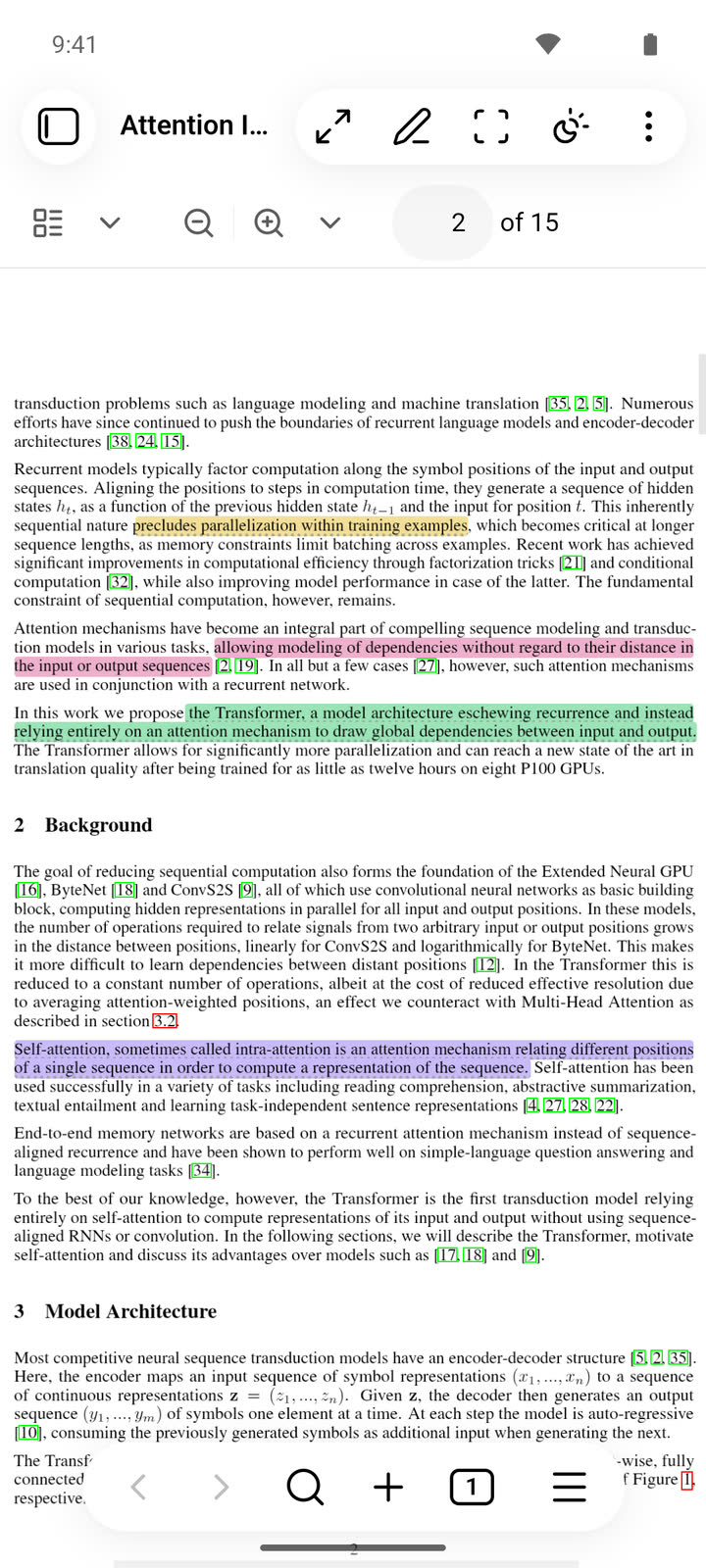
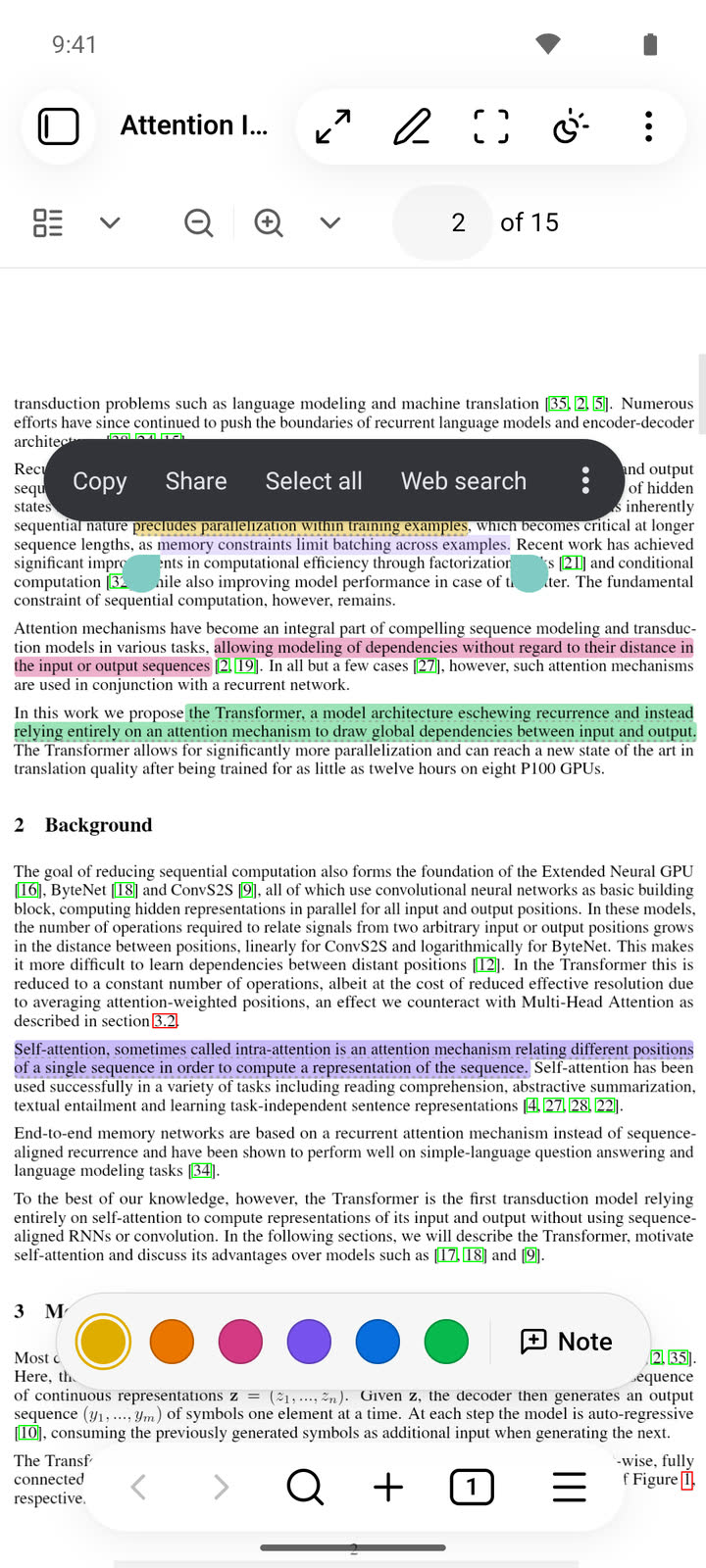
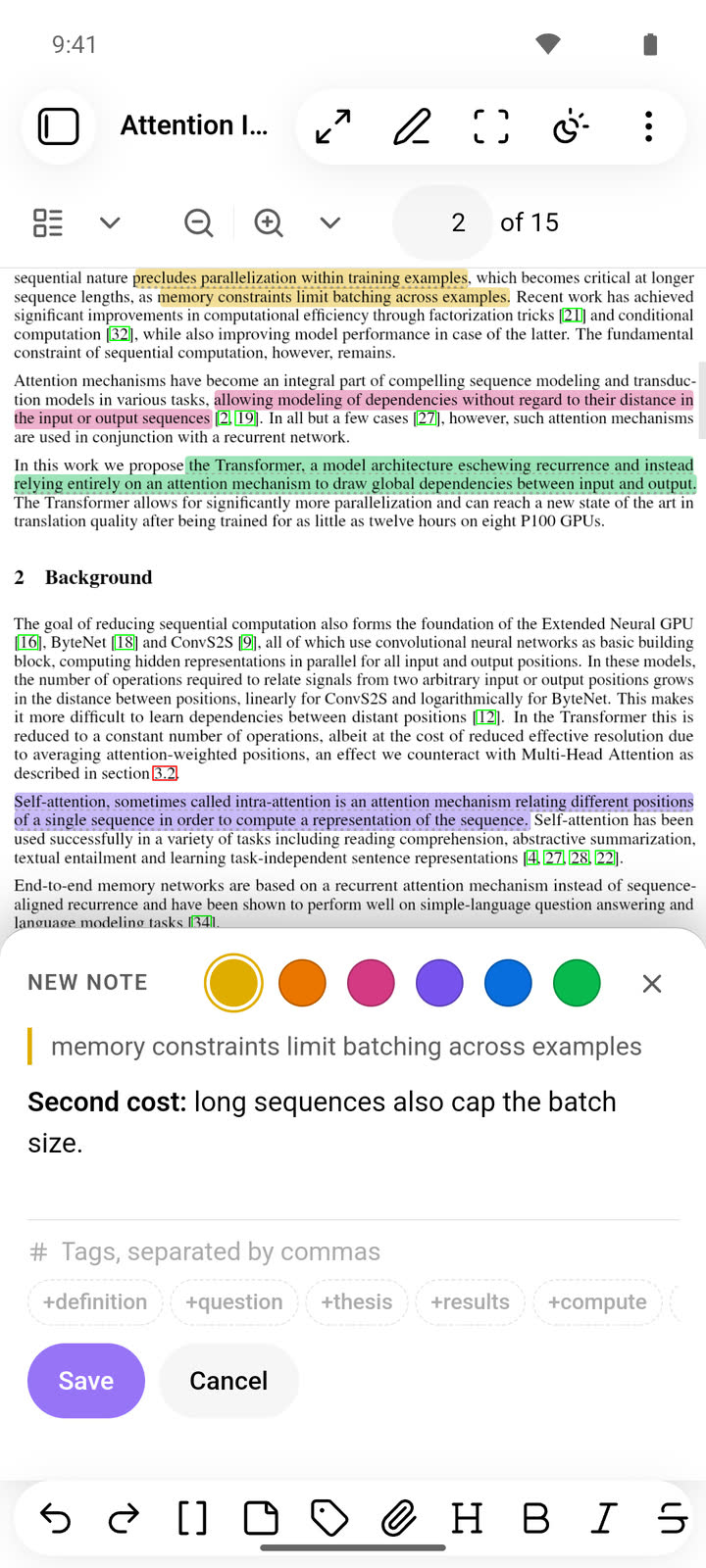
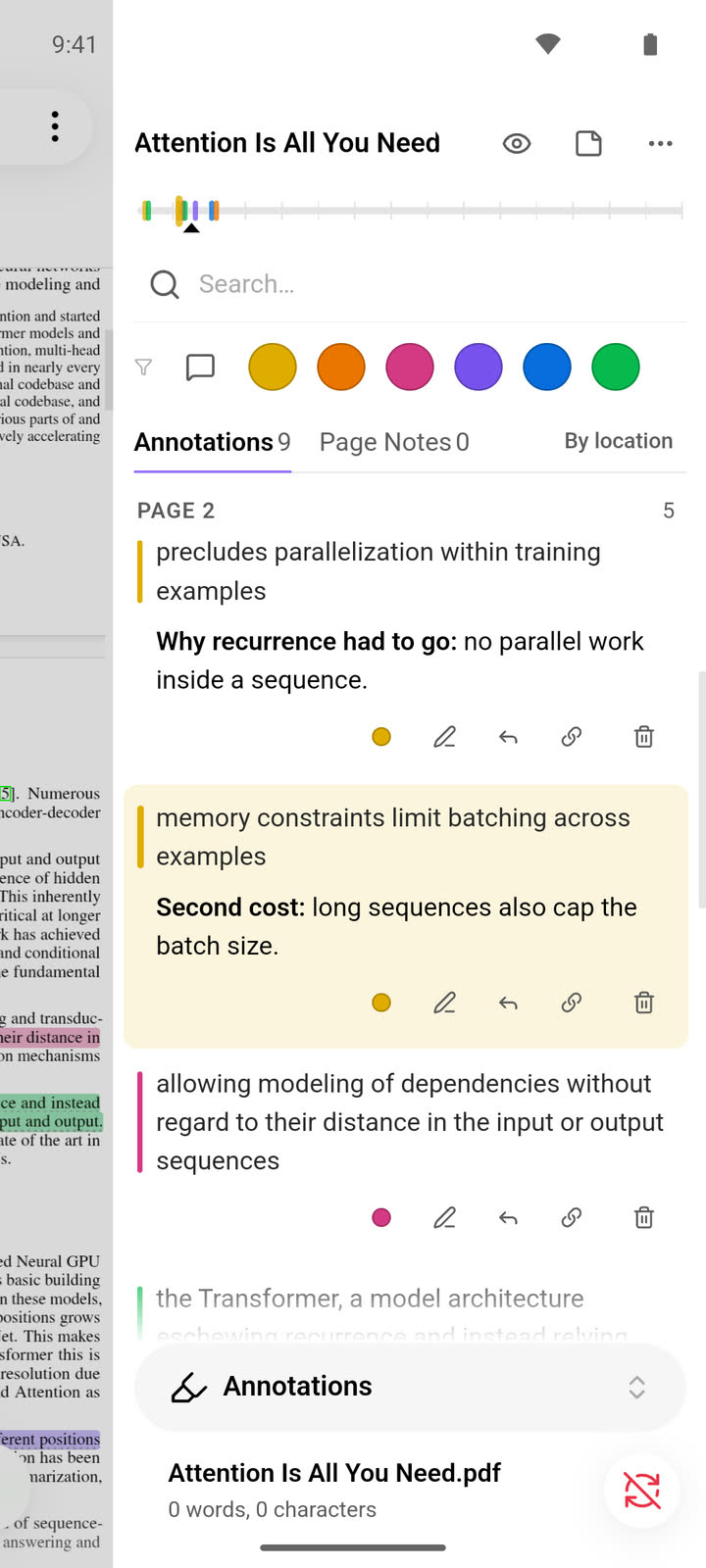
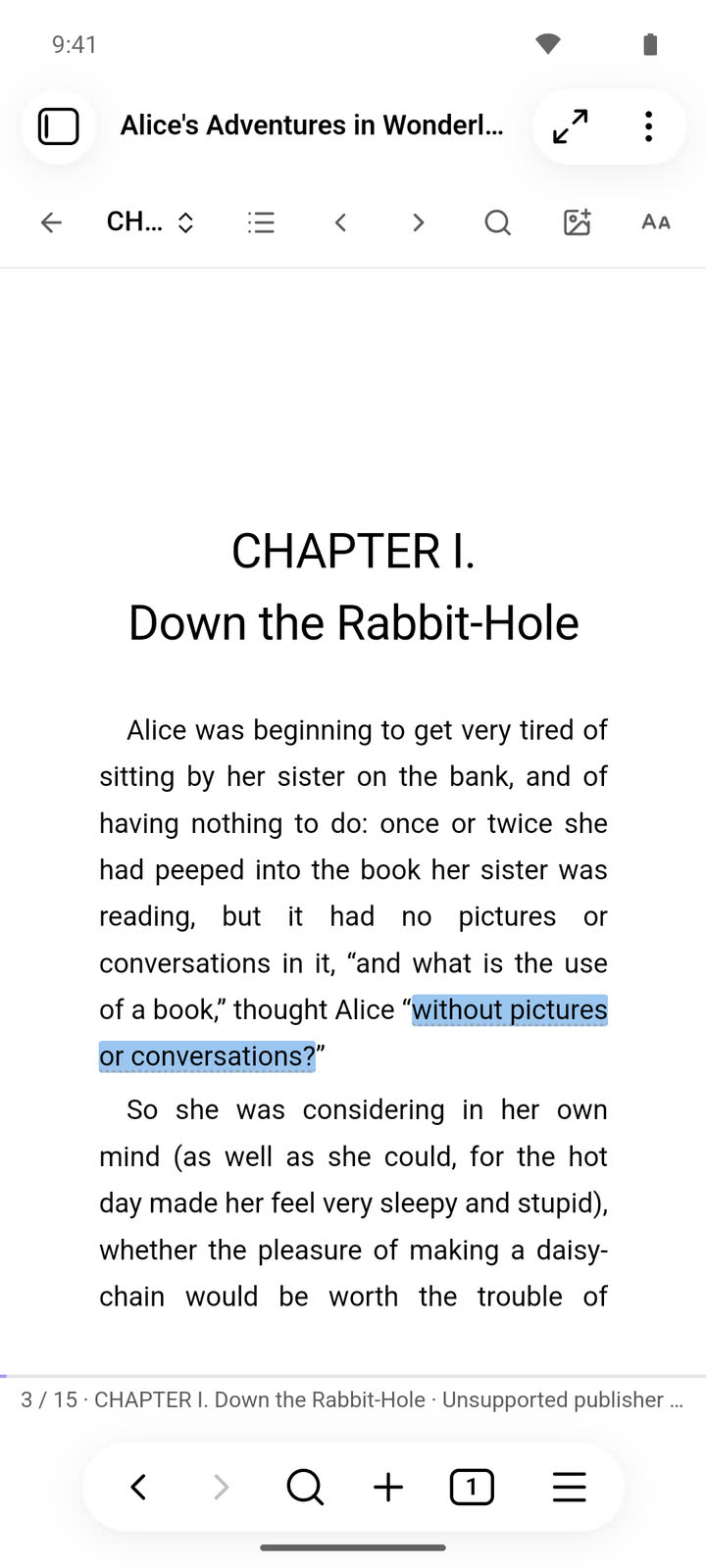
Obsidian for Android on a phone, left to right: a PDF with its highlights, a selection with the bar, a note being written, the annotations in the right drawer, and a book.
Read full screen (in the view's menu, or the command) hides the app's header and navigation bar while you read; the small button at the bottom corner brings them back, and they come back by themselves when you go to something that is not a source.
Long-press to select; the bar with the inks and Note sits above the navigation. A note is written in a sheet above the keyboard. Marking an area, drawing and text boxes work by touch. Page colours and a book's contents open as sheets from the bottom. Opening a source shows the source: the annotations are in the right drawer when you want them.
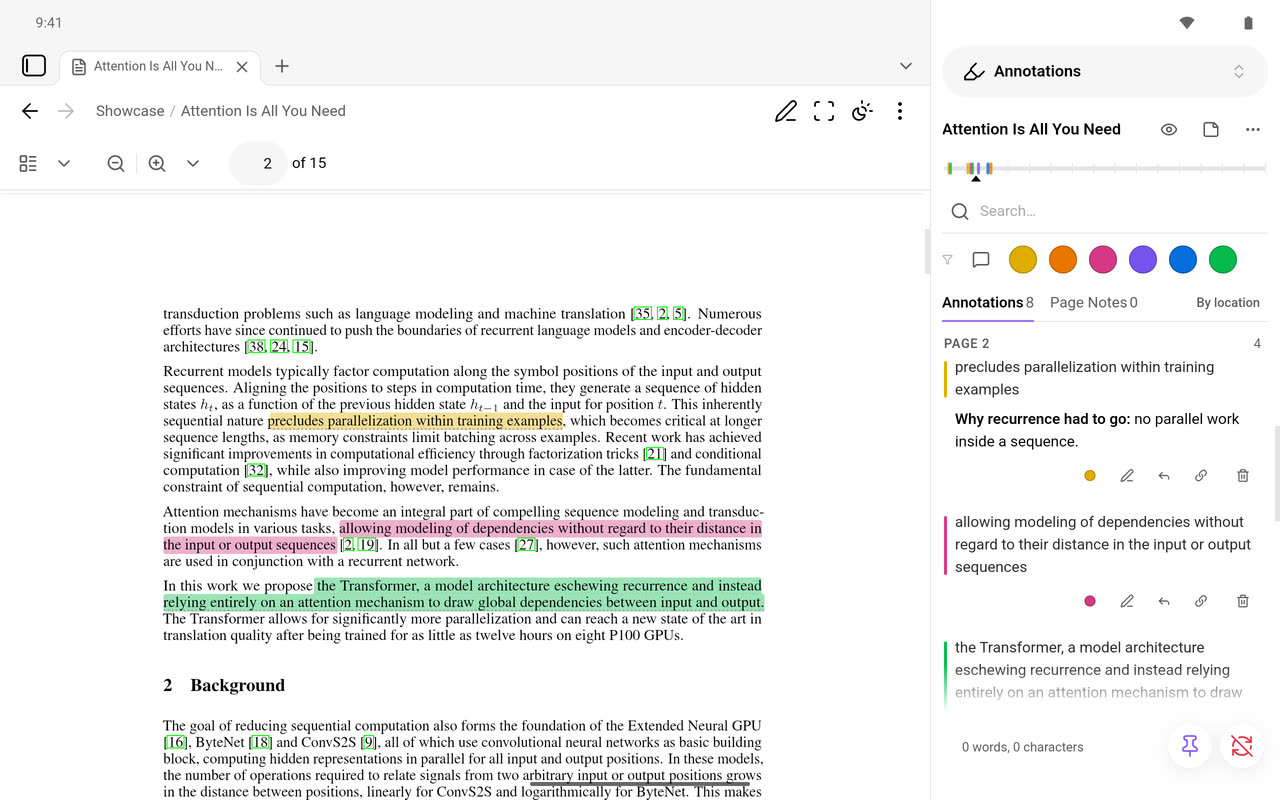
On a tablet there is room for both. The first time a source is opened with the tablet held wide, the right drawer is docked beside the page with the annotations in it; undock it and it stays undocked. A note is written beside its passage, above the keyboard, and two sources can be open side by side, each with its own annotations.
Keyboard
| Where | Keys |
|---|---|
| Text selected | H mark, 1–6 ink, S next mark style, A note; with Shift, mark and copy its link. The letters can be changed in the settings, under Keys on a selection |
| Writing a note | Ctrl/Cmd+Enter save, Escape cancel |
| Marking an area | Enter place or keep, arrows move, Shift+arrows resize, Escape leave |
| A saved area, focused | arrows move, Shift+arrows resize, Alt for fine steps |
| Placing a text box | Enter place or keep, arrows move, Shift+arrows resize, Escape leave |
| A saved text box, focused | Enter type in it, arrows move, Shift+arrows resize, Alt for fine steps, Escape undo a move not yet saved |
| Drawing | Enter keep, Ctrl/Cmd+Z undo, Escape leave (asks once) |
| A saved drawing, focused | arrows move, Alt for fine steps, Enter open for changes |
| Book | Ctrl/Cmd+F find |
| Video | K/Space play, J/L ±10 s, arrows ±5 s, N note, S frame note |
Every command is in the command palette and can be given a hotkey. That includes each action on a selection (marking, each colour, marking and copying the link, the note, the next mark style), for a key of your own beyond the letters the settings offer.
Making it yours
Highlights, cards and pages follow your theme. Colours, highlight strength, the paper of the Sepia page and more are variables you can set from a CSS snippet or the Style Settings plugin: see STYLING.md.
Coming from Annotator 0.2
Updating is all there is to do.
- Your notes are not converted. The annotation blocks in your notes are
the format this version reads and writes. Check annotation notes
(migration) in the command palette counts your annotated sources and
highlights and lists anything that cannot be read; it changes nothing.
One character differs in what is written from now on: the tags line of a
new or edited annotation has a space after its quote mark (
> #tag), so that every tag is clickable in Live Preview. Annotator 0.2 reads that line to the same tags, and blocks you do not edit stay as they are. - Your settings come along at the first start: dark mode, the book's
reading mode and text size, the default folder, the Markdown options and
whether annotation notes open in the reader. The settings file and the
workspace as they were are kept beside the plugin, in
native-upgrade-backup-v1.json. - Tabs that were open on an annotated source open again on it.
- Switch between reader and Markdown note is the same command, so its hotkey still works.
What you should notice, measured on the same vault (how):
| 0.2.11 | 0.3.0 | |
|---|---|---|
| Plugin files on disk | 26.3 MB | 1.5 MB |
| Enabling the plugin at each start, desktop | 1.1 s | 0.014 s |
| The same on an Android emulator | 6.0–8.6 s | 0.05–0.13 s |
| First highlight of an annotated PDF, Android emulator | 2.0–2.7 s | 0.9–1.4 s |
| The same on a desktop | 0.32–0.48 s | 0.40–0.43 s |
| Memory kept after closing a 7.6 MB PDF | 9.7 MB | 0.2 MB |
What is different:
- PDFs open in Obsidian's own PDF view, with the annotations in a sidebar that you can dock where you like. Books, web pages and videos each have their own view. Nothing is loaded from the Hypothesis client any more.
- A web page is read as a copy saved in your vault (or in Obsidian's Web viewer), not through a frame.
- Videos are annotated by time and by frame in the plugin itself; the annotate.tv setting of 0.2 is no longer used.
- Notes written here can hold things 0.2 did not have: areas, drawings, picture notes, annotations taken in from a PDF. Annotator 0.2 on another device still reads such a note.
What is checked, and how
The rules that decide what is written into your notes (the annotation format, creating, editing and deleting a block, reading a changed note in parts, the geometry of areas and of lines drawn by hand) are written in Bend and proved for every input; the proofs are checked on every build. The rest is tested: over 600 tests of the reader, and the PDF export is read back with two independent PDF readers. See proofs/README.md and SECURITY.md.
Limits to know about
- A highlight over a page break is shown by Annotator 0.2 (on a device not yet updated) on one page only.
- A frame of a paused YouTube video includes the player's own controls; take it while the video plays.
- Recognising the text of a scan: five languages so far; a PDF whose pages carry a poor text layer from another program is not improved (mark the passage as an area and have its words read); handwriting, sideways pages and vertical text are not read; not offered on iOS and iPadOS before 16.4. On a strongly tilted scan, Apple's PDF programs (Preview, Files) may give the copy's words out of order; Obsidian does not.
- In a PDF embedded in a note or placed on a Canvas, the buttons for an area, a drawing and a text box are not there; their commands are. On a Canvas card that is not selected, a highlight's note is not shown on hover: select the card first. A PDF read where it is (outside the vault) cannot be embedded, as Obsidian embeds only files of the vault.
annotation-pagesis for PDFs, and is read from a note's properties (not from a Dataview field in its text). Hypothesis JSON is imported into the note of the page being read. An annotation does not move to another note when its note's pages are changed: it stays where it is, shown on its page. Annotator 0.3.1 and earlier open a chapter note's PDF with that note's annotations only, and say "Multiple annotation notes target this source" for the PDF opened by itself.- Citations are listed for PDFs only, and matching a citation to its reference is reading, not knowing: raised numbers need the PDF's links, and a reference list set in an unusual way is refused rather than guessed. It has been tried on desktop, not yet on a phone.
- Text boxes are for PDFs. On the page they show plain words in the theme's text font; an exported PDF has them in Helvetica, so its lines break differently, and Markdown, tags and replies stay in your notes. A box can cover print under it: it is opaque so its words can be read, and Hide highlights hides it. Annotator 0.3.1 and earlier, and 0.2, show a text box as an area with a note (and keep it as one when they edit it).
- Drawing is for PDFs; books have highlights (and underlines, strike-outs and squiggly lines), notes and picture notes, videos have notes and frame notes.
- On a live web page in the Web viewer every passage is drawn as a highlight; a reading copy of the page shows the lines. Annotator 0.3.1 and earlier show an underline, a strike-out or a squiggly line as a highlight with that tag.
- A picture note in a book is not shown by Annotator 0.2 (it has no passage to anchor to there); the note itself is kept.
- Opening a file from outside Obsidian has been tried on macOS with Obsidian 1.15.0, and the share route on the Android emulator. The recipes for Windows and Linux have not been run on those systems (the Linux script was run on macOS), and nothing of it has been tried on a phone.
- Annotator 0.2 does not open FictionBook (FB2 or FB3) files; their annotation notes are kept by it but not shown with the book.
- An FB2 whose sections are added to or taken out in a later version finds its highlights by their words; a note on a whole chapter is then kept and said to need checking rather than moved to another chapter.
- FB3 is read as its published schemas and its authors' example books describe it, and has been tried on books made to them, not yet on books from a shop or inside Obsidian itself.
- Annotator 0.3.2 and earlier do not open Kindle books; their annotation notes are kept but not shown with the book. A Kindle book whose chapters are added to or taken out in a later copy is treated as a FictionBook is above. Kindle books made by Calibre (9.18, every kind of file it writes) have been read in Obsidian 1.15 on macOS; books from a shop, phones and tablets have not been tried.
- iOS and iPadOS: the reader's own code has been run in iOS WebKit in the Simulator (selection, highlights, notes, drawing, books), not yet inside Obsidian for iOS on a device. YouTube may refuse to play there (its Error 153). The reader then says so and offers Open in YouTube; a note's time opens the video there at that time, and notes and the transcript work as before.
If Obsidian adds PDF annotation of its own
PDF annotation is on Obsidian's public roadmap as planned (November 2026). Nothing can be said yet about how it will work, so nothing is promised here about working with it. What holds today: your annotations are Markdown in your own notes, not in a database; Export PDF with annotations writes them into a copy of the PDF as standard PDF annotations, which any program that follows the standard reads; and Take in the annotations this PDF already holds reads standard annotations another program wrote. Books, web pages and videos are not PDFs and stay as they are.
Contributing
CONTRIBUTING.md says how the repository is laid out and how to build, test and check the proofs. Bugs, questions and suggestions are welcome as issues. What changed in each version is in CHANGELOG.md.
License
Annotator is licensed under the GNU AGPLv3: see LICENSE.TXT. The licences of the code it bundles are attached to each release.
Support
If you want to support me and my work, you can sponsor me on GitHub (preferred) or donate on PayPal.
For plugin developers
Search results and similarity scores are powered by semantic analysis of your plugin's README. If your plugin isn't appearing for searches you'd expect, try updating your README to clearly describe your plugin's purpose, features, and use cases.