Vocabulary View
approvedby nnshi-s
Write down some words with their explanations and preview them in a vocabulary test style.
Obsidian Vocabulary View
Vocabulary view is a plugin for obsidian using which you can write down some words with their explanations and preview them in a vocabulary test style.
Update log
- 0.1.3: Added Vocabulary Books feature.
- 0.1.2: Added spell checking to
vocaview-cardxblocks
Usage
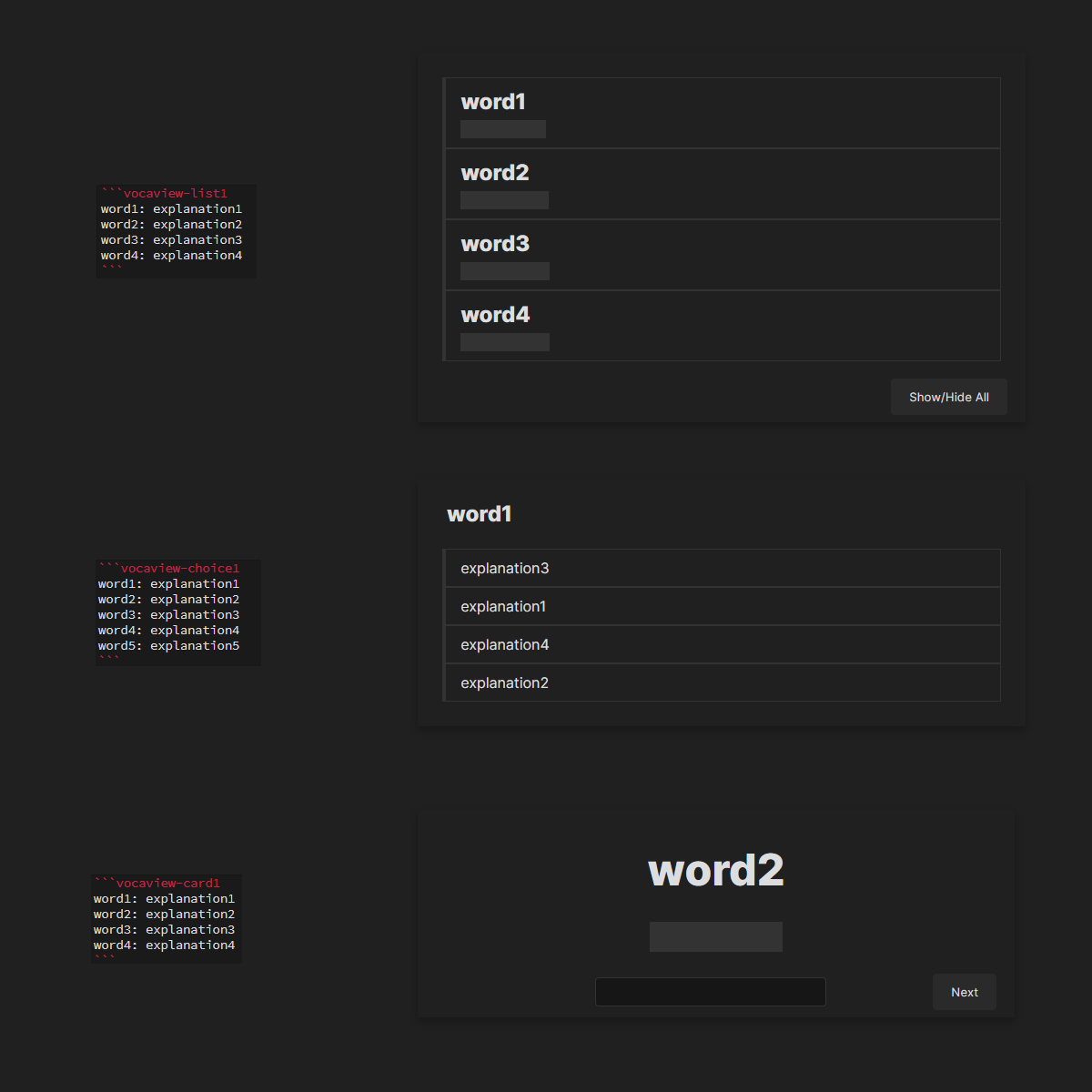
Create a block with the following format:
    ```vocaview-<blocktype><subtype>
    word: explanation
    ...

    ```
Blocktypes
There are 3 types of block available:
- list: Preview the words as a list. All words are shown.
- choice: Preview the words in a single choice queston style. One randomly picked word at a time.
- card: Preview the words as a card. One randomly picked word at a time.
Subtypes
For each block type, 3 subtypes are available:
- 1: Show word, hide explanation.
- 2: Show explanation, hide word.
- 3: Randomly mix subtype 1 and 2.
Example
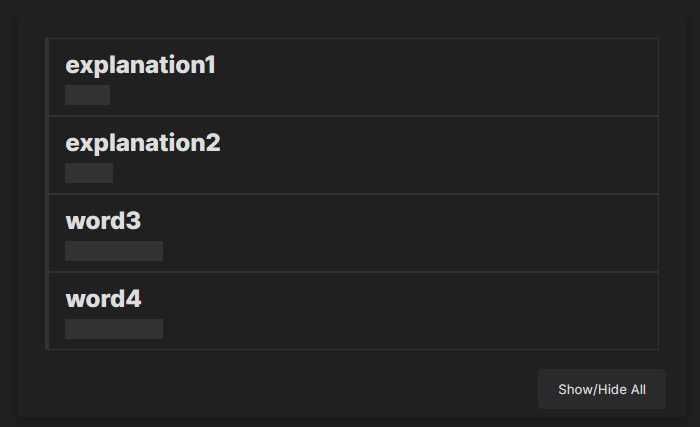
For example:
    ```vocaview-list3
    word1: explanation1
    word2: explanation2
    word3: explanation3
    word4: explanation4
    ```
is going to be previewed something like this:
Vocabulary Books

You can create a new blank .md file, or designate an existing blank .md file as a vocabulary book.
Within the vocaview blocks, you can add words to the vocabulary book or remove words from it.
The vocabulary book itself is just another .md file with vocaview blocks.
To use the Vocabulary Books feature:
- Go to the settings page of this plugin.
- Change the Number of Vocabulary Books setting from 0 to the desired number.
- Fill in the Relative Path for each vocabulary book. (Alternatively, you can right-click on an
.mdfile in Obsidian, selectCopy Obsidian URL, and paste it as the path.) - Close the settings page and reopen the file with
vocaviewblocks to refresh the display.
To disable this feature:
- Go to the settings page of this plugin.
- Change the Number of Vocabulary Books setting back to 0.
- Close the settings page and reopen the file with
vocaviewblocks to refresh the display.
Note: Adding words to or removing words from the vocabulary book will only affect the content of the first vocaview block in the book, and will not affect the rest of the file. You can freely edit the other parts of the vocabulary book file.
Manually installing the plugin
- Disable obsidian safe mode.
- Copy over
main.js,styles.css,manifest.jsonto your vaultVaultFolder/.obsidian/plugins/your-plugin-id/.
For plugin developers
Search results and similarity scores are powered by semantic analysis of your plugin's README. If your plugin isn't appearing for searches you'd expect, try updating your README to clearly describe your plugin's purpose, features, and use cases.