Vocab Hover
approvedby chingchen0119
Add hover tooltips to words by right-clicking selected text. Perfect for vocabulary learning. - This plugin has not been manually reviewed by Obsidian staff.
Vocab Hover
An Obsidian plugin that lets you add hover tooltips to any word — great for vocabulary learning, annotations, or quick references.
Demo
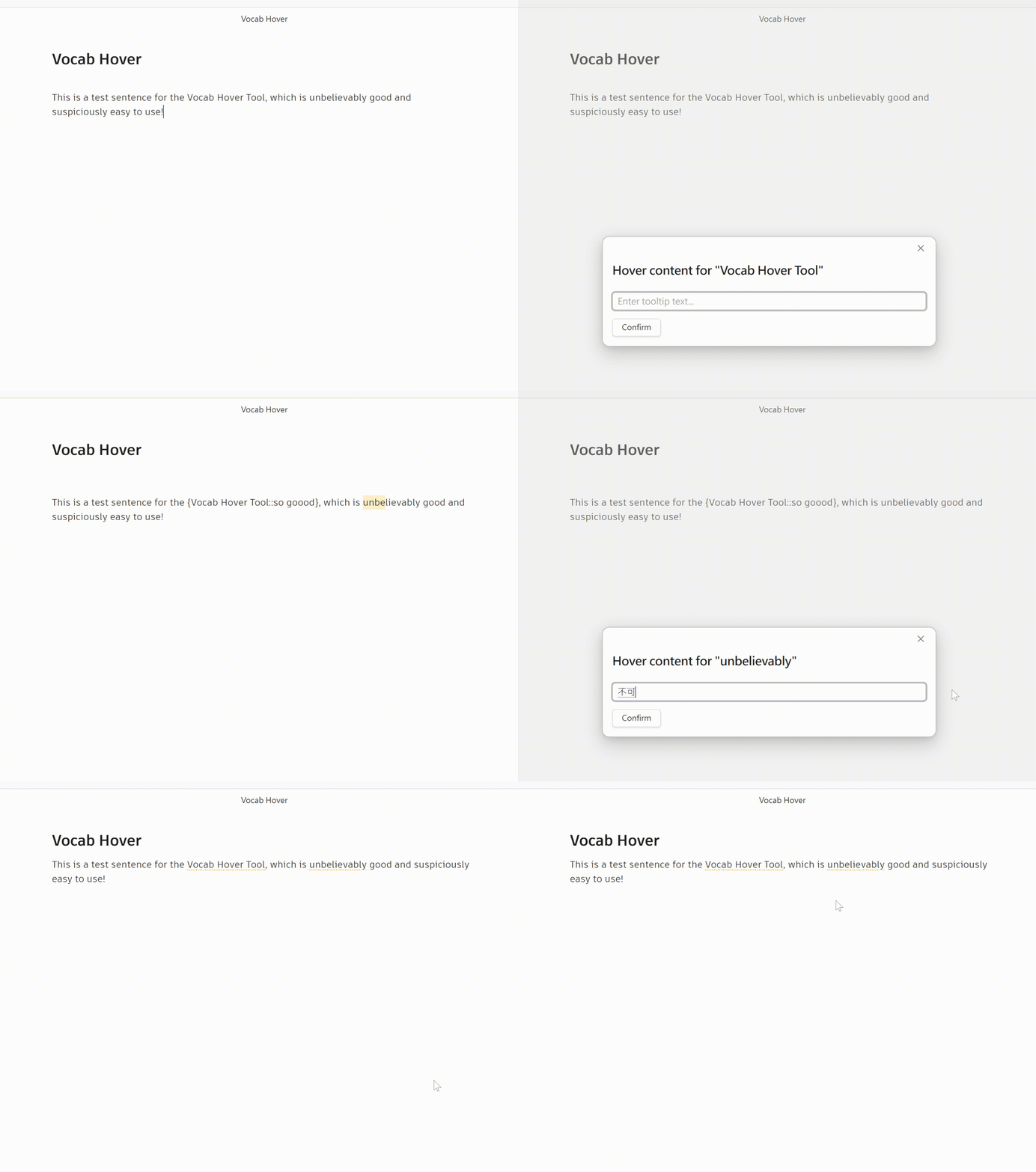
Hover over a marked word to see its tooltip:
How to Use
Adding a tooltip
- Select any word or phrase in the editor
- Right-click → Add Hover Content
- Type the tooltip text (e.g. a translation or definition)
- Press Enter or click Confirm
The word is saved as {word::tooltip} in your note.
Viewing tooltips
Switch to Reading View and hover over any underlined word to see its tooltip.
Word highlight style
You can choose how marked words appear in Reading View. Open Settings → Vocab Hover → Word highlight style and pick one of the following:
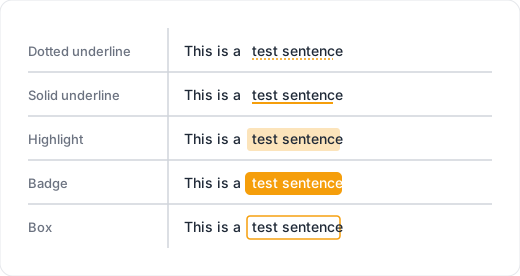
The style applies instantly — no need to reload.
Vocabulary list
All marked words across your vault can be collected into a single reference note.
- Open Settings → Vocab Hover
- Click Generate
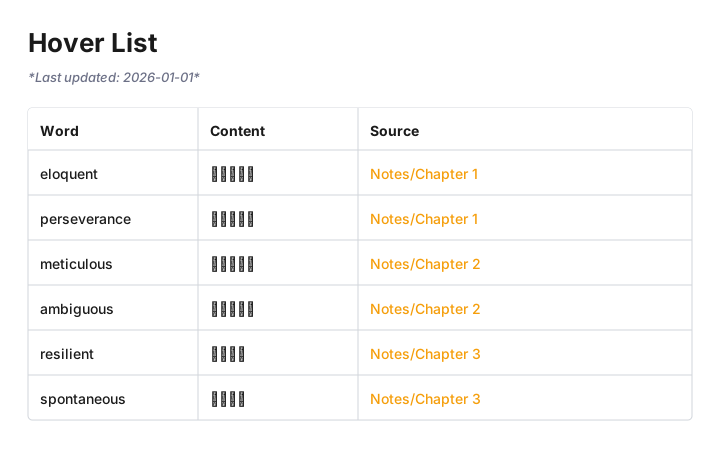
A note (default: Vocabulary List.md) will be created with a table of every word and its content, linked back to the source note. Once generated, the list updates automatically whenever you save any note.
The note path can be changed in settings.
Manual syntax
You can also type the syntax directly:
The {diffuse::漫射} map controls the base color.
Installation
From Obsidian Community Plugins
- Open Settings → Community Plugins
- Disable Safe Mode if prompted
- Click Browse and search for Vocab Hover
- Click Install then Enable.
Manual Installation
- Download
main.js,manifest.json, andstyles.cssfrom the latest release - Copy them into your vault at
.obsidian/plugins/vocab-hover/ - Enable the plugin in Settings → Community Plugins
License
For plugin developers
Search results and similarity scores are powered by semantic analysis of your plugin's README. If your plugin isn't appearing for searches you'd expect, try updating your README to clearly describe your plugin's purpose, features, and use cases.