On This Day I
approvedby benstuart0
Summarize a calendar date in years past with Daily Journals
on-this-day-i
This plugin for Obsidian adds AI commands for daily journals.
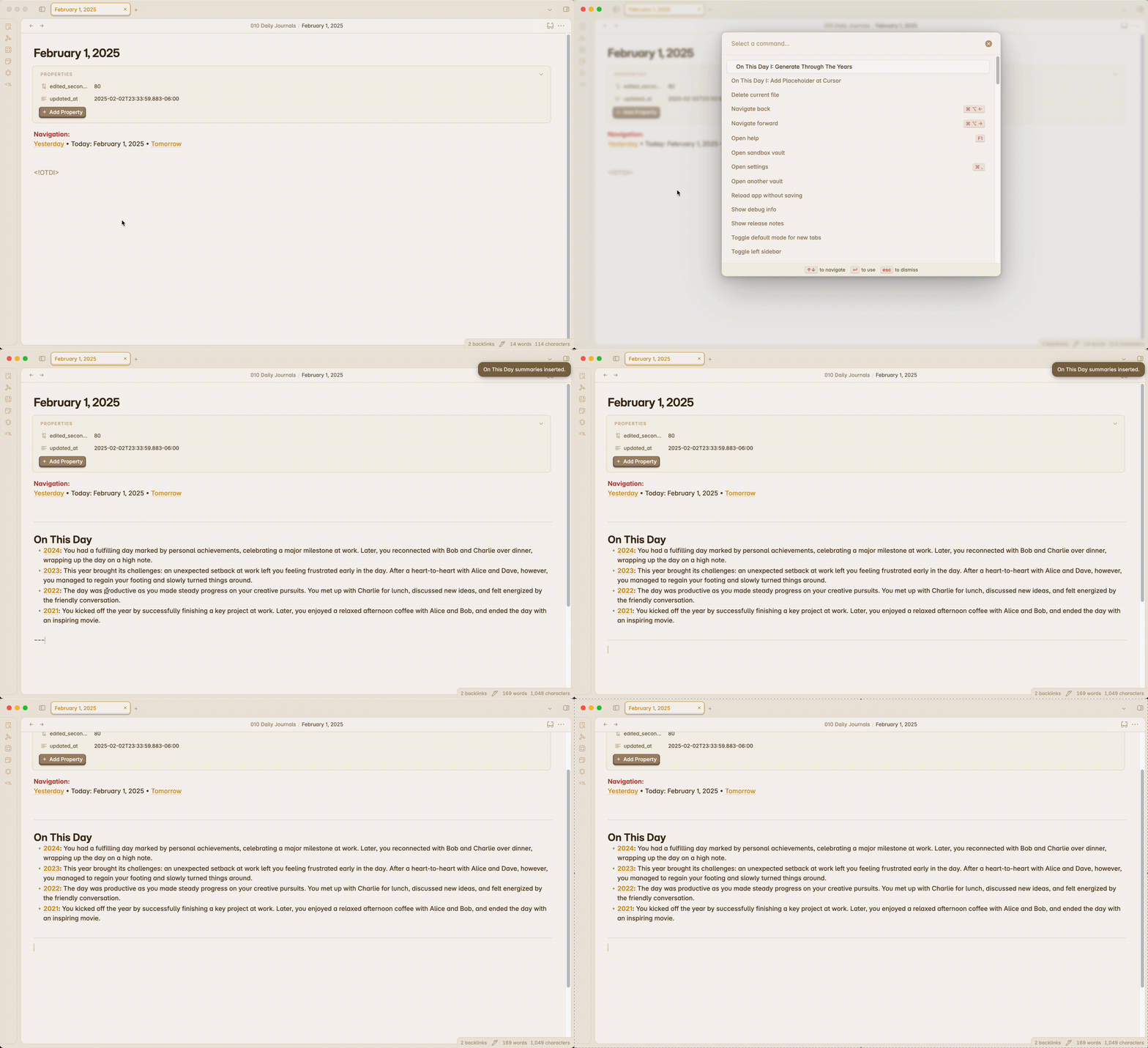
Features
This plugin comes with two commands:
Add Placeholder at Cursor
Adds a custom tag at your cursor location which the generation command looks for and replaces if it is available. The tag can be changed in settings. A tag command and setting should be available for each generation command.
Generate Through The Years
Uses AI to find Daily Notes from the same date as your current note in years past. Generates a brief summary of this date for each instance of it through the years and places it in your note.
How to Use
- Enable the plugin in the settings menu and update the plugin settings accordingly.
- Open the command palette and search for On This Day I to see the commands.
- If you want the output to be placed at a certain location in your note, add a placeholder (default is , can be changed in settings). Run the
On This Day I: Add Placeholder at Cursorcommand if you'd like to automatically add a placeholder to your note at cursor location. - Run the command
On This Day I: Generate Through The Yearsto generate your yearly insights.
OpenAI
- This plugin makes a network call to the OpenAI API to generate the journal summaries.
- Must have OpenAI API key. See platform.openai.com. Add this key to plugin settings.
- Model can be adjusted. Currently support gpt-3.5-turbo and gpt-4. Older models will be cheaper and often faster, but newer models will have higher quality outputs.
Through the Years Date Requirements
- Must be run from a note with a valid Date format. Update the date format in settings to match your daily note format.
- Daily notes must all follow the same date format (e.g, MMMM D, YYYY would be something like February 6, 2025)
- There must be at least one other daily note from this day in a past year.
How to Install
From within Obsidian
You can activate this plugin within Obsidian by doing the following:
- Open Settings > Third-party plugin
- Make sure Safe mode is off
- Click Browse community plugins
- Search for "On This Day I"
- Click Install
- Once installed, close the community plugins window and activate the newly installed plugin
Obsidian Mobile
When using Obsidian on a mobile device, open the command palette to access the On This Day I plugin commands.
For plugin developers
Search results and similarity scores are powered by semantic analysis of your plugin's README. If your plugin isn't appearing for searches you'd expect, try updating your README to clearly describe your plugin's purpose, features, and use cases.