Owen Mermaid
approvedby Owen lee
Zoom, visually edit, and export Mermaid SVG diagrams in Obsidian. - This plugin has not been manually reviewed by Obsidian staff.
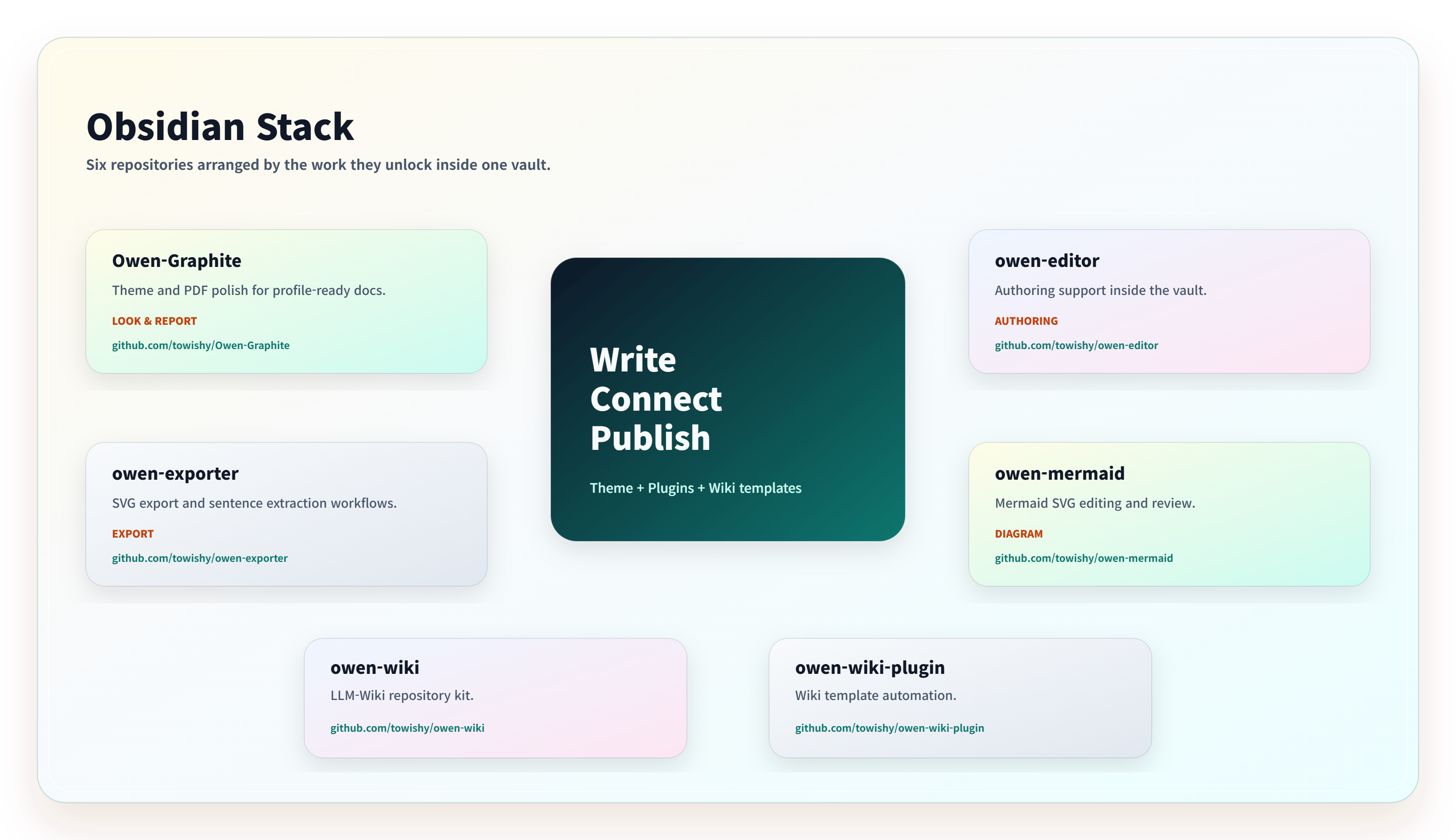
Owen Mermaid
[!NOTE] Language: Owen Mermaid follows Obsidian by default: Korean uses Korean, while every other locale uses English. Override it from Settings → Owen Mermaid → Interface → Language.
Owen Mermaid is an Obsidian plugin for viewing and editing Mermaid SVG images inside your notes.
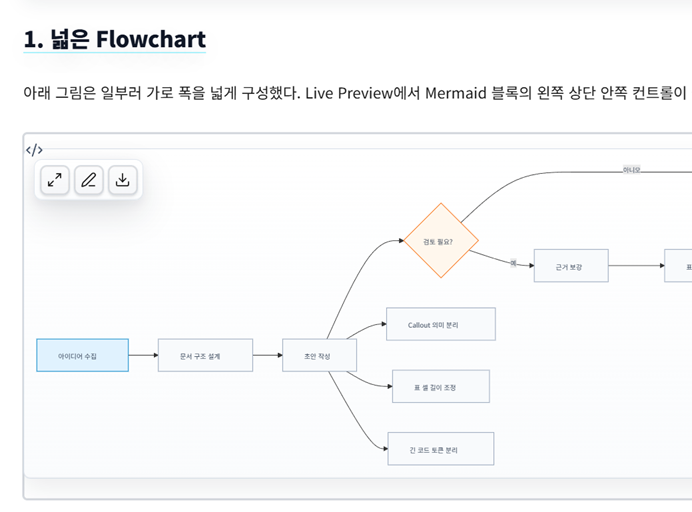
- Detects Mermaid SVG diagrams and adds an inline glass toolbar.
- Adds a Mermaid SVG right-click menu for zoom view, editing, PNG download, and JPG download.
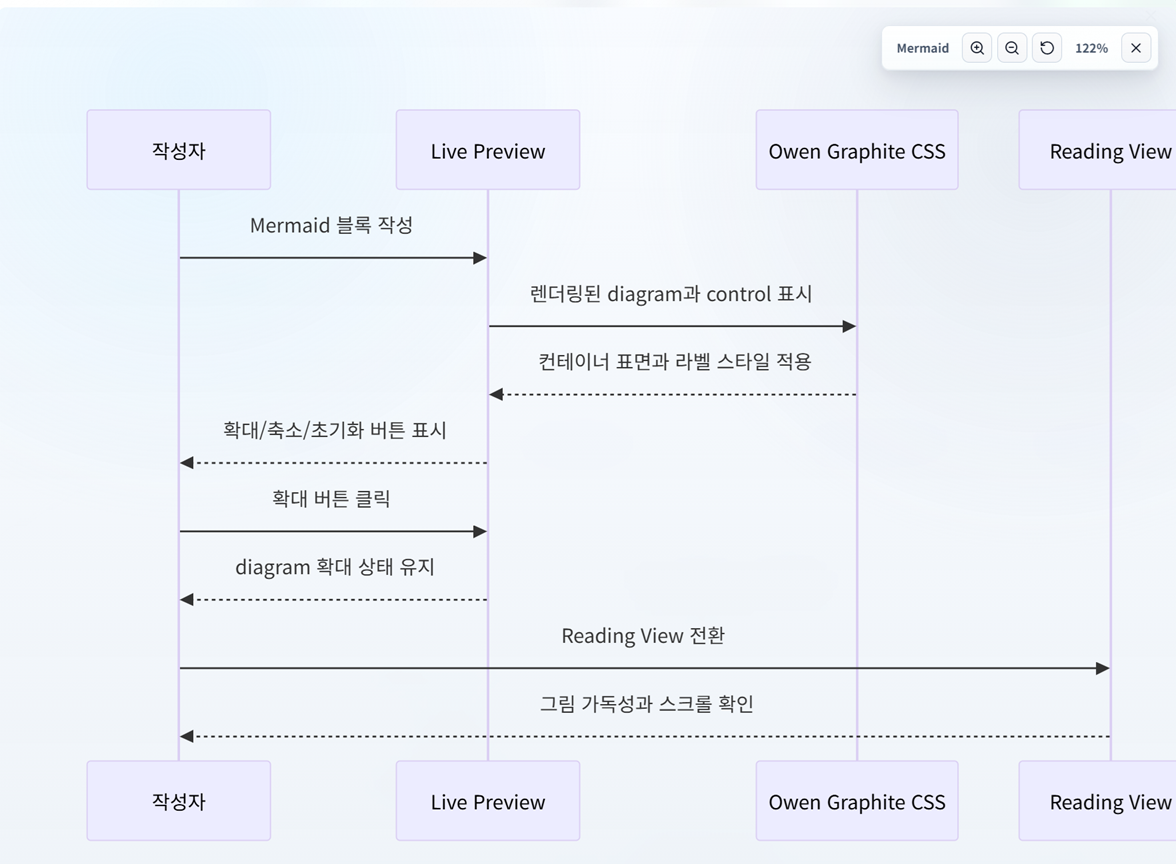
- Provides a full-screen pan and zoom viewer.
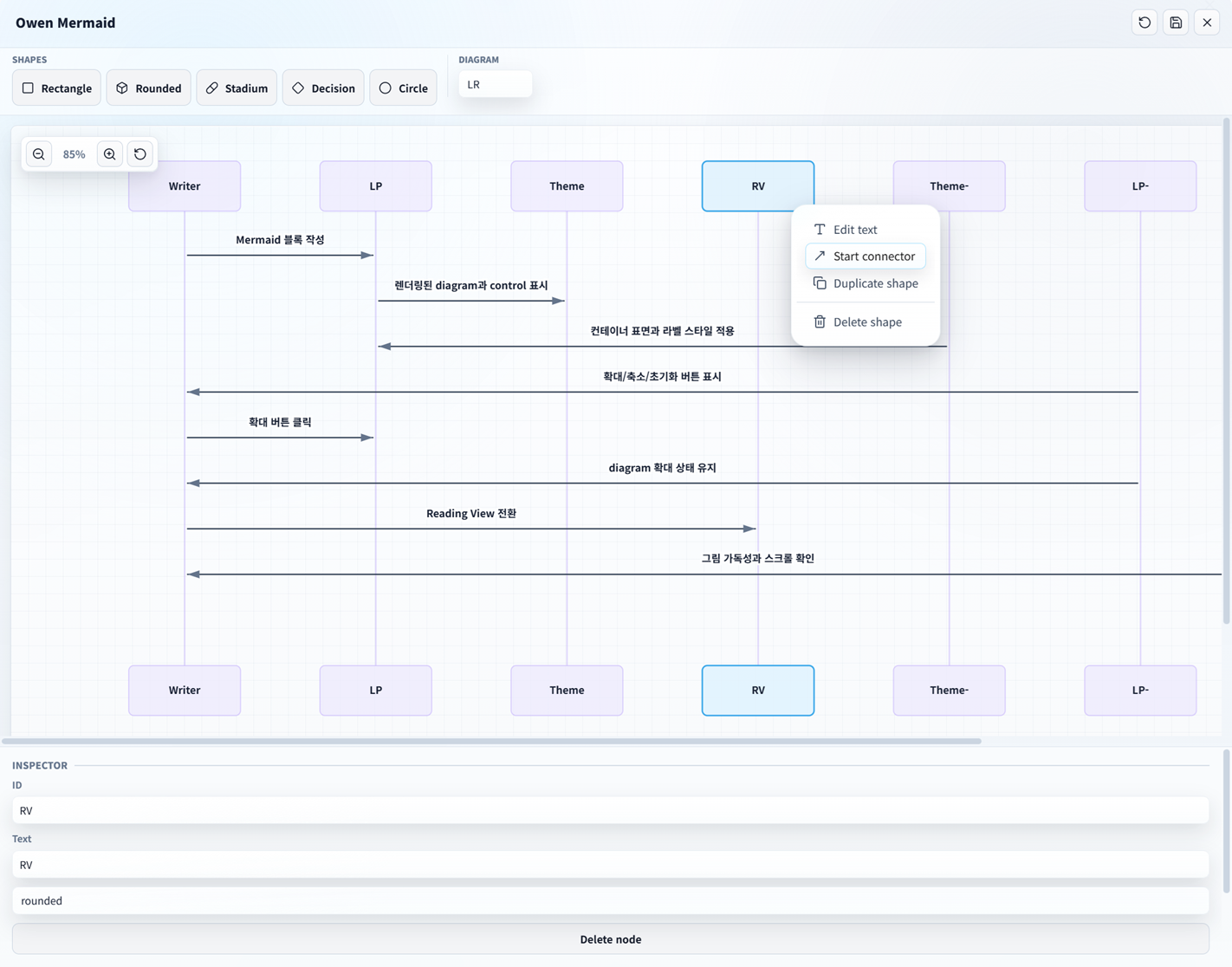
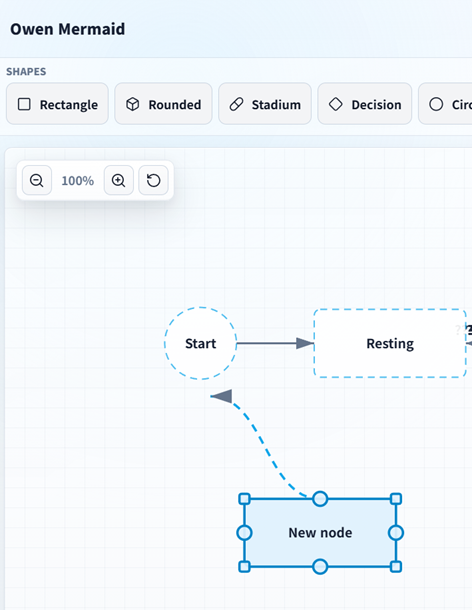
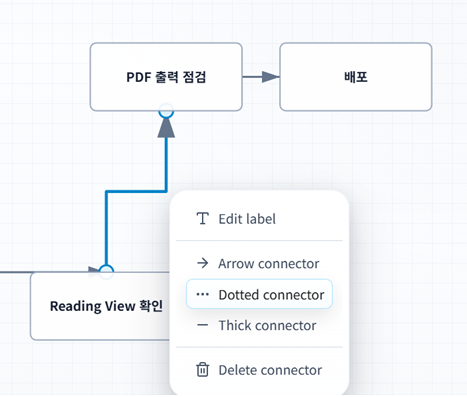
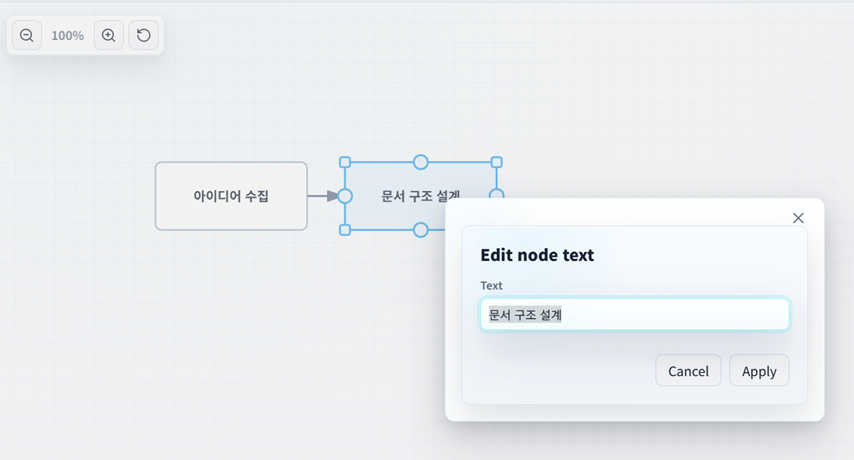
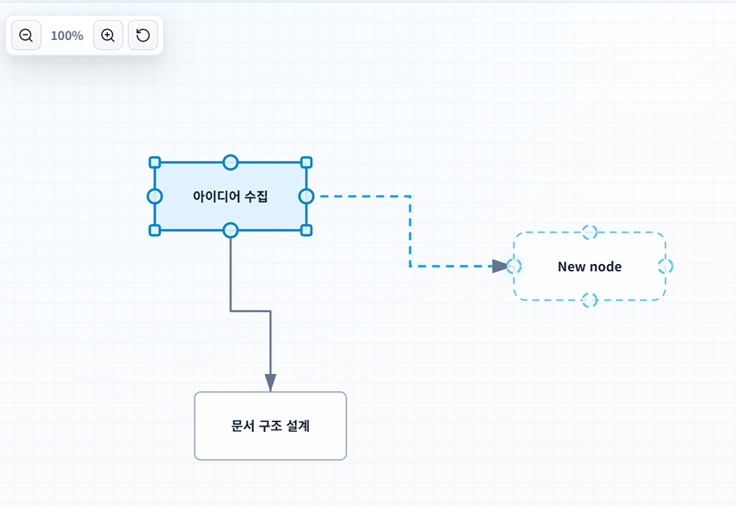
- Includes a flowchart-focused visual editor for creating shapes, dragging nodes, editing text, creating/editing/deleting connectors, and writing changes back to the original Mermaid code block.
- Supports PNG/JPG download settings for save location, output folder, filename template, quality, background, and scale.
- Exports all rendered Mermaid SVG diagrams in the active note to a vault folder with an optional Markdown batch report.
- Provides a settings screen with section headers like the screenshot design.
- Supports mouse drag-and-drop Mermaid editing directly on the canvas, similar to working in Visio.
- Applies a liquid glass design tone inspired by Owen Graphite and Owen Editor.
Screenshots
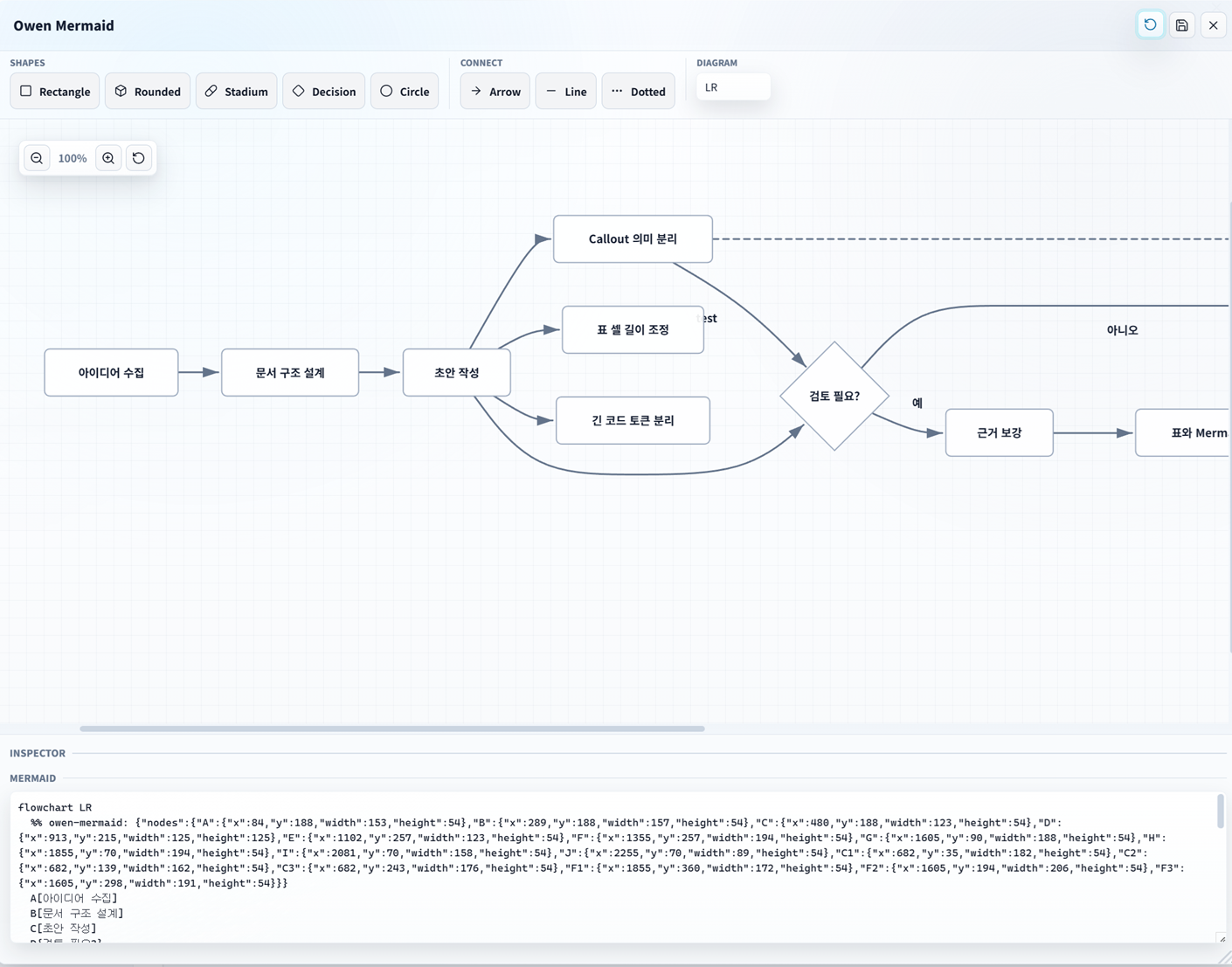
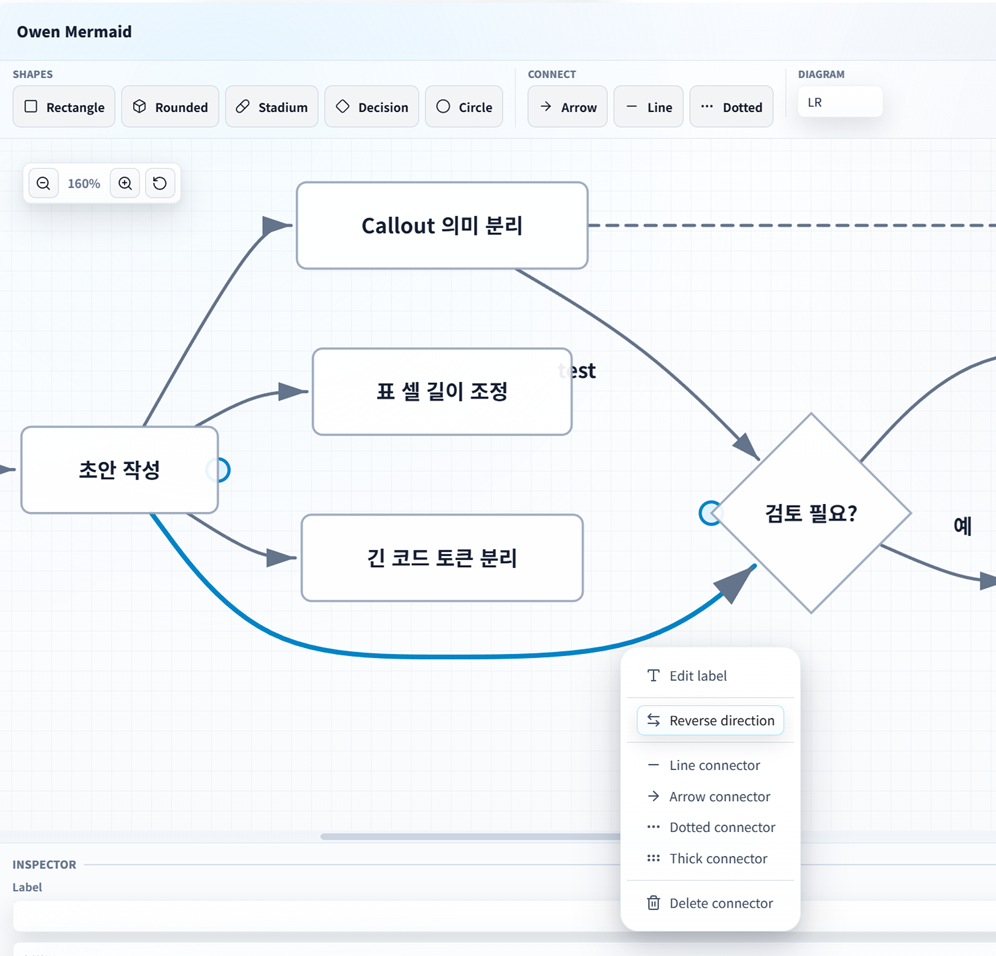
Features
When adding new functionality, add a new row to this table so the current feature surface stays easy to scan.
| Area | Feature | Notes |
|---|---|---|
| Rendered diagrams | Inline glass toolbar | Adds zoom, edit, and image download controls to rendered Mermaid SVG blocks. |
| Rendered diagrams | Context menu actions | Right-click a rendered Mermaid SVG to open zoom, edit, PNG download, or JPG download actions. |
| Zoom viewer | Full-screen pan and zoom | Opens rendered Mermaid SVGs in a large viewer with zoom controls, reset, and drag panning. |
| Visual editor | Flowchart editing | Creates, edits, drags, resizes, duplicates, and deletes common flowchart nodes. |
| Visual editor | Basic state and sequence editing | Parses and edits basic stateDiagram and sequenceDiagram participants, states, and messages. |
| Visual editor | Drag-and-drop creation | Supports clicking or dragging shape tools onto the canvas. |
| Visual editor | Long canvas panning | Scrolls oversized diagrams by dragging the editor background horizontally or vertically. |
| Visual editor | Fitted node labels | Wraps, scales, and truncates long or explicit multi-line labels to keep text inside node bounds. |
| Visual editor | Connector editing | Creates, reconnects, reverses, styles, deletes, and labels connectors and free lines. |
| Visual editor | Connector route modes | Supports curve, straight, and elbow connector routes stored in Owen Mermaid metadata. |
| Visual editor | Draggable connector labels | Allows connector and free-line labels to be repositioned visually and preserved in metadata. |
| Visual editor | Self connectors | Adds self-loop connectors from the node context menu. |
| Visual editor | Multi-select nodes | Supports modifier-click node selection, group movement, group deletion, and selection-aware inspector controls. |
| Visual editor | Alignment and distribution | Aligns selected nodes left/center/right/top/middle/bottom and distributes selected nodes horizontally or vertically. |
| Visual editor | View navigation | Provides editor zoom, reset, fit-to-screen, center-selection, and a minimap navigator. |
| Visual editor | Snap controls | Supports snap on/off and configurable 10/20/40 grid spacing. |
| Visual editor | Undo and redo | Tracks editor changes across drag, resize, text, source, layout, connector, and group operations. |
| Visual editor | Source preview and editing | Shows Mermaid source, supports explicit source editing, and applies source changes back into the visual model. |
| Visual editor | Unsaved-change protection | Prompts before closing the editor when unapplied visual/source changes exist. |
| Visual editor | Source diff preview | Shows a compact Mermaid source diff before applying changes. |
| Visual editor | Preserved unsupported lines | Displays preserved unsupported Mermaid lines such as styles, classes, click handlers, link styles, and subgraph blocks. |
| Mermaid source | Layout metadata | Persists node size/position, free lines, connector routes, and label offsets in %% owen-mermaid metadata. |
| Mermaid source | Exact block targeting | Re-resolves the clicked Mermaid fence and rejects ambiguous stale matches instead of editing another diagram. |
| Export | Single image download | Downloads rendered Mermaid SVGs as PNG or JPG with configured scale, background, and quality. |
| Export | Batch export | Exports every rendered Mermaid SVG in the active note to a vault folder. |
| Export | Batch reports | Optionally writes a Markdown report for all batch exports or failures only. |
| Settings | Export configuration | Configures format, output folder, filename template, scale, quality, and background. |
| UI | Liquid glass design | Uses an Owen Graphite inspired liquid glass style for toolbars, settings, viewer, and editor surfaces. |
Usage
- Create a Mermaid code block in an Obsidian note.
- View the note in Reading view or Live Preview.
- Hover a rendered Mermaid diagram to use the inline buttons.
- Right-click the Mermaid SVG to open zoom, edit, or download actions.
- Run Export Mermaid diagrams in active note from the command palette to batch-export every rendered Mermaid SVG in the current note.
The visual editor currently targets common flowchart/graph Mermaid syntax: nodes, basic shapes, labels, and connectors. It also handles basic stateDiagram and sequenceDiagram structures. Mermaid init directives are preserved before the regenerated header, and unsupported lines or subgraph blocks are preserved in the generated output section when possible.
Mermaid Compatibility
Owen Mermaid keeps Mermaid source editable first and visual editing focused. Use this matrix to decide what should round-trip visually, what is preserved as source, and what may need direct source editing.
| Syntax area | Visual editing | Source preservation | Notes |
|---|---|---|---|
flowchart / graph headers | Yes | Yes | Supports TD, LR, BT, and RL; unsupported or missing headers fall back to the configured editor direction. |
| Flowchart nodes | Yes | Yes | Supports rectangle, rounded, stadium, diamond, and circle shapes with common quoted or unquoted labels. |
| Flowchart connectors | Yes | Yes | Supports line, arrow, dotted, thick, labels, self connectors, and Owen Mermaid route/label metadata. |
| Flowchart styles | Partial | Yes | style and linkStyle colors are parsed for editable items; classDef, class, and click lines are preserved. |
| Subgraphs | No | Yes | Subgraph blocks are preserved as source and are not expanded into editable canvas items. |
| Mermaid init directives | No | Yes | %%{init: ...}%% lines stay before the regenerated diagram header. |
stateDiagram / stateDiagram-v2 | Basic | Yes | Supports named states, start/end markers, basic transitions, labels, and Owen Mermaid color classes. |
sequenceDiagram | Basic | Yes | Supports participants, actors, aliases, and basic ->, -->, ->>, and -->> messages. |
| Owen layout metadata | Yes | Yes | %% owen-mermaid metadata stores visual positions, sizes, routes, label offsets, colors, and free lines. |
| Other Mermaid features | Source only | Best effort | Unsupported lines remain in the source preview/preserved section when the parser can safely keep them. |
Keyboard shortcuts inside the editor:
Ctrl/Cmd+Z: undo the last editor change.Ctrl/Cmd+YorCtrl/Cmd+Shift+Z: redo the last undone change.Enter: edit the selected node, connector, or free line text.Delete/Backspace: delete the selected item.- Arrow keys: move the selected node or free line.
Shift+ arrow keys: move by the grid snap size.Shift/Ctrl/Cmd+ click: add or remove nodes from the current multi-selection.Escape: cancel the active placement or connector tool.
Batch export notes:
- Batch export uses the configured image format, filename template, output folder, scale, background, and quality.
- Files are written to the vault output folder and automatically receive a numeric suffix instead of overwriting existing files.
- The batch report setting controls whether a Markdown report is written never, only on failures, or every time.
Development
npm install
npm run dev
npm run build
npm test
Reusable browser editor bundle:
npm run build:browser
This writes dist/owen-mermaid-editor.js and dist/owen-mermaid-editor.css. The bundle exposes window.OwenMermaid.openEditor(...), openViewer(...), and exportImage(...), and uses a small browser shim for the Obsidian modal, menu, notice, icon, and DOM helper APIs. Keep LICENSE.md beside redistributed copies.
Release validation:
npm run release:check
Optional Obsidian smoke test:
Obsidian --remote-debugging-port=9222
npm run test:obsidian
The smoke test connects to the running Obsidian app over CDP, confirms that Owen Mermaid is enabled, checks command registration, creates a temporary Mermaid note, verifies the rendered SVG toolbar, opens the visual editor, and then removes the temporary note. Set OWEN_MERMAID_SMOKE_SKIP_UI=1 to run only the command-registration checks.
Manual install for testing:
<vault>/.obsidian/plugins/owen-mermaid/
Copy main.js, manifest.json, and styles.css into that folder, reload Obsidian, and enable Owen Mermaid from Community plugins.
Release Files
Community release assets should include:
manifest.jsonmain.jsstyles.css
For plugin developers
Search results and similarity scores are powered by semantic analysis of your plugin's README. If your plugin isn't appearing for searches you'd expect, try updating your README to clearly describe your plugin's purpose, features, and use cases.