Pandoc Extended Markdown
approvedby ErrorTzy
Render Pandoc extended markdown syntax: fancy lists, definition lists, example lists with cross-references, superscripts, and subscripts.
Pandoc Extended Markdown Plugin for Obsidian
This plugin enables Obsidian to render Pandoc extended markdown syntax, bringing powerful formatting capabilities including advanced lists, superscripts, subscripts, and more to your notes.
Current Features
Pandoc extended markdown syntax is a huge superset of obsidian markdown. Therefore I cannot implement every single one of them. For now I have implement the ones I found the most useful. Mainly, it's lists and super/subscripts. I am not planning to implement pandoc markdown extended table feature because I think using tables in markdown is painful anyway.
In addition, live preview mode is the first class citizen. The current reading mode support might need a complete rewrite.
Superscripts and Subscripts
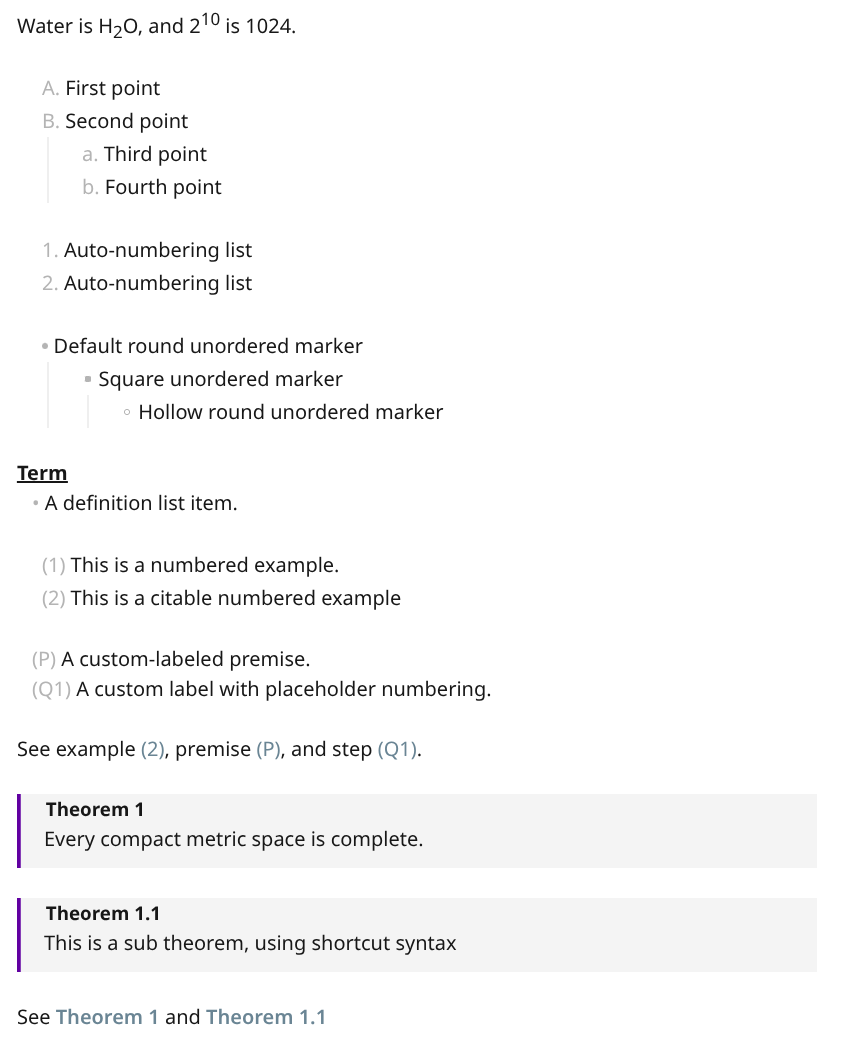
Render Pandoc-style superscripts and subscripts:
- Superscript:
^text^renders as superscript (e.g.,2^10^→ 2¹⁰) - Subscript:
~text~renders as subscript (e.g.,H~2~O→ H₂O) - Escaped Spaces: Use
\to include spaces (e.g.,P~a\ cat~→ P_a cat_) - Works in all contexts: paragraphs, lists, definition lists, etc.
Fancy Lists
- Uppercase Letters:
A.B.C.(In strict mode, there must be two spaces afterA.) - Lowercase Letters:
a)b)c) - Roman Numerals:
I.II.III.ori)ii)iii) - Hash Auto-numbering:
#.automatically numbers items sequentially - Autocompletion: Press Enter after a fancy list item to automatically continue with the next marker
- Auto-renumbering: When enabled, automatically renumbers all list items when inserting new items
Example Lists with Cross-References
Create numbered examples that can be referenced throughout your document:
(@good) This is a good example.
(@bad) This is a bad example.
Later in the document, refer to (@good) and (@bad).
The references will automatically render the correct example numbers:
(1) This is a good example.
(2) This is a bad example.
Later in the document, refer to (1) and (2).
Definition Lists
Create structured term-definition pairs with enhanced support:
Term 1
: Definition of term 1
Indented paragraphs are part of the definition
Term 2
~ Alternative definition syntax
~ Can have multiple definitions
Direct Term
: Definition can directly follow term (no empty line needed)
Term 3
~ You can also have spaces before the marker
- Definitions appear as bullet points
- Autocompletion: Press Enter after
:or~markers to continue with the same marker type - Enhanced Formatting: Supports superscripts, subscripts, bold (
**text**), and italic (*text*) within definition content
List Panel View
A modular sidebar panel displays various list-related content from the active document. The panel features an icon toolbar for switching between different list types.
Available Panels
Custom Label Lists Panel {::}
- Displays all custom label lists from the current document
- Two-column layout: processed labels and their content
- Click labels to copy raw syntax to clipboard
- Click content to navigate to the label in the editor
- Hover previews for truncated content with rendered math
Example Lists Panel (@)
- Displays all example lists from the current document
- Three-column layout: rendered numbers, raw labels, and content
- Rendered numbers show sequential numbering (truncated at 3rd digit)
- Click labels to copy raw syntax (e.g.,
(@a)) to clipboard - Click content to navigate to the example in the editor
- Hover previews for truncated items with full content
- Math rendering support in content column
Definition Lists Panel DL:
- Displays all definition lists from the current document
- Two-column layout: terms and their definitions
- Terms support full markdown rendering (bold, italic, math, references)
- Multiple definitions per term shown as bullet list
- Continuation lines automatically merged with definitions
- Click definitions to navigate to the term in the editor
- Smart truncation: terms (100 chars), definitions (300 chars)
- Hover previews for truncated content with full rendering
Footnotes Panel [^]
- Lists every footnote definition detected in the document
- Two-column layout: footnote label and fully rendered content (markdown, math, references)
- Clicking a label focuses the editor and positions the cursor immediately after the corresponding
[^label]reference - Clicking content jumps to the footnote definition block and highlights the line
- Uses the shared rendering pipeline for consistent formatting across panels
Auto-Renumbering Lists
The plugin can automatically renumber list items when you insert new items in the middle of a list:
Without auto-renumbering:
A. First item
[Press Enter here]
B. Second item
Result:
A. First item
B. [new item]
B. Second item # Duplicate marker
With auto-renumbering enabled:
A. First item
[Press Enter here]
B. Second item
Result:
A. First item
B. [new item]
C. Second item # Automatically renumbered
This feature:
- Works with alphabetic lists (A, B, C or a, b, c)
- Works with roman numerals (i, ii, iii or I, II, III)
- Maintains proper sequence even with incorrectly ordered lists
- Respects indentation levels (only renumbers items at the same level)
- Preserves nested list numbering independently
Strict Pandoc Mode
- Format Command: Auto-format document to meet Pandoc standards
- Toggle Setting: Enable strict Pandoc formatting requirements
- Validation: Only renders lists that conform to Pandoc standards
- Check Command: Scan document for formatting issues
Beyond Pandoc Extended Syntax!!!
Custom Label Lists
Warning: This is a plugin-specific markdown flavor. Within obsidian, it works out of the box with this plugin. But if you want to you pandoc to do conversion, you need to pass lua filter to pandoc. The lua filter is in /lua_filter/CustomLabelList.lua
When "More extended syntax" is enabled in settings, you can use custom label lists with the {::LABEL} syntax:
{::P} All humans are mortal.
{::Q} Socrates is human.
{::R} Therefore, Socrates is mortal.
This renders as:
(P) All humans are mortal.
(Q) Socrates is human.
(R) Therefore, Socrates is mortal.
Auto-numbering with Placeholders
Custom labels support auto-numbering through placeholder syntax (#name). Each unique placeholder gets a sequential number:
{::P(#first)} First premise
{::P(#second)} Second premise
{::P(#first)'} Variation of first premise
From {::P(#first)} and {::P(#second)}, we derive...
This renders as:
- (P1) First premise
- (P2) Second premise
- (P1') Variation of first premise
- From (P1) and (P2), we derive...
You can also use pure placeholder expressions:
{::(#premise)} A premise
{::(#conclusion)} A conclusion
{::(#premise)+(#conclusion)} Combined expression
Which renders as:
- (1) A premise
- (2) A conclusion
- (1+2) Combined expression
Installation
From Obsidian Community Plugins (Coming Soon)
- Open Settings → Community plugins
- Search for "Pandoc Extended Markdown"
- Click Install and Enable
Manual Installation
- Download
main.js,manifest.json, andstyles.cssfrom the latest release - Create a folder named
pandoc-extended-markdownin your vault's.obsidian/plugins/directory - Copy the downloaded files into the
pandoc-extended-markdownfolder - Reload Obsidian
- Enable the plugin in Settings → Community plugins
Usage Examples
Superscripts and Subscripts
Water formula: H~2~O is essential for life.
Einstein's equation: E = mc^2^ revolutionized physics.
Chemical notation: Ca^2+^ + SO~4~^2-^ → CaSO~4~
With spaces: P~a\ cat~ subscript example
Fancy Lists
A. First major point
B. Second major point
C. Third major point
i. First sub-item
ii. Second sub-item
iii. Third sub-item
#. Auto-numbered item one
#. Auto-numbered item two
#. Auto-numbered item three
Example Lists
(@intro) This introduces the concept.
(@) This example doesn't need a label.
(@conclusion) This concludes our examples.
As shown in example (@intro), the concept is straightforward.
Example (@conclusion) wraps everything up.
Definition Lists
Markdown
: A lightweight markup language
Obsidian
: A powerful knowledge base application
: Uses local Markdown files
Plugin
~ Extends Obsidian functionality
~ Can be installed from Community Plugins
How It Works
- Live Preview Mode: Lists are rendered with proper formatting. When the cursor is within a list marker, it shows the raw markdown for editing
- Reading Mode: Lists are fully rendered with enhanced styling
- Source Mode: Original markdown syntax is always preserved without any rendering
- Strict Mode: When enabled, only lists conforming to Pandoc standards are rendered
Settings
The plugin provides a settings tab where you can configure:
-
Strict Pandoc Mode: Toggle to enforce Pandoc formatting standards
- When enabled, lists must have proper empty lines before/after blocks
- Capital letters with periods require double spacing
- Invalid lists are displayed as plain text
-
Auto-renumber lists: Toggle automatic renumbering of list items
- When enabled, inserting a new list item automatically renumbers all subsequent items
- Ensures proper sequential ordering of fancy lists (A, B, C... or i, ii, iii...)
- Only affects alphabetic and roman numeral lists, not hash (#.) or example (@) lists
-
Syntax features: Toggle individual Pandoc syntaxes on or off
- Hash auto-number lists (
#.) - Fancy lists (
A.,i., etc.) - Example lists and example references (
(@label)) - Definition lists
- Superscript and subscript
- Custom label lists (
{::LABEL}) and custom label references - Custom label lists should be used together with
lua_filter/CustomLabelList.luafor Pandoc output - When strict mode is enabled, custom label blocks still require blank lines before/after
- Hash auto-number lists (
-
List panel: Toggle the list panel view in the sidebar
- When disabled, the list panel view and its ribbon icon are hidden
Commands
The plugin adds the following commands to the command palette:
- Check pandoc formatting: Scans the current document and reports any formatting issues
- Format document to pandoc standard: Automatically formats lists to conform to Pandoc standards
- Toggle definition list bold style: Toggles all definition terms between explicit (
**Term**) and implicit (styled) bold formatting- If any term has explicit bold, removes bold from all terms
- If no terms have explicit bold, adds bold to all terms
- Toggle definition list underline style: Toggles all definition terms between explicit (
<span class="underline">Term</span>) and implicit (styled) underline formatting- If any term has explicit underline, removes underline from all terms
- If no terms have explicit underline, adds underline to all terms
Compatibility
- Requires Obsidian v1.4.0 or higher
- Works on desktop and mobile versions
- Compatible with other Obsidian plugins
Development
Building from Source
# Clone the repository
git clone https://github.com/ErrorTzy/obsidian-pandoc-extended-markdown
# Install dependencies
npm install
# Build the plugin
npm run build
# Run tests
npm test
# Development mode with hot reload
npm run dev
Architecture Overview
For detailed information about the plugin's architecture, implementation details, and development workflow, please see ARCHITECTURE.md.
Contributing
Contributions are welcome! Please feel free to submit a Pull Request. For major changes, please open an issue first to discuss what you would like to change.
Support
If you encounter any issues or have feature requests, please file them on the GitHub Issues page.
License
MIT License - see LICENSE file for details
Acknowledgments
- This plugin is built with Claude Code.
Author
Created by Scott Tang
For plugin developers
Search results and similarity scores are powered by semantic analysis of your plugin's README. If your plugin isn't appearing for searches you'd expect, try updating your README to clearly describe your plugin's purpose, features, and use cases.