by Johannes Kaindl
Export the active note as a clean, text-selectable vector PDF — no letterhead. Works on desktop, iPhone and iPad.
Paperize – clean Markdown → PDF
🇬🇧 English · 🇩🇪 Deutsch
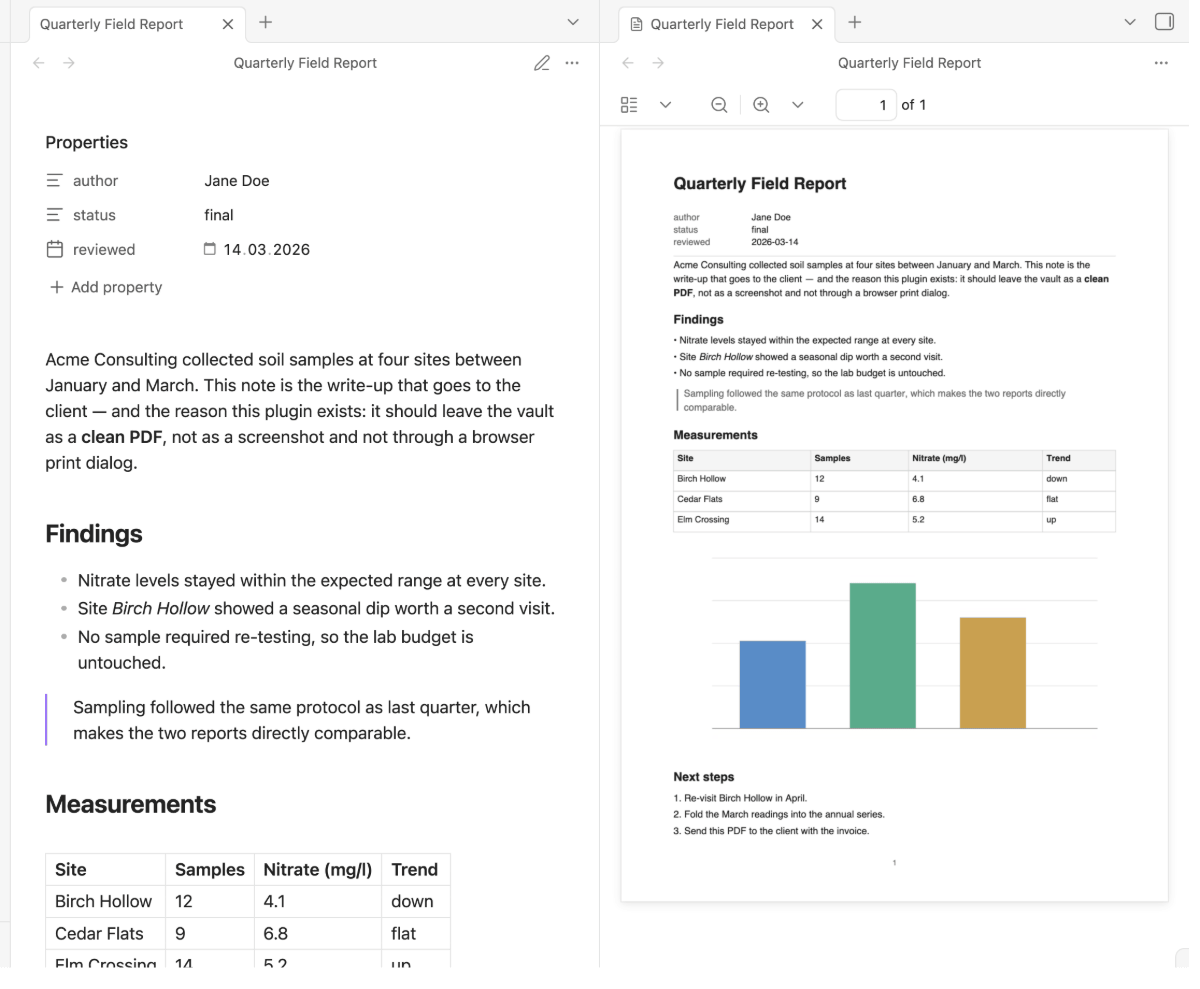
An Obsidian plugin that exports the active note as a clean, text-selectable vector PDF — just your note's content, nothing added. Works identically on desktop, iPhone and iPad.



-lightgrey)
Features
- One command, one PDF: run Export active note as PDF (command palette or the ribbon icon) and the active note becomes a real, text-selectable vector PDF — no browser print dialog, no screenshot detour.
- Bilingual UI (English / German): commands, settings, and notices follow your Obsidian display language automatically — no separate setting.
- Standard Markdown scope: headings, paragraphs, bold/italic/inline code, nested ordered and unordered lists, blockquotes, horizontal rules, links, images (re-encoded as JPEG), fenced code blocks, and simple tables.
- Graceful degradation, never a failed export: elements outside that scope (callouts, math, embeds, and other Obsidian-specific rendering) are simplified into plain text instead of breaking the export. A single summary notice tells you how many elements were simplified so you can check the source note if it matters.
![A note with a callout and a formula on the left, the exported PDF on the right showing the callout text and a [Formula] placeholder, with the notice reporting that one element was simplified](https://raw.githubusercontent.com/johannes-kaindl/obsidian-paperize/main/docs/images/degradation.png) - **Four output destinations**, chosen in settings: next to the note (default), the
Obsidian attachment folder, a custom folder, or share/open out of the vault (the
mobile share sheet, or the OS default app on desktop).
- **Desktop and iPhone/iPad, identically.** `main.js` produces real vector PDF bytes
itself — there is no reliance on `window.print()` or a WebView print pipeline, so the
same code path runs everywhere (`isDesktopOnly: false`).
- **Dependency-free at runtime, no network, no telemetry.** The PDF writer is a small,
pure engine vendored under `src/vendor/kit/pdf/` (from `obsidian-kit@0.8.0`) — no
third-party PDF library, no `fetch`, nothing leaves your device. See
[`SECURITY.md`](https://github.com/johannes-kaindl/obsidian-paperize/blob/main/SECURITY.md)
for the full statement.
- **Four output destinations**, chosen in settings: next to the note (default), the
Obsidian attachment folder, a custom folder, or share/open out of the vault (the
mobile share sheet, or the OS default app on desktop).
- **Desktop and iPhone/iPad, identically.** `main.js` produces real vector PDF bytes
itself — there is no reliance on `window.print()` or a WebView print pipeline, so the
same code path runs everywhere (`isDesktopOnly: false`).
- **Dependency-free at runtime, no network, no telemetry.** The PDF writer is a small,
pure engine vendored under `src/vendor/kit/pdf/` (from `obsidian-kit@0.8.0`) — no
third-party PDF library, no `fetch`, nothing leaves your device. See
[`SECURITY.md`](https://github.com/johannes-kaindl/obsidian-paperize/blob/main/SECURITY.md)
for the full statement.
Requirements
- Obsidian 1.8.7 or newer (the plugin follows the app's display language, which needs
the
getLanguage()API introduced in that version). - Desktop and iPhone/iPad — Paperize produces real vector PDF bytes on both.
- Nothing else: no external PDF library, no network access, no companion app.
Install
Repository: github.com/johannes-kaindl/obsidian-paperize (source mirror: git.jkaindl.de/jkaindl/obsidian-paperize)
From Obsidian (once listed in Community Plugins)
- Open Settings → Community plugins → Browse.
- Search for "Paperize" and select Install.
- Enable Paperize — no configuration is required to get started; the defaults work out of the box.
Manually
# Copy the plugin into your vault
cp manifest.json main.js styles.css \
   "<your-vault>/.obsidian/plugins/paperize/"

# …or, with OBSIDIAN_PLUGIN_DIR exported:
npm run deploy
Or download paperize.zip from the release — it contains exactly these files (main.js, manifest.json, styles.css) — and unpack it into .obsidian/plugins/; checksums.sha256 lets you verify the download.
Then: Obsidian → Settings → Community plugins → reload → enable Paperize.
Usage
- Open any Markdown note.
- Run Export active note as PDF (command palette) or click the ribbon icon.
- The PDF appears at the configured output location (see Configuration → Output destination below). If any elements were simplified during export, a notice tells you how many.
The raw YAML frontmatter block is never printed; by default its fields appear as a small metadata list at the top instead (Show frontmatter as a metadata block, configurable). The first heading (or the note's filename, if there is none) becomes the title.
If the note starts with its own heading, that heading stays where it is and no separate title is printed above it — otherwise the same words would appear twice on page one. A note without a leading heading gets its filename as the printed title, as before.
Configuration
The Settings tab is grouped into five sections; Output comes first and holds the destination and the filename scheme.
On Obsidian 1.13 and later Obsidian renders the settings itself, which also makes every row findable through the settings search — the sections appear as plain headings there. On older versions the plugin draws the same sections as collapsible groups, with Output expanded and the rest remembering whether you left them open.
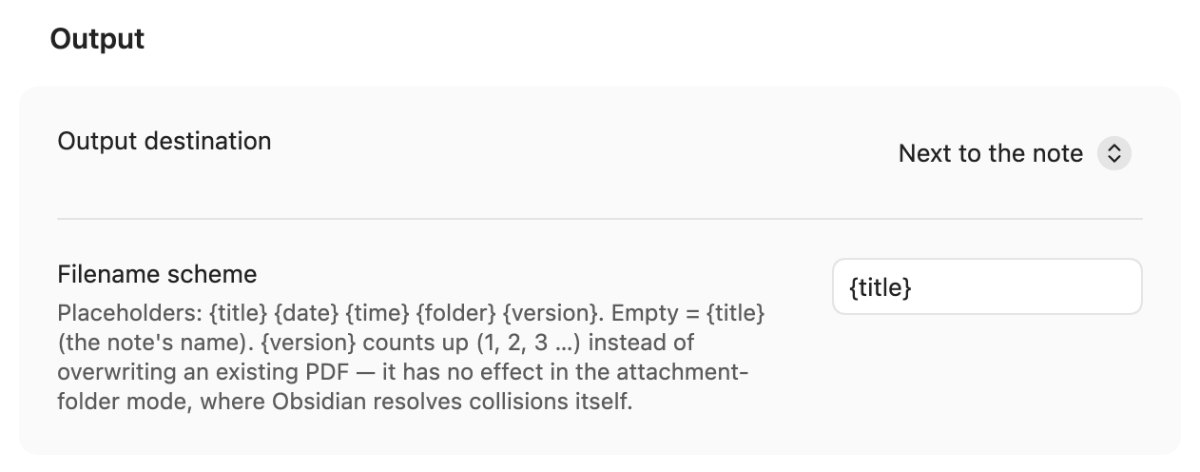
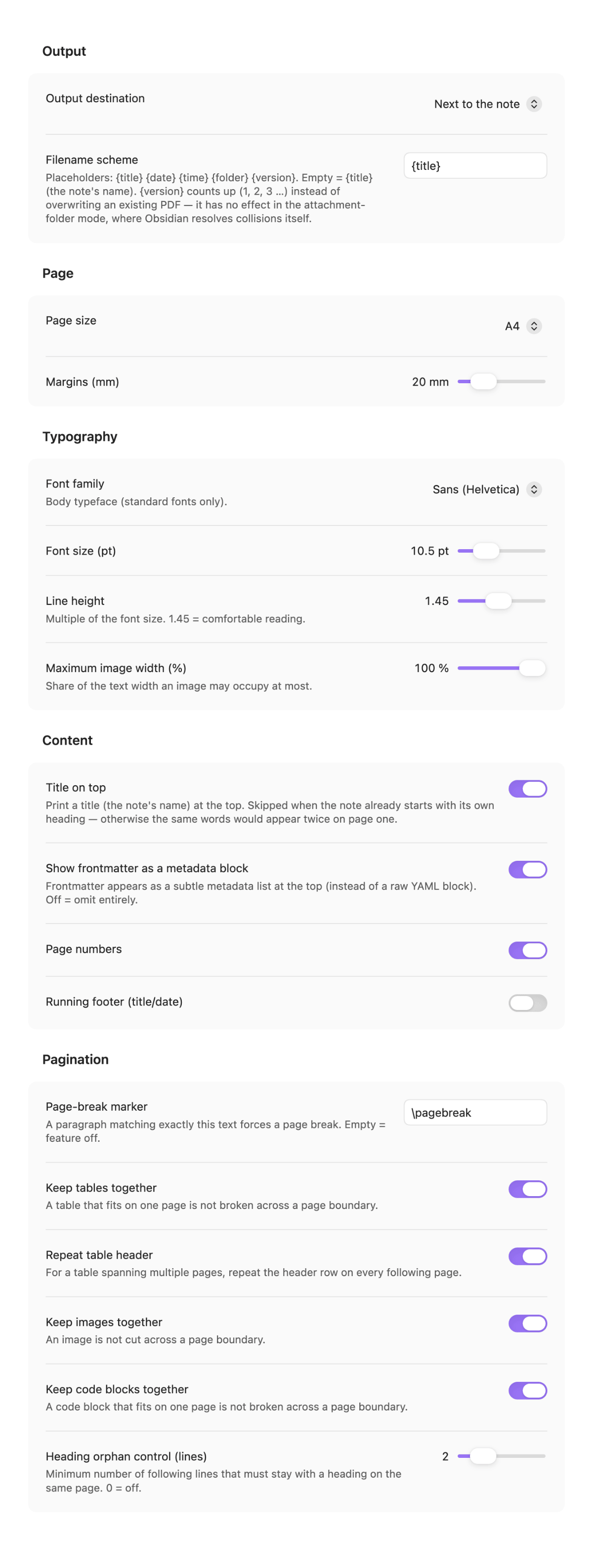
The whole tab, all five sections (click for full size)
| Section | Setting | Description | Default |
|---|---|---|---|
| Output | Output destination | Where the PDF is written: next to the note, Obsidian attachment folder, custom folder, or share/open out of the vault. | Next to the note |
| Output | Custom output folder | Vault-relative folder. Only shown when the destination is custom folder. | (empty) |
| Output | Filename scheme | See below. | {title} |
| Page | Page size | A4 or Letter. | A4 |
| Page | Margins (mm) | Page margin on all four sides, 12–50 mm. | 20 mm |
| Typography | Font family | Body typeface — Sans (Helvetica), Serif (Times), or Mono (Courier). Adobe Core-14 standard fonts only, see Fonts below. | Sans |
| Typography | Font size (pt) | Base body text size, 6–24 pt. | 10.5 pt |
| Typography | Line height | Multiple of the font size, 1.0–2.0. | 1.45 |
| Typography | Maximum image width (%) | Share of the text width an image may occupy at most, 25–100 %. | 100 % |
| Content | Title on top | Print the note's name as a title above the content. Skipped when the note already starts with its own heading — the heading is the title then. | On |
| Content | Show frontmatter as a metadata block | Frontmatter appears as a subtle metadata list at the top instead of a raw YAML block. | On |
| Content | Page numbers | Print a page number on every page. | On |
| Content | Running footer | Repeat the title and today's date in the page footer. | Off |
Pagination settings (page-break marker, keeping tables/images/code together, heading orphan control) live in the Pagination section.
Filename scheme
By default the PDF is named after the note ({title}). The scheme accepts these placeholders:
| Placeholder | Meaning | Example |
|---|---|---|
{title} | The note's name | Report |
{date} | Export date | 2026-07-16 |
{time} | Export time | 1435 |
{folder} | Folder the note lives in | Projects |
{version} | Export counter | 1, 2, 3 … |
{date} {title} yields 2026-07-16 Report.pdf. An unknown placeholder is left as-is, so a
typo shows up in the filename instead of silently disappearing; an empty scheme falls back to
{title}.
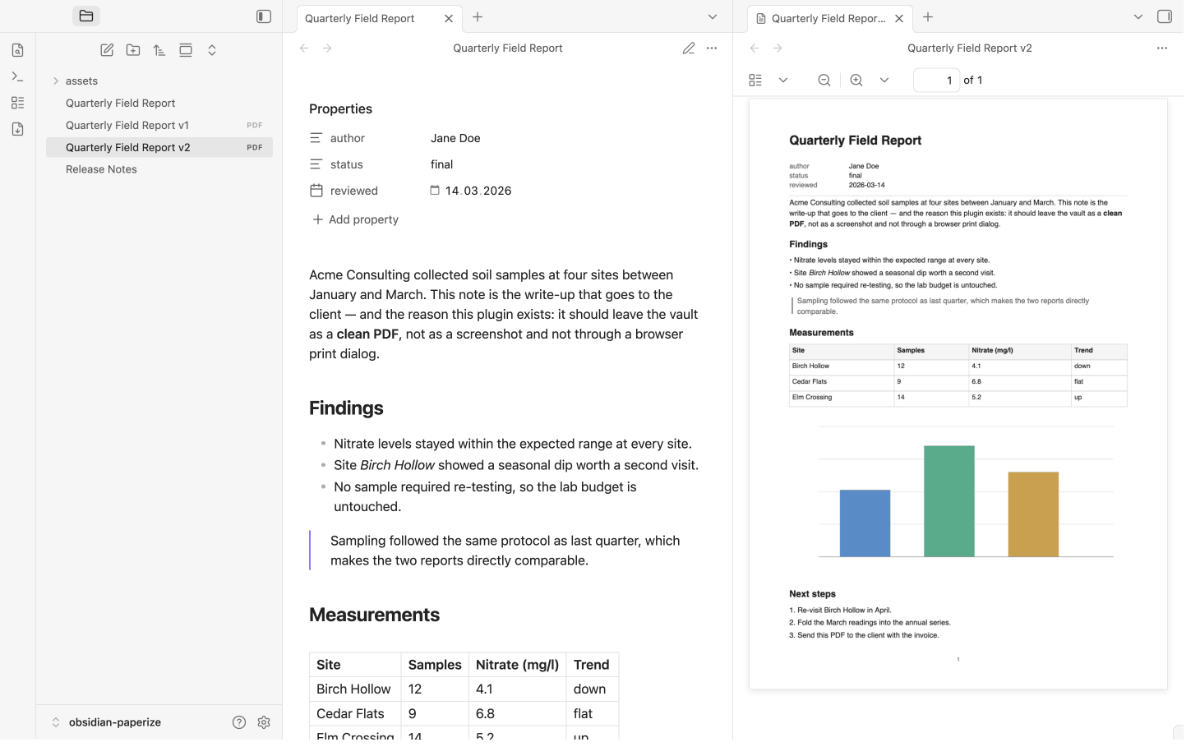
{version} is how you avoid overwriting. Without it, exporting twice replaces the previous
PDF. With it, each export counts up to the next free name (Report v1.pdf, Report v2.pdf, …).
It has no effect in the attachment folder mode, where Obsidian resolves collisions itself.
How it works
Obsidian renders your note the way it always does; Paperize then converts that rendered output into a small, platform-independent description of the page (headings, paragraphs, lists, tables, images) and writes the PDF from it directly — no browser print dialog, no external library, no network. That is why the result is identical on desktop and on iOS, and why the text stays selectable rather than becoming a picture of text.
Two consequences follow from this design, and both are deliberate:
- Anything Obsidian draws as a graphic rather than as text (formulas, Mermaid diagrams) cannot be carried over as text. Paperize marks the spot instead of dropping it silently, and counts it in the notice you get after export.
- Live views such as Bases or Dataview blocks are not static Markdown; they render as interface chrome and cannot be reproduced meaningfully in a document.
Standard Markdown scope & graceful degradation
Paperize targets a deliberately bounded, well-tested scope of Markdown, listed under Features above. Anything Obsidian renders that falls outside that scope — callouts, math blocks, embeds, and other plugin- or Obsidian-specific widgets — is not silently dropped: its text content is extracted and shown as plain text in the PDF, and the export always completes. After export, a notice reports how many elements were simplified this way, so you know when to double-check a note against the PDF.
Fonts & the Core-14 limitation
Paperize uses only the Adobe Core-14 standard PDF fonts (the Helvetica, Times, and Courier families) — the fonts every PDF reader can render without any font file being embedded in the document. This is a deliberate trade-off, not a missing feature:
- PDFs stay tiny (no embedded font data).
- No custom fonts, no theme fonts, no non-Latin scripts beyond WinAnsi coverage.
- Every PDF opens identically in any viewer, on any platform.
If you need embedded custom fonts or full Unicode coverage, Paperize is not the right tool for that note.
Privacy & security
Paperize runs entirely on your device: no network calls, no telemetry, no tracking.
Images are decoded and re-encoded locally; nothing is fetched from the web. The PDF
engine is a small, dependency-free module vendored into the plugin — see
SECURITY.md
for the full statement, including how releases are built and attested (the shipped
main.js is an esbuild bundle of src/, not a committed source file — the attestation
covers the built artifact).
Development
npm run typecheck   # tsc --noEmit
npm test            # vitest run --passWithNoTests
npm run check:pure  # refuses 'obsidian' imports in src/core + src/vendor
npm run build       # typecheck + esbuild --production → main.js
npm run gate        # typecheck + test + check:pure + build — run before every commit
npm run deploy      # build + copy manifest.json main.js styles.css → $OBSIDIAN_PLUGIN_DIR
See AGENTS.md
for architecture notes and release process.
Documentation
- Documentation index — all guides in one place.
- Getting started — from the install to your first PDF.
- Troubleshooting — what you see, what it means, what to do.
License
Code: AGPL-3.0-or-later — see
LICENSE.
For plugin developers
Search results and similarity scores are powered by semantic analysis of your plugin's README. If your plugin isn't appearing for searches you'd expect, try updating your README to clearly describe your plugin's purpose, features, and use cases.