Path Picker
approvedby U-ways E.
Fuzzy-find any file or directory under a root, then insert its path at the cursor or open it. - This plugin has not been manually reviewed by Obsidian staff.
Path Picker (Plugin)


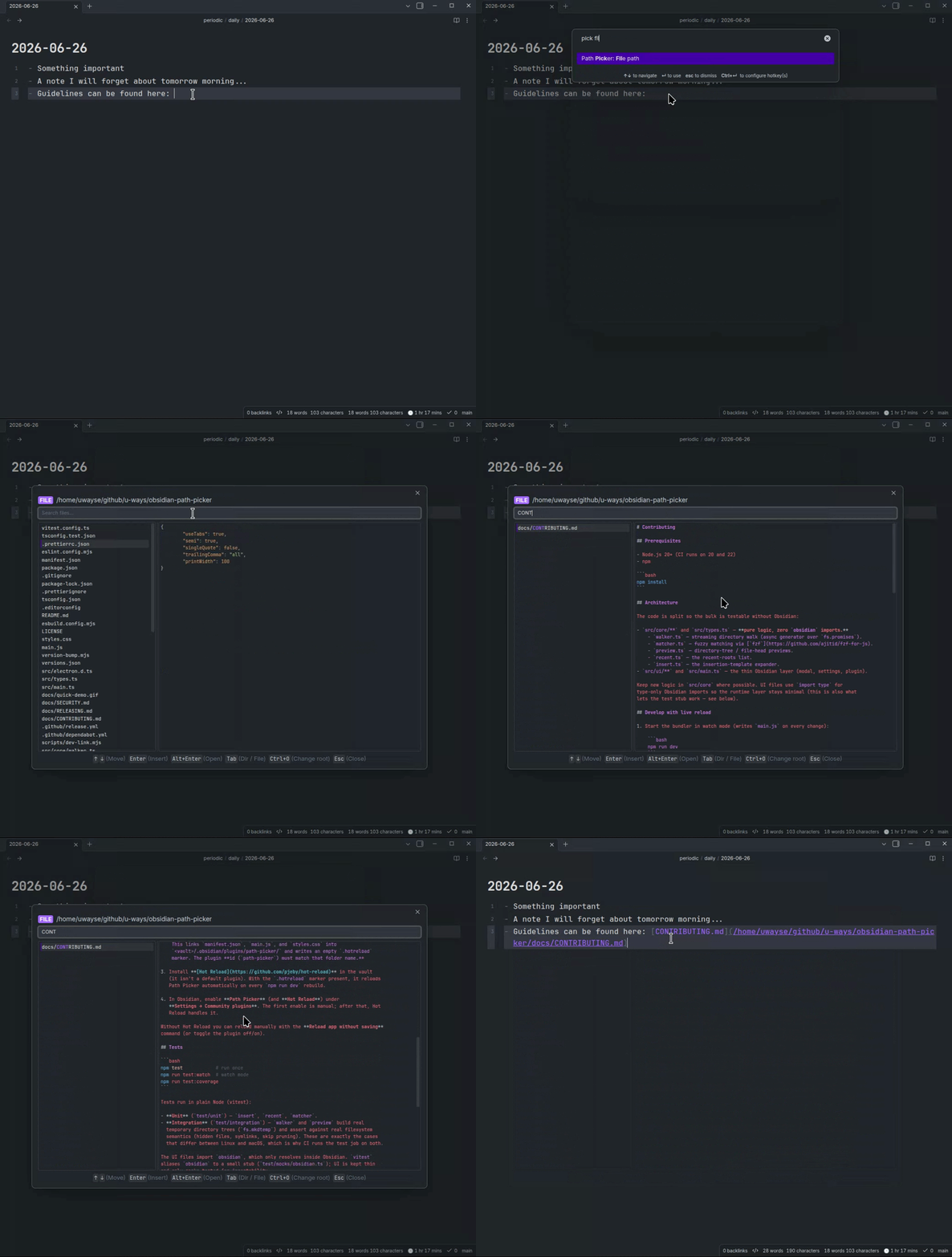
Fuzzy-find any file or directory anywhere under a root (default: your vault folder) from inside Obsidian, preview it, and then insert its path at the cursor or open the entry — as a note in Obsidian, or in your OS's default app.
Why
For me, dropping a real filesystem path into a note normally means:
- Open a terminal,
- Fuzzy-find the directory,
- Copy the path,
- Switch back,
- Paste.
Path Picker does the fuzzy-find in a modal and drops the result where your cursor already is — or opens the entry on the spot, no insertion needed — a seamless user experience. It brings the muscle memory of shell fuzzy finders into the editor, without leaving Obsidian.
Features
- Two commands: Directory path and File path. (+ a
Tabtoggle to switch mode inside the picker) - Live fuzzy match with highlighted match positions and a moving selection.
- Preview pane: a directory tree (depth configurable, default 2), or the head of a file with syntax highlighting (using Obsidian's own renderer, so it matches your theme). The tree is rainbow-coloured by nesting depth from your theme's palette (toggleable in settings).
- Resizable split: drag the divider between the results list and the preview to find your sweet spot; the position is remembered across sessions (double-click the divider to reset it to 50/50).
- Root switching (
Ctrl/Cmd+O): jump to home, the vault root, a recent root (the last 5 are remembered), or type/paste a custom path. - Open in place (
Alt/Option+Enter/Alt/Option+click): open the selection instead of inserting it — in Obsidian when it's a tracked vault entry (note in a new tab, or folder revealed in the File Explorer), otherwise in your OS's default app. - Configurable insertion: a template decides what gets inserted.
On top of that, it has no external dependencies, no fzf, eza, bat, or fd binaries.
Walking and previews use Node's fs; fuzzy matching uses fzf-for-js, bundled into the plugin.
Usage
- Place your cursor in a note.
- Run Path Picker: Directory path (or File path) from the command palette, or bind a hotkey under Settings → Hotkeys. (If you use the Doubleshift plugin, you can map shift-shift to either command.)
- Type to filter; the preview updates as you move the selection.
- Press Enter to insert the path at the cursor.
| Key | Action |
|---|---|
↑ / ↓ | Move selection |
Ctrl+N/P | Move selection (readline-style) |
Enter | Insert the selected path |
Alt/Option+Enter / Alt/Option+click | Open the selected entry |
Tab | Toggle directory / file mode |
Ctrl/Cmd+O | Change the search root |
Esc | Close |
Opening an entry — Alt/Option+Enter (or Alt/Option+click) opens the selection instead of
inserting it. A tracked vault entry opens in Obsidian: a file opens as a note in
a new tab, a folder is revealed in the File Explorer sidebar. Anything else — outside
the vault, or an untracked in-vault path such as one under a dot-folder (e.g.
.obsidian/) — opens in your operating system's default application for that file
type (a directory opens in your file manager).
Swapping insert / open — by default Enter and click insert the path, while
Alt/Option+Enter / Alt/Option+click open the entry. Set Primary action to Open entry in the
plugin settings to flip this, so Enter / click open the entry and Alt/Option inserts the
path instead. The picker's footer key hints update to match whichever action is primary.
Settings
| Setting | Default | Notes |
|---|---|---|
| Default root | your vault folder | Where the picker starts. On a fresh install this is your current vault's folder. |
| Insertion template | {path} | Tokens: {path} (absolute), {name} (basename), {rel} (relative). |
| Primary action | Insert path | What Enter / click do on the selected entry; the modifier (Alt/Option+Enter / Alt/Option+click) runs the other. Set to Open entry to open on Enter/click and insert with Alt/Option. The footer key hints follow this. |
| Directory tree depth | 2 | How many levels deep the directory preview tree descends. |
| Colorize directory tree | on | Rainbow-colour the tree preview by nesting depth using your theme's palette. |
| Follow symlinks | on | Symlink cycles are handled safely. |
| Include hidden | on | Include dot-files and dot-directories. |
| Max results | 10000 | A notice appears if the walk is truncated. |
| Highlight size cap | 1024 KB | Files larger than this preview as plain text. 0 disables the limit. |
| Highlight line cap | 5000 chars | Skip highlighting when a line is longer than this (e.g. minified). 0 disables. |
| Skip directories | common noise dirs | Comma-separated names pruned while walking. The default covers common VCS, dependency, build-output, and cache folders across ecosystems (e.g. node_modules, .venv, __pycache__, dist, build, target, vendor, .cache). |
Insertion template examples
Below are some examples of how the insertion template works:
| Template | Inserts |
|---|---|
{path} | /home/you/projects/docs |
`{path}` | `/home/you/projects/docs` |
[{name}]({path}) | [docs](/home/you/projects/docs) |
So if you want to insert a Markdown link to the selected file, you can use [{name}]({path}) as the template.
Limitations
- Desktop only (Obsidian ≥ 1.4.0).
- File previews are syntax-highlighted via Obsidian's own renderer (your active theme's colors). Files with no recognized extension, binaries, and files over the configurable size/line caps fall back to plain monospace text.
- The commands require an active editor — they insert at the cursor.
- Tested with Ubuntu & macOS only.
Development
See CONTRIBUTING.md for the dev environment, the vault live-reload workflow, and how to run the tests.
License
See MIT licence.
For plugin developers
Search results and similarity scores are powered by semantic analysis of your plugin's README. If your plugin isn't appearing for searches you'd expect, try updating your README to clearly describe your plugin's purpose, features, and use cases.