by theluckystrike
Export PDF review comments and their replies as a Markdown note.
PDF Reply Export
PDF Reply Export turns native PDF review comments and their replies into a Markdown note. Open a local PDF in your vault, preview its comments, and write a new review note beside that PDF. The free commands need no account. Pro adds author and saved date filters, plus export for a selected PDF folder.
Use it to keep a design review or document discussion with your project notes. The output keeps the reply order and links back to source pages. It reads annotation records saved inside the PDF. It does not read comments stored in a separate service or Markdown file.
Features
Native comments and replies
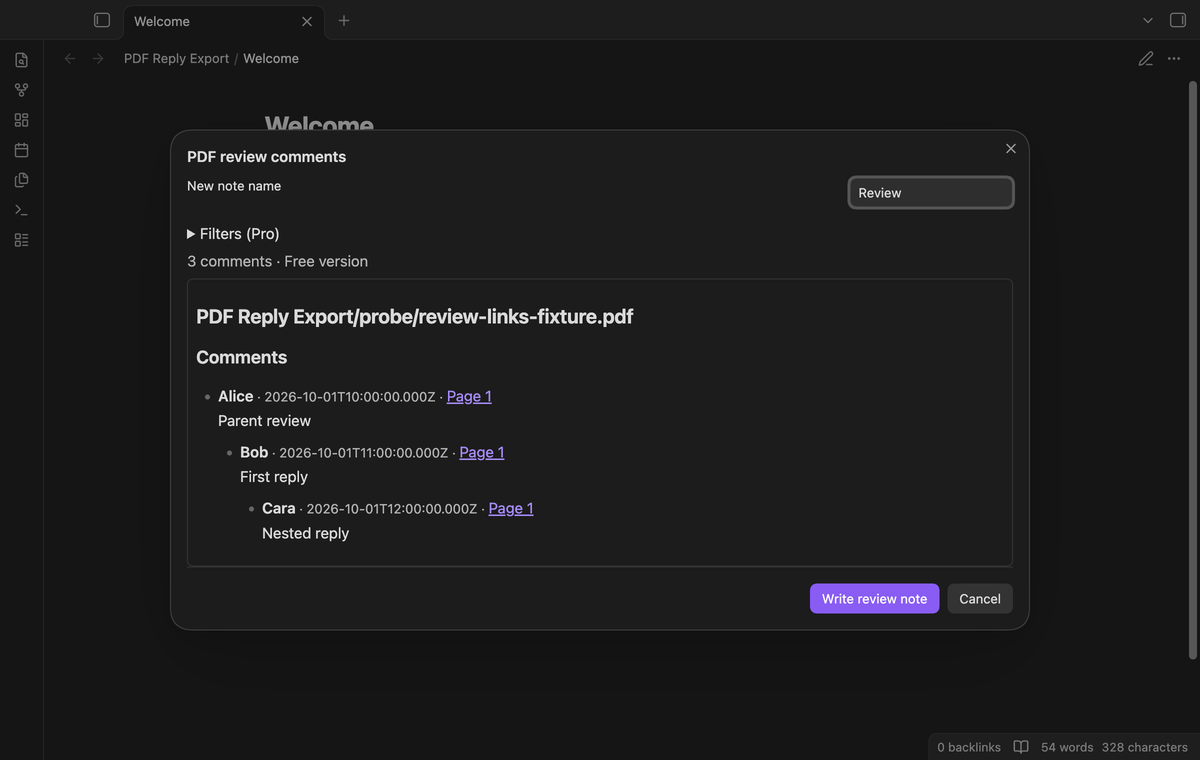
The active PDF command reads the local PDF with the PDF.js library supplied by Obsidian. The preview shows the author, saved date, text and page for each supported comment. Select a page link to open the source page. Text comments, free text and markup annotations with comment text can become review records. A highlight with no text appears only when a reply needs it as a parent.
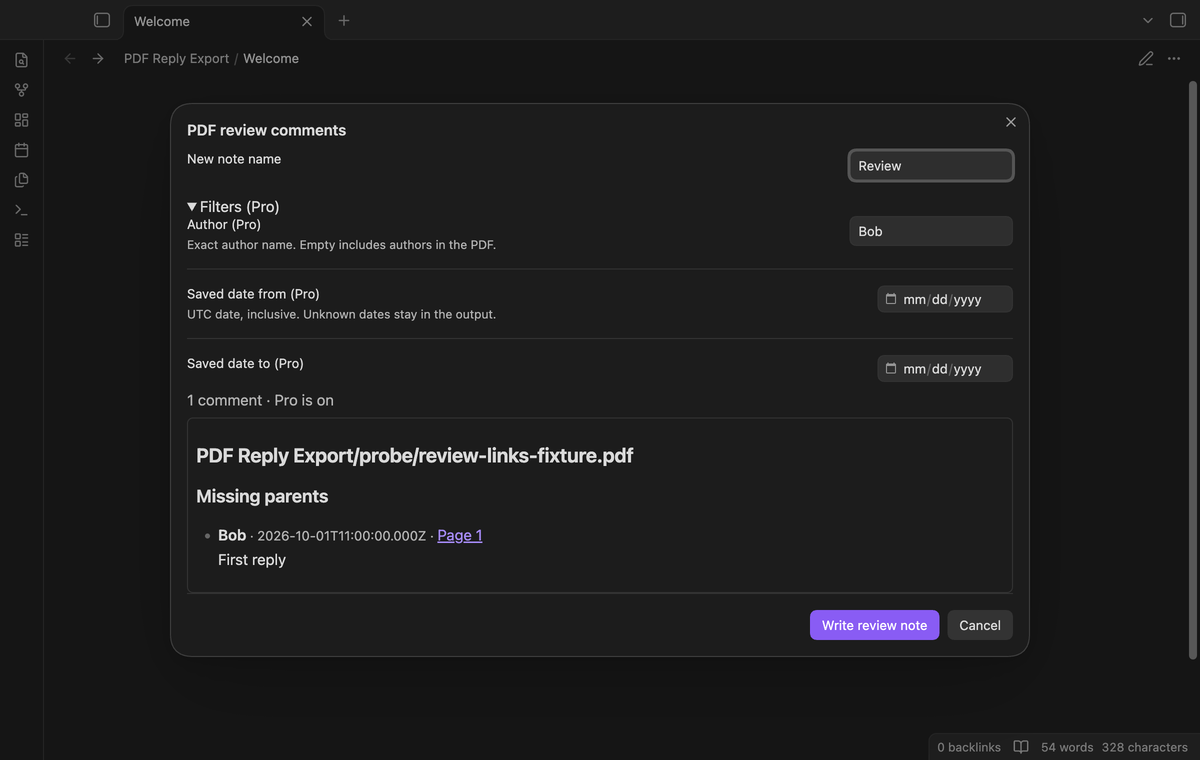
Parent groups and missing parents
Annotation IDs and reply IDs determine the group. A reply to Bob appears below Bob, even when Bob is a reply to Alice. Replies with valid dates appear in date order. Unknown dates follow dated siblings. Page and annotation ID resolve a date tie.
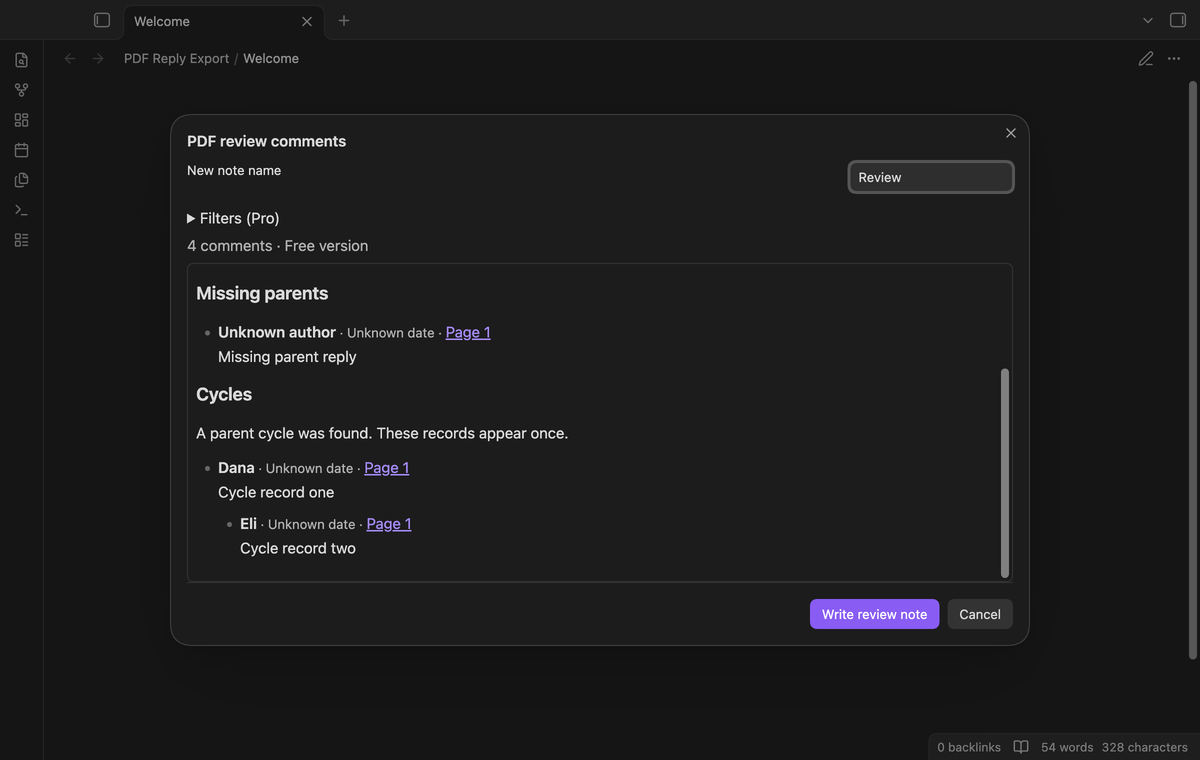
A reply with no available parent appears under “Missing parents”. A cycle appears under “Cycles”, with a warning. The cycle traversal exports each record at most once. Popup annotations and RT Group records are excluded from the reply list.
A new Markdown review note
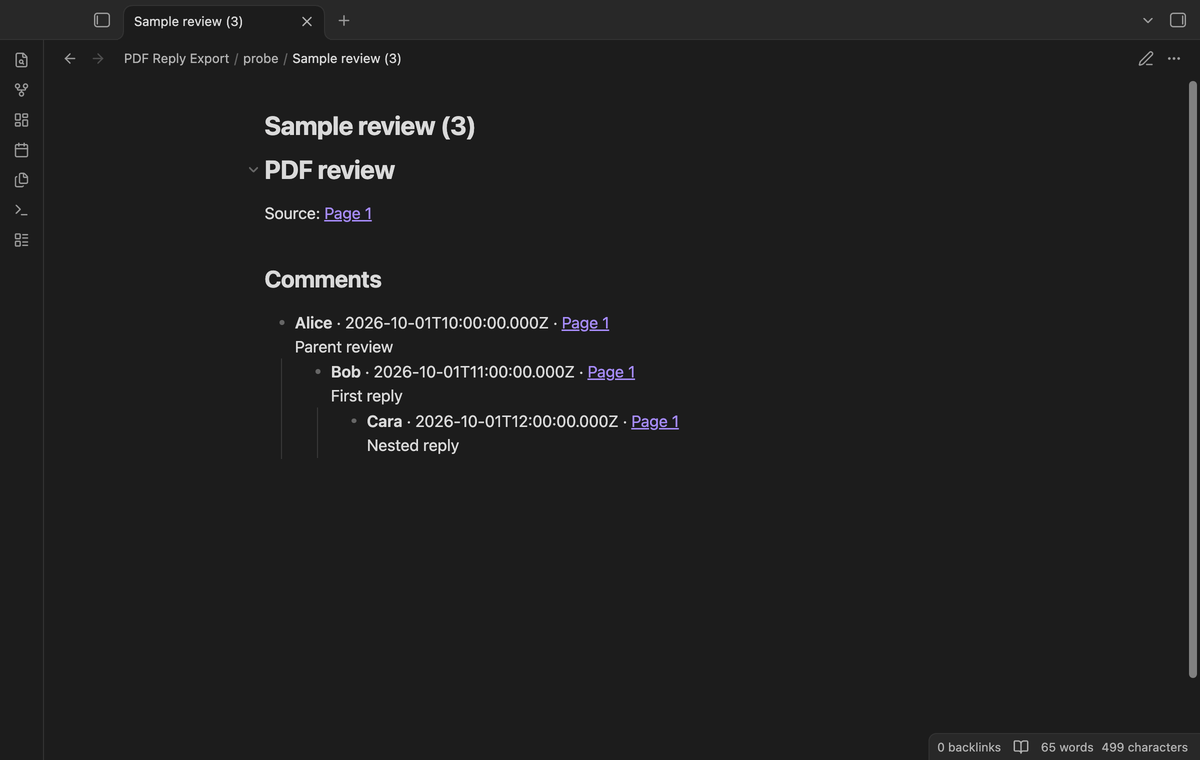
Select “Write review note” to create the output. The name field starts with Review. If Review.md exists, the output uses Review (2).md, then the next free number. Existing notes keep their content. The PDF stays unchanged. Cancel closes the preview without writing a note. A PDF with no comments shows “No comments”.
The preview displays comment strings as text. The output escapes Markdown markers and HTML characters. A script tag in a comment becomes text in the note. Multiline comments keep their line breaks. The note uses nested bullet items.
Author and saved date filters (Pro)
Enter an exact author name to select that author's records. Leave the field empty to include the authors in the PDF. The saved date range uses UTC days and includes the two boundary days. The date comes from the annotation modification date, with creation date as a fallback. A bad or absent date stays unknown and remains eligible for a date filter.
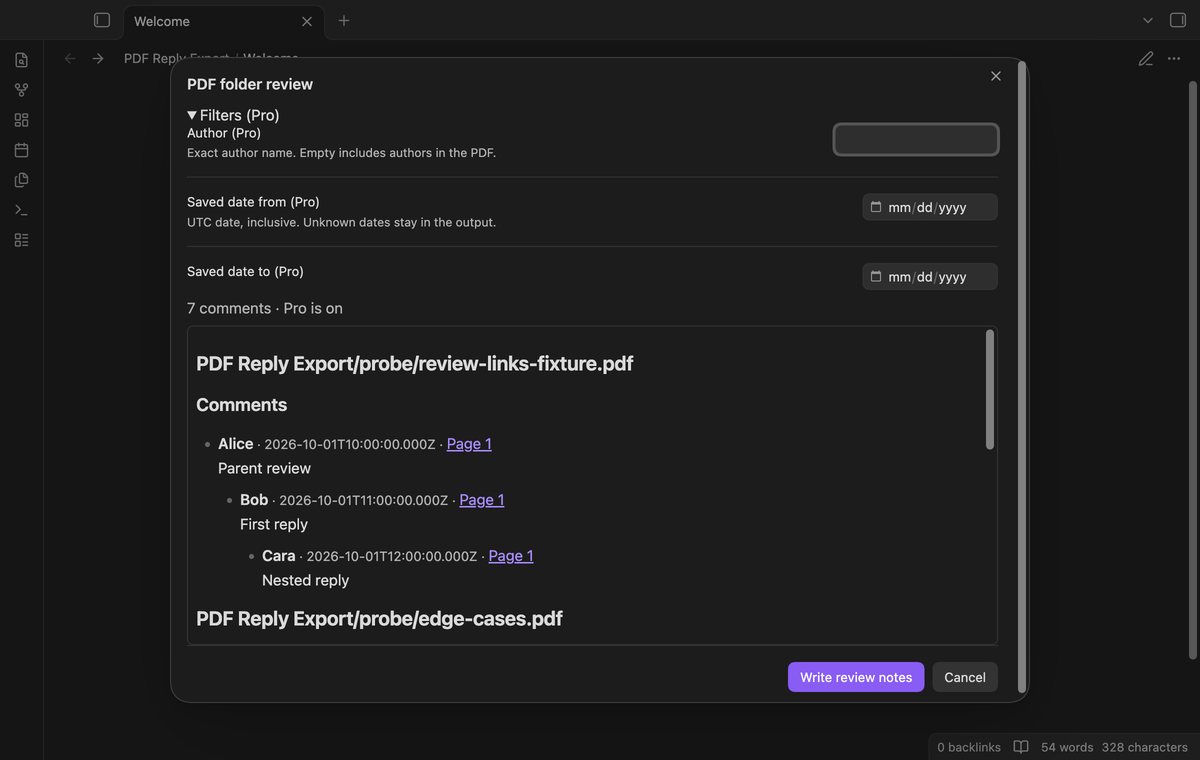
The preview updates when you change a filter. If a filter removes a parent but keeps its reply, that reply moves to “Missing parents”. Free mode ignores filter values. Open “Filters (Pro)” to inspect the inputs. They are disabled while Pro is off.
Selected PDF folder export (Pro)
Run “Export a PDF folder (Pro)” and enter a vault folder path. An empty path selects the vault root. The selection includes PDF files in subfolders. A preview shows the loaded discussions before you write. The output makes one note per PDF with selected comments, using the PDF name followed by review. Each output is beside its source PDF.
Read errors appear in the preview status. Empty PDFs produce no notes. Write errors appear in a notice with the count of completed notes. Folder export can leave completed notes when a later file fails; it has no batch rollback.
Install
For manual installation, copy main.js, manifest.json and styles.css from a release into <vault>/.obsidian/plugins/pdf-reply-export/. Open Settings, Community plugins, and enable PDF Reply Export. Use Obsidian 1.13.4 or later.
When the plugin is listed in the community directory, you can search for PDF Reply Export from the Browse button and install it there. This document does not confirm a directory listing.
Usage
- Save the PDF inside your vault. Save changes from your PDF editor before the export.
- Open the PDF tab and run “PDF Reply Export: Preview comments from the active PDF” from the command palette.
- Read the discussion in the preview. Check missing parents, cycle warnings and unknown dates.
- Enter a note name. With Pro, set the author or date range if needed.
- Select “Write review note”. The first completed note opens in the workspace.
The preview is a snapshot. If another application changes the PDF after you open the preview, cancel and run the command again to read the saved file. Repeated exports create separate notes. The plugin does not merge an earlier review note with changed comments. You can edit the result as a normal Markdown note after export.
Settings
The plugin settings contain the GitHub Sponsors controls. Use them to sponsor, sign in, refresh the sponsorship check or sign out. The status tells you whether Pro is on. Note names and filters are inputs in the preview; they are not saved between previews. There is no background PDF scan.
The active PDF command remains available in free mode. Folder export checks the Pro state before it reads the folder and before it writes the notes. If Pro turns off during a batch, the batch stops before the next PDF output. Review the completion notice for the written count.
FAQ
Why is a comment absent? It must be a native annotation in the saved PDF. Link annotations, form widgets, popup records and RT Group members are not review comments. A blank markup annotation without a discussion is omitted. Quoted highlight text is outside this version's scope.
What happens to incomplete metadata? Missing authors show “Unknown author”. Missing or invalid saved dates show “Unknown date”. The text and page remain in the review. The plugin cannot repair a broken reply reference in the original PDF.
Which environments were not tested? Android, iOS, Linux and Windows desktop, password protected PDFs, external review services, scanned document OCR and large production PDF archives were not tested. The desktop checks use local fixture PDFs on macOS. Live GitHub sign in and payments were not tested; Pro tests use a local sponsorship response. This version has no password entry interface. Mobile compatibility is not a test result.
Can I undo an export? The output is a new Markdown file. Delete that output through Obsidian if you do not need it. A failed folder export can leave notes written before the failure. No existing review note is selected for replacement.
Payment, account and network
The core features are free. Pro features need a GitHub Sponsors sponsorship of theluckystrike: $5 a month or more, or $15 once. A total payment of $15 meets the payment requirement for Pro without further payment. Sign-in and the checks below still apply. Your notes stay readable and editable with or without Pro.
GitHub handles the payment. Sponsor at https://github.com/sponsors/theluckystrike. You need no account for the free features. Pro needs the GitHub account that sponsors.
Until you select "Sign in with GitHub" in the settings, PDF Reply Export makes no network requests. Sign in uses the GitHub device flow. PDF Reply Export sends its public client ID and the scope read:user to https://github.com/login/device/code and shows you a code. While you enter the code at https://github.com/login/device, it asks https://github.com/login/oauth/access_token every few seconds to check the sign-in status. The scope permits profile reads only. GitHub needs this access to show the sponsorship tier. It grants no repository scope and no write access.
After sign in, PDF Reply Export sends one query to https://api.github.com/graphql. It checks if the signed-in account sponsors theluckystrike. It asks for the tier and the total payment to theluckystrike. The plugin reuses a successful check for 7 days. Failed checks can retry after 6 hours. Select Refresh to request an earlier check. It sends no note content, file names or other vault data, and it has no telemetry.
After a successful check, Pro can work offline for up to 14 days. Sign out or a negative sponsorship answer turns Pro off. The plugin stores the GitHub token through the secret storage API of Obsidian. It does not put the token in its saved settings or its local sponsorship data. The local storage of this device keeps your GitHub login, the tier and the time of the last check. Sign out clears the token. You can also revoke the access in your GitHub settings, under Applications.
Support
After the public source repository is available, report a reproducible problem at its project issue page. Include the plugin version, Obsidian version, platform, command and the message shown in the preview or notice. Use a small PDF with made up names and text when you can reproduce the problem in it. Remove private comments before sharing a fixture.
PDF Reply Export is a project by theluckystrike at notemods.com. The source uses the MIT license. Support requests and file attachments are sent by you through the chosen website; the plugin does not send a support report.
For plugin developers
Search results and similarity scores are powered by semantic analysis of your plugin's README. If your plugin isn't appearing for searches you'd expect, try updating your README to clearly describe your plugin's purpose, features, and use cases.