Pebble
approvedby pedrojreis
A Minimal companion for quick note taking. - This plugin has not been manually reviewed by Obsidian staff.
★ 6 stars↓ 773 downloadsUpdated 1mo agoMIT
🪨 Pebble
A minimal Obsidian companion that lives in your menu bar for quick note-taking.
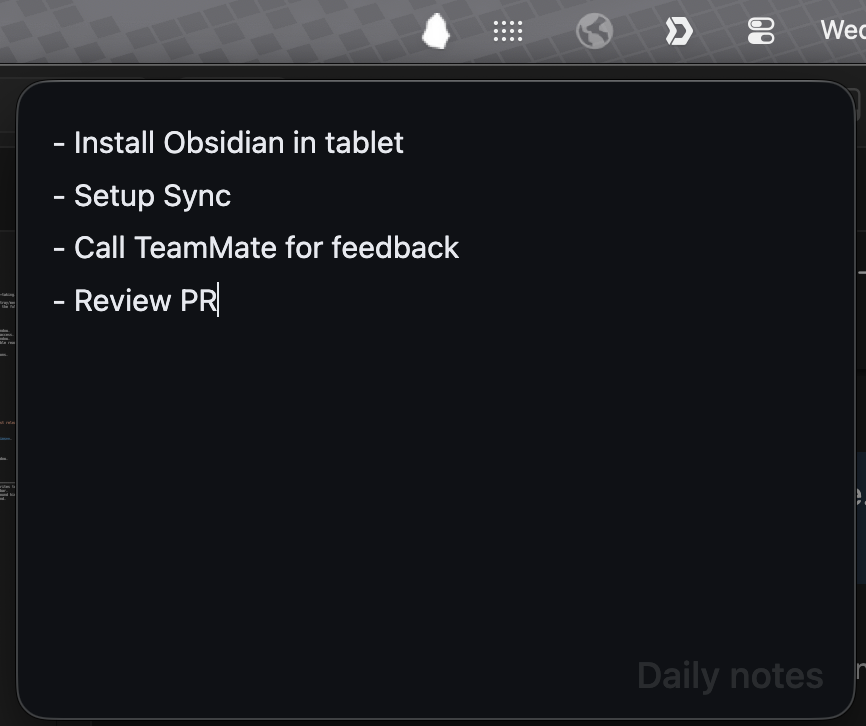
Pebble adds a small, always-accessible writing window from your system tray/menu bar. Point it at any markdown file in your vault and start writing without keeping the full Obsidian window front and center.
Features
- Minimal — small and distraction-free writing window.
- Menu-bar toggle — click the Pebble icon to open/close the note window.
- Anchored window — opens near the tray/menu bar icon for quick access.
- Auto-close on blur — closes when you click outside the pop-out window.
- Single-file focus — choose one markdown note from your vault; Pebble reads and writes only that file.
- Fast autosave — edits are written back to disk automatically.
- Tray icon style — choose between color and monochrome menu bar icons.
- Color mode — choose a light or dark editor background.
Demo
Installation
From the Obsidian website
Install Pebble directly from its community plugin page.
From community plugins
- Open Settings → Community plugins → Browse.
- Search for Pebble.
- Select Install, then Enable.
Manual installation
- Download
main.js,manifest.json, andstyles.cssfrom the latest release. - Create a folder at
<your-vault>/.obsidian/plugins/pebble/. - Copy the downloaded files into that folder.
- Reload Obsidian and enable Pebble in Settings → Community plugins.
Usage
- Open Settings → Pebble and choose a note from your vault.
- Click the Pebble menu bar / system tray icon to show or hide the window.
- Write away.
Settings
| Setting | Description | Default |
|---|---|---|
| Note | The vault note that Pebble reads and writes to. | None |
| Monochrome tray icon | Use a monochrome tray icon that blends in. | Off |
| Show note title | Show the note title as a subtle background hint. | On |
| Color mode | Choose a white or dark editor background. | Dark |
For plugin developers
Search results and similarity scores are powered by semantic analysis of your plugin's README. If your plugin isn't appearing for searches you'd expect, try updating your README to clearly describe your plugin's purpose, features, and use cases.