Pele Editor
Style, customize, animate, and export Mermaid diagrams rendered by Pele in Obsidian. Right-click a diagram element to change its color, apply a gradient across related elements, pick a saved color preset, or export an image for a social post or presentation. Pele Editor writes styling back to the Mermaid block in your note.
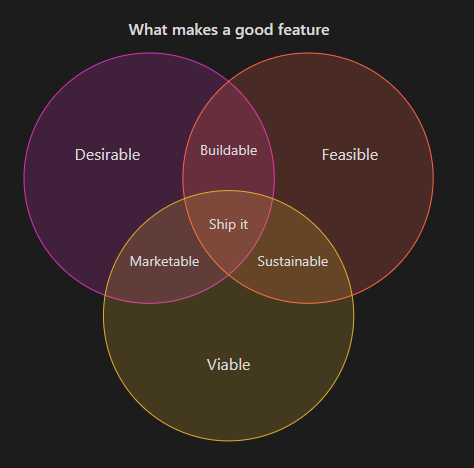
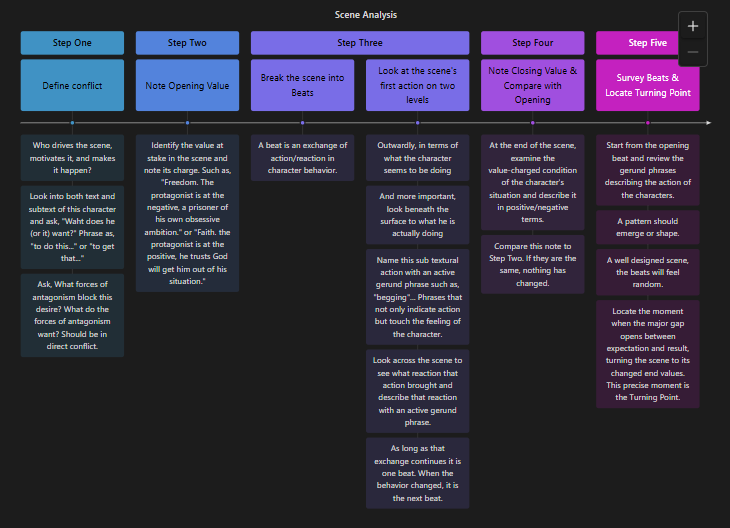
Quick start
- Open a rendered Mermaid diagram in Obsidian's Reading view or Live Preview.
- Right-click a supported element on desktop. On mobile, press and hold it for about half a second, then release. For example, open the menu on a timeline section header and choose Section color….
- Pick a color or choose one from the Preset dropdown, then click Apply.
Choose Reset color to return the element to its series color or the diagram default.
Create diagrams with a right-click
Right-click in the note editor and choose Insert Pele chart to start with any of 32 diagram types. Then right-click the rendered diagram to add components, rename labels, change values, and remove items.
Forms guide you through chart-specific details: connect Sankey nodes, add Pie slices, build Mindmap branches, insert Kanban columns and cards, choose Venn overlaps, and edit XY or Radar series. Choose element… helps you find a small or overlapping part. Removal confirmations show the affected components, and Undo last diagram edit restores a recent builder change.
Your colors and supported Customize settings stay with the diagram. Export the result as an image or animation for a presentation or social post.
Customize diagrams
Right-click a node or another part of a diagram and choose Customize. On mobile, press and hold, release, then tap through the menus. The available choices depend on the diagram and the clicked element.
- Mindmap: change the clicked root or node to Default, Rectangle, Rounded rectangle, Circle, Cloud, Bang, or Hexagon. Other nodes keep their shapes.
- Flowchart and Swimlane: choose from 53 node shapes, grouped into common shapes, containers, documents, geometry, and symbols. Image/icon nodes retain their specialized rendering.
- Agentflow: choose one of its six native shapes: Rounded rectangle (Task), Subroutine (Tool), Parallelogram (Input), Diamond (Decision), Lined document (Reference), or Hexagon (Action).
- Architecture: change the clicked service or group icon to Cloud, Database, Disk, Internet, Server, or No icon. Use original icon restores an authored icon, including a custom pack or service text icon.
- Timeline: choose left-to-right or top-to-bottom layout under Diagram settings → Layout → Direction.
- Block: change an ordinary block to one of 14 shapes while retaining its grid position, span, label, and connections.
- Venn: customize the clicked set or overlap with fill opacity, outline width/pattern, and bold/italic labels. An overlap also has a fill-color picker. Diagram settings → All sets applies appearance controls to all currently declared circles, replacing that property on any individually customized circles. You can customize a single circle again afterward.
- Diagram settings: controls include radar grid shape, legend and scale; pie donut hole and legend position; XY labels and axes; sequence participant and message settings; connector curves, spacing, and other supported options.
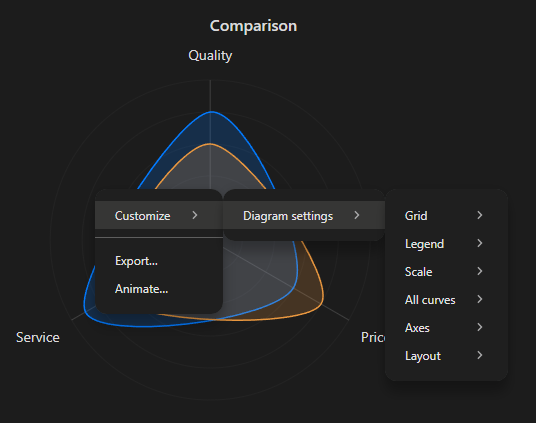
The menu provides 160 diagram settings across 29 types, plus controls for individual nodes, Architecture icons, Venn sets, and overlaps. Event Modeling, Ishikawa, and User Journey retain their color/export/animation menus. The option reference lists the choices and their native settings for all 32 types.
On desktop, Pele Editor uses the operating system's native menus for its full context-menu tree. This avoids Obsidian's stuck nested DOM submenus and does not change the application's menu preference. Mobile keeps the tap-through menus.
Numeric, color, and text settings open a small dialog. Use default removes that setting's saved override. Choice menus show the current selection. Reset diagram settings restores the diagram's authored settings without clearing individual element overrides or colors. Venn sets and overlaps have Reset appearance. Flowchart, Agentflow, and block shape menus offer Use original shape; a mindmap's Default uses Pele's native default appearance for that node.
Changes are saved to the selected Mermaid block and work in Reading view and Live Preview. Existing labels, relationships, colors, and other note content are preserved. An edited or stale block is rejected rather than overwritten. Customizations render locally and are included in image and animation exports.
Export images
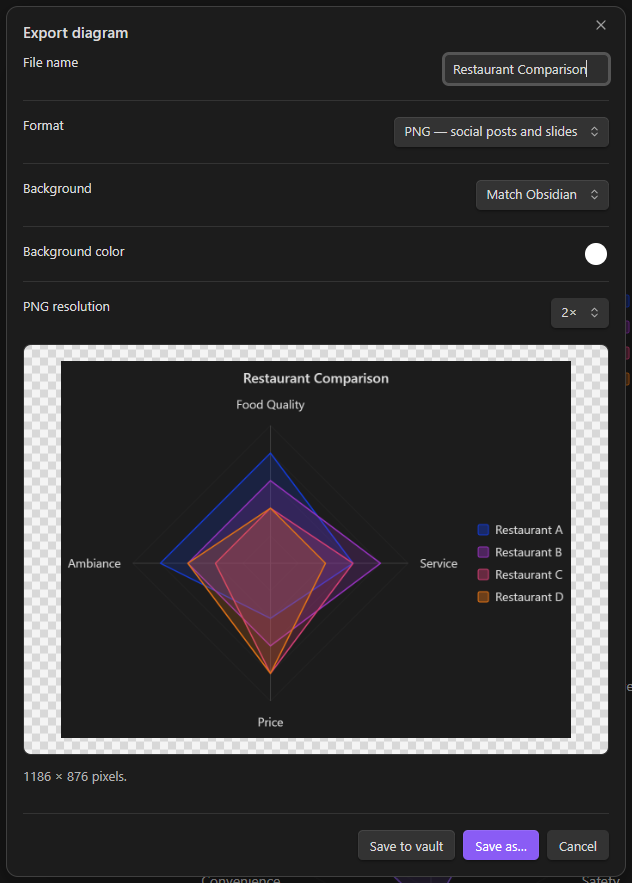
Right-click anywhere inside a rendered diagram and choose Export…. On mobile, press and hold the diagram, then release. Export requires an active trial or license.
- PNG creates an image for Instagram, other social platforms, and slide presentations. Choose 1×, 2×, or 4× resolution. Very large images are reduced to a safe size for your device; the preview shows the output dimensions.
- SVG keeps the diagram as a scalable vector image for compatible presentation and design apps.
- Choose Match Obsidian, Transparent, or a custom Solid color background. Both formats support transparency. The preview's checkerboard is not included in the file.
The default file name comes from the diagram title. An untitled mindmap uses its root label; other untitled diagrams use “Diagram.” You can edit the name before saving. The export captures the complete rendered diagram, including colors, gradients, labels, and layout. Panning and zooming do not crop it. On desktop, Save as… opens the operating system's save dialog. On Android, Save to device writes to Documents/Pele Editor and displays the saved path. It uses a unique file name for each export and verifies the saved size. This saves to a fixed public folder; it does not open an Android folder picker. If the installed Obsidian app lacks the native file bridge or storage permission is denied, the error is shown and Save to vault remains available.
For Android Gallery/Photos, choose PNG, save to the device, then use Files/My Files to move the image from Documents/Pele Editor into Pictures (or a folder inside Pictures). The plugin does not directly register images in Android's photo library. Keep SVG for presentation and design apps that accept vector files.
On Android, Open with… opens the compatible-app chooser, such as Gallery, Lightroom, or another app that accepts the selected image format. It appears when Obsidian provides the native file opener. Save to device and Save to vault remain available. To use the full sharing menu, open Files/My Files → Documents → Pele Editor, select a saved image, and choose Share.
On iOS, Share… opens native file sharing when Obsidian and the operating system support it for the selected format. Available destinations depend on the device and installed apps. On either mobile platform, Save to vault saves a uniquely named file in Pele exports without replacing an existing export.
Check the preview before saving. Custom fonts that cannot be embedded may use a fallback, and receiving apps can differ in their SVG font support. Diagrams that reference external image files must embed those images first. For a social post with predictable background colors, use PNG with a solid background.
Animate diagrams
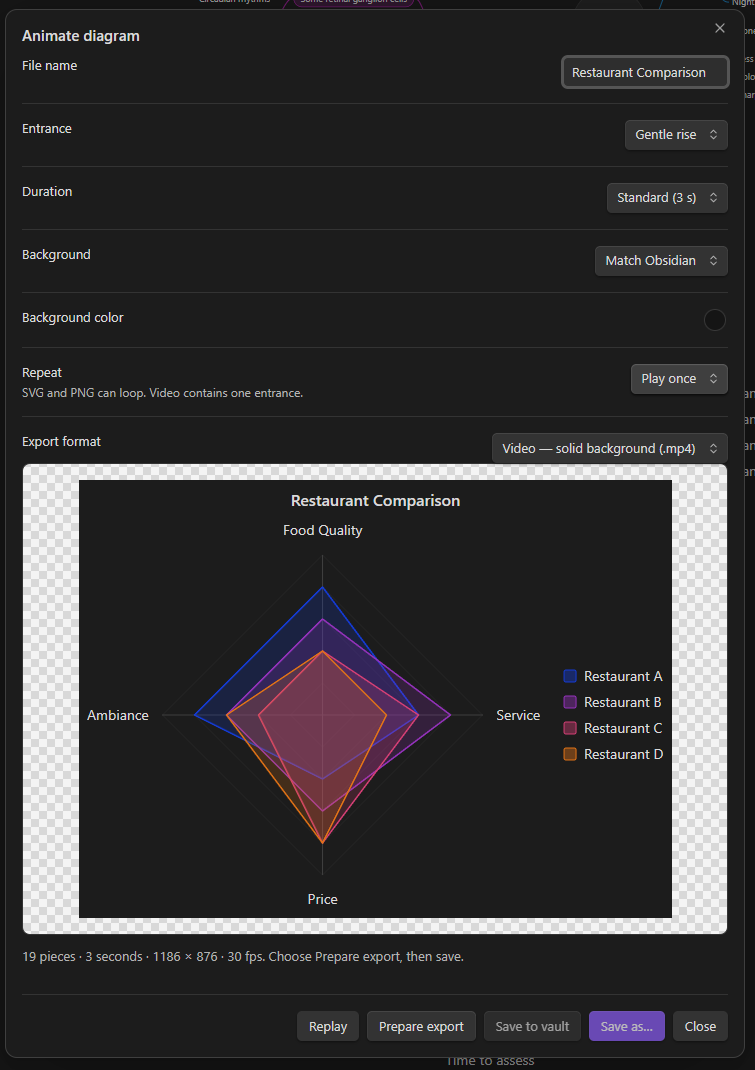
Right-click a rendered diagram and choose Animate…. On mobile, press and hold the diagram, then release. Animation uses a separate copy, preserving your note, colors, and layout. It requires an active trial or license.
Choose Gentle rise, Slide in, Spring pop, Soft fade, or Middle out. Middle out starts at a mindmap’s root and expands toward its outer nodes; other diagrams reveal from the center of their content. Titles and legends do not shift that center. The pieces start hidden and arrive in a staggered sequence, with easing or a damped spring for weight. Choose a 2, 3, 4, or 6 second duration, play once or loop, and a transparent, theme, or solid background. Replay restarts the preview. With reduced motion enabled, the preview waits for Replay.
Match Obsidian is the default background. Video is the first export option and is selected by default when the MP4 encoder is available; otherwise it is disabled and animated SVG is selected. Choose an export format, select Prepare export, then save. Desktop Save as… opens the system dialog. Android retains Save to device, Open with…, and Save to vault; iOS sharing is shown when supported for the prepared file. Closing the dialog cancels an export in progress.
- Animated SVG keeps vector detail and transparency. It uses embedded CSS animation and includes no scripts. Open it in a browser or an app that supports SVG animation.
- Animated PNG exports at 30 fps and preserves full transparency. It uses a
.pngextension; apps without animation support show the completed diagram as a still image. Large diagrams are scaled to fit the device. Export takes longer than SVG. - MP4 video is offered when the device provides a compatible encoder. It requires a solid or theme background and exports one entrance; repeat the clip in your editor if needed. Keep Obsidian visible during video export. MP4 is the option for video posts and presentations that accept video. Transparent backgrounds use animated PNG or SVG.
The preview checkerboard is not included in exported files. Animation export runs locally and does not upload your diagram. Playback and accepted file types vary by receiving app.
Color series
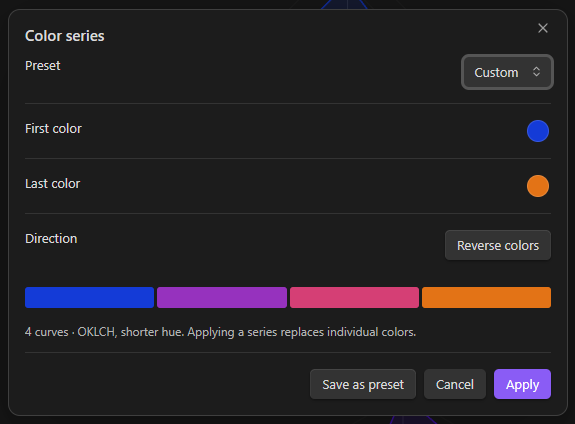
Choose Color series… from the same menu, pick a first and last color, and preview the gradient before applying it. Pele Editor spaces the colors across the elements in that series using OKLCH with the shorter hue path. When you add elements to a diagram, the series adjusts to fit.
Choose Reverse colors to swap the first and last colors. Both color controls and the preview swatches update immediately. Choose Apply to use the reversed gradient, or Save as preset to save it under a new name.
Applying a new series replaces individual color choices in that series. You can customize individual elements afterward.
Color presets
Use Save as preset in the color picker to name a single color or a pair of gradient endpoints. You can also add, edit, and delete presets under Color presets in the plugin settings. Presets are available from the Preset dropdown when styling other diagrams.
The plugin includes four starter Color Series presets:
| Preset | First color | Last color |
|---|---|---|
| Outrun | #1d90d7 | #c421bf |
| Sunset | #c21919 | #c46517 |
| Flame | #e37316 | #143bd7 |
| Iceberg | #8ebbf5 | #0c32ed |
Starter presets are added once when you install or upgrade. Existing presets are kept, including any Color Series preset with the same name. You can edit or delete the starter presets; they will not be restored on every restart. Reversing a preset in the picker changes the current gradient without changing the saved preset.
Supported diagrams
Pele Editor supports the 32 diagram types in the Pele examples, including flowcharts, timelines, sequence diagrams, Gantt charts, mindmaps, and architecture diagrams. Available color controls depend on the diagram type and the element you click.
Trial and pricing
Pele Editor requires Obsidian 1.15.0 or later on desktop or mobile. In Settings → Pele Editor, choose Start trial to try coloring, diagram customization, and image/animation export free for seven days. After the trial, a one-time purchase of $5 USD is required to continue changing diagram colors and appearance, managing presets, and exporting images and animations. Diagrams keep displaying the styles you already saved.
To purchase, choose Buy for $5 in the plugin settings. Dodo Payments emails your license key after purchase. Paste that key into License key and choose Activate.
Privacy and network use
Pele Editor stores the trial start time, presets, and license activation in your vault's plugin settings. Diagram styles are written to your notes and rendered locally. Image export runs locally. It copies the selected diagram without changing your note or uploading it. Fonts available in the app are embedded when possible; export does not download remote fonts. On desktop, the save dialog writes only to the location you choose. On Android, Save to device writes a user-requested copy into the public Documents/Pele Editor folder through the native file bridge. Older Android versions may request storage permission. Open with… writes a copy into the plugin's cache folder inside your vault and asks Android to open it in a compatible app. Copies older than 24 hours are removed when preparing a later export for another app; recent copies remain readable by receiving apps. On iOS, native sharing hands the image to the app you choose; the native bridge may keep a temporary image in the app cache. The explicit Save to vault fallback creates an image in Pele exports.
Dodo Payments handles checkout and license verification. During activation, the plugin sends your license key and the label “Pele Editor” to Dodo Payments. After activation, it sends the key and activation ID to verify access when the plugin starts and once a day while it stays enabled. A previously verified license keeps editing available if the service is temporarily unreachable. Your notes and diagrams stay in Obsidian during these checks.
Software license
The original Pele Editor code is proprietary, and the source repository is private. See LICENSE for the usage terms and the licenses of the template and bundled components.
Local development
Use Obsidian Desktop with Pele rendering. If you have access to the source repository, install dependencies and start the development build from that repository:
npm install
npm run dev
For local testing, place the generated main.js, manifest.json, and styles.css together in .obsidian/plugins/pele-editor/ inside a test vault. The stylesheet displays the Color Series swatch preview. Enable Pele Editor under Settings → Community plugins. If the plugin is already enabled, reload it after replacing the build.
For plugin developers
Search results and similarity scores are powered by semantic analysis of your plugin's README. If your plugin isn't appearing for searches you'd expect, try updating your README to clearly describe your plugin's purpose, features, and use cases.