Agile Board
pendingby a198h
Transform your markdown notes into visual boards with customizable layouts (Eisenhower matrix, SWOT analysis, Cornell notes, etc.). Organize content in editable frames synchronized with your notes.

🌍 Read this in other languages: Français | Español | Deutsch | Português | 简体中文 | Русский
Agile Board
Agile Board is a plugin for Obsidian that transforms your notes into visual boards. Each layout is based on a template (like the Eisenhower matrix) defined on a 24x24 grid. Sections appear as editable frames ("boxes"): you can write, insert tasks, Dataview/Tasks queries, etc.
Note: Content is always saved in classic Markdown under # headings, which ensures compatibility with all your notes.
🎯 Features
Transform your notes into visual dashboards with editable frames. Each frame represents a section (level 1 heading) with support for:
- Rich Markdown:
[[links]],- [ ] tasks, formatting, horizontal lines, code blocks - Smart editing: auto-continued lists, callouts, clickable checkboxes
- Plugin compatibility: Dataview, Tasks (with proper icon handling), etc.
- Live Preview: rendering close to Obsidian with enhanced markdown support
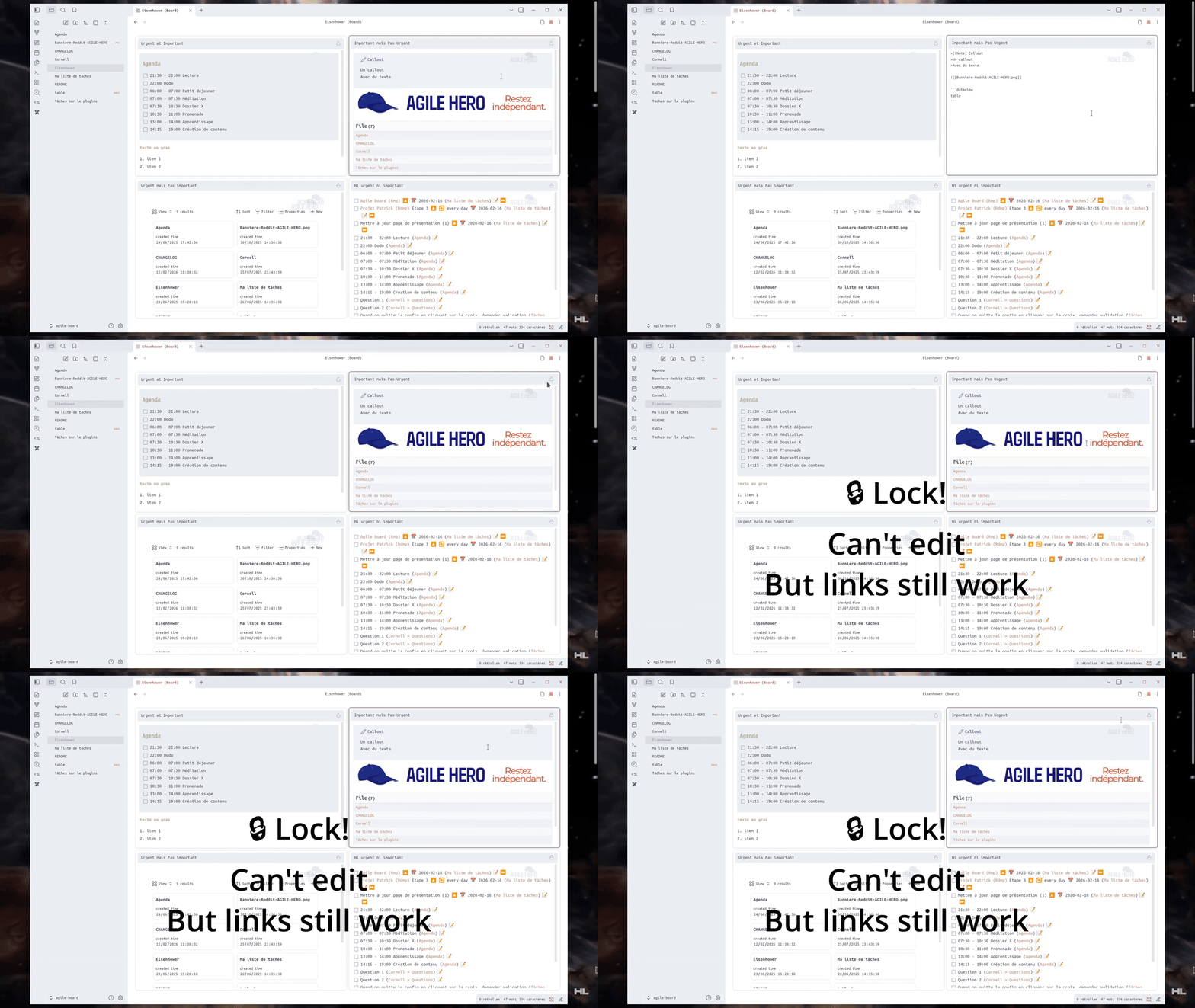
- Frame lock: Lock any frame to prevent accidental edits — links, embeds and checkboxes still work when locked
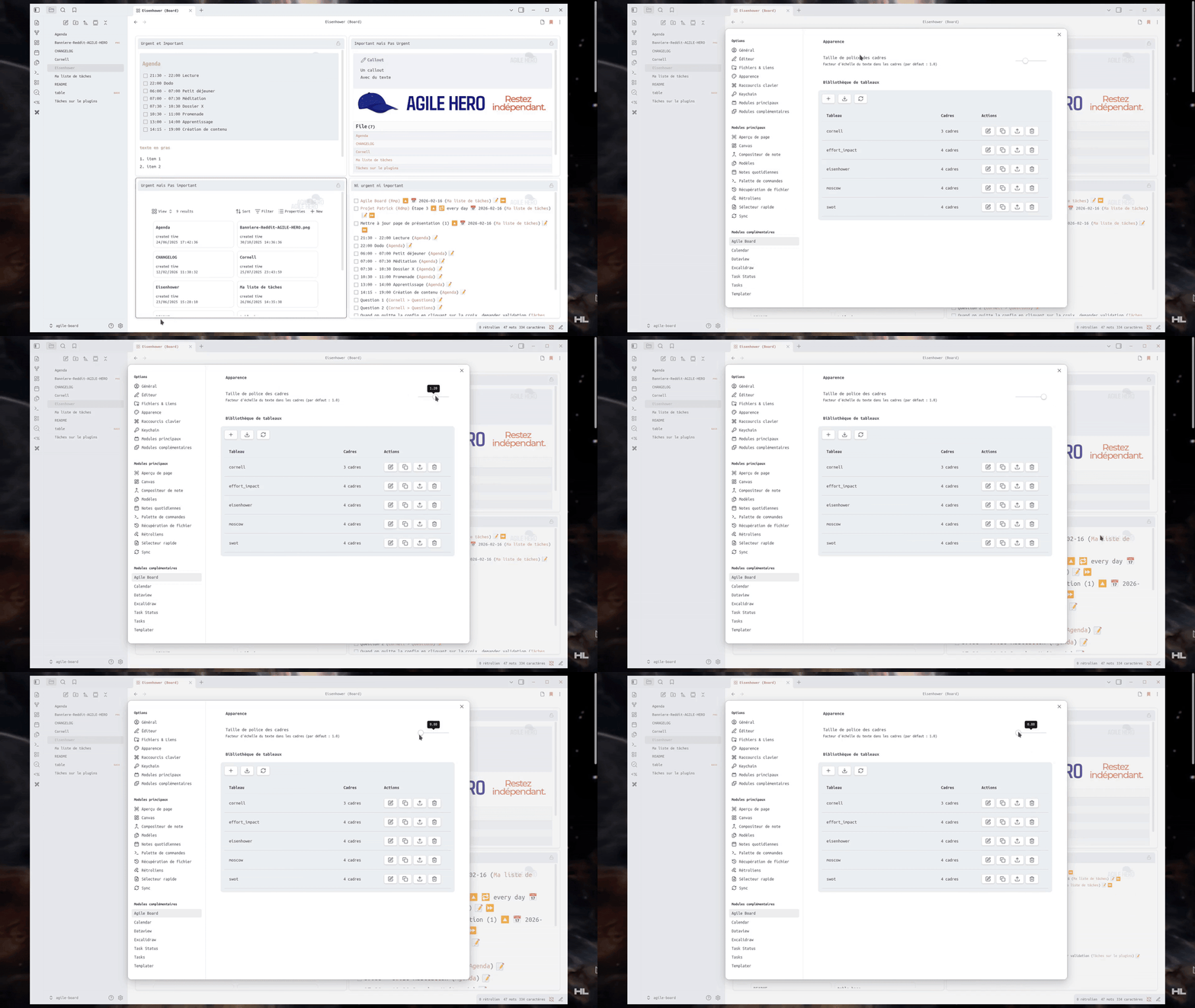
- Font size: Adjust text size across all frames (0.8× to 1.5×) from plugin settings
🌍 Multilingual Support
NEW in v0.9.0: Popout editor — double-click a frame title to edit in a separate window!
- 🇺🇸 English - reference language
- 🇫🇷 Français - traduction complète
- 🇪🇸 Español - traducción completa
- 🇩🇪 Deutsch - vollständige Übersetzung
- 🇵🇹 Português - tradução completa
- 🇨🇳 中文 (简体) - 完整翻译
The interface automatically adapts to your Obsidian language setting. All UI elements, settings, messages, and tooltips are professionally translated with 96 translation keys across all languages.
⚠️ Current Limitations
The Board mode uses CodeMirror 6 for editing but doesn't include all of Obsidian's advanced editing features:
- Link suggestions: When typing
[[, the editor won't suggest your notes (you can still type the full link manually) - Inline plugin calls: Inline Dataview queries (
= this.file.name) or Templater commands (<% tp.date.now() %>) don't execute in frames
📎 Embed Support
NEW: Embed preview is now supported in Board mode!
- Images:
![[image.png]]displays correctly in preview mode - Notes:
![[other-note.md]]renders the note content - Obsidian Bases:
![[table.base]]displays interactive database views
Persistent view selection for Bases: To persist the view selection in a base, use the fragment syntax:
![[table.base#ViewName]]
This ensures the specified view is always displayed when the note loads.
🔄 Two display modes
🏢 Board Mode: Grid of editable frames with Live Preview features
📄 Normal Mode: Classic Obsidian markdown editing
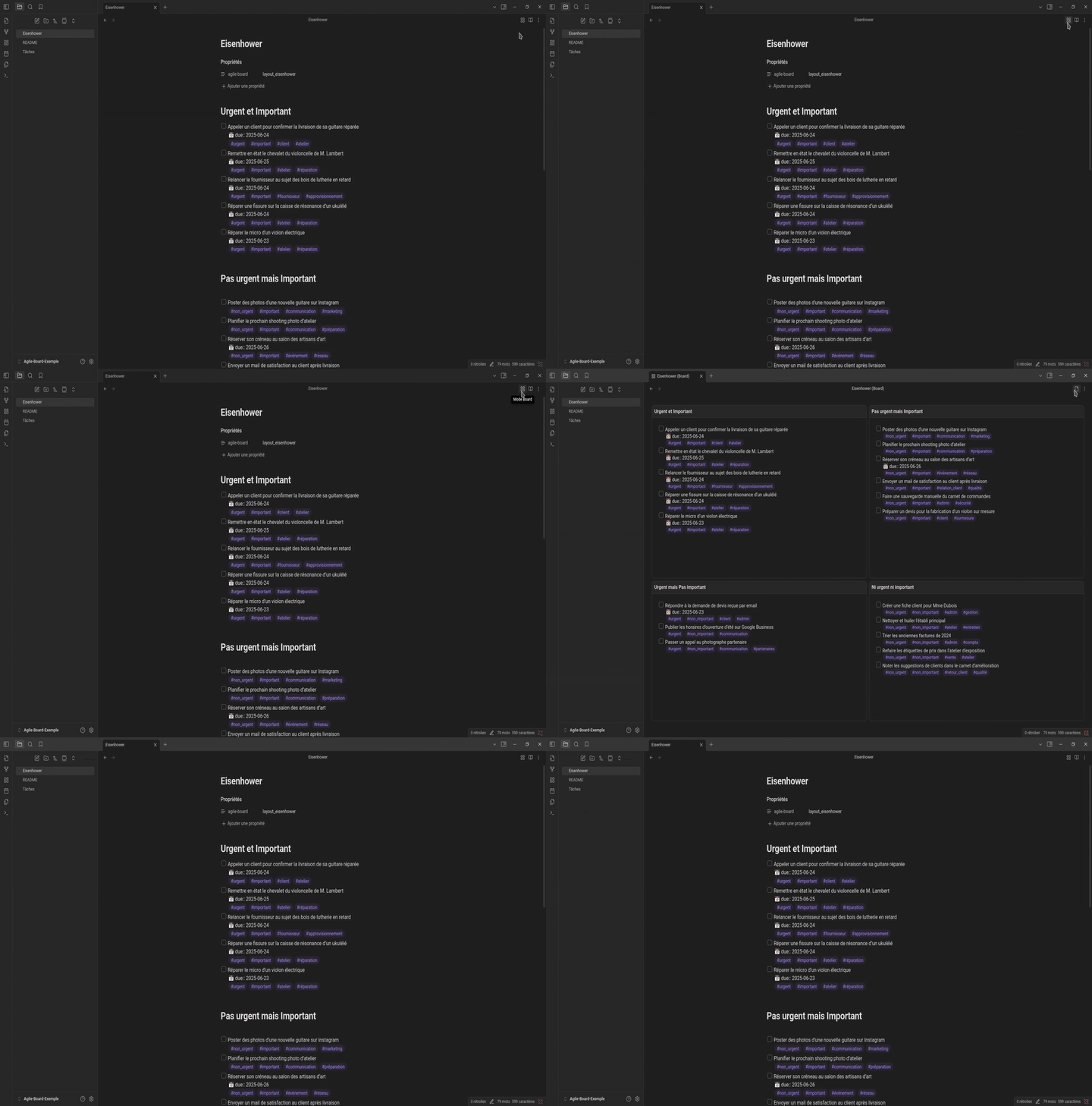
Switch between modes via the toolbar icons.
📋 Context Menu & Print
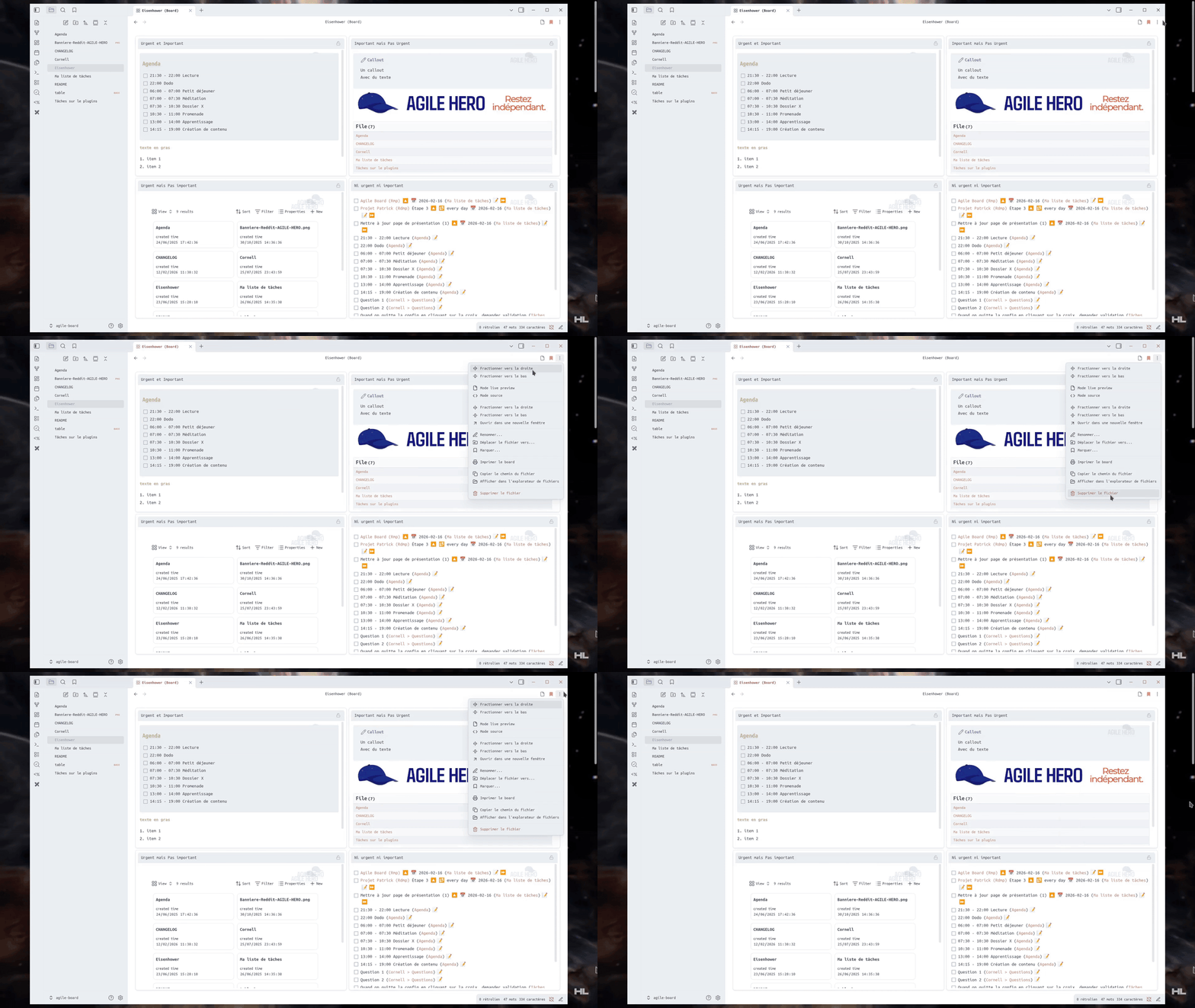
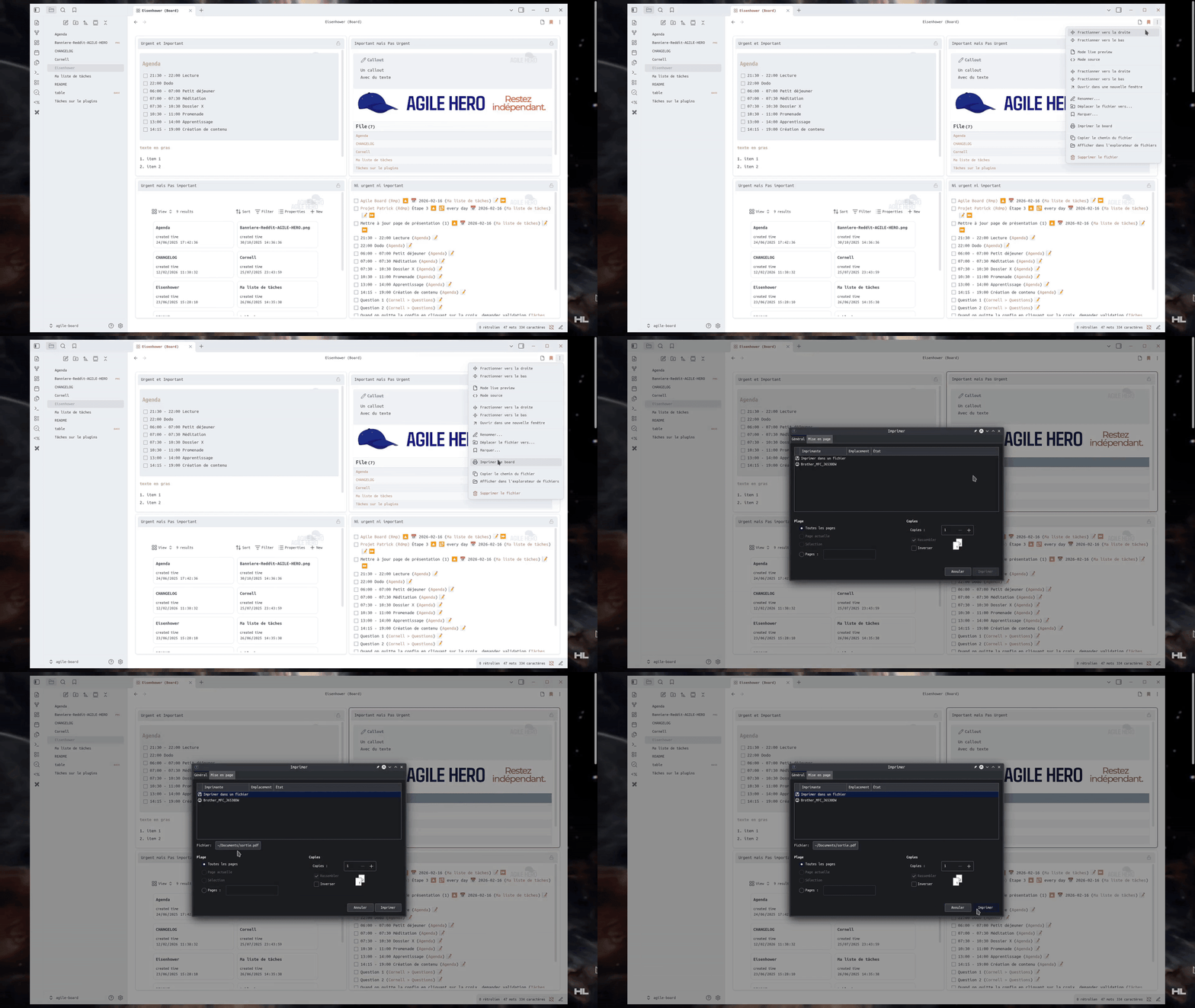
Right-click the board tab for all standard Obsidian options (split, rename, move, bookmark, etc.) and print your board layout directly.
🚀 Installation
Option 1 - BRAT (Recommended)
Install via BRAT to get automatic updates:
- Install and enable the BRAT plugin
- Add
a198h/agile-boardas a beta plugin - BRAT will automatically install and update the plugin
Option 2 - Manual Installation
- Download
main.js,manifest.jsonandstyles.cssfrom GitHub releases - Copy them to
.obsidian/plugins/agile-board/ - Restart Obsidian and enable the plugin
- 5 default layouts are included directly in the plugin
📱 Mobile
Your notes display normally on mobile as standard markdown. Agile Board is a desktop-only plugin — board layouts are only available on desktop.
📝 Usage
Configuration
To enable a layout on a note, add this line to the properties (frontmatter):
---
agile-board: eisenhower
---
Available layouts (provided by default):
eisenhower: 4-quadrant important/urgent matrixswot: Analyze a situationmoscow: Prioritize features or needs (Must/Should/Could/Won't)effort_impact: Decide which actions to take based on their effectivenesscornell: Active note-taking
The 🏢 icon appears in the toolbar. Click to switch to Board mode.
Editing
- Click on a frame → Edit mode
- Smart lists: Bullet lists and numbered lists
- Checkboxes: Click to check/uncheck, automatic sync
- Queries: Query, Dataview, Tasks
⚙️ Plugin Settings
From the Settings → Community plugins → Agile Board panel, you can manage your layouts directly from Obsidian.
📋 Layout Management
The list of available layouts appears automatically in the settings. Each layout corresponds to a .json file saved in the plugin's layouts folder (users don't need to manipulate this folder).
- Create a layout: ➕ button, enter a name.
- Edit a layout: ✏️ icon opens the visual editor.
- Duplicate a layout: 📑 icon.
- Export / Import: ⬆️ and ⬇️ icons to share or load a configuration.
- Delete a layout: 🗑️ icon.
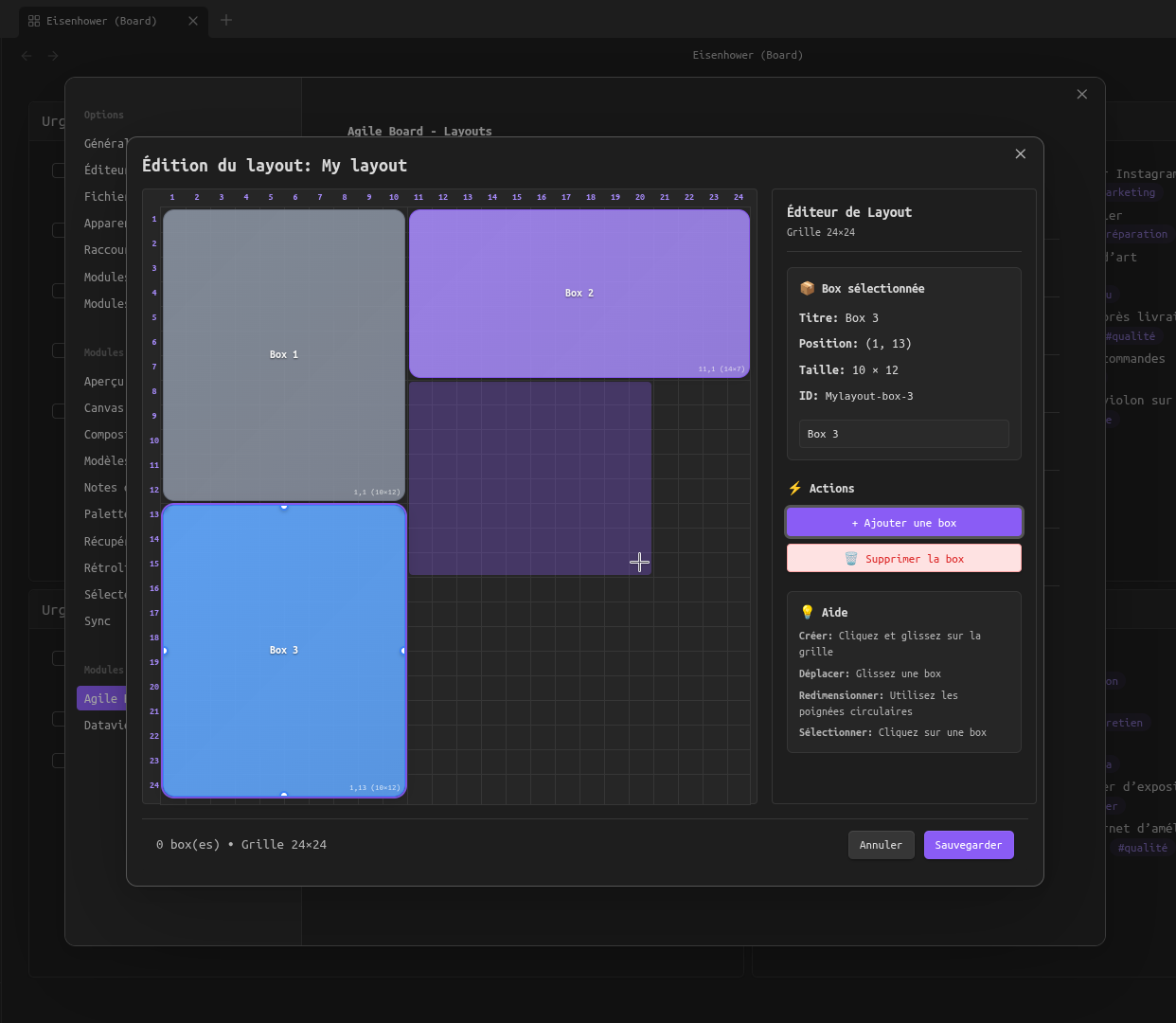
🎨 Visual Editor
The layout editor displays a 24×24 grid on which you can place boxes (frames):
- Create: click and drag on the grid.
- Move: drag a box.
- Resize: use the circular handles.
- Rename: modify the title in the side panel.
- Delete: red "🗑️" button.
- Clear All: red "🗑️ Clear all boxes" button below the help section.
Each box corresponds to a note section: a level 1 heading (line starting with #) followed by its content.
✨ Features
- Automatic synchronization: Changes in visual frames are automatically saved to the markdown file
- Automatic sections: Assisted creation of missing sections
- Plugin compatibility: Dataview, Tasks and Templater seem to work normally (report bugs!); other plugins to be verified.
💡 Inspiration
This plugin is inspired by Obsidian-Templify and builds upon the concept of transforming markdown notes into visual layouts.
📂 Your contribution matters!
- Bugs/Issues: https://github.com/a198h/agile-board/issues
- Discussions: https://github.com/a198h/agile-board/discussions/8
Support me
If you find my work useful, you can support me here:

For plugin developers
Search results and similarity scores are powered by semantic analysis of your plugin's README. If your plugin isn't appearing for searches you'd expect, try updating your README to clearly describe your plugin's purpose, features, and use cases.