Multi-Column Layout
pendingby Zheyuan (Max) Kong
Multi-column layouts with quick insert templates. Supports nested columns and rich text.
Multi-Column Layout | 中文版


✅ Magazine-style Layout | No Syntax to Memorize | Live Preview Support
✅ Multi-Column Layout | Quick Insert Templates | Custom Width Ratios
✅ Obsidian v1.5.0+ | Windows / macOS / Linux
Multi-Column Layout is an Obsidian plugin that simplifies the creation of side-by-side content using the built-in Callout syntax. It provides a convenient context menu to insert layouts instantly.
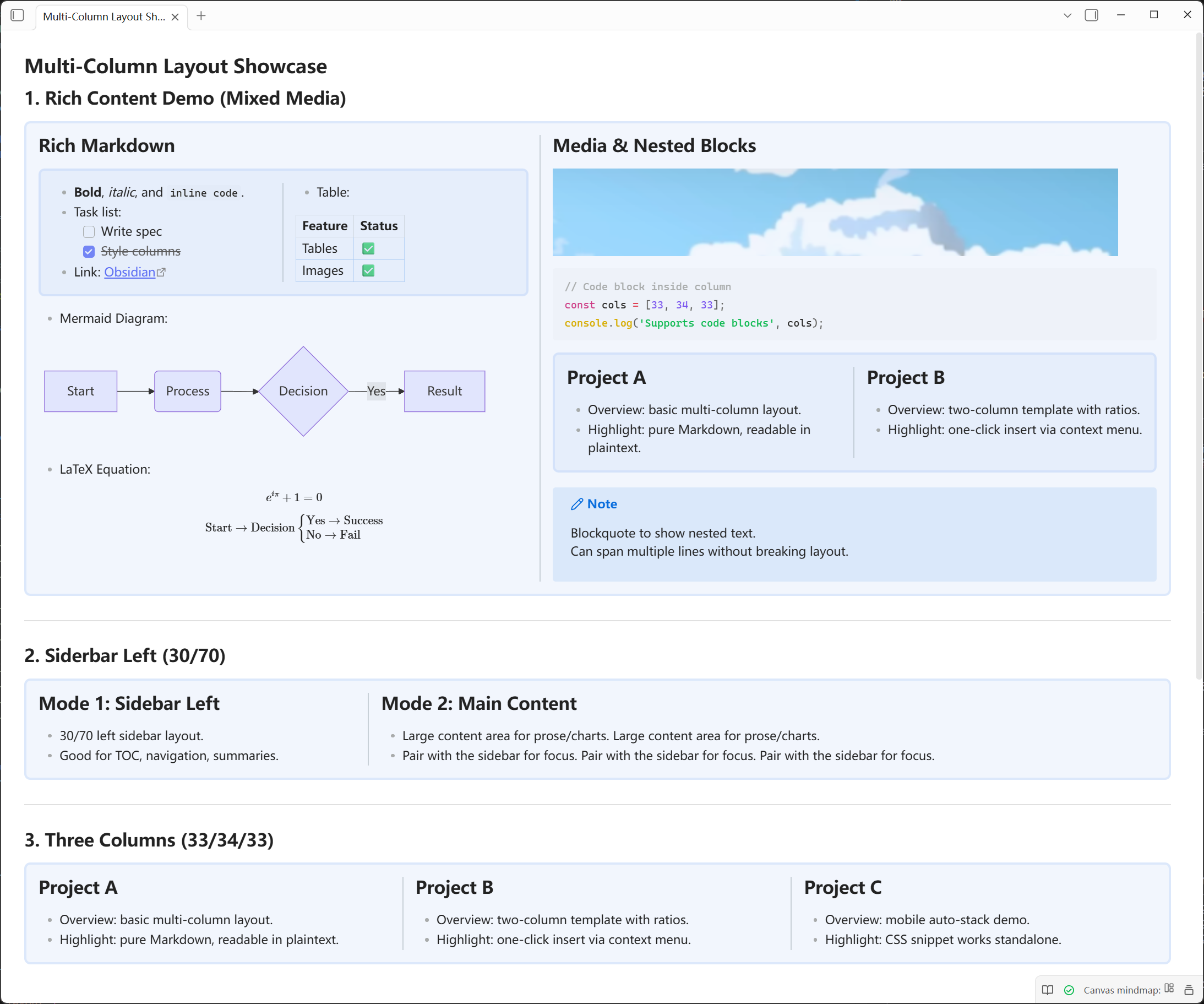
Click to view how to generate the style above using this plugin's syntax
✨ Features
| Feature | Description |
|---|---|
| 🚀 Quick Insert | Right-click menu for 2-col, 3-col, Sidebar, and Nested layouts. |
| 🎨 Visual Styling | Customize background colors, borders, and corner radius in settings. |
| 🧱 Separate Column Cards | Optional setting to render bordered columns as independent cards instead of one continuous panel. |
| 🧩 Nested Layouts | Create complex grids by nesting columns inside columns. |
| 📐 Custom Widths | Adjust column widths easily using metadata like `[!col |
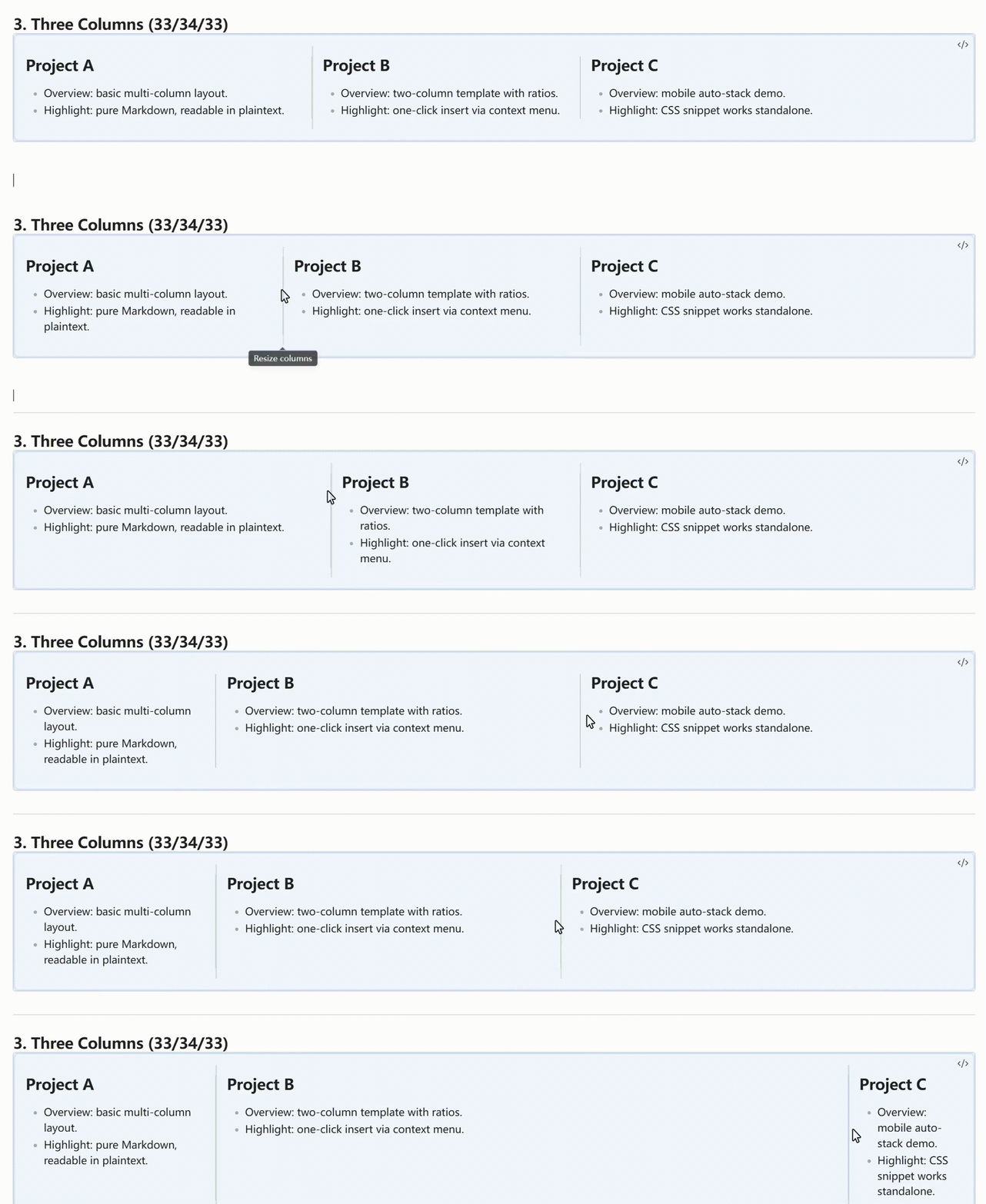
| 🖱️ Drag Resize | Drag dividers in Live Preview to resize columns and write ratios back to `[!col |
| 📺 Live Preview | See your layouts rendered instantly as you type. |
| ✍️ In-Column Editing | In Live Preview, Markdown-style empty-line exit is enabled by default; you can disable it in Settings to keep strict in-column auto-prefix behavior (>>/>>>>). |
| 🔗 Compatibility | Uses standard Markdown/Callout syntax for maximum portability. |
📥 Installation
Method 1: Using BRAT Plugin (Recommended)
This is the easiest way to install and keep the plugin updated before the official release.
- Install BRAT from the Community Plugins in Obsidian.
- Open BRAT settings and click Add Beta plugin.
- Enter the repository URL:
https://github.com/MaxMiksa/Obsidian-MultiColumn-Layout - Click Add Plugin.
Method 2: Manual Installation
- Download
main.js,manifest.json, andstyles.cssfrom the Releases page. - Create a folder named
multi-column-layoutinside.obsidian/plugins/in your vault. - Place the downloaded files into that folder.
- Reload Obsidian and enable the plugin.
Method 3: Community Plugins
The plugin has been submitted for review and is expected to be available around late January 2026. Once approved, you can search for "Multi-Column Layout" directly in the community store.
🚀 Usage Guide
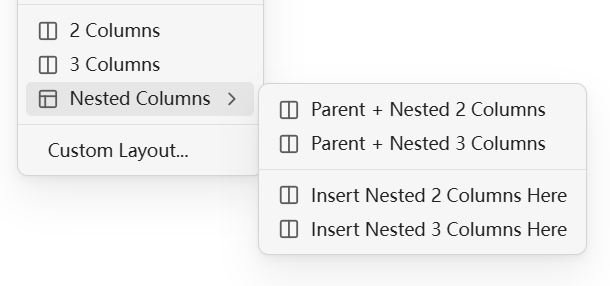
- Right-click anywhere in your editor.
- Navigate to Insert Multi-Column.
- Select your desired layout (e.g., 2 Columns, Nested Columns).
- Start typing your content inside the generated blocks!
📝 Syntax Guide
The syntax is designed to be simple and intuitive if you prefer typing it manually:
- Container: Use
> [!multi-column]to create the wrapper. - Column: Use
>> [!col]nested inside to create columns. - Widths: Add a pipe and number to define width percentage, e.g.,
>> [!col|30]. - Nested Columns: Inside a
>> [!col], use deeper>>> [!multi-column]blocks to create sub-columns.
Basic Example:
> [!multi-column]
>
>> [!col|30]
>> Left sidebar content...
>
>> [!col|70]
>> Main content area...
Nested Example:
> [!multi-column]
>
>> [!col]
>> Left Column
>
>> [!col]
>> Right Column
>>
>>> [!multi-column]
>>>
>>>> [!col]
>>>> Nested Column A
>>>
>>>> [!col]
>>>> Nested Column B
🛠️ Requirements & Technical Details
- Requires Obsidian v1.5.0 or higher.
- Uses CSS Flexbox for rendering.
- Syntax:
> [!multi-column]as container,>> [!col]as columns. - Nested Layouts use deeper nesting:
>>> [!multi-column]inside>> [!col].
💻 Developer Guide
- Clone this repo.
- Run
npm install. - Run
npm run dev(watch) ornpm run build. - Copy
main.js,manifest.json, andstyles.cssto your vault's plugin folder.
🤝 Contribution & Contact
Welcome to submit Issues and Pull Requests!
Any questions or suggestions? Please contact Zheyuan (Max) Kong (Carnegie Mellon University, Pittsburgh, PA).
Zheyuan (Max) Kong: kongzheyuan@outlook.com | zheyuank@andrew.cmu.edu
For plugin developers
Search results and similarity scores are powered by semantic analysis of your plugin's README. If your plugin isn't appearing for searches you'd expect, try updating your README to clearly describe your plugin's purpose, features, and use cases.