Resume PDF Exporter
pendingby Simeng Dai
Exports structured resume notes to one-page PDF with one click.
Resume PDF Exporter
Resume PDF Exporter is a desktop-only Obsidian plugin for people who keep job-application resumes as markdown notes and want a reliable, one-click PDF export workflow inside their vault.
Instead of relying on generic markdown-to-PDF output, the plugin uses a resume-specific renderer with controlled typography, spacing, and section hierarchy. The renderer automatically adjusts scale so the resume stays on a single page whenever it can fit safely.
Features
- One-click export from the status bar, file menu, or command palette
- One-page PDF output with automatic scale adjustment to fit dense resumes
- Status bar one-click button
- File menu action on markdown files
- Command palette command
- Resume-specific markdown parsing and validation
- Same-folder or fixed-folder PDF output
- Optional open-after-export behavior
- External renderer path configuration
Why This Plugin Exists
- Resume notes often need more control than general markdown export.
- A resume should stay compact, readable, and ATS-friendly.
- This plugin keeps the export flow inside Obsidian so you can edit and generate the final PDF without switching tools.
Screenshots
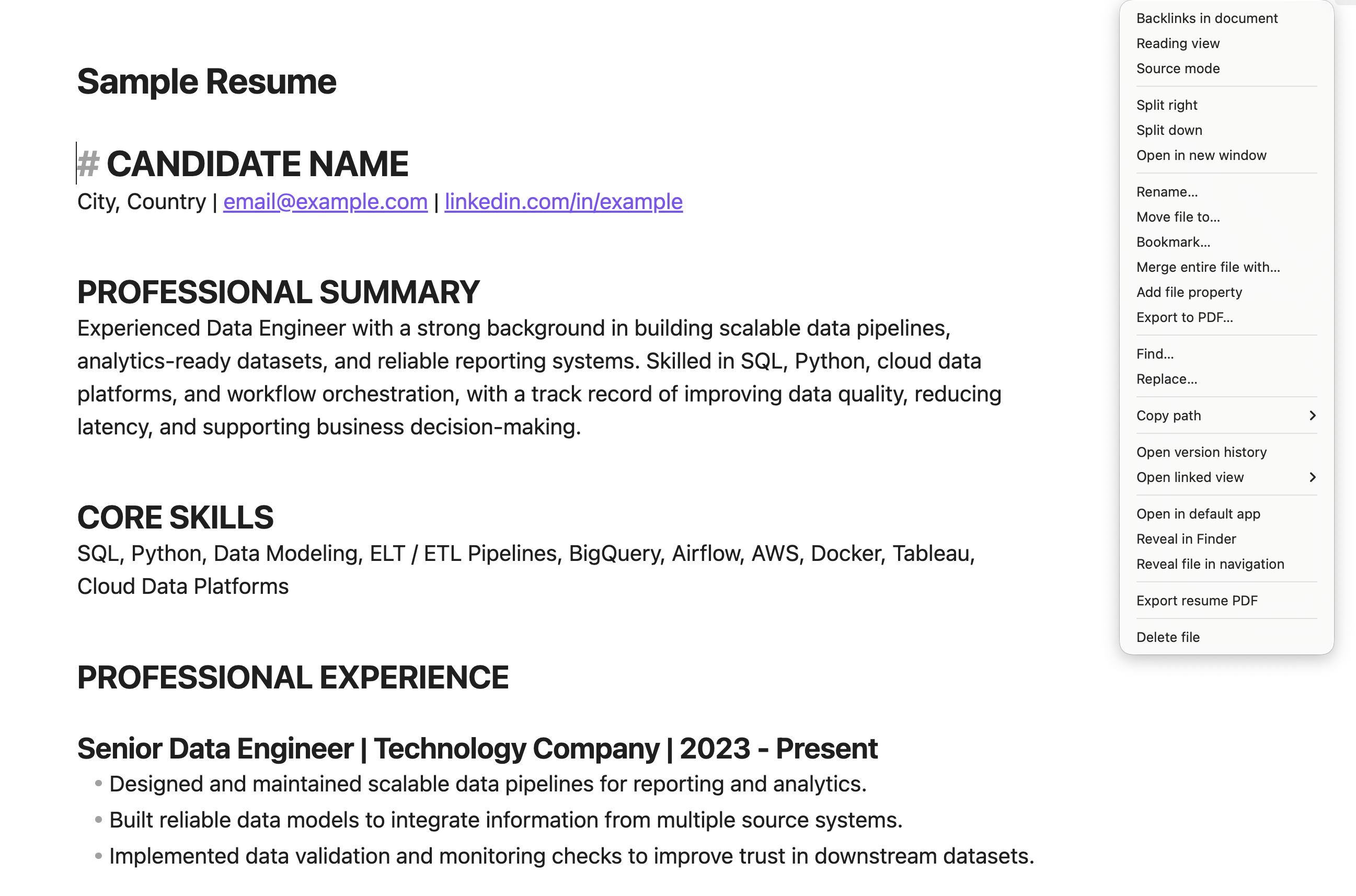
Export from the file menu
Export a resume PDF directly from the Obsidian file menu.
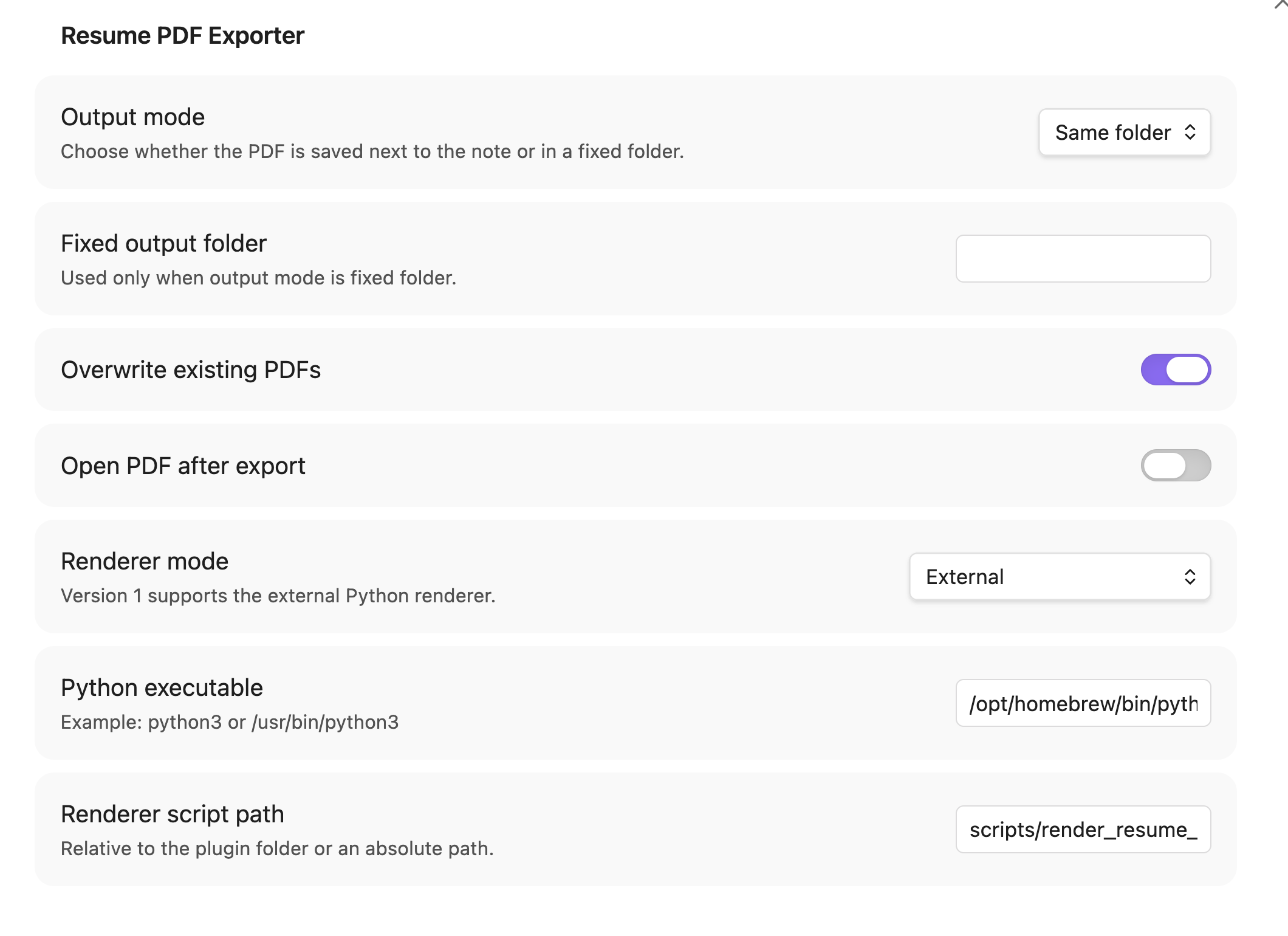
Plugin settings
Configure the Python executable, output mode, overwrite behavior, and renderer settings.
Exported PDF result
The plugin generates a one-page PDF version of the current resume note.

Additional recommended screenshots for later:
docs/images/status-bar-button.png- Show the visible one-click export button in the status bar.
Requirements
- Obsidian Desktop
- Python 3
reportlabinstalled in the selected Python environment
Resume Format
# NAME- first non-empty line after the title is the contact line
##sections###role headings-bullets
How It Fits On One Page
- The renderer uses fixed resume styling and then automatically adjusts font sizes and spacing scale to keep the output on one page.
- If the content can be fit safely, the plugin will shrink the layout until it fits.
- If the content is too long to fit even after scaling, the export fails explicitly instead of generating a broken multi-page layout.
Usage
- Open a resume note in Obsidian.
- Click the status bar button, use the file menu, or run
Resume: Convert current note to PDF. - The plugin writes a PDF next to the note by default.
- The PDF is rendered to stay on one page, with the size adjusted automatically when needed.
Installation
Manual installation
- Download the latest release assets:
main.jsmanifest.jsonstyles.css
- Create a folder named
resume-pdf-exporterin your vault under.obsidian/plugins/. - Copy the release assets into that folder.
- Enable the plugin under
Settings -> Community plugins.
Python requirement
- Configure the plugin to use a Python interpreter that already has
reportlabinstalled. - The plugin writes its bundled renderer helper into the installed plugin folder automatically on first use, so no extra manual file copy is required.
- On this project’s reference setup,
/opt/homebrew/bin/python3is used.
Sample Files
Development
npm install
npm run build
npm test
Community Submission
See docs/community-submission.md for the exact release and review checklist used for the Obsidian community plugin directory.
Additional publishing docs:
Notes
- Version 1 uses a bundled Python helper that is written into the installed plugin folder automatically.
- The plugin is intentionally scoped to resume notes, not general markdown export.
For plugin developers
Search results and similarity scores are powered by semantic analysis of your plugin's README. If your plugin isn't appearing for searches you'd expect, try updating your README to clearly describe your plugin's purpose, features, and use cases.