DocScribe
pendingby Colin Klich
Generate notes from PPTX and PDF files using LLMs.
DocScribe for Obsidian
DocScribe is an intelligent assistant for Obsidian that helps you create notes from your documents. It's powered by a variety of Large Language Models and is designed to streamline your note-taking process, starting with PowerPoint files.
How to Use DocScribe
Getting started with DocScribe is a simple process.
1. Install and Configure
First, you need to install DocScribe from the Obsidian Community Plugins browser. Once installed, you'll need to configure it to use your preferred Large Language Model (LLM).
- Go to Settings > Community Plugins and find DocScribe.
- Enable the plugin.
- Go to the DocScribe settings tab.
- Select your LLM provider (e.g., OpenAI, Google Gemini, Anthropic).
- Enter your API key.
2. Generate Notes from a PowerPoint
Once you have DocScribe configured, you can start generating notes from your .pptx files.
There are two ways to do this:
-
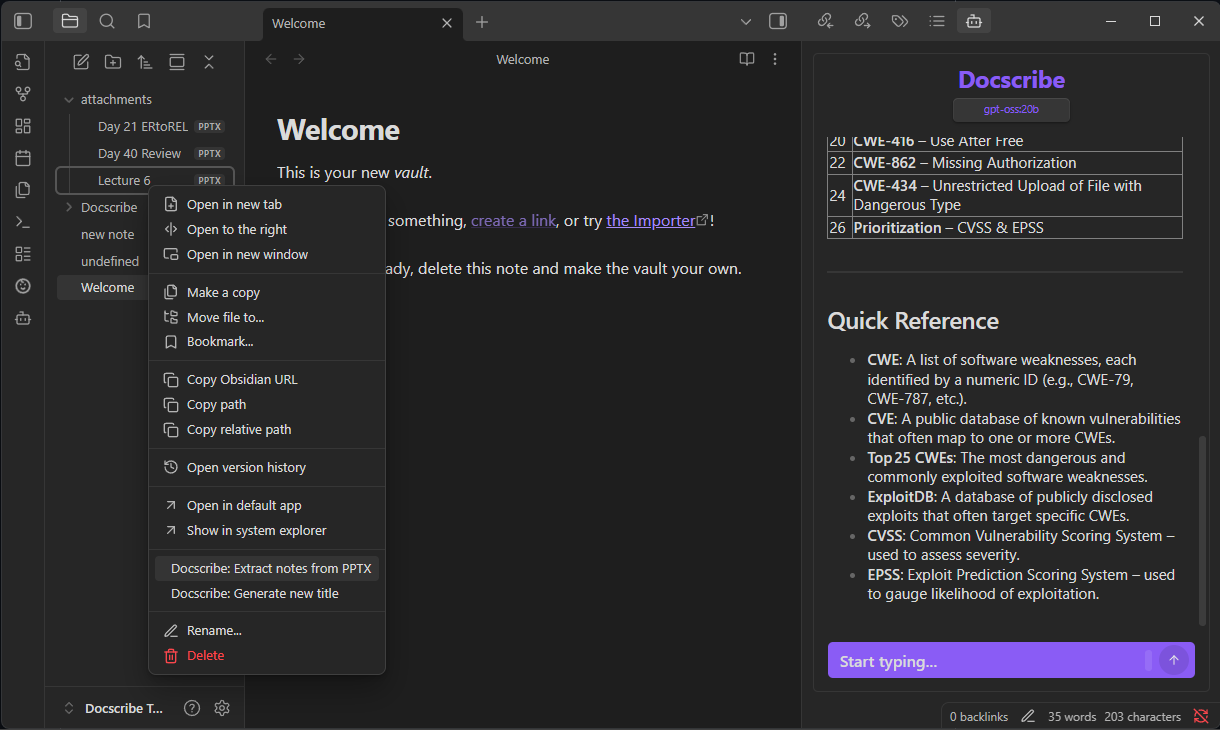
Command Menu: Right-click on a
.pptxfile in the file explorer and select "Generate Notes from PowerPoint". -
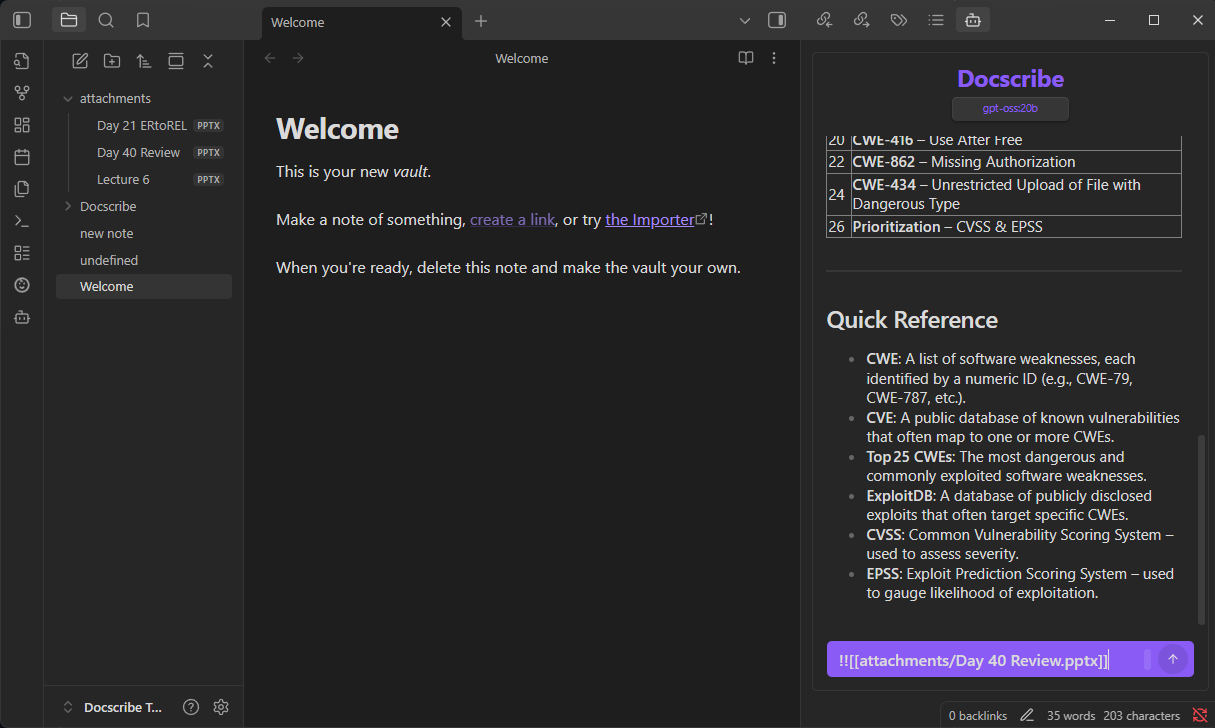
In-Chat Command: In any chat window, you can use the following command to generate notes from a PowerPoint file:
!![[path/to/your/file.pptx]]Replace
path/to/your/file.pptxwith the relative path to your PowerPoint file.
DocScribe will then extract the text from the PowerPoint, send it to the LLM, and display the generated notes in the chat window.
Default Prompt
DocScribe uses a specific prompt to instruct the LLM on how to process the extracted text. You can customize this prompt using the /prompt command, but the default is designed to produce high-quality, structured notes.
The prompt is:
You are an expert technical writer helping produce structured, concise, high-quality notes.

You are given raw text extracted from slides or a PDF. Clean it up and produce
notes that are readable, logically ordered, and formatted in Markdown.

### Your goals:
1) Present information clearly.
2) Structure sections logically (Headings, bullet points, subpoints).
3) Remove duplicate text, slide numbers, watermarks, page artifacts, and formatting junk.
4) Expand slide bullets into readable sentences **only when needed for clarity**.
5) Preserve key terminology, definitions, formulas, and examples.
6) If text is fragmented, reorganize it logically.

### Output Requirements:
- Use Markdown headings: `#`, `##`, `###`, `####`
- Use bullet lists when appropriate
- Use numbered lists for sequences or steps
- Include key takeaways in bold
- Include formulas in fenced code blocks
- Use tables when applicable
- Include short examples when helpful
- Include diagrams as text (e.g., "Flow → Request → Processing → Output")
This prompt is concatenated with the text extracted from your document before being sent to the LLM.
Upcoming Features
We are constantly working to improve DocScribe. Here's what's coming soon:
- PDF Support: We are actively working on adding support for
.pdffiles. This feature is available starting in v1.1.0
Screenshots
Chat Command:
Command Menu:
Core Features
- Wide LLM Support: Connect to models from Ollama, OpenAI, Google Gemini, Anthropic, Mistral, and any OpenAI-compatible REST API.
- Editor Integration: Generate ideas, draft content, and rewrite text directly within the Obsidian editor.
- Full Markdown Support: Chat messages are rendered in Obsidian's Markdown, including code blocks, links, and more.
Available Commands
/help- Show help commands./model- List or change model./profile- List or change profiles./prompt- List or change prompts./maxtokens [VALUE]- Set max tokens for the response./temp [VALUE]- Change the temperature (creativity) of the response./ref on | off- Toggle referencing the current note in your conversation./append- Append the current chat history to the active note./save- Save the current chat history to a new note./load- List and load a previous chat history./clearor/c- Clear the current chat history./stopor/s- Stop the model from generating a response.
Contributing
Contributions are welcome! If you have a bug fix or an improvement, please feel free to open a pull request. For bugs or feature requests, please create an issue on the GitHub repository.
Original Source Code
This plugin was originally forked from BMO Chatbot. This project is not intended to be a copy of BMO Chatbot. Instead, BMO is the base with which we will build a new tool, one that accomplishes a similar, yet different function.
License
This project is licensed under the MIT License. See the LICENSE file for details.
For plugin developers
Search results and similarity scores are powered by semantic analysis of your plugin's README. If your plugin isn't appearing for searches you'd expect, try updating your README to clearly describe your plugin's purpose, features, and use cases.