Smart Tabs (VS Code Style)
pendingby Migi
Replicates VS Code tab behavior: Preview tabs, auto-locking on edit, and smart tab reuse to prevent tab clutter.
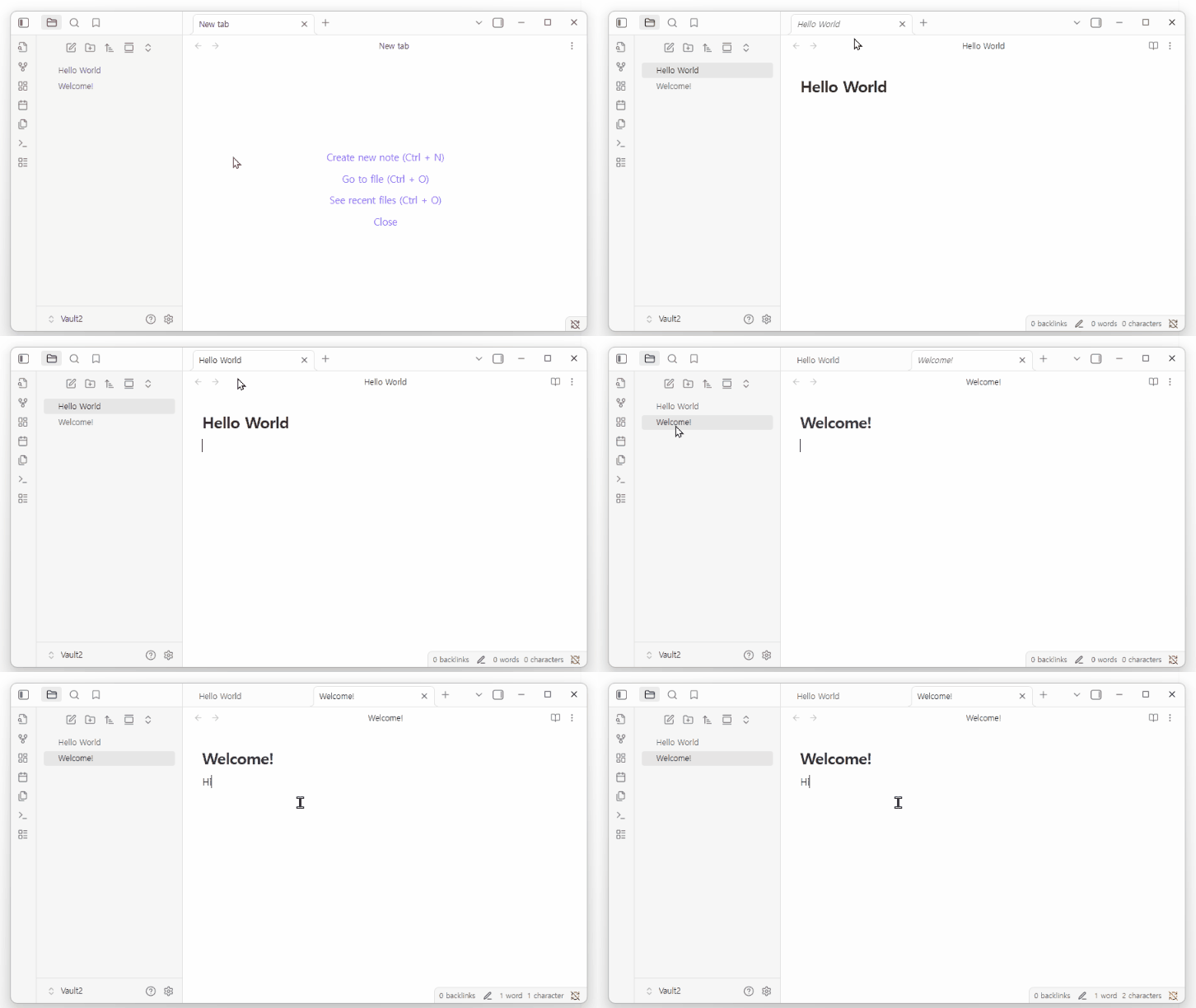
Smart Tabs (VS Code Style)
Stop tab clutter. Browse notes like an IDE — with panel-isolated preview tabs.
Smart Tabs is an Obsidian plugin that replicates VS Code-style tab behavior:
- Single click opens a note in a temporary Preview tab (italic title)
- Double click opens a Permanent tab
- Preview auto-locks on edit, rename, or double-click
- Each panel manages its own preview tab independently
Features
Preview Tabs (per panel)
- Single-click a file to open it in a Preview tab (shown with italic title).
- Each panel (tab group) keeps exactly one preview tab.
- Browsing files replaces the preview tab instead of creating new tabs.
Auto-Lock (Promote to Permanent)
A preview tab becomes permanent when you:
- Start editing the note body
- Edit the inline title (300ms debounce)
- Rename the file
- Double-click the tab header or sidebar item
- Edit a Canvas (add/move/delete nodes or edges)
Double-Click = Permanent Tab
- Double-clicking a file in the File Explorer, Bookmarks, or Search opens it as a permanent tab.
- If a preview of the same file exists, it gets promoted instead of creating a duplicate.
Smart Reuse & Duplicate Prevention
- If the file is already open in the same panel, clicking it again focuses the existing tab.
- This is panel-isolated — no cross-panel jumping.
Supported Sources
All of these follow the same Preview/Permanent pattern:
- File Explorer, Quick Switcher (Ctrl+O), Bookmarks, Search
- Graph View nodes, Wiki-links, Backlinks, Outgoing Links
- Random Note, Canvas, PDF
New Note Creation
New notes (Ctrl+N, ribbon button, right-click, Daily Notes, Unique Note Creator) always open as permanent tabs with title editing mode.
Modifier Key
- Ctrl/Cmd + Click forces a new permanent tab, regardless of existing tabs.
Compatibility
This plugin uses Obsidian workspace internals (monkey-patching openFile, setViewState, detach) on a best-effort basis. If Obsidian changes internal APIs:
- Core behavior will continue to work in most cases
- Tab placement or italic styling may degrade
Known Limitations
- PDF: Read-only, so no automatic promotion. Use tab header double-click to manually promote.
- Recent Files: Requires a separate plugin (Recent Files), not tested.
- Canvas viewport changes (pan/zoom): Do not trigger promotion (by design — only content edits do).
Contributing
Contributions are welcome! If you find a bug or have a feature request, please open an issue.
Contact & Support
License
MIT License
For plugin developers
Search results and similarity scores are powered by semantic analysis of your plugin's README. If your plugin isn't appearing for searches you'd expect, try updating your README to clearly describe your plugin's purpose, features, and use cases.