X Bookmarks Sync
pendingby Fei Hu
Save your X (Twitter) bookmarks as structured Markdown notes, with selective import, incremental sync, and no API key needed.
X Bookmarks Sync — Obsidian Plugin
Sync your X (Twitter) bookmarks directly into your Obsidian vault as clean, structured Markdown notes. No API key. No OAuth. Just your existing browser session.
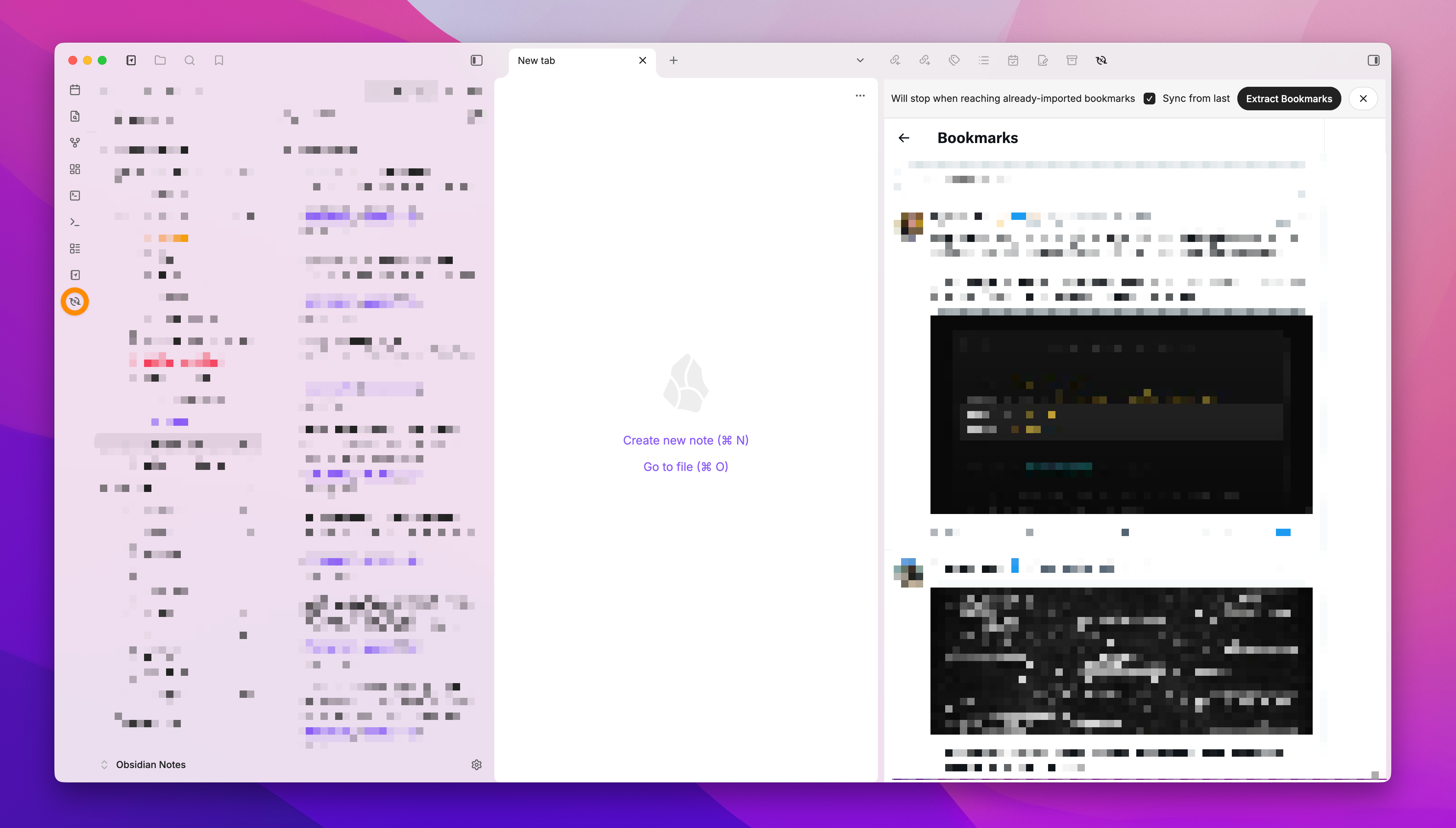
Features
- No API key required — works by scraping the loaded page via an embedded webview; piggybacks on your existing X session
- Selective import — choose exactly which bookmarks to save from a checklist modal
- Incremental sync — "Sync from last" mode scrolls only until it reaches already-imported bookmarks, so large libraries stay fast
- Duplicate detection — already-imported bookmarks are grayed out and skipped automatically
- Configurable folder & tags — set where notes land and what tags are applied in plugin settings
- Structured Markdown notes — each bookmark is saved with YAML frontmatter (id, author, url, tags, date)
- Deep-link back — each note includes an
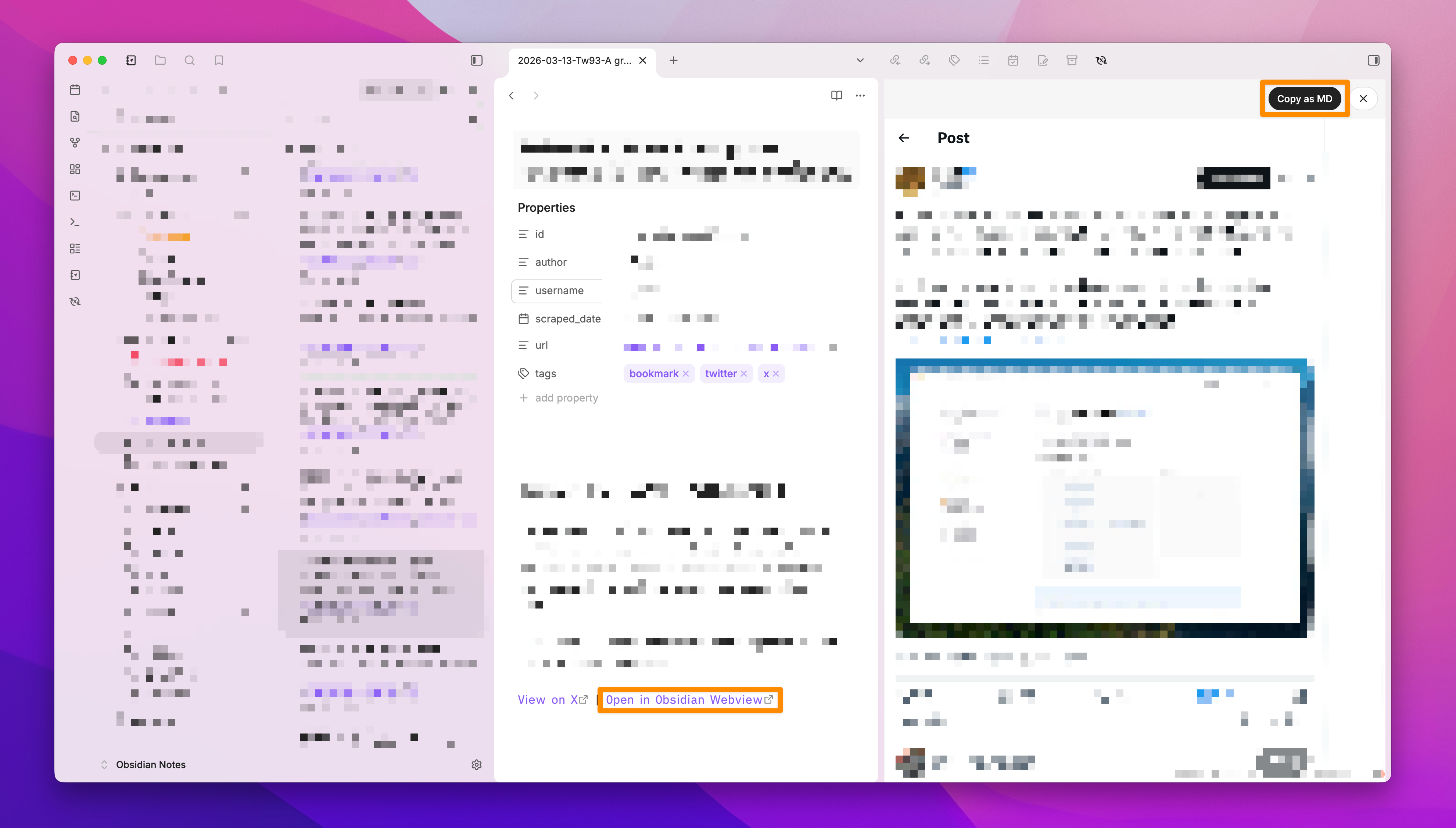
obsidian://link to re-open the tweet in the webview - Copy as Markdown — while viewing any tweet or article in the webview, extract and copy its content as Markdown (powered by Defuddle), useful when you bookmarked an X article
Desktop only. This plugin uses Electron's
<webview>tag, which is not available in Obsidian mobile.
Installation
Via BRAT (recommended for early access)
- Install the BRAT plugin from the Obsidian community plugins list.
- In BRAT settings, click Add Beta Plugin and enter:
hfknight/x-bookmarks-sync - Enable X Bookmarks Sync in Settings → Community Plugins.
Manual
- Download the latest
x-bookmarks-sync.zipfrom the Releases page. - Extract the zip — you'll get
main.jsandmanifest.json. - In your vault, navigate to
.obsidian/plugins/(create the folder if it doesn't exist). - Create a new subfolder named
x-bookmarks-sync. - Place
main.jsandmanifest.jsoninside it. - Restart Obsidian, then go to Settings → Community Plugins and enable X Bookmarks Sync.
From source
git clone https://github.com/hfknight/x-bookmarks-sync
cd x-bookmarks-sync
npm install
npm run build:plugin
Copy obsidian-plugin/main.js and obsidian-plugin/manifest.json into .obsidian/plugins/x-bookmarks-sync/ in your vault.
Usage
Syncing bookmarks
- Click the X Bookmarks Sync icon in the Obsidian ribbon (or run the command Open X Bookmarks View).
- A side panel opens with X.com loaded. Log in to your account if prompted.
- Navigate to your Bookmarks page.
- Click Extract Bookmarks in the panel toolbar. The plugin will automatically scroll through your bookmarks to collect them.
- A selection modal appears listing all visible bookmarks. New ones are pre-checked; already-imported ones are grayed out.
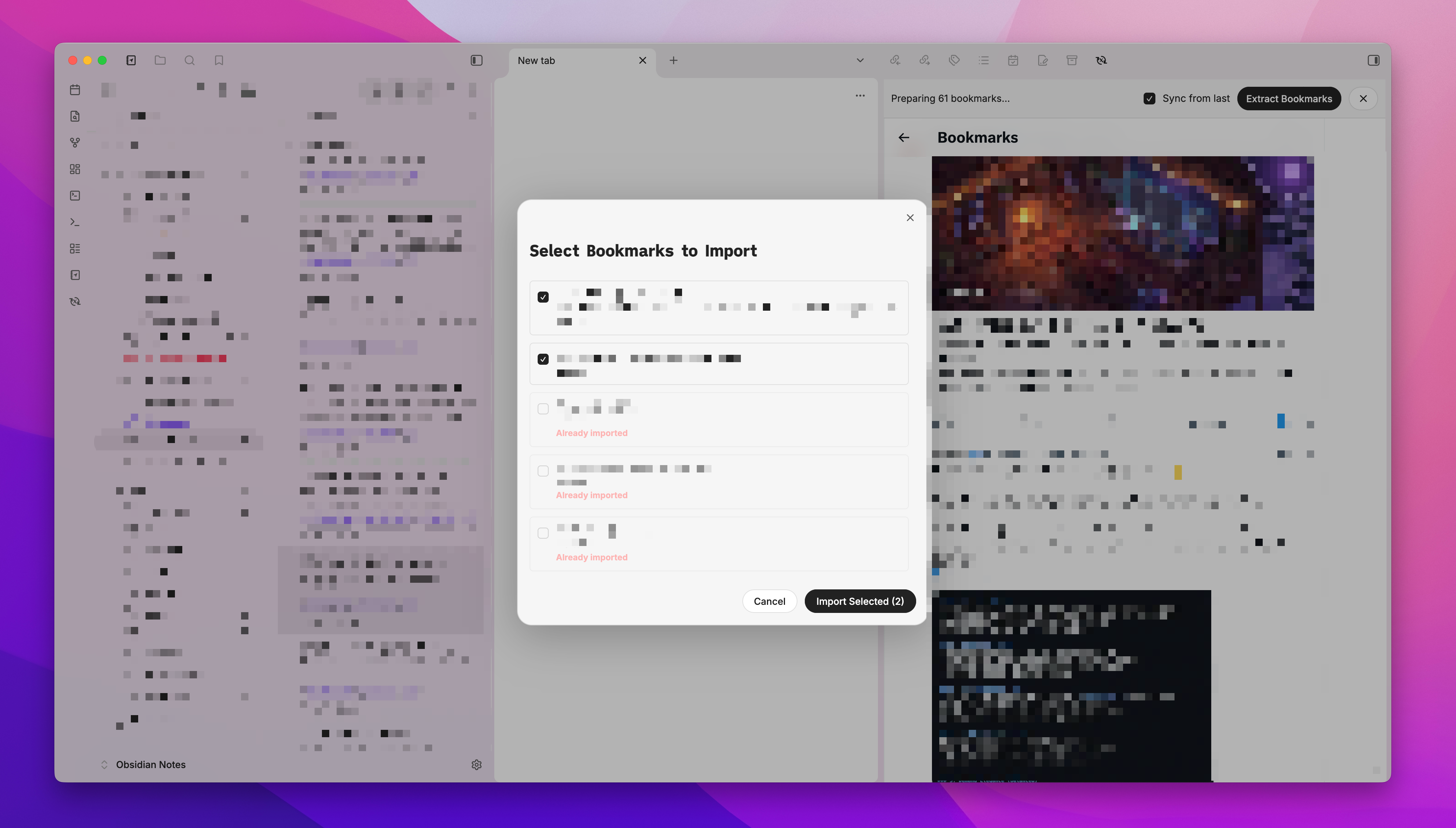
- Check or uncheck as needed, then click Import Selected.
- Notes appear in your configured bookmarks folder (default:
x-bookmarks/).
Sync from last (incremental mode)
Check Sync from last in the toolbar before clicking Extract Bookmarks. The plugin will automatically stop scrolling once it encounters a bookmark that has already been imported — ideal for regular top-up syncs without traversing your entire history.
First sync: The checkbox is unchecked by default until you have completed at least one full sync. This ensures your entire bookmark history is captured on the first run.
Copy as Markdown
While browsing any page in the webview, click Copy as MD to extract and copy the content as Markdown to your clipboard.
This is especially handy when a bookmark links to an article or long-form post. Use the Open in Obsidian Webview link at the bottom of a saved note to open the linked page, then click Copy as MD to capture the full article content. Paste it directly into your note in Obsidian for a complete, annotatable record.
Settings
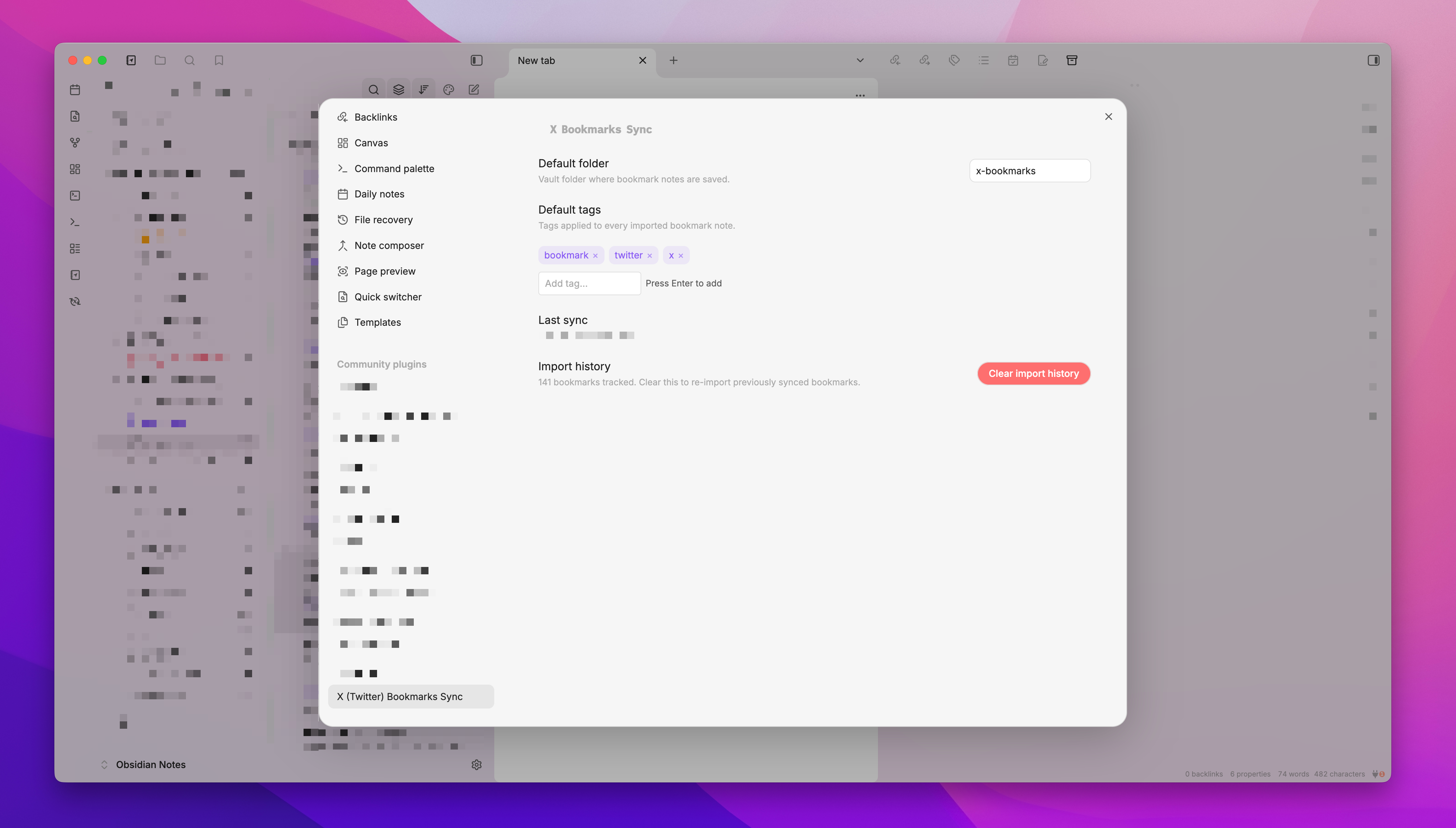
Open Settings → X Bookmarks Sync to configure:
| Setting | Description | Default |
|---|---|---|
| Default folder | Vault folder where bookmark notes are saved | x-bookmarks |
| Default tags | Tags applied to every imported note (chip UI — press Enter to add) | twitter, bookmark |
| Last sync | Timestamp of the most recent successful import (read-only) | — |
| Clear import history | Removes all tracked import IDs, allowing previously imported bookmarks to be re-imported | — |
Note on Clear import history: This resets all record of previously imported bookmarks. On the next sync, everything will be treated as new. Use this if you want to start fresh or re-import after cleaning up your vault.
Note Format
Each saved bookmark becomes a Markdown file with this structure:
---
id: "1234567890"
author: "Display Name"
username: "@handle"
scraped_date: 2024-01-15
url: "https://x.com/handle/status/1234567890"
tags: [twitter, bookmark]
---

# Tweet by Display Name (@handle)

The full text of the tweet goes here...

[View on X](https://x.com/...) | [Open in Obsidian Webview](obsidian://x-bookmarks?url=...)
File naming: {folder}/{YYYY-MM-DD}-{author}-{first 40 chars of tweet}.md
Limitations
- Desktop only — requires Electron's
<webview>tag, not available in Obsidian mobile. - Subject to X.com DOM changes — if X changes their markup, the scraper selectors may need updating.
- Deleted notes are not re-synced automatically — if you delete a note from your vault, it won't be re-imported unless you clear the import history. As a workaround, delete all notes in your bookmarks folder, go to Settings → X Bookmarks Sync → Clear import history, then run a full sync. (A smarter per-note re-sync is planned.)
License
MIT
For plugin developers
Search results and similarity scores are powered by semantic analysis of your plugin's README. If your plugin isn't appearing for searches you'd expect, try updating your README to clearly describe your plugin's purpose, features, and use cases.