X-Bookmarks
pendingby teddy0605
Sync your X (Twitter) bookmarks into your vault as markdown notes, with AI-powered tagging via local LLMs.
X Bookmarks for Obsidian
Sync your X (Twitter) bookmarks into your Obsidian vault as individual Markdown notes — with AI-powered tagging via local LLMs (LM Studio, llama.cpp).
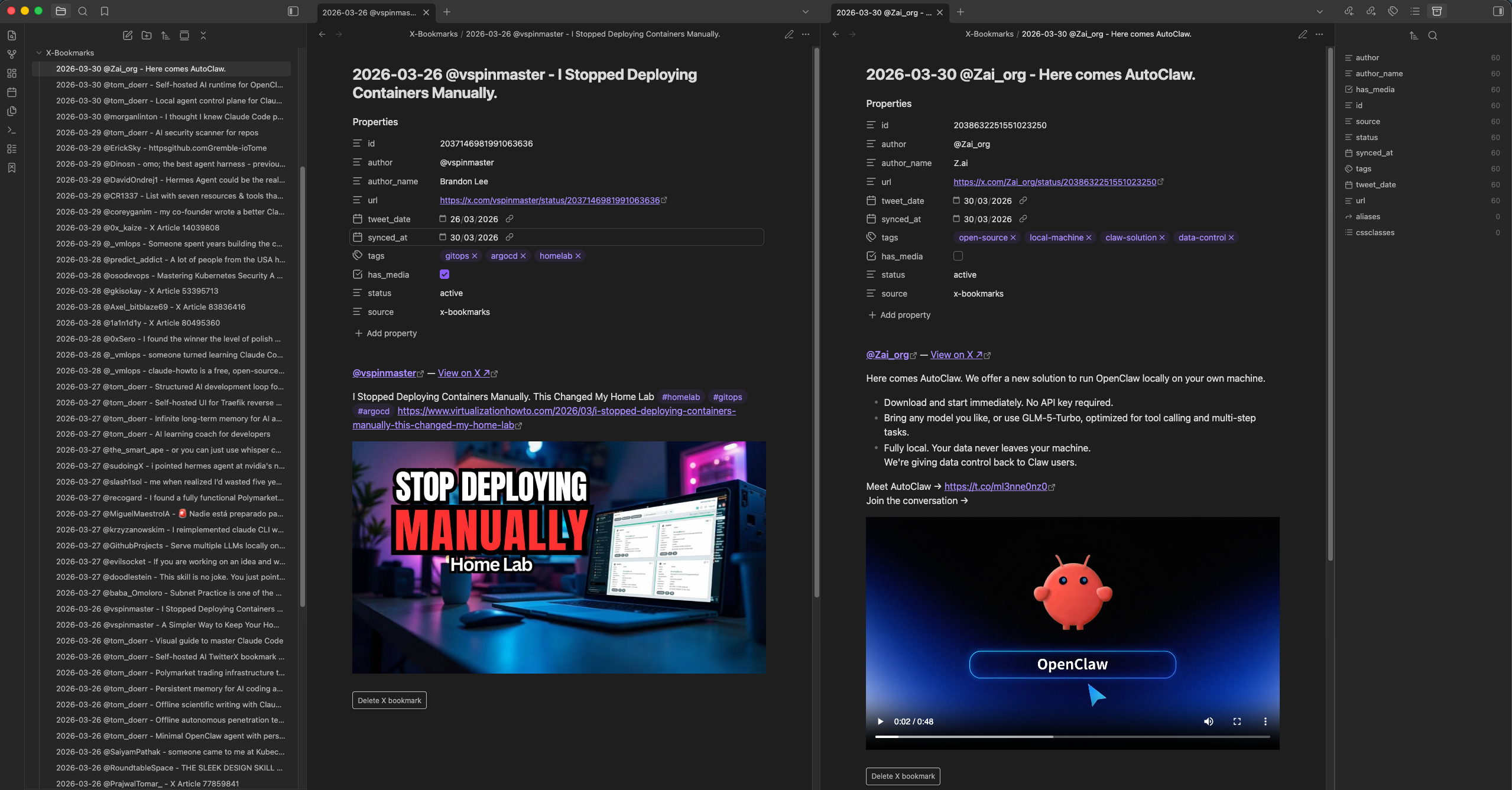
Features
- Incremental sync — only imports new bookmarks each run; picks up where it left off
- Delete from Obsidian — remove a bookmark from X via inline button or command palette, note is archived automatically
- AI tagging — auto-tag topics using LM Studio or llama.cpp (local, private, no API key)
- Dataview-ready — structured YAML frontmatter for filtering, sorting, and querying
- Auto-sync — optional background sync on a configurable schedule
- X Articles — fetches full long-form article text, not just the link
- Quoted tweets — includes the quoted tweet inline in the note
- Videos — embeds best-quality MP4 as an inline player in reading view
How it works
This plugin uses X's internal GraphQL API — the same one the X website uses — authenticated via your browser session cookies. No X developer account or paid API plan is required.
Installation
Via Community Plugins (recommended)
- Open Obsidian → Settings → Community plugins
- Turn off Safe mode
- Click Browse and search for X-Bookmarks
- Click Install, then Enable
Via BRAT (beta / pre-release)
- Install the BRAT plugin
- In BRAT settings → Add Beta Plugin → enter
teddy0605/xbookmarks
Manual install
git clone https://github.com/teddy0605/xbookmarks
cd xbookmarks
npm install
npm run build

mkdir -p "/path/to/vault/.obsidian/plugins/x-bookmarks"
cp main.js manifest.json versions.json "/path/to/vault/.obsidian/plugins/x-bookmarks/"
Then in Obsidian: Settings → Community plugins → Reload plugins → enable X-Bookmarks.
Setup
Get your X credentials
- Log in to x.com in Chrome or Firefox
- Open DevTools (
F12) → Application tab → Cookies →https://x.com - Copy the value of
auth_token→ paste into plugin settings - Copy the value of
ct0→ paste into plugin settings
These cookies are long-lived. You'll only need to repeat this if X logs you out.
First sync
Click the bookmark icon in the ribbon (left sidebar), or open the command palette (Ctrl/Cmd+P) and run "Sync bookmarks".
Notes are created in the X-Bookmarks/ folder. Tip: do your first sync with AI tagging disabled if you have hundreds of bookmarks — enable it afterwards for new ones.
Note format
Each bookmark becomes a Markdown file named:
2025-03-15 @username - First 50 chars of tweet text.md
With frontmatter:
---
id: "1900123456789012345"
author: "@username"
author_name: "Display Name"
url: "https://x.com/username/status/..."
tweet_date: 2025-03-15
synced_at: 2025-03-30
tags:
  - machine-learning
  - typescript
has_media: false
status: active
source: x-bookmarks
---
Dataview queries
TABLE author, tags, tweet_date
FROM "X-Bookmarks"
WHERE status = "active"
SORT tweet_date DESC
TABLE file.link, author
FROM "X-Bookmarks"
WHERE contains(tags, "ai")
SORT tweet_date DESC
AI tagging
Enable in settings and provide the model name exactly as shown in your LLM interface. Supported:
- LM Studio — default URL
http://localhost:1234/v1 - llama.cpp server — default URL
http://localhost:8080/v1
Any OpenAI-compatible API works. The plugin requests 2–5 short topic tags per note.
Deleting bookmarks
Two ways:
- Inline button — open the note in Reading view, click Delete X bookmark at the bottom
- Command palette — with the note open, run "Delete current note's X bookmark"
The note is moved to X-Bookmarks/Archive/ with status: archived in its frontmatter. The bookmark is removed from X.
Troubleshooting
"X API authentication failed"
Your auth_token or ct0 has expired. Re-copy them from your browser cookies.
"X API error: ... queryId may need updating"
X redeployed their frontend with new GraphQL endpoint IDs. To update:
- Open
x.com/i/bookmarkswith DevTools Network tab open - Filter by "Bookmarks" — find the GET request to
x.com/i/api/graphql/.../Bookmarks - Copy the path segment between
/graphql/and/Bookmarks— that's the new queryId - Paste it into Settings → Advanced → Bookmarks queryId
- Repeat for DeleteBookmark (trigger a delete, filter by "DeleteBookmark")
AI tagging returns no tags
- Confirm LM Studio (or llama.cpp) is running and the model is loaded
- Check the API URL and model name match exactly
- Open the developer console (
Ctrl/Cmd+Shift+I) for error details
Bookmarks not appearing / duplicates
Use Settings → Data Management → Reset sync state to clear the sync history and re-import everything from scratch. Existing notes are not deleted — only the "already seen" list is cleared.
Privacy
All data stays local:
- Your X credentials are stored only in your vault's
.obsidian/plugins/x-bookmarks/data.json - Bookmarks are fetched directly from X to your vault — no intermediary servers
- AI tagging runs entirely on your local machine
License
MIT
For plugin developers
Search results and similarity scores are powered by semantic analysis of your plugin's README. If your plugin isn't appearing for searches you'd expect, try updating your README to clearly describe your plugin's purpose, features, and use cases.