Markdown Password
pendingby hoyin258
Securely manage secrets in your notes using standard [|vault:id|] placeholders and local AES-256-GCM encryption.
Markdown Password
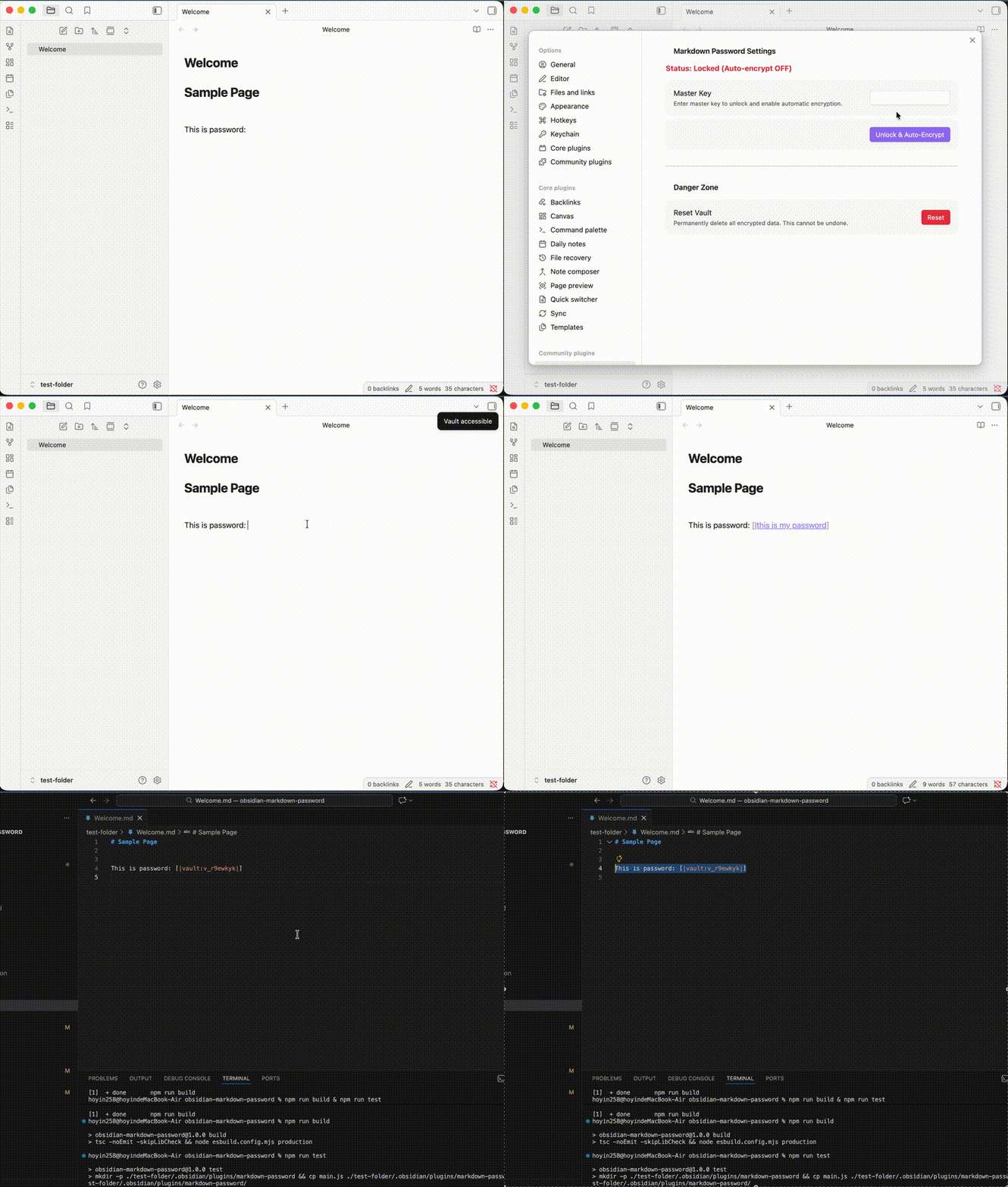
Markdown Password is a professional-grade Obsidian plugin that introduces a standardized, secure way to embed encrypted secrets directly into your Markdown files. It advocates for the universal format [|vault:id|], ensuring your sensitive data remains private even when your notes are processed by cloud services or AI.
🎯 Design Philosophy
This plugin is designed with three core objectives:
- Markdown-Native Secrets: Establish
[|vault:id|]as a standard for secrets. Only the ID is stored in the.mdfile, keeping your content clean and sync-safe. - Privacy from AI & Cloud: Since the actual secrets are decoupled from the Markdown text, they are invisible to AI models (LLMs), sync providers (iCloud/Dropbox), and search indexers.
- Auditability & Visibility: While secrets are hidden from the file, they remain accessible within Obsidian for the user. Any modification to the secrets can be tracked via logs, providing a clear audit trail for sensitive operations.
🌟 Key Features
- Zero-Persistence Model: Your Master Key and decrypted Vault Key live only in RAM. They are never written to disk.
- Auto-Encryption: Simply type
[|your-secret|]and the plugin automatically converts it to a secure[|vault:id|]placeholder. - Seamless Integration: Works in both Editor (Live Preview) and Reading modes, revealing the real secret only when authorized.
- Decoupled Storage: Secrets are stored in a local
vault.json, isolated from your primary vault content.
🚀 How to Use
1. Initial Setup
When you first use the plugin, you will be prompted to set a Master Key.
[!CAUTION] Warning: There is no "Password Recovery" feature. If you lose your Master Key, your secrets cannot be decrypted.
2. Create/Encrypt a Secret
In the editor, simply type your secret inside the password brackets: [|my-secret-password|].
If your status is Unlocked (Auto-encrypt ON), the plugin will automatically:
- Encrypt the text using AES-256-GCM.
- Store the encrypted data in
vault.json. - Replace your text with a secure placeholder:
[|vault:v_abc123|].
[!IMPORTANT] If the vault is Locked, typing
[|secret|]will remain as plain text and will not be protected.
3. Unlock/Lock Secrets
- Unlock & Auto-Encrypt: Use Command Palette (
Cmd + P) ->Markdown Password: Unlock & Auto-Encrypt. Enter your Master Key to reveal all secrets and enable automatic encryption for new input. - Lock & Disable Encryption: Use Command Palette (
Cmd + P) ->Markdown Password: Lock & Disable Encryption. This clears the keys from memory and stops the auto-encryption process.
🛡️ Security Specs & Privacy
Cryptography
- Key Derivation: PBKDF2 with 100,000 iterations and SHA-256 salt.
- Encryption: AES-256-GCM (Authenticated Encryption).
- Zero-Storage: The Master Key is never stored on disk.
Data Storage
- Vault File: All encrypted payloads are stored in
.obsidian/plugins/markdown-password/vault.json. - Sync Recommendation: For maximum security, we recommend excluding
vault.jsonfrom your sync provider (e.g., adding it to.gitignoreor unchecking it in Obsidian Sync).
⚙️ Installation
Community Plugins (Coming Soon)
Search for Markdown Password in the Obsidian Community Plugins browser and click Install.
Manual Installation
- Download
main.js,manifest.jsonfrom the latest release. - Create a folder named
markdown-passwordin your vault's plugin directory:<vault>/.obsidian/plugins/. - Move the downloaded files into that folder.
- Reload Obsidian and enable the plugin in Settings.
🛠️ Local Development
- Clone the repository.
- Install dependencies:
npm install. - Build the plugin:
npm run build. - Run unit tests:
npm run unit-test.
📄 License
This project is licensed under the MIT License.
Created with ❤️ by [hoyin258]
For plugin developers
Search results and similarity scores are powered by semantic analysis of your plugin's README. If your plugin isn't appearing for searches you'd expect, try updating your README to clearly describe your plugin's purpose, features, and use cases.