Narrator
pendingby Joe
Transform notes into AI-narrated audio. Select text for instant narration or create multi-voice character scripts.
Narrator
Transform your markdown notes into professional narration with AI-powered voices
Narrator brings your Obsidian vault to life with real-time streaming audio narration. Whether you're reviewing notes on the go, creating audiobooks from your writing, or bringing multi-character stories to life, Narrator makes it effortless.
🎬 Demo
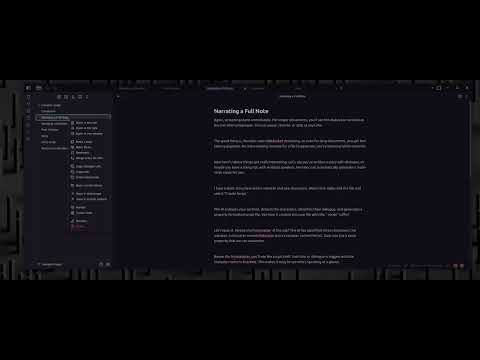
Click the image above to watch the demo video
✨ Features
🎙️ Real-Time Narration
- One-click narration: Right-click any note or selection to start streaming audio instantly
- Live playback controls: Play, pause, and stop from your status bar while narration streams
- Automatic saving: Every narration is saved as a high-quality WAV file in your chosen folder
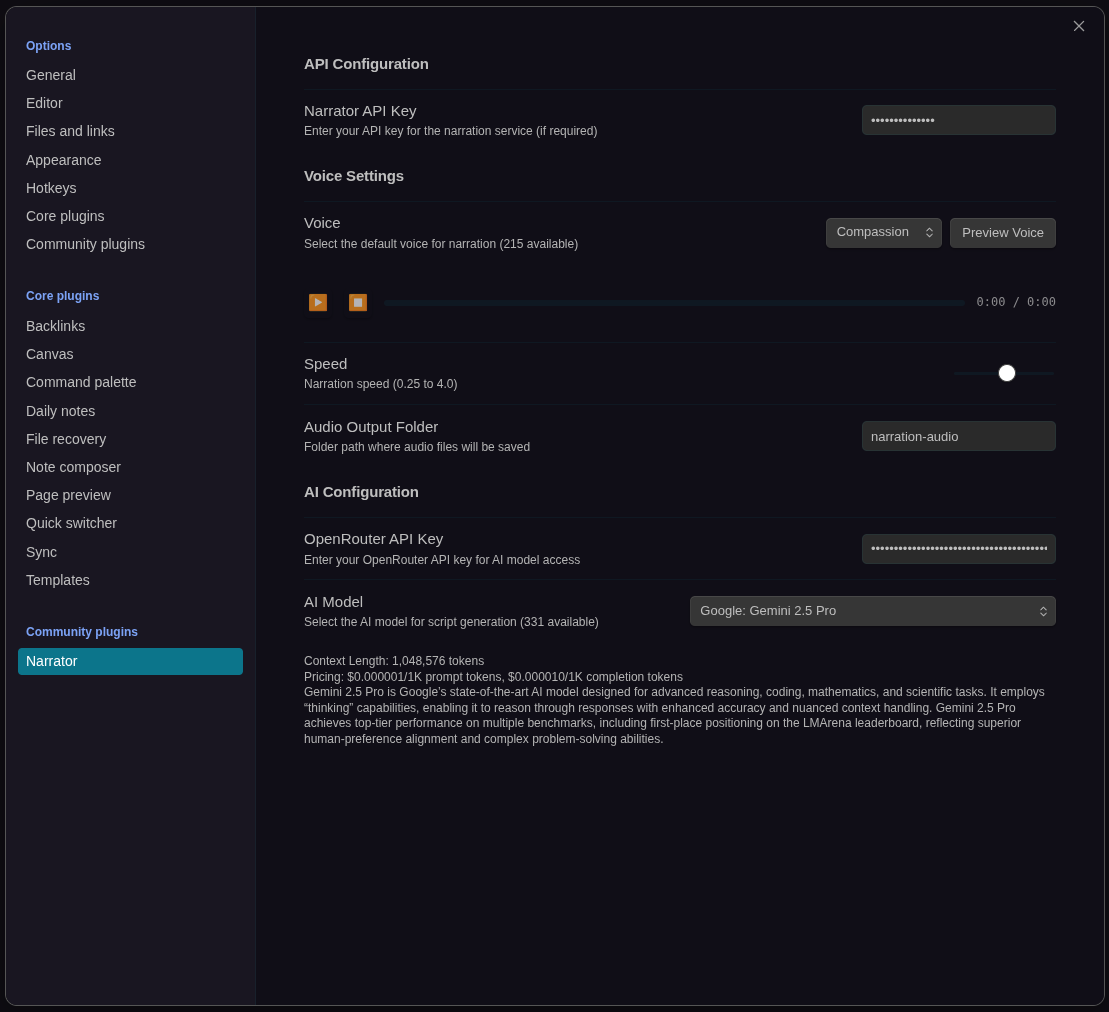
- Multiple voices: Choose from various AI voices with instant preview in settings
🎭 AI-Powered Script Generation
- Automatic character detection: AI analyzes your writing and identifies dialogue and characters
- Multi-voice narration: Each character gets their own voice for audiobook-quality production
- Smart formatting: Scripts are generated with proper character tags and frontmatter
- Voice customization: Assign different voices to each character in your story
⚡ Seamless Integration
- Context menu magic: Right-click anywhere—files, selections, or scripts
- Command palette support: Quick access to all features via Cmd/Ctrl + P
- No extra panels: Everything works within your existing Obsidian workflow
- Status bar controls: Audio playback controls appear when you need them
🎨 Flexible Configuration
- Voice preview: Test voices before committing
- Model selection: Choose from multiple AI models with pricing and context info
- Model control: Adjust the output of the models in terms of speed and temperature
- Custom output: Configure where audio files are saved
⚠️ Prerequisites
API Keys Needed
- Narrator API Key: For text-to-speech services (configure in plugin settings)
- OpenRouter API Key (optional): For AI script generation with model selection
From Obsidian Community Plugins
Coming soon! This plugin is currently in development.
🚀 Quick Start
Your First Narration
- Right-click any markdown note in your file explorer
- Select "Narrate" from the context menu
- Watch as the status bar shows streaming audio controls
- Audio starts playing immediately and saves automatically
That's it! Your narration will be saved to your configured audio output folder
(default: narration-audio/).
📖 Usage Guide
Narrate Full Notes
Perfect for reviewing long documents or creating audiobook chapters.
- Right-click any
.mdfile in the file explorer - Select "Narrate"
- Audio streams in real-time with status bar controls
- Saved as:
{filename}-{voice}-{timestamp}.wav
Narrate Selected Text
Great for checking specific passages or getting quick feedback on your writing.
- Highlight text in the editor
- Right-click the selection
- Select "Narrate Selection"
- Audio streams immediately
- Saved as:
{filename}-selection-{voice}-{timestamp}.wav
Create AI Scripts
Transform prose into dialogue-ready scripts with automatic character detection.
- Right-click a markdown file
- Select "Create Script"
- AI analyzes your content and generates a script file
- New file created:
{filename}-script.md
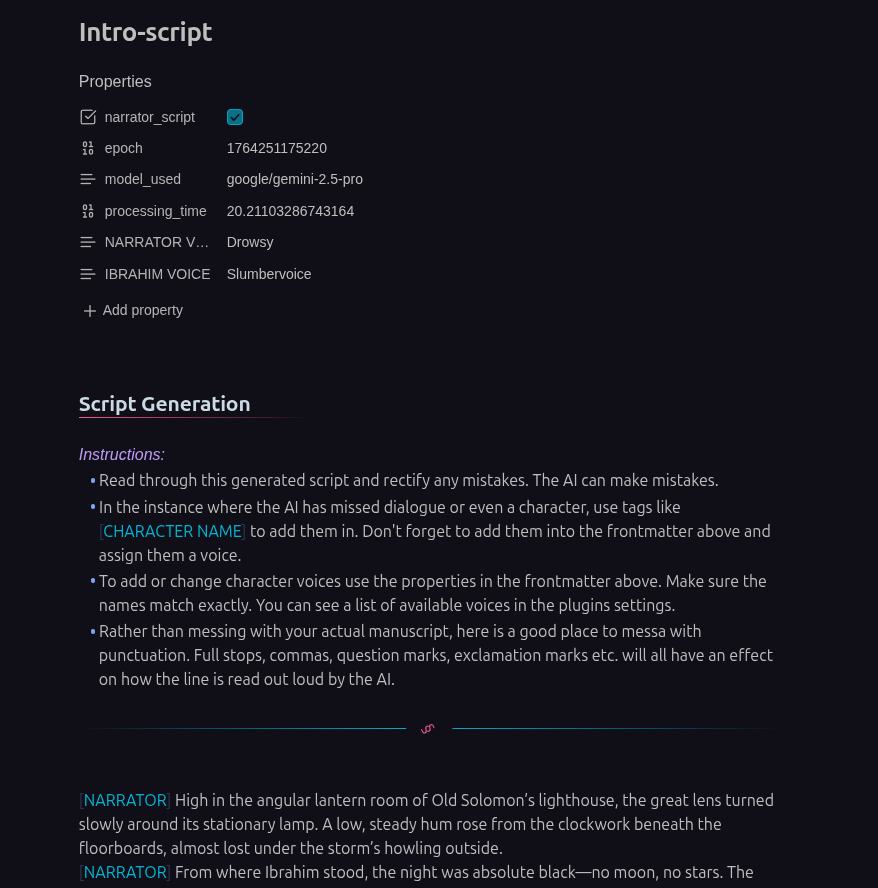
The generated script includes:
- Detected characters
- Character tags for dialogue attribution
- Frontmatter for voice assignments
- Instructions for customization
Narrate Multi-Character Scripts
Bring scripts to life with different voices for each character.
- Open your script file (ends with
-script.md) - Assign voices in the frontmatter:
--- narrator_script: true NARRATOR VOICE: "Compassion" JOHN VOICE: "Drowsy" SARAH VOICE: "Slumbervoice" --- - Right-click the script file
- Select "Narrate Script"
- Each character speaks with their assigned voice!
📝 Script Format
Scripts use a simple, readable format:
---
narrator_script: true
NARRATOR VOICE: "Compassion"
ALICE VOICE: "Drowsy"
BOB VOICE: "Slumbervoice"
---

[NARRATOR] It was a dark and stormy night.

[ALICE] Did you hear that noise?

[BOB] Relax, it's just the wind.

[NARRATOR] But Alice knew better.
Key elements:
- Frontmatter: YAML with
narrator_script: trueand voice assignments - Character tags:
[CHARACTER NAME]before their dialogue - Voice format:
"voice/model"(see available voices in settings) - Fallback: Unmapped characters use your default voice
⌨️ Command Palette
Access Narrator features via Cmd/Ctrl + P:
- Narrate active note - Narrate the currently open file
- Create script from active note - Generate AI script from current file
- Narrate script - Multi-voice narration (only visible when viewing a script)
⚙️ Configuration
Access settings via Settings → Narrator
API Configuration
Narrator API Key
- Required for all text-to-speech operations
- Get your key from your backend service provider
OpenRouter API Key (optional)
- Required for AI script generation
- Enables model selection with pricing information
- Get your key
Voice Settings
Voice Selection
- Choose from available voices
- Click "Preview Voice" to hear a sample
- Voice assignments are per-user, not per-note
Audio Output Folder
- Customize where WAV files are saved
- Default:
narration-audio/ - Folder is created automatically if it doesn't exist
AI Configuration
Model Selection
- Choose from multiple AI models for script generation
- See pricing and context length for each model
- Default:
gpt-4o-mini(cost-effective)
Popular models:
- gpt-4o-mini: Fast and affordable
- gemini-2.5-pro: Advanced character detection
- claude-sonnet: Excellent for dialogue formatting
🔧 Troubleshooting
"API key not configured"
- Go to Settings → Narrator
- Enter your Narrator API key
- Save settings and try again
"WebSocket connection failed" or 403 Forbidden
- Check API key is correct
"Script contains no dialogue lines"
- Ensure script uses proper character tags:
[CHARACTER] - Check that frontmatter includes
narrator_script: true - Verify characters have non-empty dialogue
Audio not playing
- Check your system audio is not muted
- Try a different voice in settings
- Check browser console for Web Audio API errors
Script generation fails
- Ensure OpenRouter API key is configured
- Check you have credits/balance in your OpenRouter account
- Try a different AI model
🛠️ Development
Build Commands
# Development mode (watches for changes)
pnpm run dev

# Production build
pnpm run build

# Deploy to your vault
pnpm run deploy

# Lint code
pnpm run lint
📄 License
MIT License - see LICENSE for details.
🙏 Support
Found a bug or have a feature request?
- Open an issue on GitHub
- Check existing issues first to avoid duplicates
👤 Credits
Created by JTCorrin
Built with:
- Obsidian Plugin API
- WebSocket Streaming
- Web Audio API
- OpenRouter for AI models
Note: This plugin is currently in active development. Features and API may change. Please report any issues you encounter!
For plugin developers
Search results and similarity scores are powered by semantic analysis of your plugin's README. If your plugin isn't appearing for searches you'd expect, try updating your README to clearly describe your plugin's purpose, features, and use cases.