Chat Bubble Theme
pendingby Kevin
Theme plugin with 4 color presets, chat bubble callouts, and outline injection.
Chat Bubble Theme Plugin
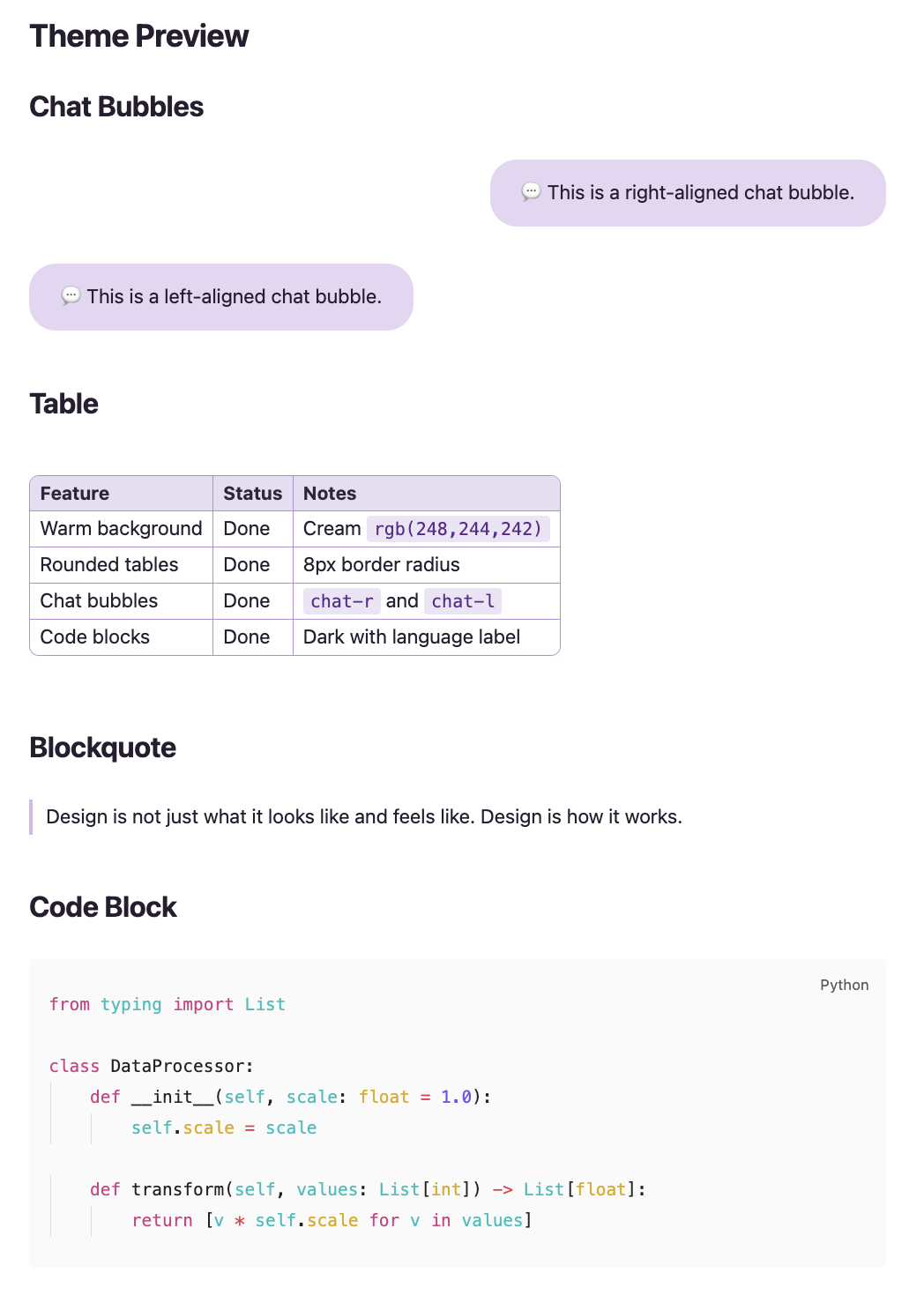
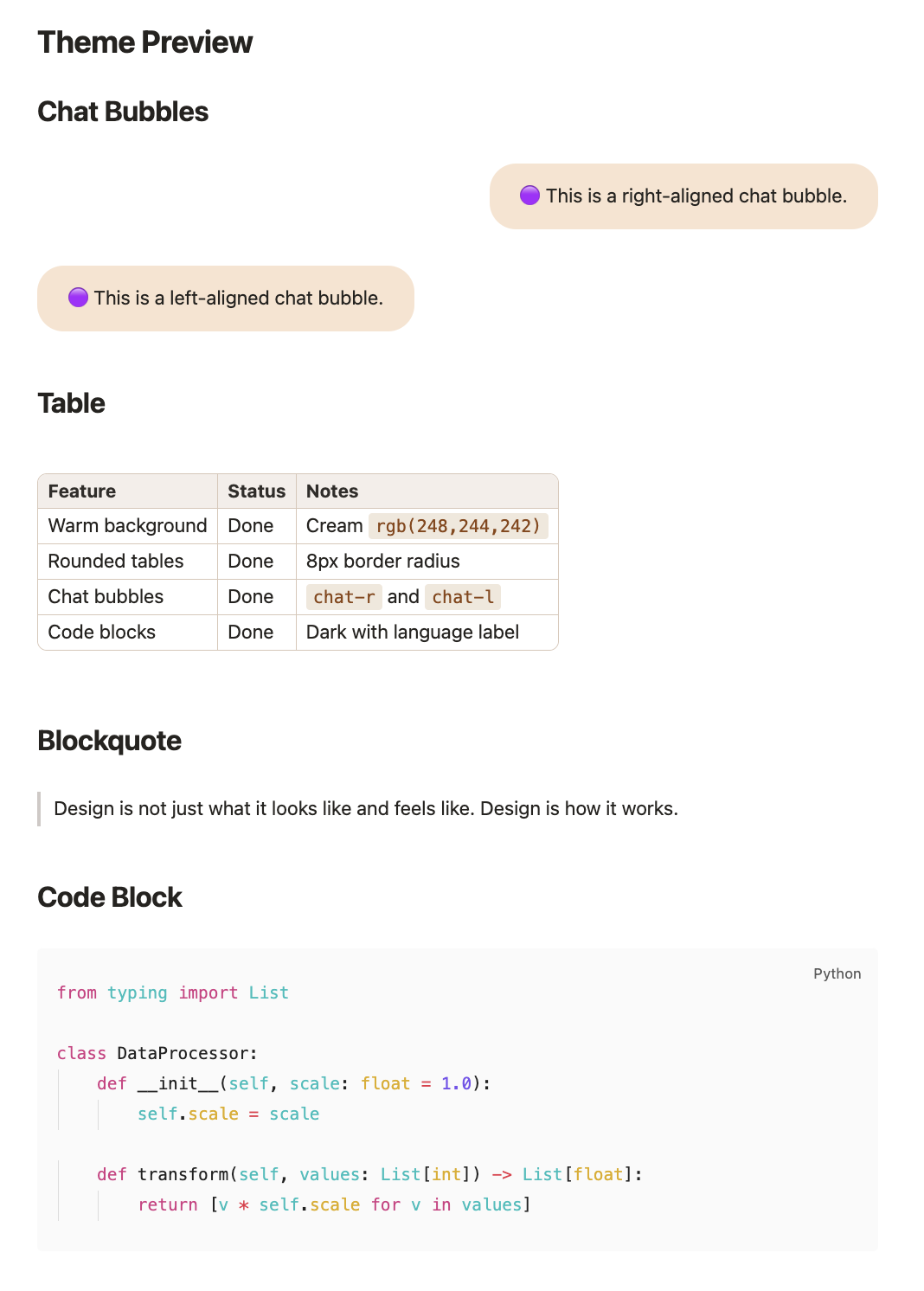
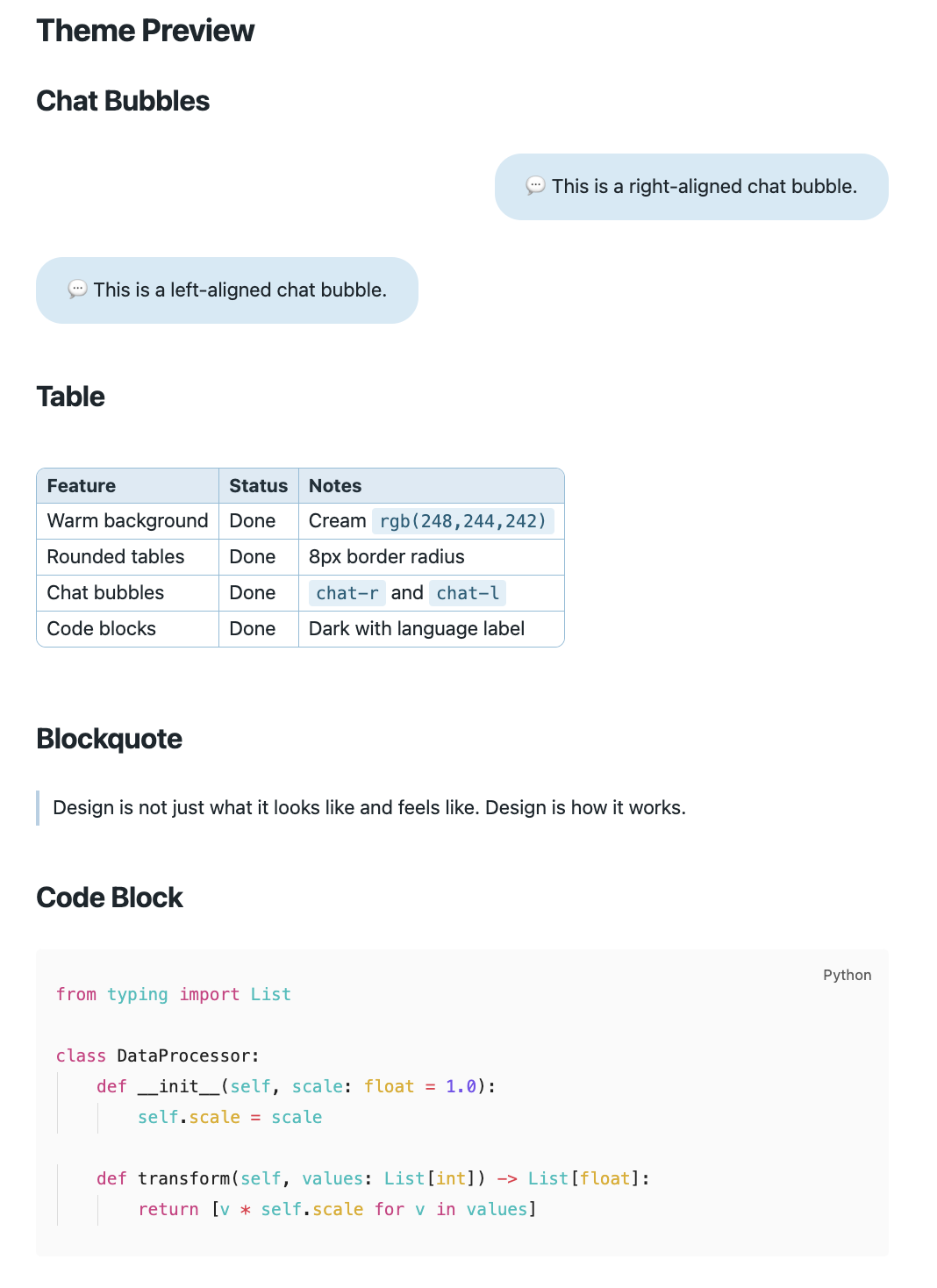
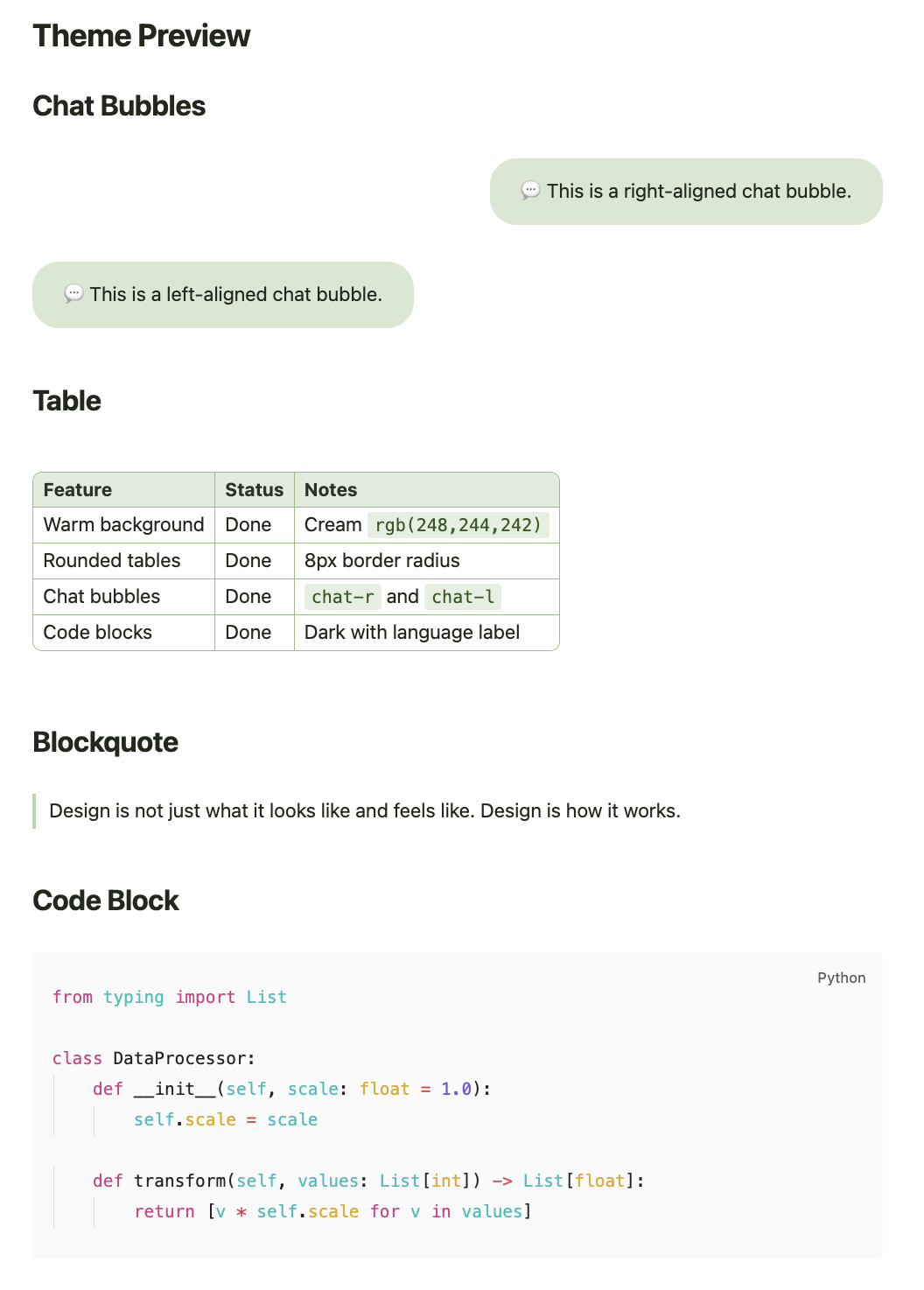
An Obsidian theme plugin with 4 color presets (Lavender, Warm, Ocean, Forest), chat bubble callouts with optional emoji indicators, rounded tables, and full color customization — bundled as a plugin.
Why a plugin instead of a pure theme?
Obsidian themes are CSS-only and cannot execute JavaScript. This plugin adds one feature that requires JS:
- Chat callout outline injection — parses
> [!chat-r]and> [!chat-l]callouts and injects them as virtual headings into Obsidian's metadata cache, so they appear in the Outline pane (including Quiet Outline). - Sticky outline — keeps the Outline pane showing the last active markdown file when focus moves to a non-editor view (e.g. terminal).
- Multi-language UI — settings panel automatically follows Obsidian's global language setting (English, 简体中文, 繁體中文, Français).
All theme styling is dynamically generated from plugin settings, giving full control over colors, sizes, and features without editing CSS.
Preview
| Lavender | Warm | Ocean | Forest |
|---|---|---|---|
 |  |  |  |
Features
- 4 theme presets — Lavender (lilac/purple), Warm (cream/brown), Ocean (ice/teal), Forest (mint/green)
- Per-theme color palettes with white/black endpoints for fine-tuning
- Callout emoji indicators (colored circles, 💬, or none)
- Rounded tables with configurable corner radius and header/border color
- Code blocks with dark/light theme toggle, language label, and always-visible copy button
- Chat bubble callouts (
chat-rfor right-aligned,chat-lfor left-aligned) - Styled inline code, blockquotes, links, and lists
- Chat callouts visible in Outline / Quiet Outline as configurable heading entries
- Sticky outline — retains the last markdown file's outline when a terminal or other non-editor view gets focus
- Multi-language settings UI — English, Simplified Chinese, Traditional Chinese, French; auto-detected from Obsidian's language setting
Settings
Accessible from Settings > Community plugins > Chat Bubble Theme Plugin (gear icon).
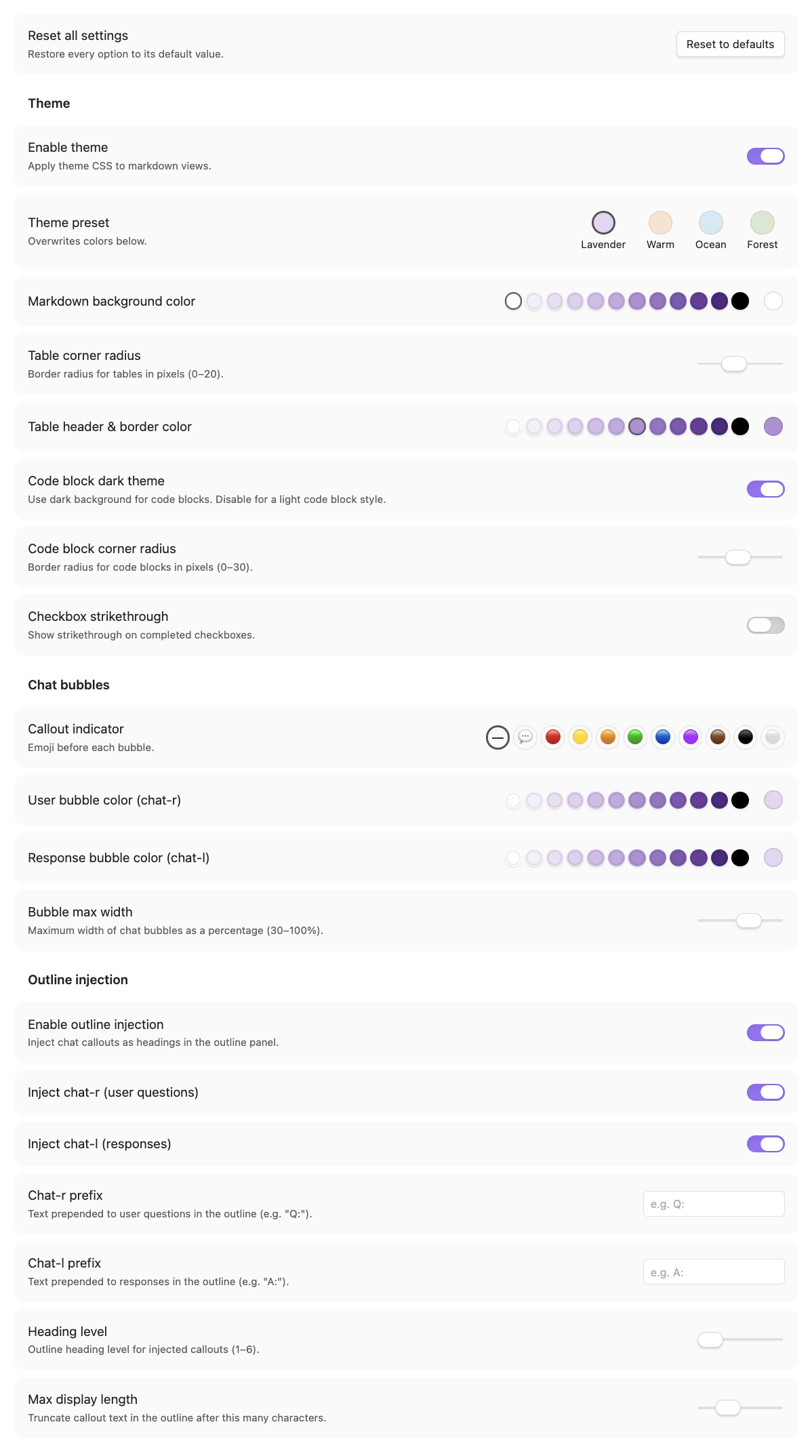
| Group | Options |
|---|---|
| Reset | Reset all settings to defaults with one click |
| Theme | Theme preset (Lavender / Warm / Ocean / Forest), enable/disable theme, markdown background color, table corner radius, table header & border color, code block dark/light theme, code block corner radius, checkbox strikethrough |
| Chat Bubbles | Callout indicator (none / 💬 / colored circle emojis), user (chat-r) and response (chat-l) bubble colors, max bubble width |
| Outline | Sticky outline (retain last markdown file's outline when terminal gets focus), enable/disable injection, per-callout toggle, heading prefix (e.g. "Q:" / "A:"), heading level, max display length |
Color settings include a preset palette of theme-matched swatches (with white/black endpoints) alongside the standard color picker for quick selection.
Localization
The settings panel is fully localized and automatically follows Obsidian's global language setting (Settings > General > Language). Supported languages:
| Language | Code |
|---|---|
| English | en |
| 简体中文 | zh |
| 繁體中文 | zh-TW |
| Français | fr |
No configuration needed — switching Obsidian's language and reopening the settings tab applies the new language immediately.
Installation
- Copy the
chat-bubble-themefolder into.obsidian/plugins/ - Enable the plugin in Settings > Community plugins
- Set Settings > Appearance > CSS Theme to none (the plugin provides all styling)
Chat Bubble Callouts
Use [!chat-r] and [!chat-l] for right- and left-aligned chat bubbles:
> [!chat-r]
> This appears as a right-aligned bubble.

> [!chat-l]
> This appears as a left-aligned bubble.
Theme Presets
| Theme | Bubbles | Link accent |
|---|---|---|
| Lavender | #E4D6F2 violet | #6A3D9A purple |
| Warm | #F9E3D0 peach | #A0522D brown |
| Ocean | #D4EAF5 sky | #2B6E8A teal |
| Forest | #D8E8D0 sage | #3D6B2E green |
Switching presets overwrites color settings with theme defaults. You can then fine-tune any color individually.
License
MIT
For plugin developers
Search results and similarity scores are powered by semantic analysis of your plugin's README. If your plugin isn't appearing for searches you'd expect, try updating your README to clearly describe your plugin's purpose, features, and use cases.