Note Image Gallery
pendingby Lemon695
Display all images from your note in a gallery view.
Note Image Gallery
A powerful Obsidian plugin that displays all images from your current note in a beautiful, interactive gallery view.


🎬 Demo
1、Enable via Command Palette
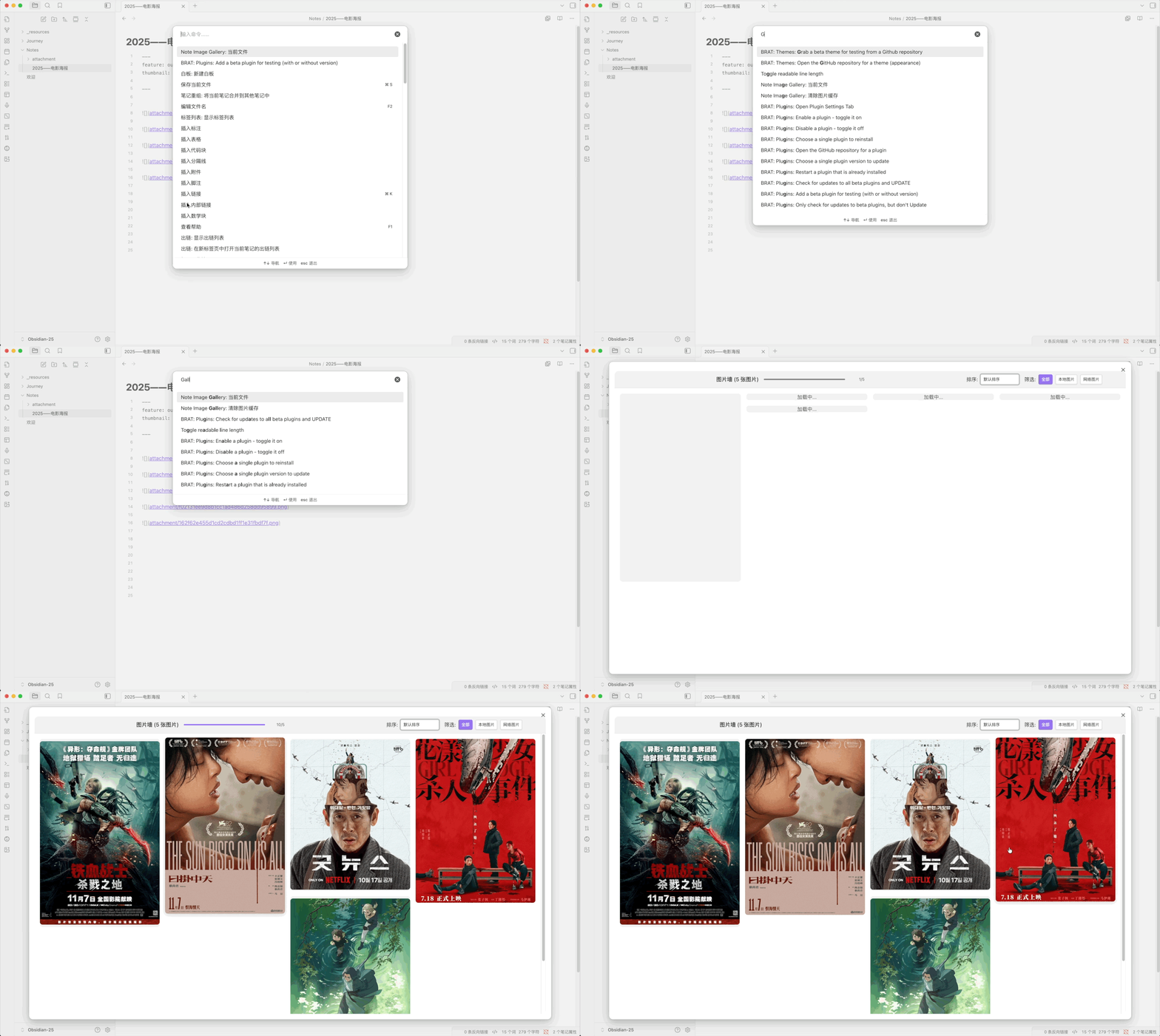
2、Enable via Commander Plugin
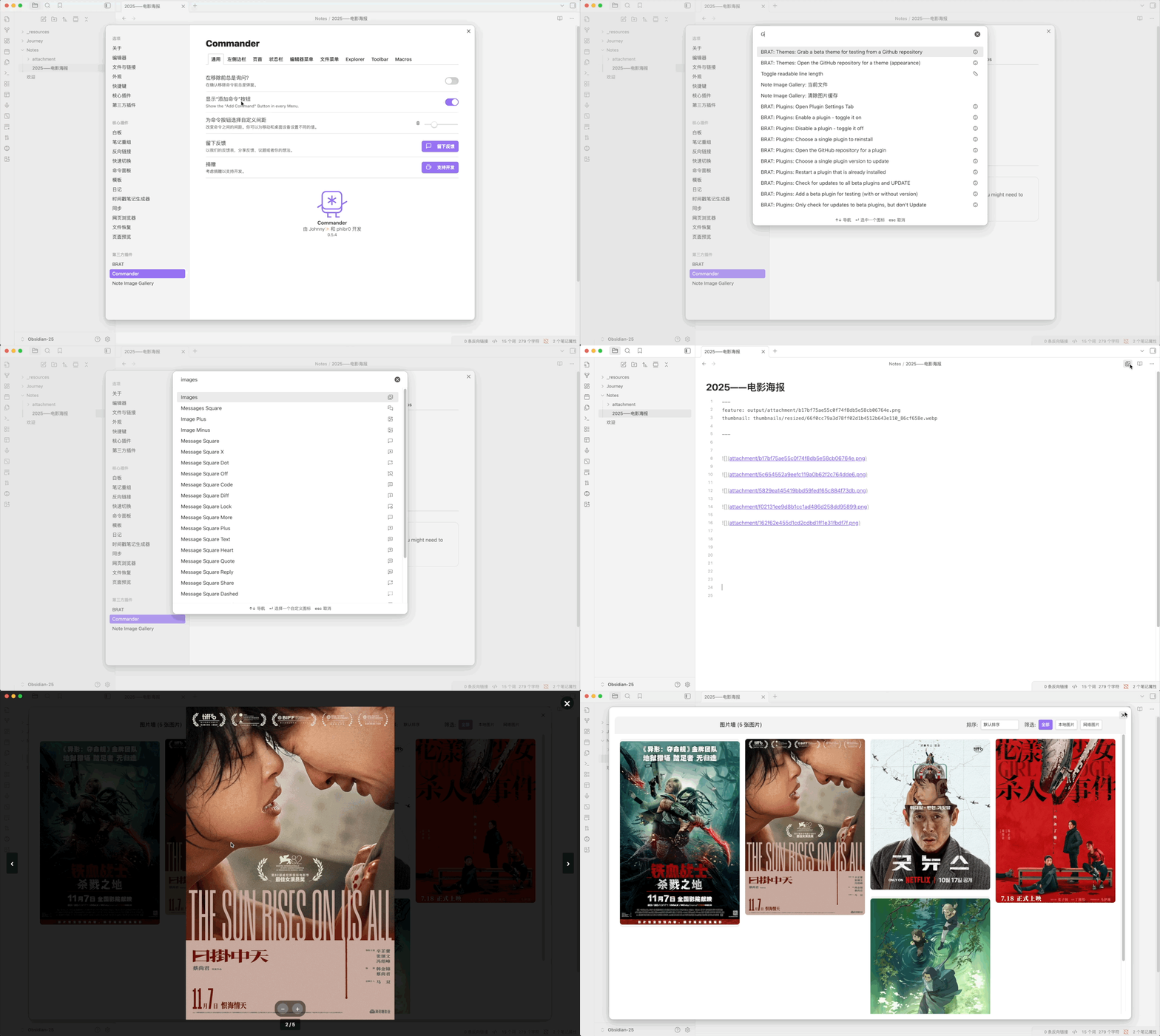
✨ Features
- 📸 Gallery View: Display all images from your note in an elegant waterfall/masonry layout
- 🖼️ Image Support:
- Local images (vault attachments)
- Remote images (HTTP/HTTPS URLs)
- Special handling for Weibo images (微博图片)
- 🎨 Interactive UI:
- Click any image to open lightbox view with navigation
- Arrow keys for quick navigation
- Zoom in/out with mouse wheel or keyboard
- Context menu for copying and downloading images
- 🔍 Filter & Sort:
- Filter images by type (All / Local / Remote)
- Sort by size or default order
- ⚡ Performance:
- Lazy loading for improved performance
- Virtual scrolling for large image collections
- Smart image queue with priority management
- Concurrent loading with configurable limits
- 💾 Smart Caching:
- File-based caching system for remote images
- Configurable cache size and expiration
- LFU+LRU hybrid cache eviction algorithm
- Automatic cache cleanup and management
- 🌍 Internationalization:
- Auto-detects Obsidian language settings
- Full support for English and Chinese (Simplified)
- Easy to extend for more languages
- 📱 Cross-Platform: Works on desktop and mobile devices
📦 Installation
From Obsidian Community Plugins (Recommended)
- Open Obsidian Settings
- Navigate to Community Plugins and disable Safe Mode
- Click Browse and search for "Note Image Gallery"
- Click Install, then Enable
Manual Installation
- Download the latest release from the Releases page
- Extract the files to your vault's plugins folder:
<vault>/.obsidian/plugins/note-image-gallery/ - Reload Obsidian
- Enable the plugin in Settings → Community Plugins
🚀 Usage
Opening the Gallery
There are three ways to open the image gallery:
- Command Palette: Press
Ctrl/Cmd + Pand search for "Open Current Note Image Gallery" - Ribbon Icon: Click the image gallery icon in the left sidebar
- Hotkey: Assign a custom hotkey in Settings → Hotkeys
Gallery Navigation
- Click any image to view it in full-screen lightbox mode
- Arrow Keys (← →) to navigate between images
- Mouse Wheel or +/- keys to zoom in/out
- ESC or click outside to close lightbox
- Right-click on any image for context menu options:
- Copy image to clipboard
- Download image
Filtering and Sorting
- Use the filter buttons at the top to show:
- All images
- Local images only
- Remote images only
- Use the sort dropdown to order images by:
- Default order (as they appear in the note)
- Size (large to small)
- Size (small to large)
⚙️ Settings
Access plugin settings via Settings → Note Image Gallery
Cache Settings
| Setting | Description | Default |
|---|---|---|
| Enable Image Cache | Cache remote images to speed up loading | Enabled |
| Cache Validity Period | Maximum cache age in days (1-60) | 7 days |
| Maximum Cache Size | Maximum cache size in MB (10-300) | 100 MB |
Cache Management
- Refresh Cache Status: Recalculate current cache size
- Clear All Cache: Delete all cached images
Developer Settings
| Setting | Description | Default |
|---|---|---|
| Debug Mode | Enable detailed console logging | Disabled |
🎯 Performance Tips
- Enable Caching: Keep image caching enabled for faster loading of remote images
- Adjust Cache Size: Increase cache size if you work with many remote images
- Regular Cleanup: Clear cache periodically if storage space is limited
- Image Optimization: Use optimized image formats (WebP, JPEG) for better performance
🛠️ Development
Building the Plugin
# Install dependencies
npm install

# Build for development (with watch mode)
npm run dev

# Build for production
npm run build

# Run TypeScript type checking
npm run build
Project Structure
obsidian-note-image-gallery/
├── src/
│   ├── main.ts                 # Plugin entry point
│   ├── settings.ts              # Settings tab and configuration
│   ├── service/
│   │   ├── current-note-image-gallery-service.ts  # Main gallery service
│   │   ├── image-cache-service.ts                 # Cache management
│   │   ├── image-extractor-service.ts             # Extract images from markdown
│   │   └── obsidian-image-loader.ts               # Image loading utilities
│   └── utils/
│       ├── log-utils.ts         # Logging system
│       ├── retry-handler.ts     # Retry logic
│       └── resource-manager.ts  # Resource cleanup
├── styles.css                   # Plugin styles
└── manifest.json                # Plugin manifest
Technologies Used
- TypeScript: Type-safe development
- Obsidian API: Plugin framework
- CSS Grid: Waterfall layout
- IntersectionObserver: Lazy loading
- File System API: Cache management
🤝 Contributing
Contributions are welcome! Here's how you can help:
- Report Bugs: Open an issue with detailed reproduction steps
- Suggest Features: Share your ideas in the issues section
- Submit Pull Requests:
- Fork the repository
- Create a feature branch (
git checkout -b feature/amazing-feature) - Commit your changes (
git commit -m 'Add amazing feature') - Push to the branch (
git push origin feature/amazing-feature) - Open a Pull Request
Development Guidelines
- Follow existing code style
- Add comments for complex logic
- Test on both desktop and mobile
- Update README for new features
📝 License
This project is licensed under the GNU General Public License v3.0 - see the LICENSE file for details.
🙏 Acknowledgments
- Thanks to the Obsidian team for the excellent plugin API
- Inspired by various image gallery plugins in the community
- Special thanks to all contributors and users
📧 Support
- Issues: GitHub Issues
- Discussions: GitHub Discussions
- Author: @Lemon695
🔄 Changelog
See RELEASES for a list of changes in each version.
Made with ❤️ for the Obsidian community
For plugin developers
Search results and similarity scores are powered by semantic analysis of your plugin's README. If your plugin isn't appearing for searches you'd expect, try updating your README to clearly describe your plugin's purpose, features, and use cases.