BibLens
pendingby Marek Polášek
Detects Bible references, displays verse or passage text on hover, and lets you insert it into your note.
BibLens
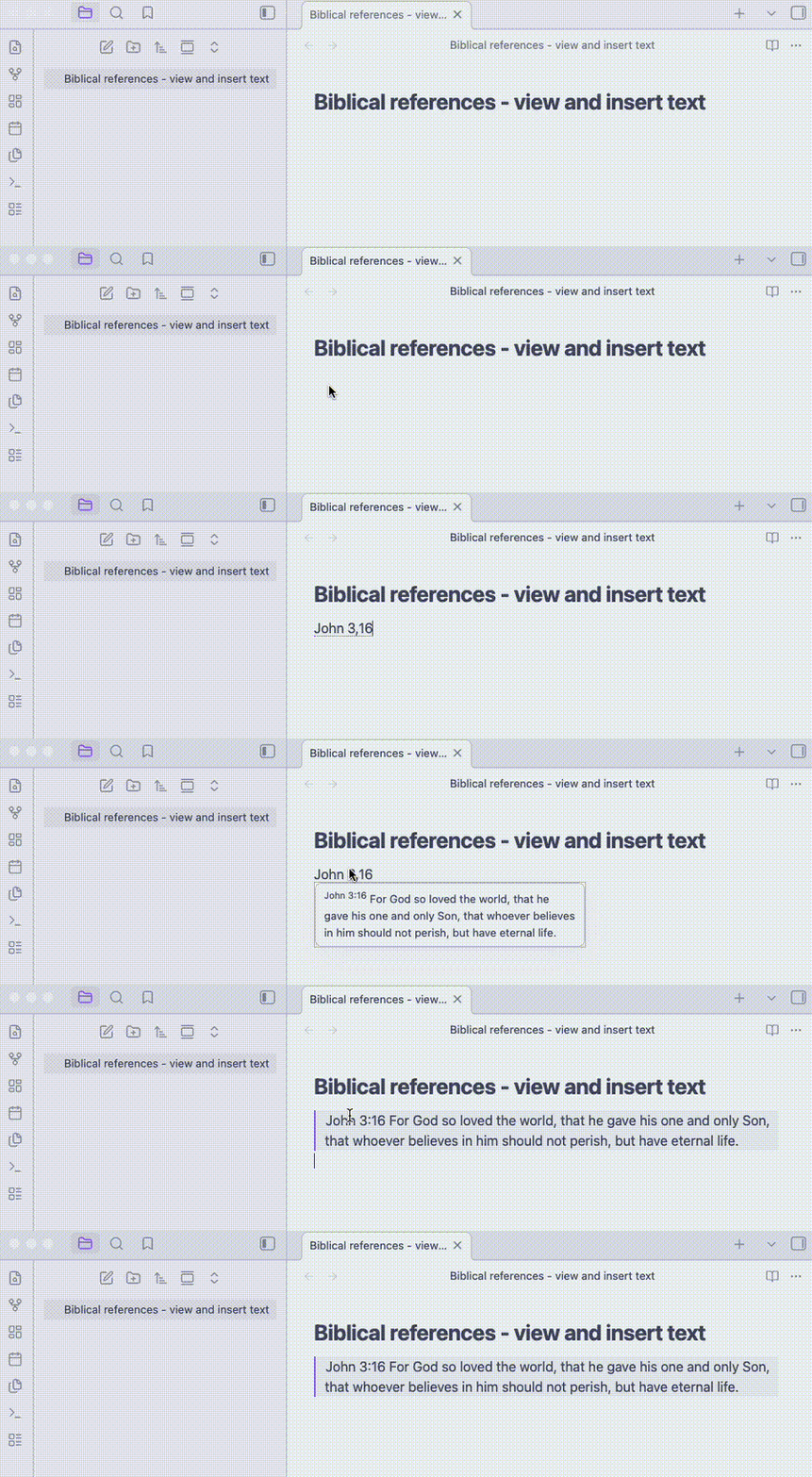
An Obsidian plugin that detects Bible references in your notes and shows the verse text as a hover preview — in the editor and in Reading View.
Works fully offline. No external services required.
Demo
Features
Automatic reference detection
BibLens recognises Bible references directly in your Markdown notes.
Examples:
John 3:16
Exod 2,15
Isa 6,25-7,3
Detected references are underlined in the editor.
Hover preview
Hovering a reference displays the verse text.
Supported in:
- Reading View
- Live Preview editor
The preview shows the verse number and verse text.
If the verse is not available in the selected translation, the plugin shows:
Verse not found
Insert verse text
Command palette command:
BibLens: Insert verse text after reference
The command finds the last reference before the current position and inserts the verse text after it.
The command:
BibLens: Replace previous reference by quote
replaces the reference with an Obsidian blockquote containing the verse or passage text.
Example:
Mat 1,3
becomes
> Matt 1,3 — Judah the father of Perez and Zerah by Tamar...
Translations and language packs
BibLens separates software from data.
The plugin downloads available resources from the BibLens data repository.
Resource types:
- Bible translations
- Language packs (book name aliases)
- Reference formats (abbreviation rules)
Users can install and remove these resources from the plugin settings.
Settings
The settings panel allows you to configure:
Current settings:
- Translation
- Language pack
- Reference format
Advanced:
- parsing rules
All installed resources can be managed directly from the settings interface.
Data repository
Available translations and language packs are stored in a separate repository:
https://github.com/marekpola/biblens-data
This allows new translations and language packs to be published without updating the plugin.
Installation
Community Plugins (recommended)
- Open Settings → Community Plugins
- Disable Safe Mode
- Search for BibLens
- Install and enable the plugin
Manual installation
- Download the latest release
- Extract the files to:
.obsidian/plugins/biblens
- Reload Obsidian
- Enable the plugin in Community Plugins
License
MIT License
For plugin developers
Search results and similarity scores are powered by semantic analysis of your plugin's README. If your plugin isn't appearing for searches you'd expect, try updating your README to clearly describe your plugin's purpose, features, and use cases.