Tag Counter Dashboard
pendingby MA Frampton
Embed a dashboard in your notes showing counts of priority tags. Perfect for task lists with #Urgent, #Medium, #Low tags.
Tag Counter Dashboard
A plugin that embeds a live dashboard directly within your notes, showing counts of priority tags. Perfect for task lists using tags like #Urgent, #Medium, #Low.

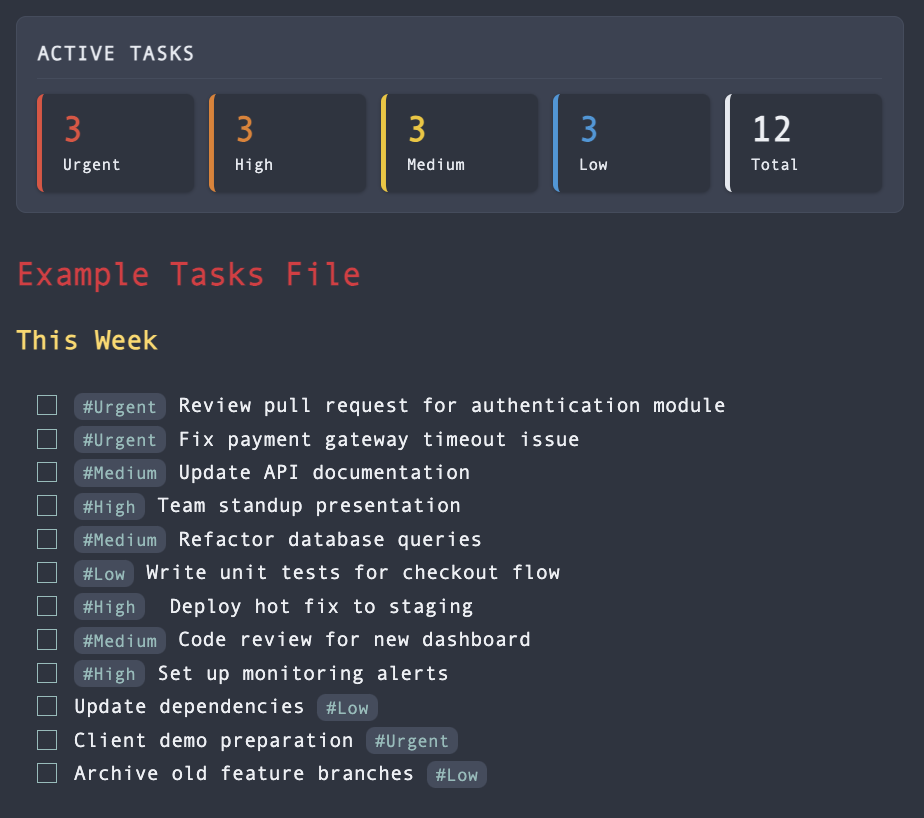
Features
- Embedded Dashboard - Insert a tag counter anywhere in your notes using a simple code block
- Live Updates - Counts automatically refresh when you edit the file
- Status Bar - Optional compact view at the bottom of the window
- Configurable Tags - Track any tags you want, not just priorities
- Customisable Colours - Change colours for each priority level via settings
- Task-Only Mode - Option to count only tags on incomplete checkboxes (
- [ ])
Usage
Add a dashboard to any note by inserting a code block:
```tag-counter
title: Task Overview
```
This renders as a styled dashboard with coloured boxes showing your tag counts.
The status bar also shows a compact view:

Options
You can customise each dashboard:
```tag-counter
title: Sprint Tasks
tags: Todo,InProgress,Done,Blocked
```
| Option | Description |
|---|---|
title | Optional heading above the dashboard |
tags | Comma-separated list of tags to count (overrides default settings) |
Example: Task List with Dashboard
# Weekly Tasks

```tag-counter
title: Task Status
```

## Monday
- [ ] Review PR for auth module #Urgent
- [ ] Update documentation #Low
- [x] Fix login bug #High

## Tuesday
- [ ] Team standup #Medium
- [ ] Deploy to staging #High
- [ ] Write unit tests #Medium
Installation
From Community Plugins
- Open Settings → Community Plugins
- Click Browse and search for "Tag Counter Dashboard"
- Click Install, then Enable
Manual Installation
- Download
main.js,manifest.json, andstyles.cssfrom the latest release - Create a folder called
tag-counter-dashboardin your vault's.obsidian/plugins/directory - Copy the downloaded files into this folder
- Reload the app and enable the plugin in Settings → Community Plugins
Configuration
Access settings via Settings → Community Plugins → Tag Counter Dashboard (gear icon)
| Setting | Description | Default |
|---|---|---|
| Tracked Tags | Comma-separated list of tags to track | Urgent,High,Medium,Low |
| Count Only Incomplete | Only count tags on unchecked tasks | Off |
| Show Status Bar | Display counts in the status bar | On |
| Tag Colours | Customise colours for each priority level | Red, Orange, Yellow, Blue |
Commands
Open the command palette (Ctrl/Cmd + P) and search for:
| Command | Action |
|---|---|
| Insert Tag Counter Dashboard | Inserts a dashboard code block at cursor position |
Support
If this plugin has helped you stay organised, consider supporting its development:

Contributing
Contributions are welcome! Please feel free to submit a Pull Request.
Licence
MIT Licence - see LICENSE for details.
For plugin developers
Search results and similarity scores are powered by semantic analysis of your plugin's README. If your plugin isn't appearing for searches you'd expect, try updating your README to clearly describe your plugin's purpose, features, and use cases.