Integrated Terminal
pendingby ran-li
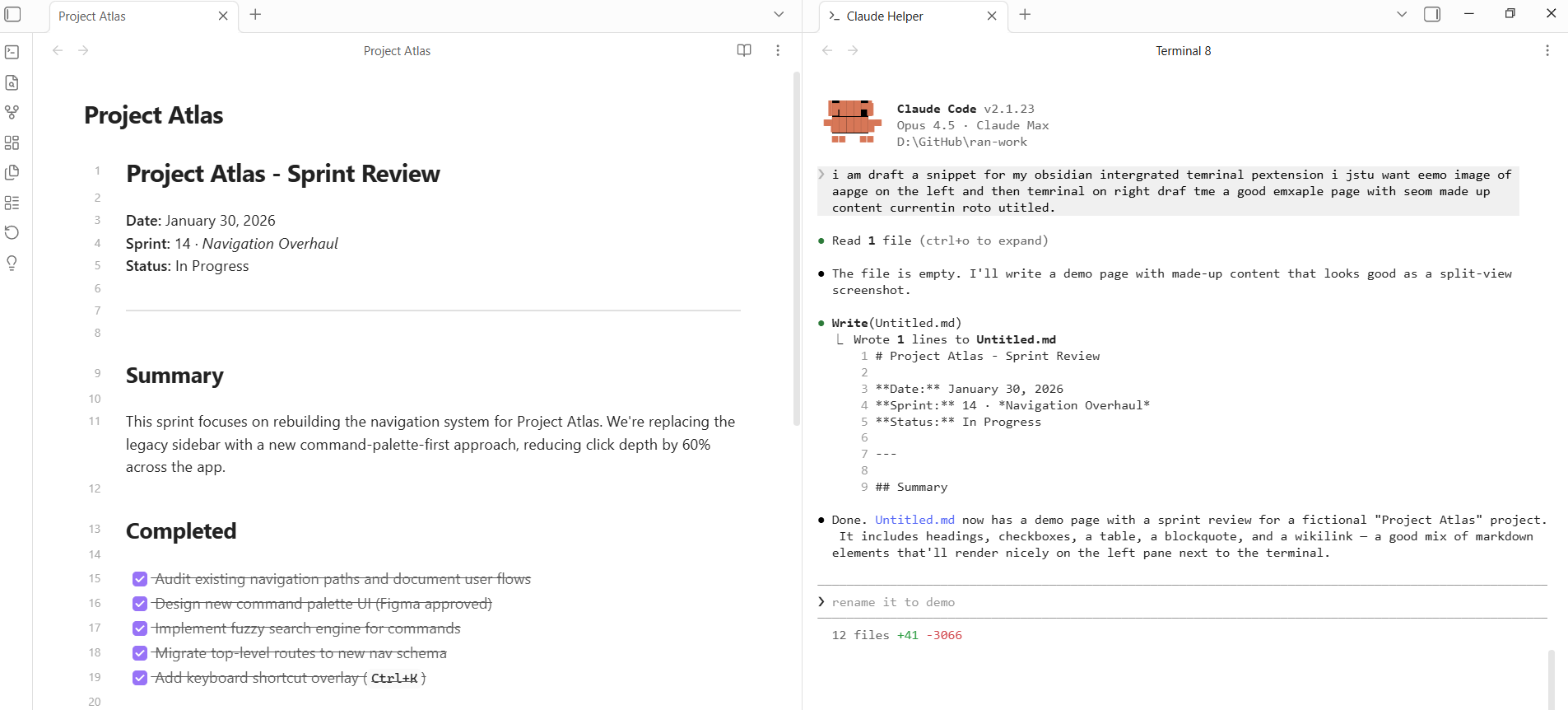
Lightweight integrated terminal embedded directly in your workspace.
Integrated Terminal
A lightweight integrated terminal for Obsidian, embedded directly in your workspace.
Usage
- Use the command palette to run Integrated Terminal: Toggle terminal or Open new terminal
- Click the terminal icon in the ribbon (left sidebar)
Recommended setup
For a VS Code-like experience, add these keybindings in Settings > Hotkeys:
| Command | Hotkey |
|---|---|
| Integrated Terminal: Toggle terminal | Ctrl + `` |
To free up Ctrl+P for the command palette (like VS Code), add this to your
.obsidian/hotkeys.json:
{
	"command-palette:open": [
		{
			"modifiers": ["Mod", "Shift"],
			"key": "P"
		}
	],
	"switcher:open": [
		{
			"modifiers": ["Mod"],
			"key": "P"
		}
	]
}
Features
- Integrated terminal — open a terminal panel directly inside Obsidian
- Shell selection — choose from platform-detected presets (PowerShell, pwsh, CMD, Git Bash, WSL, Bash, Zsh) or specify a custom shell path in settings
- Multiple terminal tabs — run several sessions side-by-side with rename support (right-click tab → Rename)
- Theme sync — terminal colors automatically adapt to your Obsidian theme, including dark/light mode changes
- Configurable font — adjust terminal font size and family in settings
.claudedotfolder sidebar — browse and edit files from the.claudefolder that Obsidian's native explorer hides, with auto-refresh on changes
Installation
Search for Integrated Terminal in Obsidian's community plugins browser.
For plugin developers
Search results and similarity scores are powered by semantic analysis of your plugin's README. If your plugin isn't appearing for searches you'd expect, try updating your README to clearly describe your plugin's purpose, features, and use cases.