Prune
pendingby shiveenp
Prune your vault by deleting untitled, empty, old, and orphan notes.
Prune
An Obsidian plugin that keeps your vault clean by removing untitled drafts, empty notes, stale files, and clutter from specific folders — manually or on startup.
Features
- 📝 Untitled notes — Delete notes matching a configurable prefix (e.g. "Untitled", "Untitled 1"). Optionally only if they're empty.
- 🕳️ Empty notes — Delete notes with no content.
- 🕰️ Old notes — Delete notes not modified in 1, 3, 6, or 12 months.
- 📁 Folder cleanup — Delete old notes from a specific folder, with a separate age threshold.
- 🔗 Linked note protection — Notes that are linked to by other notes are never deleted, so you won't break any references in your vault.
- 💾 Backup before delete — Optionally move pruned notes to a
prune-backupfolder in your vault root for review, instead of sending them straight to trash. - 🚀 Run on startup — Optionally prune automatically when Obsidian launches.
Settings
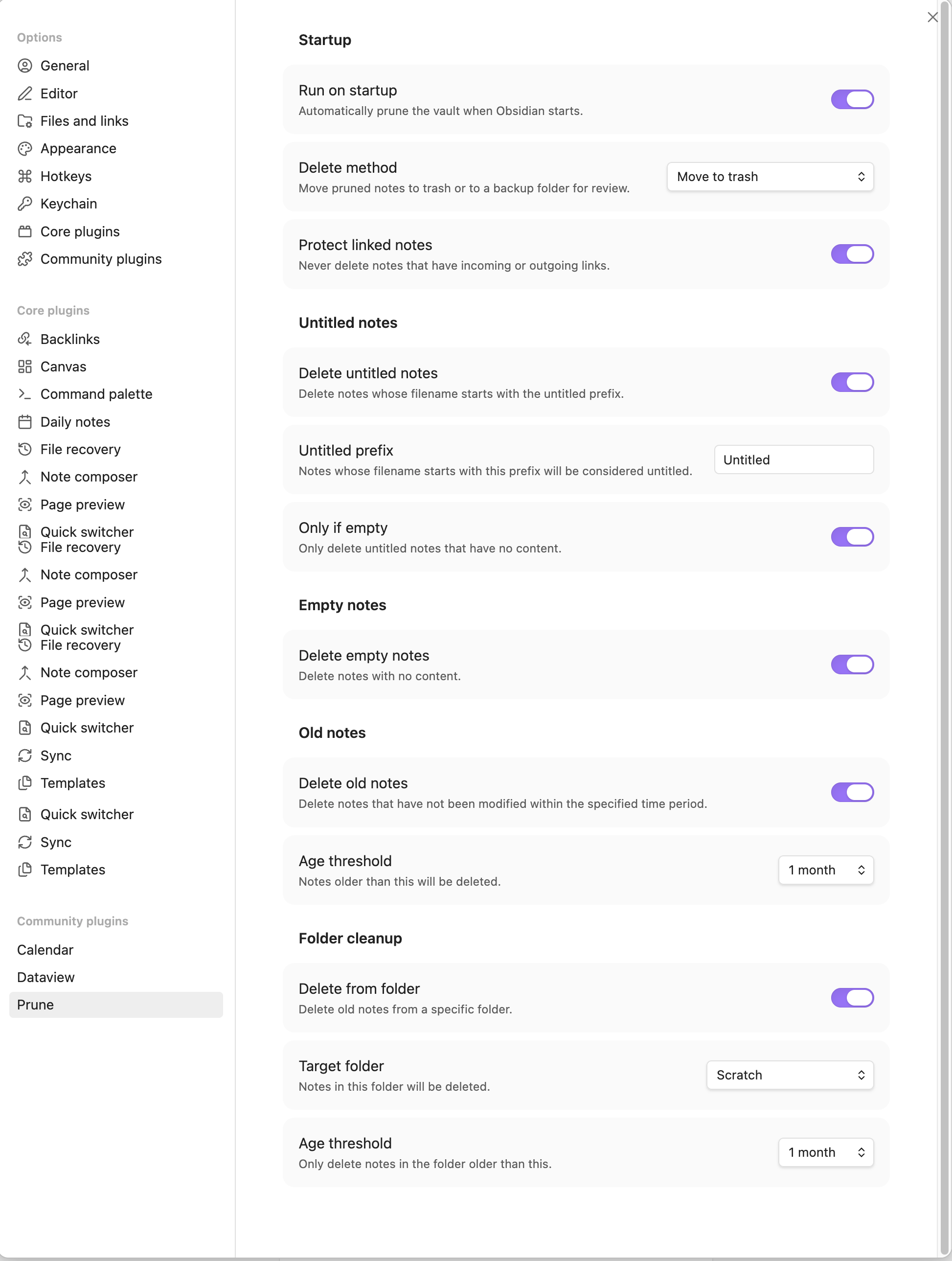
Default behavior
Prune is conservative by default. Out of the box:
- Only empty untitled notes are deleted (prefix: "Untitled", only-if-empty: on).
- Linked note protection is on — any note referenced by another note is safe.
- Old notes, empty notes, and folder cleanup rules are off.
- Delete method is trash (your obsidian settings trash, so you can recover files).
- Run on startup is off — nothing happens until you run the command.
Prune only touches markdown files. Attachments, images, PDFs, and other file types are never affected.
Usage
Open the command palette and run Prune: Vault to clean up your vault based on your enabled rules.
You can also enable Run on startup in settings to prune automatically when Obsidian launches.
Installation
From community plugins
Search for "Prune" in Settings > Community plugins > Browse.
Manual
- Download
main.jsandmanifest.jsonfrom the latest release. - Create a folder at
VaultFolder/.obsidian/plugins/prune/. - Copy both files into that folder.
- Enable the plugin in Settings > Community plugins.
For plugin developers
Search results and similarity scores are powered by semantic analysis of your plugin's README. If your plugin isn't appearing for searches you'd expect, try updating your README to clearly describe your plugin's purpose, features, and use cases.