Open Specific Notes
pendingby Simon Späti
Open specific notes instantly with custom commands and keyboard shortcuts.
Open Specific Notes in Obsidian
A simple Obsidian plugin to quickly open specific notes with custom commands or a vim shortcut (I use <space><space> to open my todo).
Works great for frequently accessed notes like todos, journals, or project files.
Features
- Instantly open predefined notes with keyboard shortcuts
- Works with vim mode support (via
.vimrc) - Accessible via Obsidian's command palette
- Configurable file paths in plugin settings
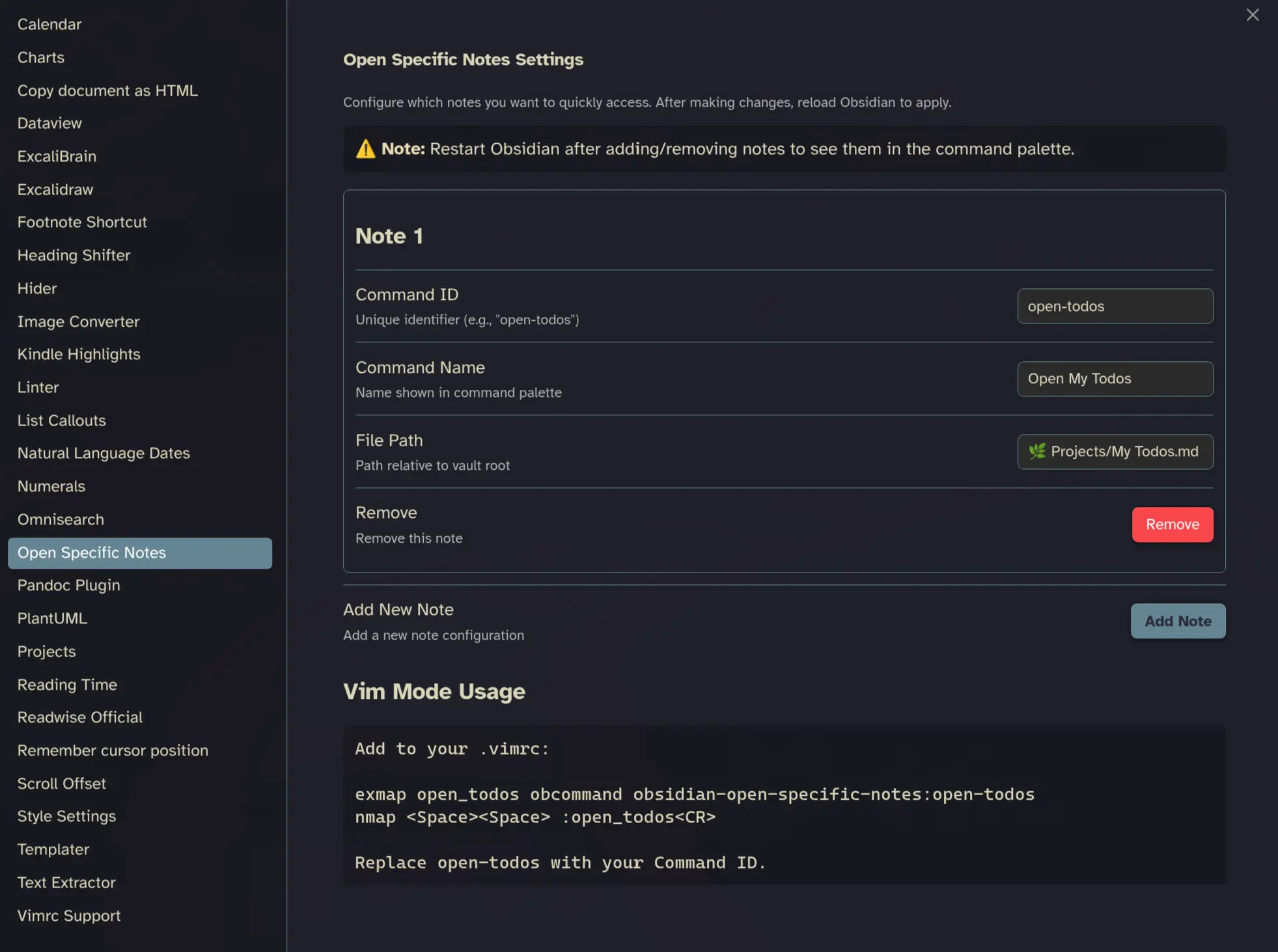
Configuration
- Go to Settings → Open Specific Notes
- Add your specific notes with:
- Command ID: Unique identifier (e.g.,
open-todos) - Command Name: Display name in command palette (e.g., "Open My Todos")
- File Path: Path to your note relative to vault root (e.g.,
🌿 Projects/My Todos.md)
- Command ID: Unique identifier (e.g.,
Installation
Manual Installation
- Download the latest release files (
main.js,manifest.json) - Create a folder
open-specific-notesin your vault's.obsidian/plugins/directory - Copy
main.jsandmanifest.jsoninto the folder - Restart Obsidian
- Go to Settings → Community plugins
- Make sure "Restricted mode" is OFF
- Enable "Open Specific Notes in Obsidian"
Example Configuration
Command ID: open-todos
Command Name: Open My Todos
File Path: Projects/My Todos.md
Usage
Via Command Palette
- Press
Ctrl/Cmd + Pto open command palette - Type "Open My Todos" (or your custom command name)
- Press Enter
Via Hotkey
- Go to Settings → Hotkeys
- Search for "Open My Todos" (or your command name)
- Set your preferred keyboard shortcut
Via Vim Mode (.vimrc)
Add to your .obsidian/.vimrc:
" Open My Todos with <Space><Space>
exmap open_todos obcommand open-specific-notes:open-todos
nmap <Space><Space> :open_todos<CR>
Note: The command format is open-specific-notes:<command-id> where <command-id> matches what you configured in settings. You can also check with opening Developer mode and press command :obcommand to show all commands in console log (only works if vim plugin is on).
Example Use Cases
- Todo List: Quick access with
<Space><Space> - Daily Journal: Open today's journal with
<Space>d - Project Notes: Jump to current project with
<Space>p - Meeting Notes: Access meeting template with
<Space>m
Building from Source
# Clone the repository
git clone https://github.com/sspaeti/obsidian-open-specific-notes.git
cd obsidian-open-specific-notes

# Copy to your vault's plugin folder
cp main.js manifest.json /path/to/vault/.obsidian/plugins/open-specific-notes/
Neovim
I do the same in Neovim, incase you use that too. Check out the confis and same settings that opens a floating window for my todos with <space><space> too - in case you want, see here:
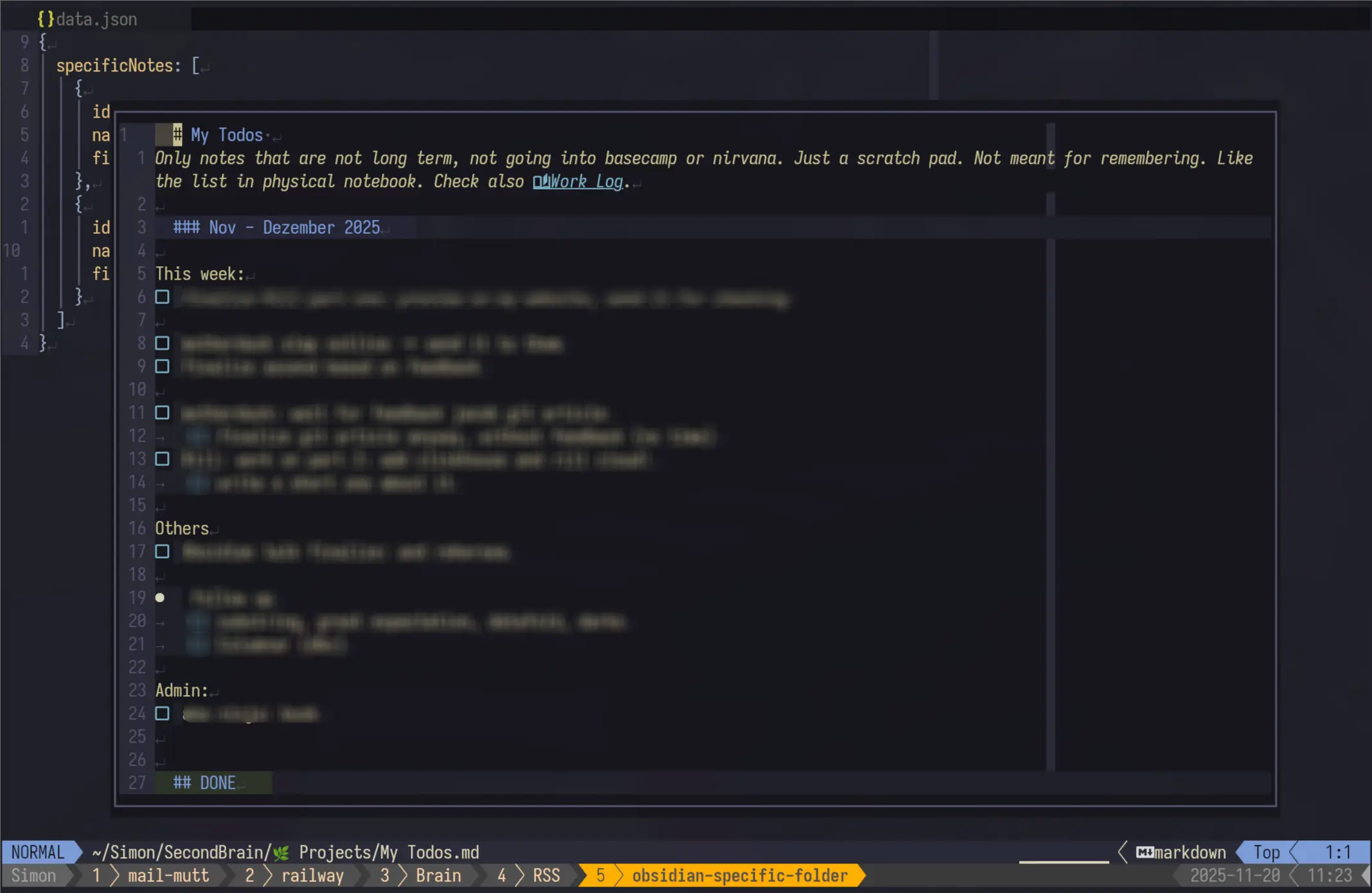
Find more info on my note at Obsidian Plugins.
Also check out my other Plugin: Obsidian Trouble Tags
For plugin developers
Search results and similarity scores are powered by semantic analysis of your plugin's README. If your plugin isn't appearing for searches you'd expect, try updating your README to clearly describe your plugin's purpose, features, and use cases.