Spacekeys
approvedby jlumpe
Define hotkeys based on sequences of keypresses.
Spacekeys
Spacekeys is a plugin for Obsidian that allows you to execute commands based on simple sequences of keypresses, inspired by the Spacemacs Emacs distribution. This allows for accessing most of Obsidian's functionality quickly through the keyboard without needing to assign and memorize dozens of complicated hotkey combinations.
It works by activating a single "leader" hotkey (user-assignable, for example Ctrl + M) followed by the key sequence for a specific command, e.g. i l for insert → link.
This has the following advantages over traditional hotkeys:
- Easier to remember: keys are assigned based on simple mnemonics.
- Easier to learn: activating the leader hotkey displays a menu with all available commands. Similar commands are organized under the same prefix keys, e.g. f for File, or w for Window/Workspace. These are visually displayed as submenus.
- Allows for assigning a large number of commands without things getting too confusing (most of Obsidian's builtin commands are not assigned a standard hotkey by default, but most are included in Spacekey's default keymap).
The keymap is customizable and can include any command that can be assigned a traditional hotkey, including those defined by other plugins.
Demo
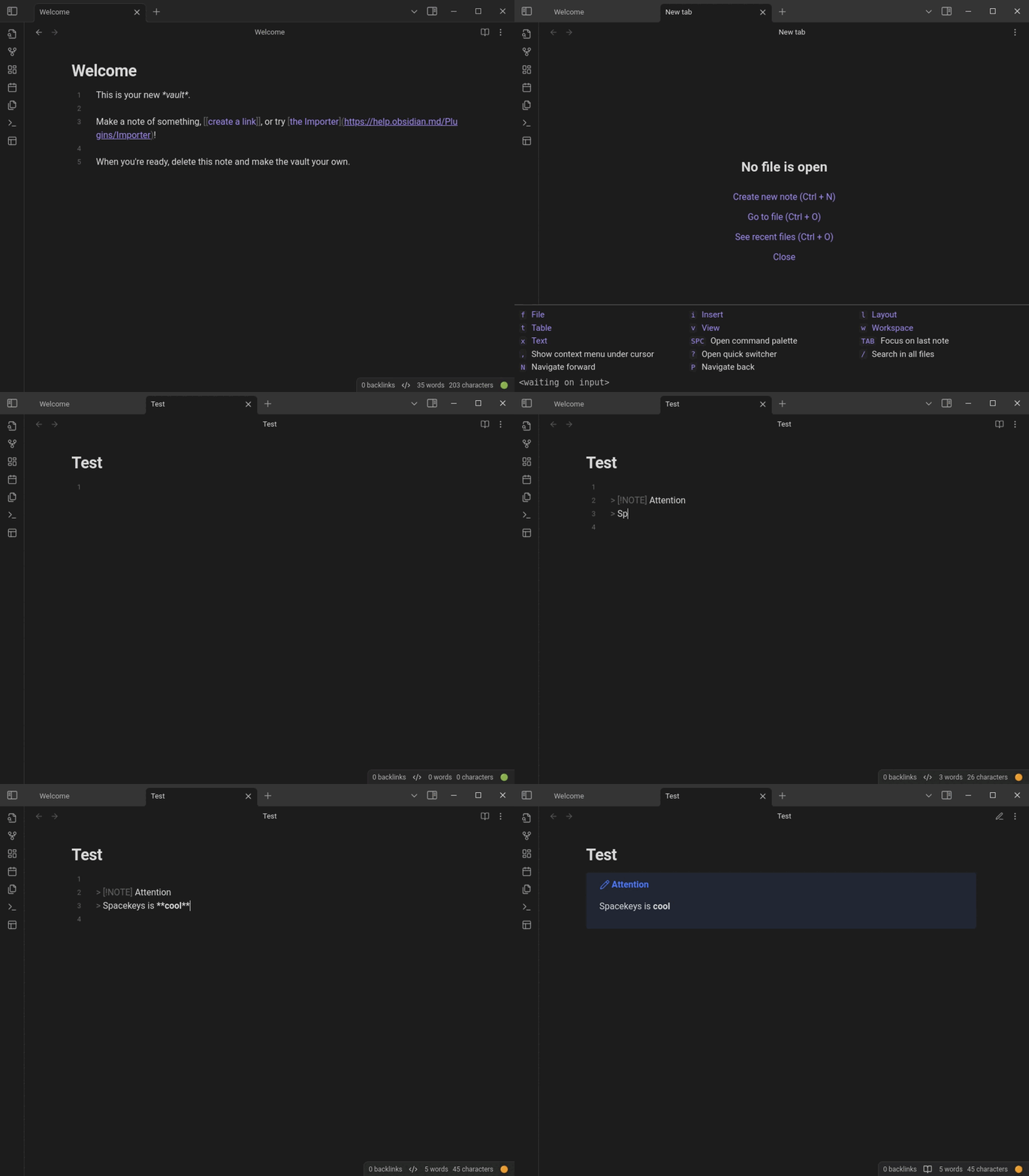
- w N: Workspace → New tab
- f n n: File → New → Create new note
- i C: Insert → Callout
- x b: Text → Toggle bold
- v r: View → Toggle reading view
Usage
All functionality is accessed through a single "leader" hotkey. This is a standard Obsidian hotkey that you will need to assign yourself (in accordance with Obsidian's plugin guidelines, Spacekeys does not define any hotkeys by default). Navigate to the "Hotkeys" section of Obsidian's settings and use the search function to find the Spacekeys: Leader command. A good choice is Ctrl + M (which is not bound by default).
After activating the leader hotkey you may immediately enter the key sequence for the desired command if you have it memorized. To aid in discovering commands, a pop-up menu is also displayed showing valid initial keys for all defined sequences. Items with a highlighted label represent groups of commands with a common prefix. The rest are single commands.
In the following screenshot, pressing Space will immediately execute the "Open command palette" command. Pressing t will update the menu to display the next possible key for all defined sequences starting with t (which are all table-related).
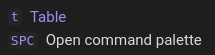
You can exit the menu by pressing Esc.
Activate on space
With this setting enabled, space will be used as the leader key in any setting where the user is not currently inserting text (Obsidian will not otherwise allow you to assign space as a standard hotkey). This is mostly intended for use along with Vim keybindings, and will trigger as long as the current Vim mode is not insert mode.
This is considered an experimental feature, and it is possible that it could interfere with some builtin Obsidian functions or with other plugins. To reduce the likelihood of this happening, you can change the setting from "Enabled" to "Markdown only." This will restrict activation to when a Markdown view is focused (in editing or reading mode).
The feature does not work in the following settings:
- Sidebars which bind the space key to another action: file browser and bookmarks (on left), outline and tags (on right).
- Canvas view (disabled to avoid confict with Space + Drag to pan).
- Web viewer (disabled to avoid general conflicts with text inputs and other UI elements).
Customizing the keymap
Source file
Custom keymaps can be defined in a YAML file in your Obsidian vault. Open Obsidian's settings and navigate to "Community Plugins" → "Spacekeys." In the "Spacekeys keymap file" section, set the "Path" field to the location of the config file relative to your vault's root directory (e.g., _config/spacekeys.yml). If the file does not yet exist, you can use the "Create file with default contents" button at the top of the settings menu to initialize the file from the default keymap. Then click the "Open file for editing" button (this will open an external editor program if it is a pure YAML file).
To facilitate editing within Obsidian, you may also use a Markdown file where the YAML is contained within a code block (enclosed by triple backicks). The "Create file with default contents" button will create a file formatted this way if the supplied path has the .md extension.
After creating/editing the file, use the "(Re)load keymap from file" button in the settings tab or the Spacekeys: Reload keymap command from the command palette. Alternatively, you may enable the "auto reload" setting to automatically reload the keymap file after editing. If your keymap file contains errors, explicitly reloading it using the command or the button in the settings menu will display a detailed error message (automatic reloading on startup or after editing the file will only display a short, unobtrusive notification).
Format
The following YAML defines a simple keymap:
# Root command group
items:

  # Command mapped to the single key combination "Ctrl+Enter"
  c-enter:
    command: global-search:open
    description: Search in all files

  # A group of commands with common prefix key "f"
  f:
    description: File
    items:

      # Command mapped to the key sequence "f d"
      # Description determined automatically from command
      d:
        command: app:delete-file

      # Command mapped to "f m"
      # This uses the short form
      m: file-explorer:move-file Move file
      # equivalent to long form:
      # m:
      #  command: file-explorer:move-file
      #  description: Move file

  # Open a specific note with the key sequence "w"
  w:
    file: Folder/My Note
It contains three types of objects:
Command groups contain an items property. The root YAML value is a command group, and additional groups can be used to combine related commands under a common prefix key. The sub-properties of items are key code strings (see next section), and their values are commands or more command groups. Command groups can be nested to any level. The description property is a string that is displayed in the suggestions menu (not required, but recommended).
Commands contain a command property that is the command ID to run (see below). They can also have description property, but if omitted Spacekeys will use the default description of the command. You can also use the short form, which is a single string consisting of the command ID optionally followed by a space and the description.
Files contain a file property that describes a file in your vault to open (case insensitive). If the name contains slashes it is interpreted as a path from the vault's root, otherwise all folders in the vault will be searched for a file with a matching name. To match a file in the vault's root directory, use a leading slash. File types other than Markdown are supported (.canvas, .base, etc). The extension is optional for Markdown files, required otherwise. A description property is also supported.
Key codes
Valid key presses are more or less the same as those that can be assigned as regular hotkeys, and consist of a base key plus modifier keys. You can run the Spacekeys: Get Key Code command from the command palette to generate key code strings from key presses and copy them to the clipboard.
- Modifier keys are denoted by single letters:
control,shift,alt, ormeta (windows key or command key on Mac). Where present, these are at the beginning of the key code and followed by a dash. - For base keys which correspond to a printable character that changes depending on whether the shift key is held, omit the
smodifier code and instead use the "shifted" character (e.g.?instead ofs-/). This is a limitation of how key events are reported in Javascript. - Codes for non-printable keys are mostly straightforward, e.g
space,enter,tab,backspace,pageup,left.
Examples:
| Key Code | Modifiers | Base Key |
|---|---|---|
t | T | |
T | Shift | T |
c-/ | Ctrl | / |
c-? | Ctrl Shift | / |
sa-enter | Shift Alt | Enter |
Some key characters may conflict with YAML syntax. This can be avoided by enclosing the key string in single or double quotes before the colon. For example, '"': <command or group> corresponds to Shift + '.
Finding command IDs
The Spacekeys: Find Command ID command displays a pop up that allows you to search for commands by name or description. Invoke it either through the command palette or by assigning it a hotkey. Making a selection with Enter will copy the command ID to the clipboard. Alternatively, you can press Ctrl + Enter to insert the ID in the currently open editor tab (useful if you are editing your keymap file in markdown format).
Extending vs replacing the default keymap
In the plugin settings tab, enable the "Spacekeys keymap file: Extend default" toggle to have your custom keymap extend the default keymap instead of replacing it. This can make things simpler if you only want to make a few changes.
- Commands or groups in the file will replace default commands or groups with the same key sequence.
- The exception is that groups will be merged. Use
clear: truein a group to omit the contents of the corresponding default group. - Using the value
nullremoves the corresponding default command or group instead of replacing it.
Additional customization
Vim mode leader key
(Note: the experimental "activate on space" setting can be enabled to achieve this behavior without needing to install an additional plugin).
Those using Vim keybindings may want to use a different/additional keybinding depending on the
current Vim mode. This can be done with the help of the
obsidian-vimrc-support
plugin. Add the following lines to your .vimrc file to bind the action to the space key in
normal and visual/select mode:
" Spacekeys leader
exmap spacekeysleader obcommand spacekeys:leader
nmap <Space> :spacekeysleader<CR>
vmap <Space> :spacekeysleader<CR>
Customizing CSS
The following variables can be customized through CSS snippets:
| Name | Type | Default | Description |
|---|---|---|---|
--spacekeys-suggestions-column-width | Length | 250px | Maximum width of suggestions column. |
--spacekeys-suggestions-max-height | Length | 40% | Maximum height of suggestions area. |
--spacekeys-suggestion-group-color | Color | var(--text-accent) | Text color of groups in suggestions area. |
--spacekeys-suggestion-command-color | Color | var(--text-normal) | Text color of commands in suggestions area. |
--spacekeys-suggestion-file-color | Color | var(--text-normal) | Text color of files in suggestions area. |
Roadmap
- Add shortcuts to open specific files.
- Better default/example keymap.
- Use a different modal interface, more similar to Spacemacs.
- Bottom of screen, full width with more compact layout (multiple columns).
- Short delay until displaying modal. Display current key sequence in status bar.
- Alternate context-sensitive keymaps (e.g. when file browser side bar is active).
- Activate on space without needing vimrc plugin.
Similar plugins
| Plugin | Downloads | Last updated |
|---|---|---|
| Leader Hotkeys | 11,600 | 2y |
| Sequence Hotkeys | 6,200 | 1y |
| Key Sequence Shortcut | 4,600 | 3y |
| Chorded hotkeys | 4,400 | 1y |
| Hotkeys Chords | 4,000 | 3y |
For plugin developers
Search results and similarity scores are powered by semantic analysis of your plugin's README. If your plugin isn't appearing for searches you'd expect, try updating your README to clearly describe your plugin's purpose, features, and use cases.